
TECLAST T65
TECLAST T65 13-inch Android 16 Tablet User Manual
Model: T65
1. Introduction
Thank you for choosing the TECLAST T65 13-inch Android 16 Tablet. This manual provides essential information for setting up, operating, and maintaining your device. Please read it carefully to ensure optimal performance and longevity of your tablet.
2. Package Contents
Verify that all items listed below are included in your package:
- TECLAST T65 Tablet
- Power Adapter
- Data Cable
- SIM Ejector Tool
- Touch Pen
- User Manual (this document)
- Maintenance Card

Figure 2.1: TECLAST T65 Package Contents
3. Product Overview
The TECLAST T65 is a high-performance tablet designed for various uses, from learning and work to entertainment. It features a large display, powerful processor, and the latest Android operating system.
3.1 Device Layout
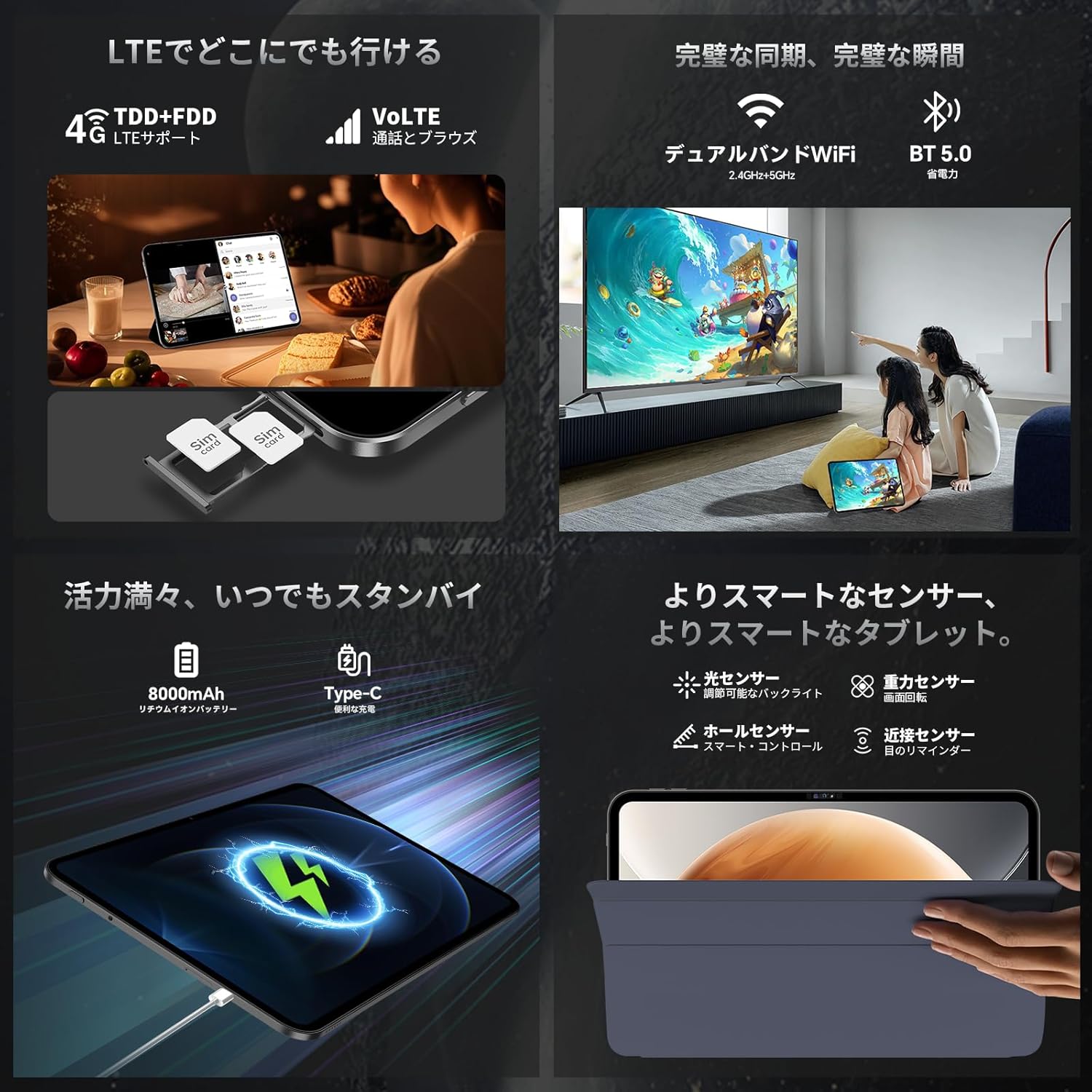
Figure 3.1: TECLAST T65 Side View with Ports and Buttons
- Power Button: Used to power on/off the device or wake/sleep the screen.
- Volume Buttons: Adjust the device's volume.
- 3.5mm Headphone Jack: Connect wired headphones.
- Type-C Port: For charging and data transfer.
- SIM/MicroSD Card Slot: Insert SIM cards for mobile data/calls and a MicroSD card for expandable storage.
- Speakers: Provide audio output.
- Front Camera: For video calls and selfies.
- Rear Camera with LED Flash: For taking photos and videos.
3.2 Key Features
- 13.3-inch TDDI Display: A large 1920x1200 high-resolution screen with a 120Hz refresh rate for smooth visuals and responsive touch.
- Android 16 OS: Experience the latest Android system with enhanced UI, security, and smart features.
- UNISOC T7280 Processor: An Octa-Core CPU (up to 2.2GHz) for efficient multitasking and smooth performance.
- 26GB RAM + 128GB ROM: Ample memory (6GB LPDDR4X + 20GB virtual RAM) and storage, expandable up to 2TB via TF card.
- 8000mAh Battery: Long-lasting battery life for extended use.
- 4G LTE & Dual-band WiFi: Reliable and fast connectivity for mobile and wireless networks.
- Dual Cameras: 13MP rear camera and 5MP front camera for capturing moments.
- Widevine L1 Support: Enjoy high-definition streaming content from platforms like Netflix and YouTube.
4. Setup
4.1 Initial Power On/Off
- Power On: Press and hold the Power button until the TECLAST logo appears.
- Power Off: Press and hold the Power button, then select "Power off" from the options.
- Sleep/Wake: Briefly press the Power button to put the tablet to sleep or wake it up.
4.2 Charging the Tablet
Before first use, fully charge your tablet. Use the provided power adapter and Type-C cable.
- Connect the Type-C cable to the tablet's Type-C port.
- Connect the other end of the cable to the power adapter.
- Plug the power adapter into a wall outlet.
The battery icon on the screen will indicate charging status. A full charge may take several hours.

Figure 4.1: Charging the TECLAST T65
4.3 SIM Card and MicroSD Card Installation
To use mobile data or expand storage, install a SIM card or MicroSD card:
- Locate the SIM/MicroSD card slot on the side of the tablet.
- Insert the SIM ejector tool into the small hole next to the tray to open it.
- Place the SIM card(s) and/or MicroSD card into the tray with the gold contacts facing down, ensuring correct orientation.
- Gently push the tray back into the slot until it clicks into place.

Figure 4.2: SIM Card Installation
4.4 Network Connection
- Wi-Fi: Go to Settings > Network & internet > Wi-Fi, turn on Wi-Fi, and select your desired network. Enter the password if required.
- Mobile Data (4G LTE): Ensure a SIM card is installed. Go to Settings > Network & internet > Mobile network and enable mobile data.
- Bluetooth: Go to Settings > Connected devices > Bluetooth, turn on Bluetooth, and pair with desired devices.
5. Operating Instructions
5.1 Basic Navigation
- Touch Gestures: The TDDI touch screen supports various gestures for intuitive control.
- Quick Sidebar: Swipe from either edge of the screen to open the Quick Sidebar for fast app switching and access to mini-windows.
- Assistive Control: Tap the virtual button to access system controls quickly.

Figure 5.1: Quick Sidebar and Assistive Control
5.2 Display Settings
The 13.3-inch display offers a 120Hz refresh rate for a smooth visual experience.

Figure 5.2: TECLAST T65 Display Features
- Refresh Rate: The 120Hz AdaptiveSync display automatically adjusts the refresh rate to optimize power consumption while providing smooth scrolling and transitions.
- Resolution: Enjoy crisp visuals with the 1920x1200 high-resolution screen.
5.3 Camera Usage
The tablet is equipped with a 13MP rear camera and a 5MP front camera.

Figure 5.3: TECLAST T65 Camera Features
- Open the Camera app from the home screen.
- Switch between front and rear cameras using the camera icon.
- Tap the shutter button to take photos or start/stop video recording.
5.4 Audio Settings (AI Hyper-Audio)
The TECLAST T65 features dual SWEET 4 speakers and Smart K audio for an immersive sound experience.
Video 5.1: TECLAST T65 Android 16 Tablet 120Hz Screen Refresh Rate. This video demonstrates the smooth display and overall performance of the tablet.
- Access AI Hyper-Audio settings through the Special Features menu.
- Choose between Game Mode, Movie Mode, and Music Mode to optimize audio output for different content types.
5.5 Smart Button Customization
The Smart Button can be customized to quickly launch apps or system functions.
- Go to Settings > Special Features > Smart Button.
- Configure single tap, double tap, or long press actions to launch specific applications or system functions like screenshot or rotation lock.
5.6 Intelligent Screen Capture
Capture screenshots easily using gestures.
- Three-finger swipe: Swipe down with three fingers to take a full-screen screenshot.
- Regional Screenshot: Long press the screen with three fingers to select a specific area for a screenshot.
5.7 Gemini AI
The tablet integrates Gemini AI for enhanced smart assistance.
- Launch Gemini from its icon on the home screen or by long-pressing the home key.
- Sign in with your Google account to access Gemini's full features.
6. Maintenance
- Battery Care: To prolong battery life, avoid extreme temperatures and do not let the battery completely drain frequently.
- Cleaning: Use a soft, lint-free cloth to clean the screen and body. Avoid harsh chemicals.
- Software Updates: Regularly check for and install system updates to ensure optimal performance and security. Go to Settings > System > System update.
- Storage Management: Periodically clear unnecessary files and apps to free up storage space and maintain performance.
7. Troubleshooting
- Tablet not turning on: Ensure the battery is charged. Connect the charger and try again.
- Screen unresponsive: Restart the tablet by holding the power button for about 10 seconds.
- Apps crashing: Clear the cache of the problematic app (Settings > Apps > [App Name] > Storage & cache > Clear cache) or reinstall the app.
- Poor Wi-Fi connection: Ensure you are within range of the Wi-Fi router. Restart the router and the tablet.
- Slow performance: Close unnecessary background apps, clear cache, or consider a factory reset if issues persist (back up your data first).
8. Specifications
| Feature | Specification |
|---|---|
| Brand | TECLAST |
| Model Name | T65 |
| Operating System | Android 16 |
| Screen Size | 13.3 inches |
| Display Resolution | 1920x1200 pixels |
| CPU Brand | Unisoc (T7280) |
| CPU Speed | 2.2 GHz |
| GPU Brand | Arm Mali-G57 MP1@850MHz |
| Memory Storage Capacity | 128 GB (expandable up to 2TB via TF card) |
| RAM | 26GB (6GB LPDDR4X + 20GB Virtual Memory) |
| Wireless Type | 802.11ac, 802.11b, 802.11g, 802.11n (Dual-band WiFi) |
| Communication Format | 4G LTE |
| Rear Camera Resolution | 13 MP |
| Front Camera Resolution | 5 MP |
| Battery | 8000mAh Lithium Ion |
| Item Weight | 550 g |
| Dimensions | 35.1 x 23.5 x 6.6 cm |
9. Warranty and Support
Your TECLAST T65 tablet comes with a 12-month manufacturer's warranty.
If you have any questions or encounter issues, please contact TECLAST support:
- Before ordering: Click on the store name [TECLAST JP] below the "Add to Cart" button on the product page, then click "Ask a question" in the upper right corner to contact us via email.
- After ordering: Go to your Amazon account > Order history > Select the relevant order > Contact seller.
Support is available Monday-Friday, 10:00-19:00 JST. Inquiries received after 19:00 JST or on holidays will be answered on the next business day.
We offer a one-year free exchange for eligible issues.
Related documentsT65


Ask a question about this manual
Ask about setup, troubleshooting, compatibility, parts, safety, or missing instructions. Manuals+ will review the question and use this page’s manual context to help answer it.