
1. Introduction and Overview
This manual provides essential information for setting up, operating, maintaining, and troubleshooting your ASUS 2025 All-in-One Desktop. This device integrates a computer and monitor into a single unit, offering a streamlined computing experience.
Key features include:
- 12th Gen Intel Core i5-1235U Processor: Delivers efficient performance for multitasking and daily computing tasks.
- 23.8-inch Full HD Touchscreen: Provides a clear, interactive display with 1920x1080 resolution and IPS technology for wide viewing angles.
- 8GB DDR4 RAM & 512GB PCIe SSD: Ensures quick system responsiveness and ample storage for files and applications.
- Integrated Intel UHD Graphics: Supports visual tasks and casual multimedia.
- Wi-Fi 6 and Bluetooth 5.1: Offers high-speed wireless connectivity.
- 720p HD Camera: Equipped with dual array digital microphones for video conferencing.
- Windows 11 Home: Pre-installed operating system.
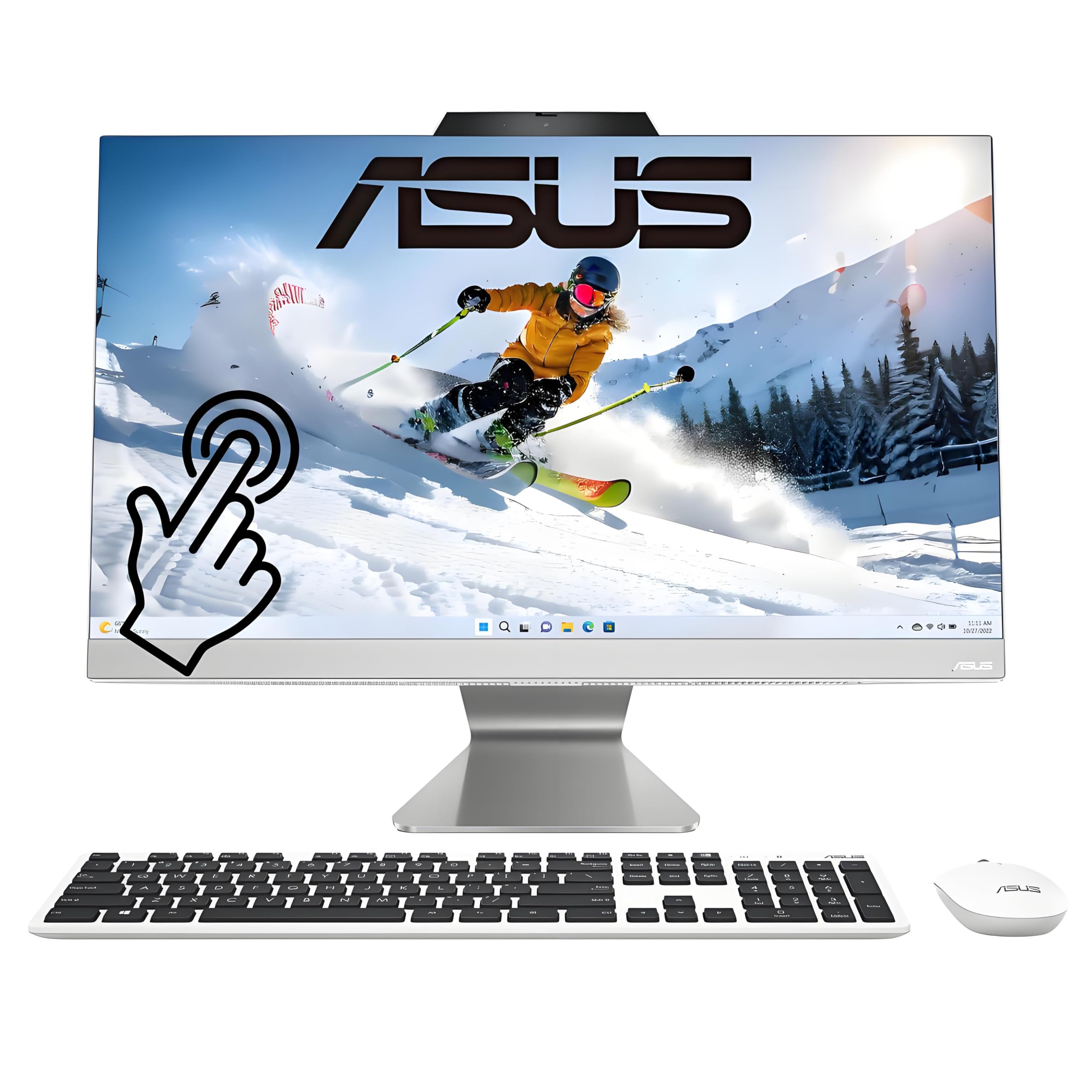
Image 1.1: ASUS All-in-One Desktop with included wired keyboard and mouse.
2. Setup Instructions
Follow these steps to set up your ASUS All-in-One Desktop.
2.1 Unpacking
- Carefully remove the desktop from its packaging.
- Ensure all components are present: ASUS All-in-One Desktop, wired keyboard, wired mouse, and power adapter.
2.2 Connecting Peripherals
- Connect the wired keyboard to an available USB port on the back of the desktop.
- Connect the wired mouse to another available USB port.
- Connect the power adapter to the DC-in port on the desktop, then plug the power cable into a wall outlet.
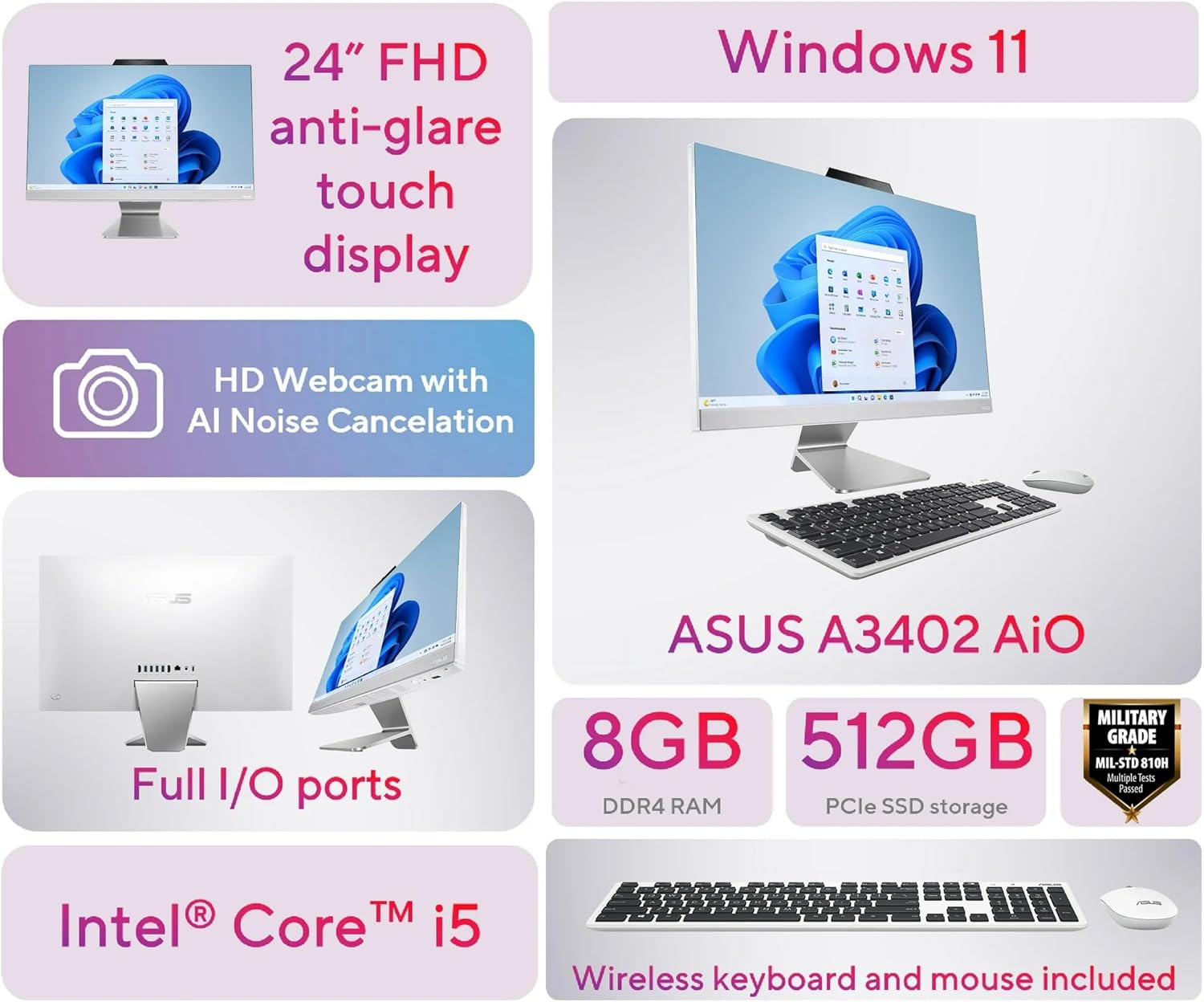
Image 2.1: Rear view of the ASUS All-in-One Desktop, showing various ports for connectivity.
2.3 Initial Power-On and Windows Setup
- Press the power button, usually located on the bottom right side of the display.
- The system will boot up and guide you through the Windows 11 Home initial setup process. Follow the on-screen prompts to configure language, region, network, and user accounts.
3. Operating Instructions
This section covers basic operation of your ASUS All-in-One Desktop.
3.1 Using the Touchscreen
The 23.8-inch Full HD display is a touchscreen. You can interact with Windows 11 directly using touch gestures. Common gestures include tapping to select, swiping to scroll, and pinch-to-zoom.

Image 3.1: The narrow-bezel NanoEdge display provides an immersive viewing experience.
3.2 Connecting to a Network
Your desktop supports both Wi-Fi 6 and wired Ethernet connections.
- Wi-Fi: During initial setup, you will be prompted to connect to a Wi-Fi network. To connect later, click the Wi-Fi icon in the taskbar, select your network, and enter the password.
- Ethernet: Connect an Ethernet cable from your router or modem to the RJ-45 Ethernet port on the back of the desktop. The system will automatically detect the wired connection.

Image 3.2: Wi-Fi 6 offers faster speeds, increased network capacity, and lower latency compared to previous Wi-Fi standards.
3.3 Using Ports and Connectors
The desktop features various ports for connecting external devices:
- USB Ports: For connecting USB devices like external drives, printers, or other peripherals.
- HDMI Out: Connect an external monitor or TV for a dual-display setup.
- Headphone / Microphone Combo Jack: For connecting headphones or a headset.
- RJ-45 Ethernet Port: For wired network connection.

Image 3.3: Detailed view of the various input/output ports available on the ASUS All-in-One Desktop.
3.4 Using the Integrated Webcam
The 720p HD camera with dual array digital microphones is suitable for video calls and online meetings.
- Open any video conferencing application (e.g., Microsoft Teams, Zoom, Skype).
- Ensure the camera and microphone are enabled in the application settings and Windows privacy settings.

Image 3.4: A user engaging in a video conference using the integrated webcam and microphone.
4. Maintenance
Proper maintenance ensures the longevity and optimal performance of your desktop.
4.1 Cleaning
- Screen: Use a soft, lint-free cloth specifically designed for electronics. For stubborn smudges, lightly dampen the cloth with water or a screen cleaner solution. Do not spray liquid directly onto the screen.
- Chassis: Wipe the exterior surfaces with a soft, dry cloth. Avoid abrasive cleaners.
- Vents: Periodically use compressed air to clear dust from the ventilation openings to prevent overheating.
4.2 Software Updates
Regularly update your operating system and drivers to ensure security and performance.
- Windows Updates: Go to Settings > Windows Update and check for available updates.
- Driver Updates: Visit the official ASUS support website for your model to download the latest drivers.
4.3 Storage Management
To maintain optimal performance, manage your 512GB SSD storage:
- Regularly delete unnecessary files and applications.
- Utilize cloud storage or external drives for large files.
- Windows includes a Disk Cleanup utility to remove temporary files.
5. Troubleshooting
This section addresses common issues you might encounter.
5.1 No Power
- Ensure the power cable is securely connected to both the desktop and a working wall outlet.
- Verify the power adapter is functioning correctly.
- Try a different power outlet.
5.2 Display Issues
- If the screen is blank, ensure the desktop is powered on.
- Adjust display brightness using the function keys on the keyboard or through Windows settings.
- If an external monitor is connected, ensure the correct input source is selected on the monitor.
5.3 Network Connectivity Problems
- Wi-Fi: Check if Wi-Fi is enabled in Windows settings. Restart your router/modem. Ensure you have the correct Wi-Fi password.
- Ethernet: Verify the Ethernet cable is properly connected. Check your router/modem status.
- Run the Windows Network Troubleshooter (Settings > Network & internet > Advanced network settings > Network troubleshooter).
5.4 Slow Performance
- Close unnecessary applications running in the background.
- Check for and install any pending Windows updates.
- Ensure your SSD has sufficient free space (refer to Storage Management).
- Scan for malware or viruses.
6. Specifications
Detailed technical specifications for the ASUS 2025 All-in-One Desktop (Model AIO 1235U).
| Component | Specification |
|---|---|
| Brand | ASUS |
| Model Name | AIO |
| Operating System | Windows 11 Home |
| Processor | Intel Core i5-1235U (10 Cores, 12 Threads, up to 4.4 GHz) |
| Graphics | Integrated Intel UHD Graphics |
| RAM | 8GB DDR4 (Upgradeable to 32GB) |
| Storage | 512GB PCIe NVMe SSD |
| Display | 23.8-inch FHD (1920 x 1080) IPS Touchscreen, Anti-Glare |
| Connectivity | Wi-Fi 6 (802.11ax), Bluetooth 5.1, Ethernet |
| Ports | 2x SuperSpeed USB Type-A, 2x USB 2.0 Type-A, 2x HDMI Out, 1x Headphone/Mic Combo, 1x RJ-45 |
| Webcam | Integrated 720p HD camera with dual array digital microphones |
| Dimensions (Approx.) | 21.3 x 17.1 x 7.3 inches |
| Weight (Approx.) | 13.8 lbs |
| Color | White |
7. Warranty and Support
7.1 Warranty Information
Your ASUS All-in-One Desktop comes with a 1 Year Manufacturer Warranty. Please retain your proof of purchase for warranty claims. For detailed terms and conditions, refer to the warranty card included with your product or visit the official ASUS support website.
7.2 Technical Support
For technical assistance, driver downloads, or further troubleshooting, please visit the official ASUS support website:
You may also find contact information for customer service in your region on the support website.