
1. Introduction
Thank you for choosing the ProCaster 55ST901H 55" 4K Android LED TV. This manual provides essential information for setting up, operating, and maintaining your television. Please read it thoroughly before using the product and keep it for future reference.
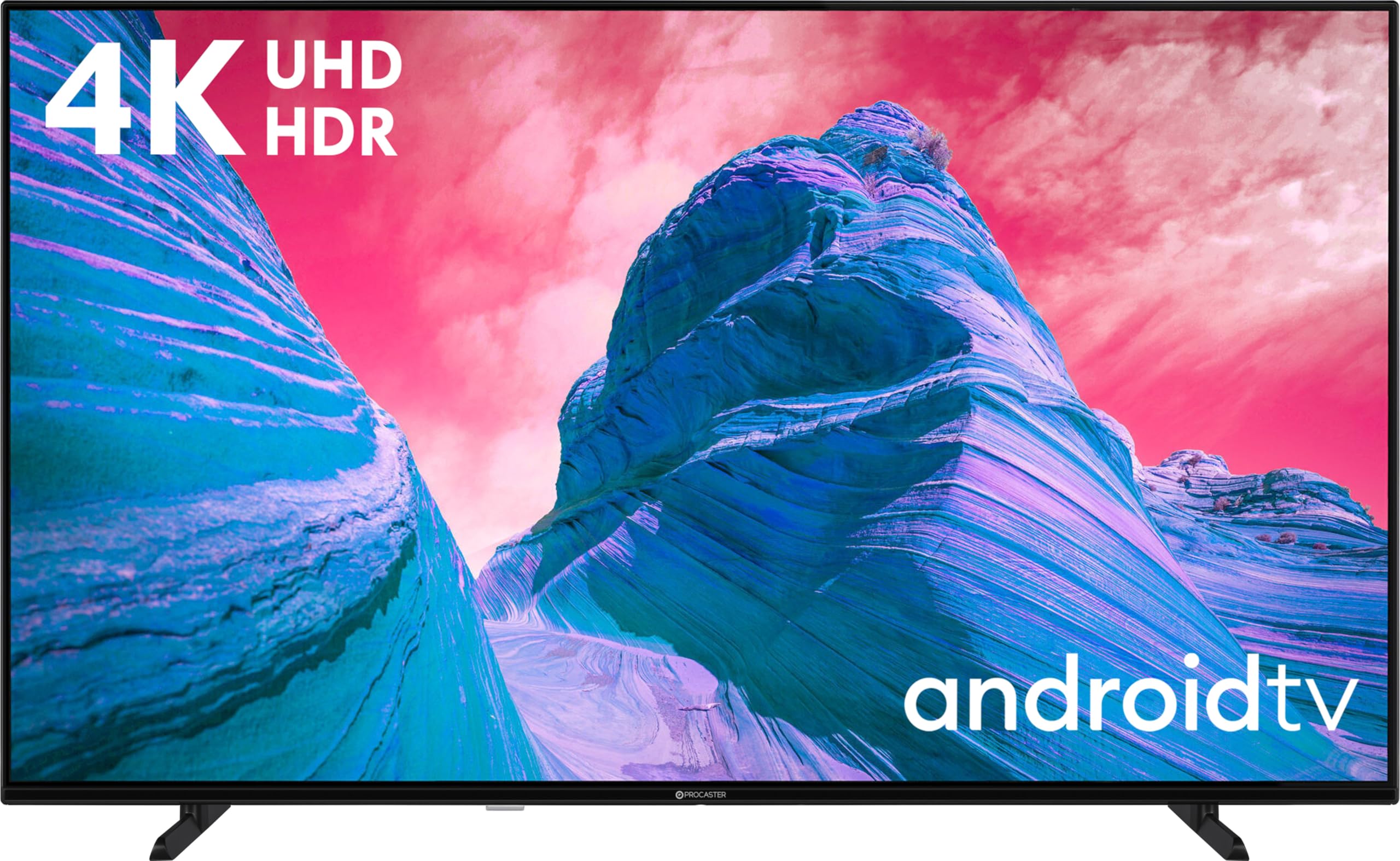
Figure 1.1: The ProCaster 55ST901H 55" 4K Android LED TV, featuring a frameless slim design.
2. Safety Information
To ensure safe operation and prevent damage, observe the following safety precautions:
- Do not expose the TV to rain or moisture.
- Do not block ventilation openings.
- Ensure proper grounding for the power cord.
- Avoid placing the TV on unstable surfaces.
- Unplug the TV during lightning storms or when unused for long periods.
- Refer all servicing to qualified service personnel.
3. Package Contents
Verify that all items are present in the box:
- ProCaster 55ST901H 55" 4K Android LED TV
- Remote Control with Voice Search function
- Power Cord
- TV Stand (2 pieces)
- Screws for Stand Attachment
- User Manual (this document)
- Quick Start Guide
4. Setup
4.1 Attaching the Stand
- Place the TV face-down on a soft, clean surface to prevent screen damage.
- Align each stand piece with the corresponding slots on the bottom of the TV.
- Secure the stands using the provided screws. Ensure they are tightened firmly.

Figure 4.1: Illustration of stand attachment points on the TV's underside.
4.2 Wall Mounting (Optional)
If you choose to wall mount your TV, remove the stand first. Use a VESA-compatible wall mount kit (not included) appropriate for a 55-inch television. Follow the instructions provided with your wall mount kit. Consult a professional for installation if unsure.
4.3 Connecting Peripherals
Connect external devices to the TV's rear ports. Refer to the diagram below for port locations.
- HDMI: Connect Blu-ray players, game consoles, or set-top boxes. The TV supports multiple HDMI inputs.
- USB: Connect USB storage devices for media playback. The TV has 1 USB 3.0 port.
- Antenna/Cable: Connect an antenna or cable TV signal.
- Ethernet (LAN): For a wired internet connection. Alternatively, use Wi-Fi.

Figure 4.2: Overview of the TV's rear connection ports.
4.4 Initial Power On and Setup Wizard
- Plug the power cord into an electrical outlet.
- Press the Power button on the remote control or on the TV.
- Follow the on-screen instructions to complete the initial setup, including language selection, network connection (Wi-Fi or Ethernet), and Google account login for Android TV features.
5. Operating
5.1 Remote Control Overview
The included remote control allows full access to your TV's functions. It features dedicated buttons for popular streaming services and a built-in microphone for voice search.

Figure 5.1: The ProCaster TV remote control. Note the microphone button for voice commands.
- Power Button: Turns the TV on or off.
- Volume +/-: Adjusts the sound level.
- Channel +/-: Changes TV channels.
- Home Button: Accesses the Android TV home screen.
- Input Button: Selects input sources (HDMI, USB, TV).
- Microphone Button: Activates voice search.
5.2 Android TV Interface
The Android TV home screen provides access to installed apps, recommended content, and settings. Navigate using the directional pad on your remote.
- Apps: Launch pre-installed apps like YouTube, Netflix, and Google TV, or download new ones from the Google Play Store.
- Google Cast: Wirelessly stream content from compatible devices to your TV.
- Voice Search: Press the microphone button on your remote and speak commands or search queries.
5.3 Picture and Sound Settings
Access the settings menu to customize picture and sound. The TV supports Dolby Vision for enhanced picture quality and Dolby Atmos for immersive multi-channel sound.
- Picture Modes: Select from various presets (e.g., Standard, Vivid, Movie) or customize brightness, contrast, color, and sharpness.
- Sound Modes: Choose audio presets (e.g., Standard, Music, Movie) or adjust equalizer settings.
- Dolby Vision/Atmos: These features are automatically enabled when compatible content is played.
6. Maintenance
6.1 Cleaning the TV
- Always unplug the TV before cleaning.
- Use a soft, dry, lint-free cloth to wipe the screen and cabinet.
- For stubborn marks on the screen, lightly dampen the cloth with water or a specialized screen cleaner. Never spray cleaner directly onto the screen.
- Avoid abrasive cleaners or solvents.
6.2 Software Updates
Your Android TV may receive software updates periodically. Ensure your TV is connected to the internet to receive these updates, which can improve performance and add new features. You can check for updates manually in the settings menu.
7. Troubleshooting
| Problem | Possible Cause | Solution |
|---|---|---|
| No power | Power cord not connected; outlet not working. | Check power cord connection; test outlet with another device. |
| No picture, but sound is present | Incorrect input source selected; faulty HDMI cable. | Press the Input button on the remote to cycle through sources; try a different HDMI cable. |
| No sound, but picture is present | Volume muted or too low; external audio system issues. | Increase volume; check mute status; verify external audio connections. |
| Remote control not working | Dead batteries; obstruction between remote and TV. | Replace batteries; remove obstructions; ensure remote is pointed at the TV. |
| Cannot connect to Wi-Fi | Incorrect password; router issues; TV too far from router. | Verify Wi-Fi password; restart router; move TV closer or use wired connection. |
If the problem persists after trying these solutions, contact customer support.
8. Specifications
| Feature | Detail |
|---|---|
| Model Name | 55ST901H |
| Brand | ProCaster |
| Screen Size | 55 inches |
| Display Technology | LED |
| Resolution | 4K (3840 x 2160) |
| Refresh Rate | 60 Hz |
| Operating System | Android TV 11 |
| Special Features | Dolby Vision, Dolby Atmos, Google Cast, Voice Search |
| Connectivity | Wi-Fi, Bluetooth, HDMI, USB (1x USB 3.0) |
| Supported Internet Services | Google TV, YouTube, Netflix |
| Aspect Ratio | 16:9 |
| Audio System | Multi-channel speaker system with Dolby Atmos support (5.1 surround sound configuration) |
| Video Encoding | HEVC |
| Model Year | 2021 |
9. Warranty and Support
This ProCaster TV comes with a Limited Warranty. Please refer to the warranty card included in your package for specific terms and conditions, including coverage duration and limitations.
For technical support, troubleshooting assistance beyond this manual, or warranty claims, please contact ProCaster customer service. Contact details can typically be found on the manufacturer's official website or on the warranty card.

