
1. Introduction
This manual provides essential information for the safe and efficient use of your ProCaster 50SL901H 50-inch 4K Android LED TV. Please read these instructions thoroughly before operating the device and retain them for future reference. This television features a 4K UHD display, Android TV 11 operating system, and integrated smart functionalities including Bluetooth and voice search.
2. Setup
2.1 Unpacking
Carefully remove the television from its packaging. Ensure all accessories, including the remote control, power cable, and stand components, are present. Retain the packaging for potential future transport or service.
2.2 Stand Installation or Wall Mounting
Stand Installation: Place the TV screen face down on a soft, clean surface. Attach the stand components to the designated slots on the bottom of the TV using the provided screws. Ensure the stand is securely fastened before placing the TV upright.
Wall Mounting: This TV supports VESA standard mounting (400x400 mm). Wall mount brackets are sold separately. For safety, it is recommended to have the TV wall-mounted by a qualified professional. Refer to the wall mount bracket's instructions for proper installation.
2.3 Connecting Cables
- Power Cable: Connect the power cable to the TV's power input and then to a wall outlet.
- HDMI Devices: Connect external devices such as a set-top box, Blu-ray player, or game console to the HDMI ports. This TV has 1 HDMI port.
- Antenna/Cable: Connect an antenna or cable TV signal to the RF input.
- USB Devices: Connect USB storage devices to the USB ports for media playback. This TV has 1 USB port.
2.4 First-Time Setup
After connecting all necessary cables, plug in the power cable and press the power button on the remote control or TV. The TV will guide you through the initial setup process, which typically includes:
- Language selection.
- Connecting to a Wi-Fi network.
- Signing in with a Google account (optional, but recommended for full Android TV features).
- Scanning for available TV channels.
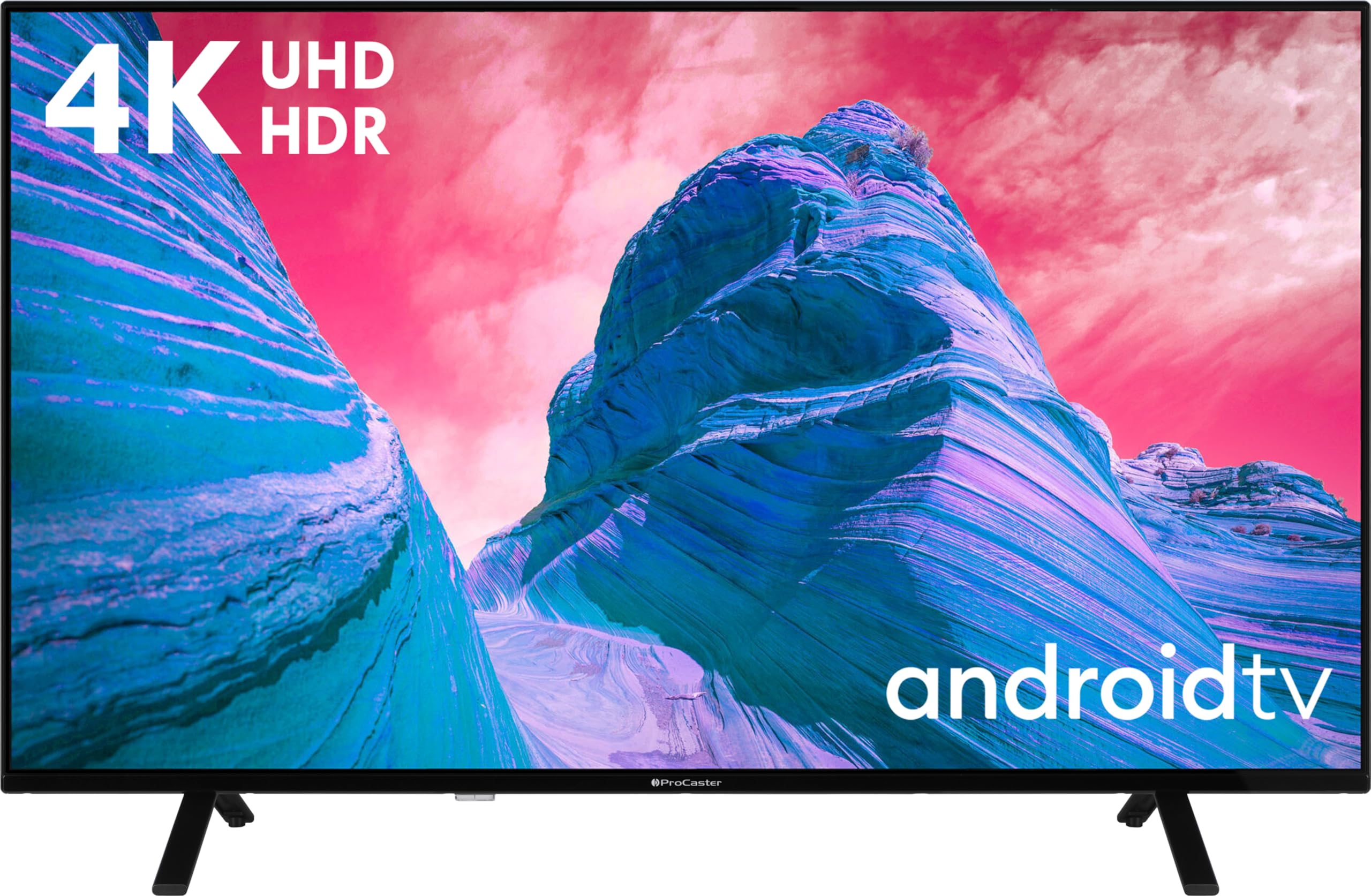
Image: ProCaster 50SL901H 50-inch 4K Android LED TV with stand.
3. Operating
3.1 Remote Control Overview
The remote control allows you to navigate the TV's functions. Key buttons typically include Power, Volume Up/Down, Channel Up/Down, Navigation (directional arrows and OK), Home, Back, Input Source, and dedicated buttons for streaming services.
3.2 Android TV Interface
The Android TV home screen provides access to installed apps, live TV, and recommended content. Use the directional buttons on your remote to navigate through menus and select items. Press the Home button to return to the main screen at any time.
3.3 Smart Features
- Internet Services: Access popular streaming applications such as YouTube, Netflix, and Amazon Prime Video directly from the home screen. Ensure your TV is connected to the internet.
- Voice Search: Utilize Google Assistant or Alexa for voice commands. Press the dedicated voice search button on your remote and speak into the microphone to search for content, control smart home devices, or get information.
- Bluetooth Connectivity: Connect Bluetooth-enabled devices like headphones, soundbars, or game controllers to your TV. Navigate to the settings menu to pair new devices.
3.4 Input Selection
To switch between different input sources (e.g., HDMI 1, TV, USB), press the 'Input' or 'Source' button on your remote control and select the desired input from the on-screen menu.
3.5 Picture and Sound Settings
Access the settings menu to adjust picture modes (e.g., Standard, Vivid, Movie), brightness, contrast, color, and sound modes (e.g., Standard, Music, Movie). You can also configure advanced audio settings like virtual surround sound (5.1 channel virtual surround sound is supported).
4. Maintenance
4.1 Cleaning the TV
- Screen: Gently wipe the screen with a soft, lint-free cloth. For stubborn marks, slightly dampen the cloth with water or a specialized screen cleaner. Avoid harsh chemicals or abrasive materials.
- Cabinet: Wipe the TV cabinet with a soft, dry cloth. Do not use liquid cleaners directly on the TV.
Always unplug the TV from the power outlet before cleaning.
4.2 Software Updates
To ensure optimal performance and access to the latest features, regularly check for software updates. Navigate to the TV's settings menu, then to 'About' or 'System' to find the 'Software Update' option. Follow the on-screen prompts to download and install any available updates.
4.3 Safety Precautions
Do not block ventilation openings. Do not expose the TV to rain or moisture. Avoid placing the TV near heat sources or in direct sunlight. Disconnect the power cord during lightning storms or when unused for long periods.
5. Troubleshooting
This section addresses common issues you might encounter with your TV.
| Problem | Possible Solution |
|---|---|
| No power | Check if the power cable is securely connected to the TV and the wall outlet. Ensure the outlet is functional. Try pressing the power button on the TV itself. |
| No picture, but sound is present | Check the input source. Ensure the external device (e.g., set-top box) is powered on and connected correctly. Try a different HDMI cable. |
| No sound, but picture is present | Check the volume level and ensure the TV is not muted. Verify audio settings. If using external audio, ensure it is connected and powered on. |
| Remote control not working | Replace the batteries. Ensure there are no obstructions between the remote and the TV's IR sensor. Re-pair the remote if it's a Bluetooth remote. |
| Cannot connect to Wi-Fi | Ensure your Wi-Fi router is on and working. Re-enter the Wi-Fi password. Try restarting both the TV and the router. |
| Apps are slow or unresponsive | Close unused applications. Clear the cache of the problematic app in the TV's settings. Restart the TV. |
If the problem persists after trying these solutions, please refer to the support section.
6. Specifications
Key technical specifications for the ProCaster 50SL901H TV:
| Feature | Detail |
|---|---|
| Model Name | 50SL901H |
| Screen Size | 50 inches |
| Resolution | 4K UHD (3840 x 2160) |
| Display Technology | LED |
| Refresh Rate | 60 Hz |
| Operating System | Android TV 11 |
| HDR Support | HDR10, Dolby Vision |
| Connectivity | Bluetooth, HDMI (1 port), USB (1 port) |
| Supported Internet Services | Android TV, YouTube, Netflix, Amazon Prime Video, Google Assistant, Alexa |
| Audio | 5.1 channel virtual surround sound |
| VESA Wall Mount Standard | 400x400 mm |
| Control Method | Remote Controlled |
7. Warranty
This ProCaster 50SL901H TV comes with a Limited Warranty. The specific terms and duration of the warranty may vary by region and retailer. Please refer to your purchase documentation, the product packaging, or the official ProCaster website for detailed warranty information and conditions. Keep your proof of purchase for warranty claims.
8. Support
For further assistance, technical support, or service inquiries, please visit the official ProCaster website or contact their customer service department. Contact details can typically be found on the brand's website or in your product's packaging.

