
1. Introduction
This manual provides detailed instructions for the Focket Flexible LED Display, a programmable full-color screen designed for versatile applications. Please read this manual thoroughly before using the product to ensure proper operation and longevity.
The Focket Flexible LED Display features a rollable design, making it portable and durable. It offers a 12x32 resolution display with vibrant RGB LED beads. Control is managed via a dedicated mobile application, supporting multiple languages and various display modes including text, music, graphics, and animations. The built-in 350mAh battery provides extended usage time.
2. Package Contents
- 1 x Focket Flexible LED Display
- 1 x USB Charging Cable
- 1 x Instruction Manual (this document)
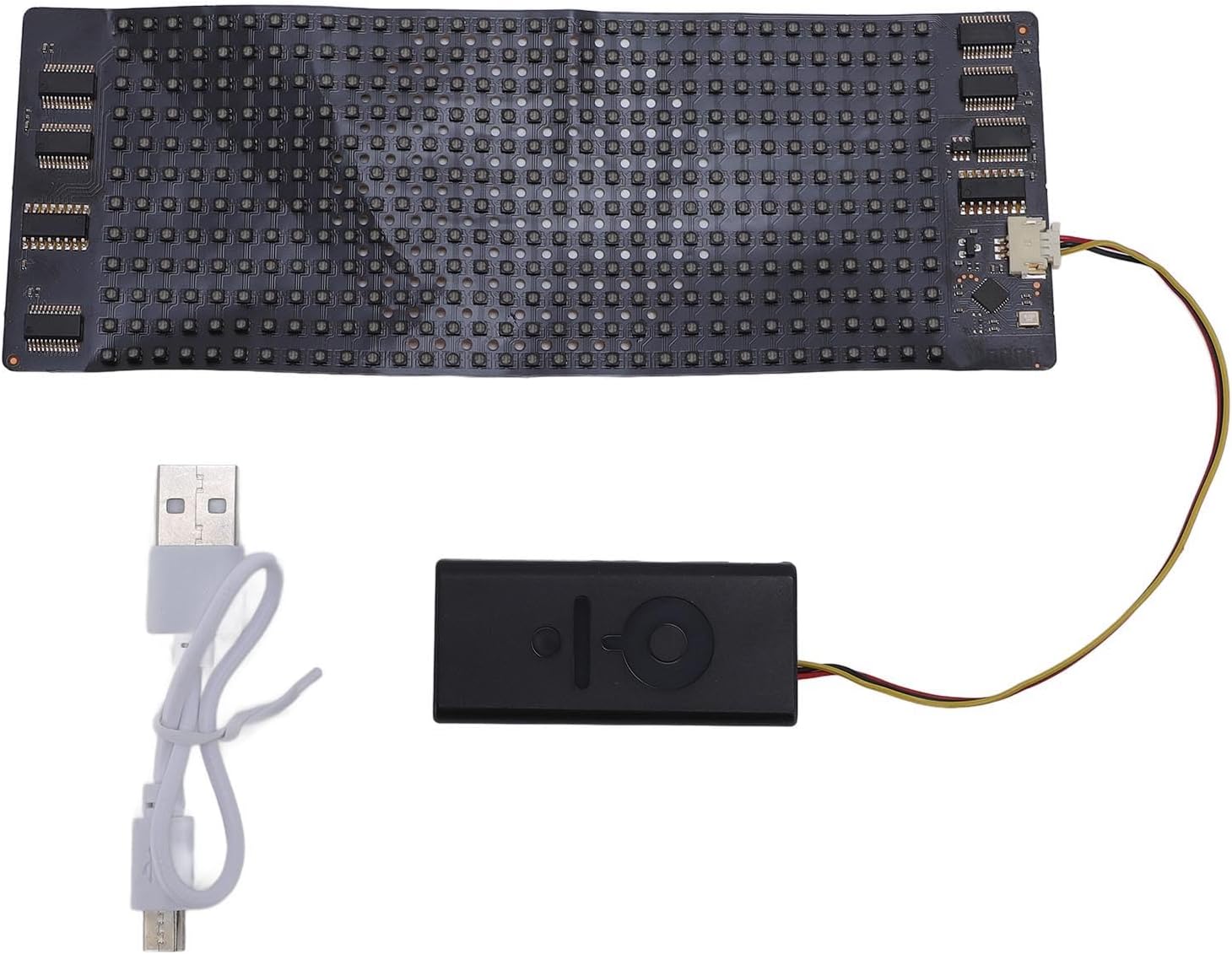
Image: The Focket Flexible LED Display, its control unit, and the included USB charging cable.
3. Product Overview
The Focket Flexible LED Display consists of a flexible LED panel and a compact control unit with an integrated battery. The control unit connects to the LED panel via a short cable.
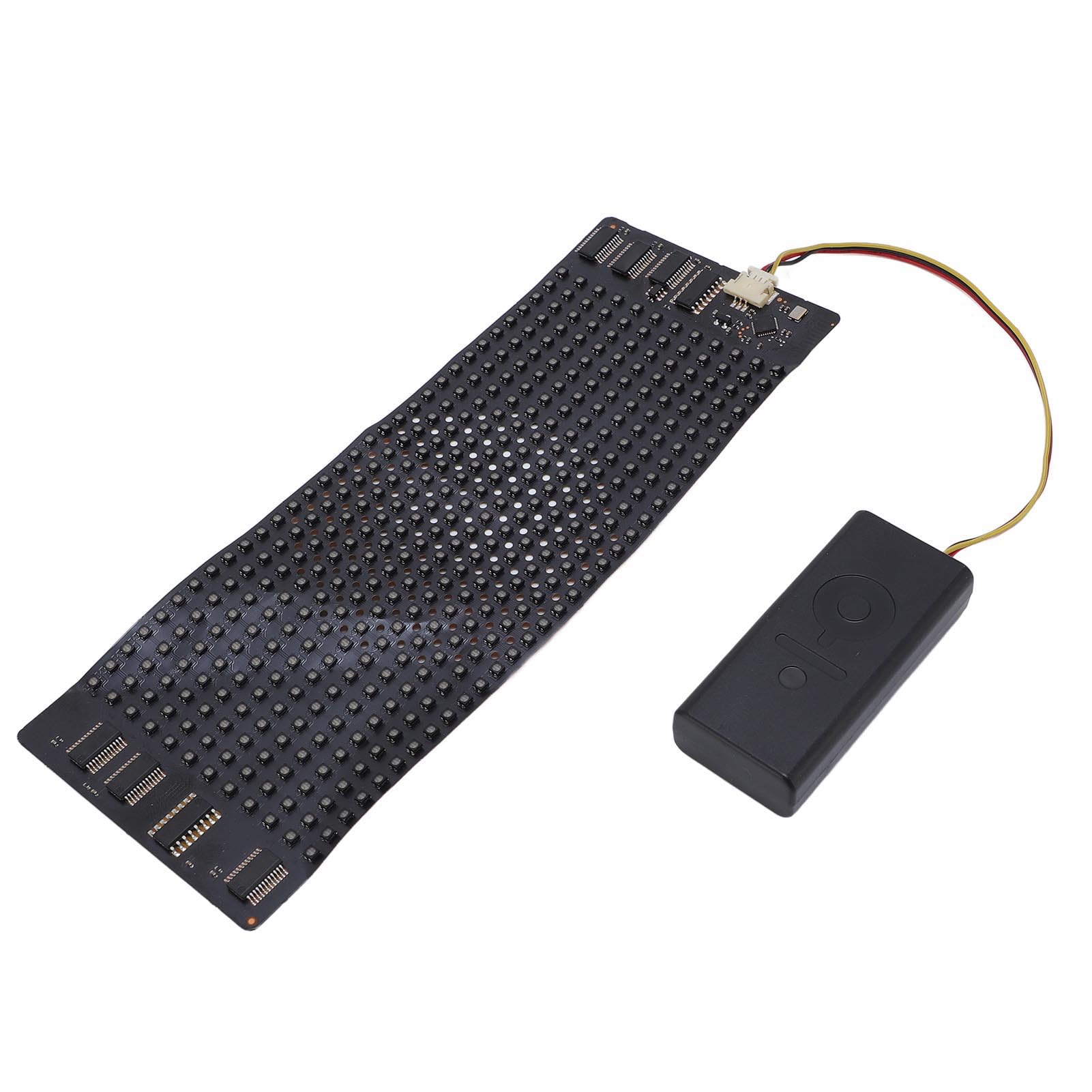
Image: Top view of the Focket Flexible LED Display, showing the flexible LED panel connected to the control unit.
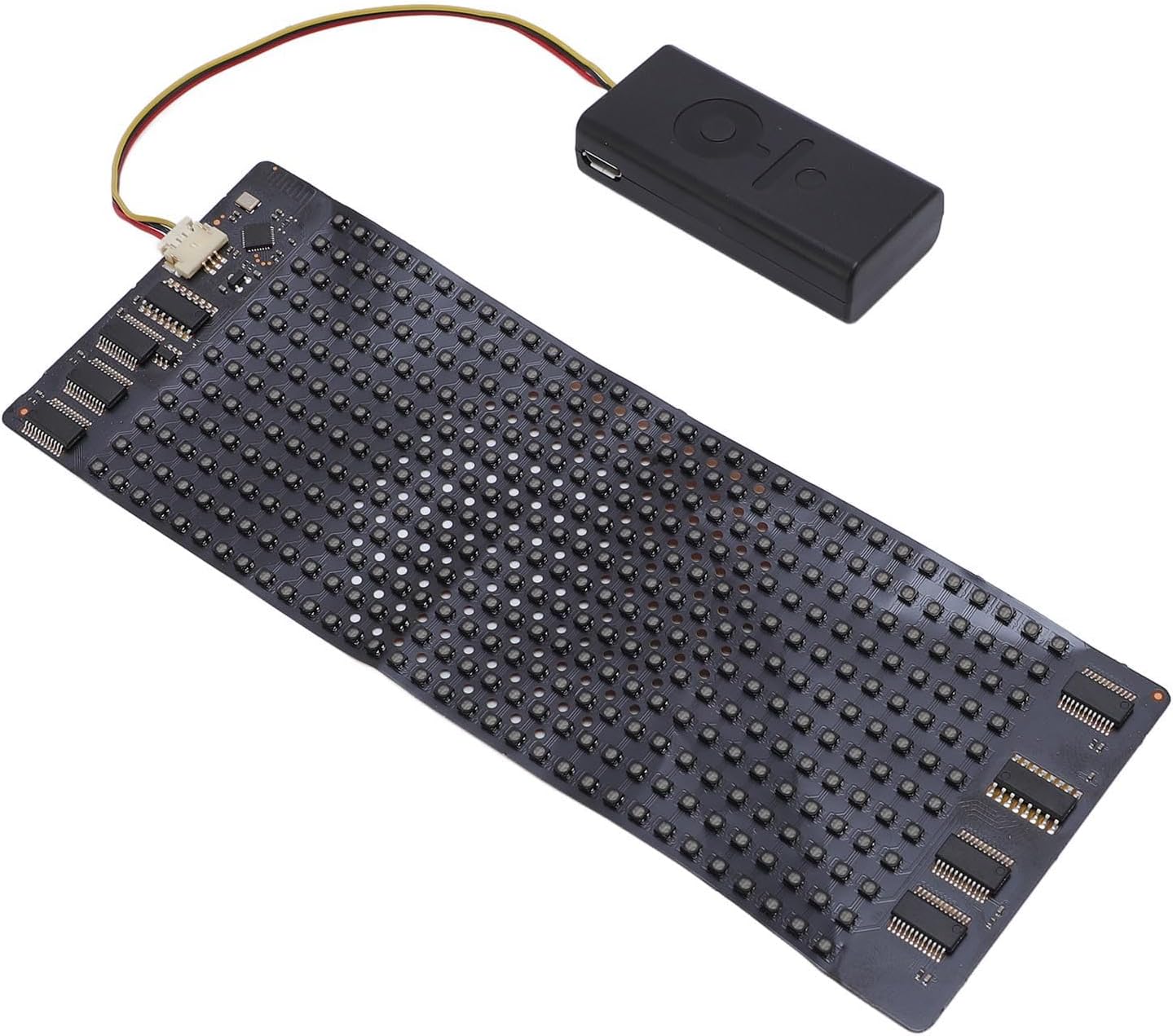
Image: An angled view of the Focket Flexible LED Display, illustrating its compact design.
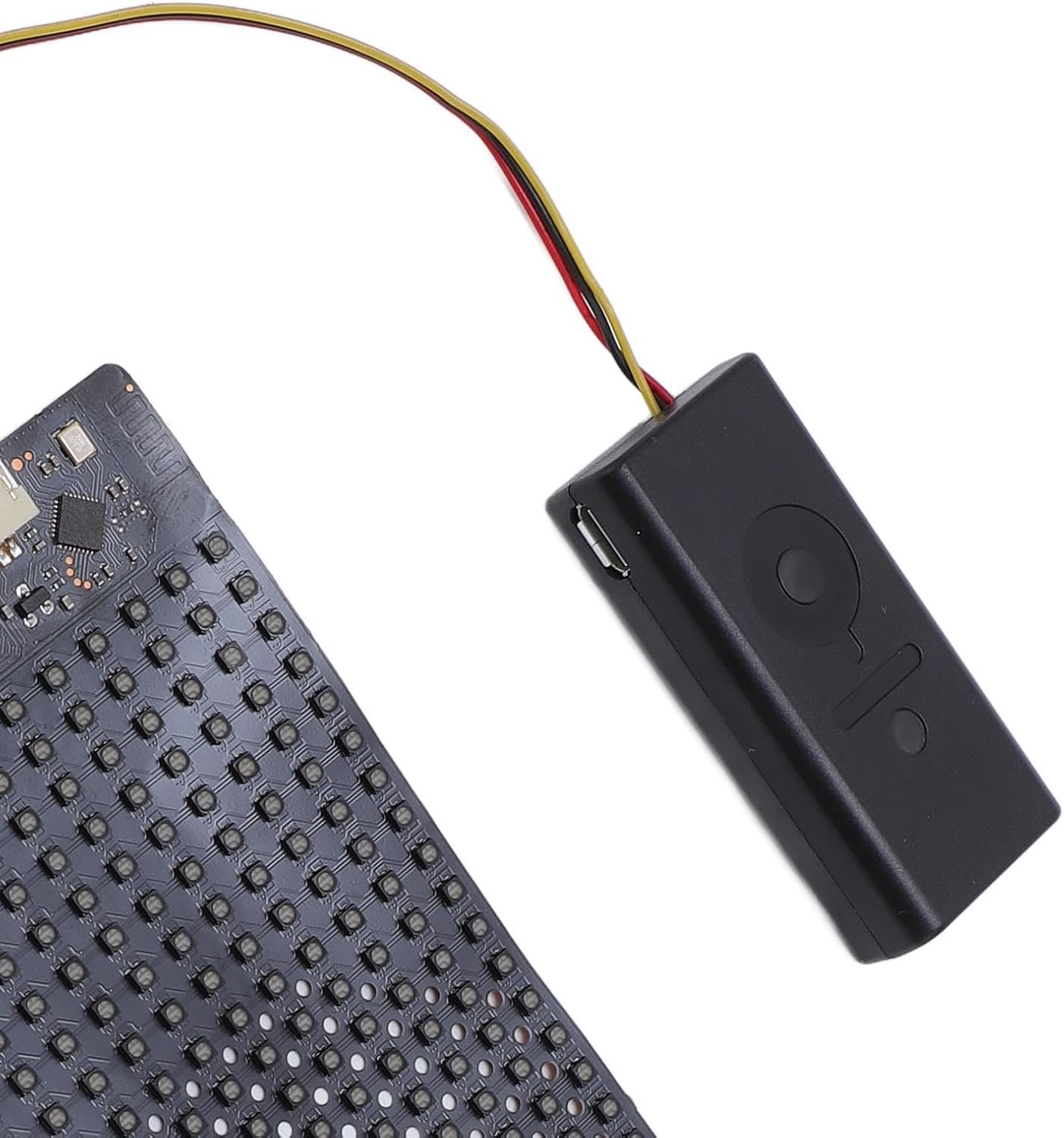
Image: A detailed view of the control unit, highlighting the USB charging port and the connection point for the LED display.
4. Setup Instructions
4.1 Charging the Device
- Connect the provided USB charging cable to the micro-USB port on the control unit.
- Plug the other end of the USB cable into a standard USB power adapter (not included) or a computer's USB port.
- The indicator light on the control unit will illuminate during charging and turn off or change color when fully charged.
- A full charge typically takes approximately 1-2 hours. The device can operate for over two hours at full brightness or up to five hours with text and localized content on a single charge.
4.2 App Installation
To control your Focket Flexible LED Display, you need to install the dedicated mobile application.
- Scan the QR code provided in the product packaging or search for "LED" in your mobile device's app store (Google Play Store for Android, Apple App Store for iOS).
- Download and install the application.
- Ensure your mobile device's Bluetooth is enabled.
4.3 Connecting to the App
- Ensure the LED display's control unit is charged and powered on.
- Open the "LED" application on your mobile device.
- The app will automatically search for nearby Focket Flexible LED Displays. Select your device from the list to establish a Bluetooth connection.
- Once connected, the app will indicate a successful pairing, and you can begin customizing your display.
5. Operating Instructions
5.1 Powering On/Off
Press and hold the power button on the control unit for approximately 3 seconds to turn the device on or off. The LED display will illuminate when powered on.
5.2 Using the Mobile Application
The "LED" app provides various modes for customizing your display:
- Text Mode: Enter custom text messages. You can adjust font, size, color, scroll direction, and speed.
- Graphics Mode: Select from pre-loaded images or upload your own simple monochrome or low-resolution color graphics.
- Animation Mode: Choose from built-in animations or create simple frame-by-frame animations.
- Music Mode: Display visualizers that react to music played through your phone (functionality may vary by app version).
The app supports 11 languages for text input and interface navigation.
5.3 Customization Tips
- Experiment with different text effects and colors to achieve desired visual impact.
- For optimal visibility, consider the ambient lighting conditions when choosing brightness settings.
- Ensure your custom graphics are appropriately sized for the 12x32 resolution to avoid distortion.
6. Maintenance
6.1 Cleaning
- Gently wipe the LED display surface with a soft, dry, lint-free cloth.
- Avoid using harsh chemicals, abrasive cleaners, or excessive moisture, as these can damage the display.
- Ensure the device is powered off and disconnected from any power source before cleaning.
6.2 Storage
- Store the flexible LED display in a cool, dry place away from direct sunlight and extreme temperatures.
- Avoid sharp folds or creases in the flexible panel to prevent damage to the internal circuitry.
- If storing for an extended period, charge the battery to approximately 50% every few months to maintain battery health.
7. Troubleshooting
| Problem | Possible Cause | Solution |
|---|---|---|
| Display does not turn on. | Battery is depleted. | Charge the device using the provided USB cable. |
| Display does not turn on. | Power button not pressed correctly. | Press and hold the power button for 3 seconds. |
| Cannot connect to the app. | Bluetooth is off on mobile device. | Enable Bluetooth on your mobile device. |
| Cannot connect to the app. | Device is out of range or not powered on. | Ensure the display is powered on and within close proximity to your mobile device. |
| Display content is distorted or incorrect. | Incorrect settings in the app or corrupted data. | Restart the app and the LED display. Re-send the content from the app. Ensure graphics are optimized for 12x32 resolution. |
8. Specifications
| Item Type | Flexible LED Display |
| Model Number | Focketvux7r9cdpq |
| Material | PCB, ABS |
| Display Size | Approx. 158.5 x 58 mm (6.24 x 2.28 inches) |
| Resolution | 12x32 pixels |
| App Name | LED (for mobile control) |
| Battery | 1x 350mAh Rechargeable Li Battery (Built-in) |
| Battery Life | >2 hours (full brightness), up to 5 hours (text/localized content) |
| Item Weight | Approx. 1.73 ounces |
| Product Dimensions | Approx. 6.69 x 1.18 x 0.39 inches (packaging/overall) |
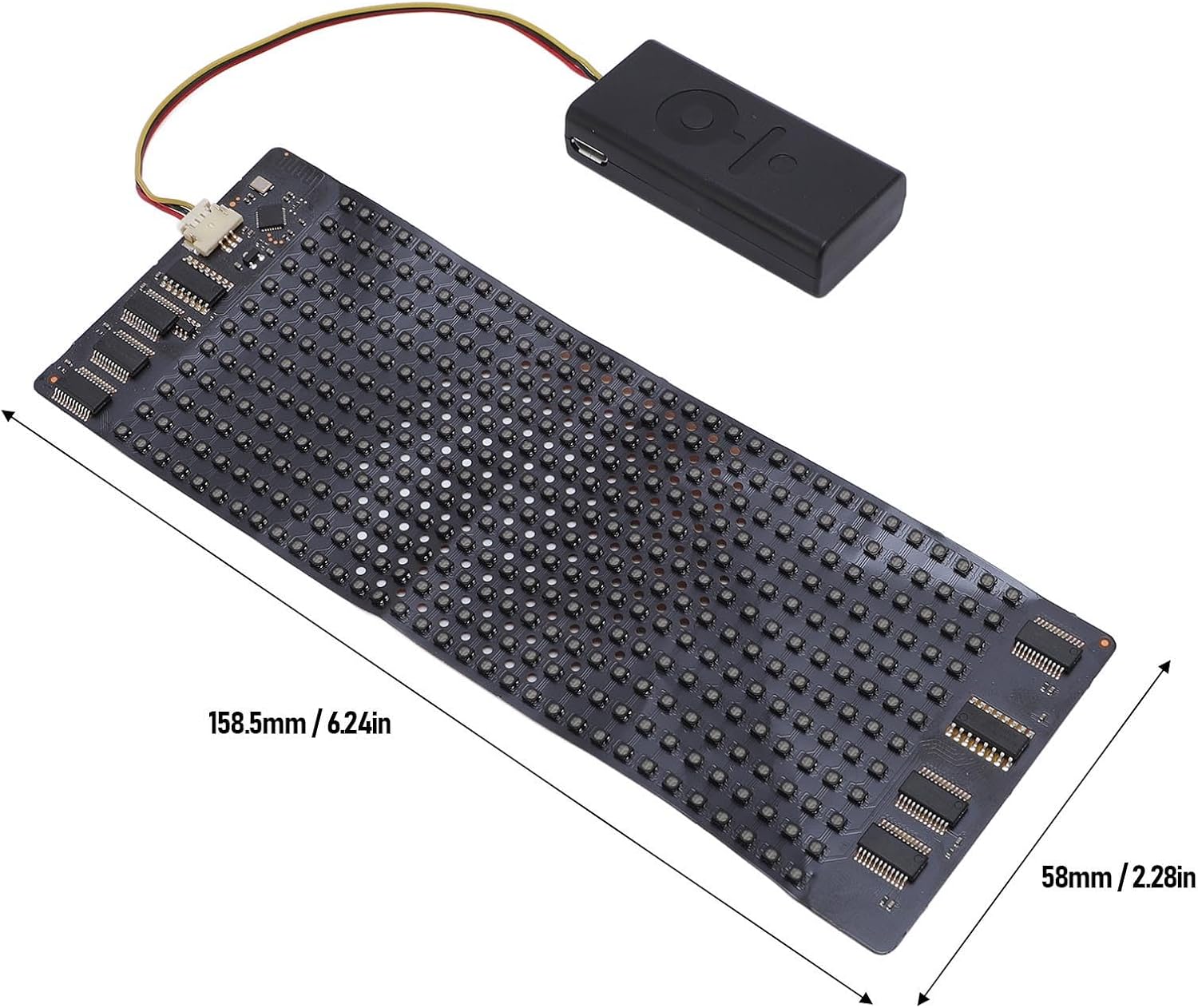
Image: The flexible LED display panel with its approximate dimensions (158.5mm x 58mm) clearly marked.
9. Warranty Information
Specific warranty details for the Focket Flexible LED Display are not provided within this manual. Please refer to the product packaging, your purchase receipt, or contact the seller/manufacturer directly for information regarding warranty coverage and terms.
10. Customer Support
For technical assistance, troubleshooting beyond this guide, or general inquiries, please contact Focket customer support through their official website or the contact information provided with your purchase. You may also refer to the seller's support channels on the platform where the product was purchased.