
Introduction
This manual provides instructions for the GIM Wireless Induction Portable Bluetooth Speaker, Model ZJ-027. This versatile 5-in-1 device functions as a wireless induction speaker, Bluetooth 5.3 speaker, adjustable phone stand, colorful RGB ambient light, and a power bank. It is designed for effortless audio amplification and hands-free convenience in various settings.
What's in the Box
- GIM Wireless Induction Portable Bluetooth Speaker (Model ZJ-027)
- Power Cable (USB-C)
- Quick Start Guide
- Warranty Card
Product Overview
The GIM Wireless Induction Portable Bluetooth Speaker features a sleek design with intuitive controls and multiple functionalities.
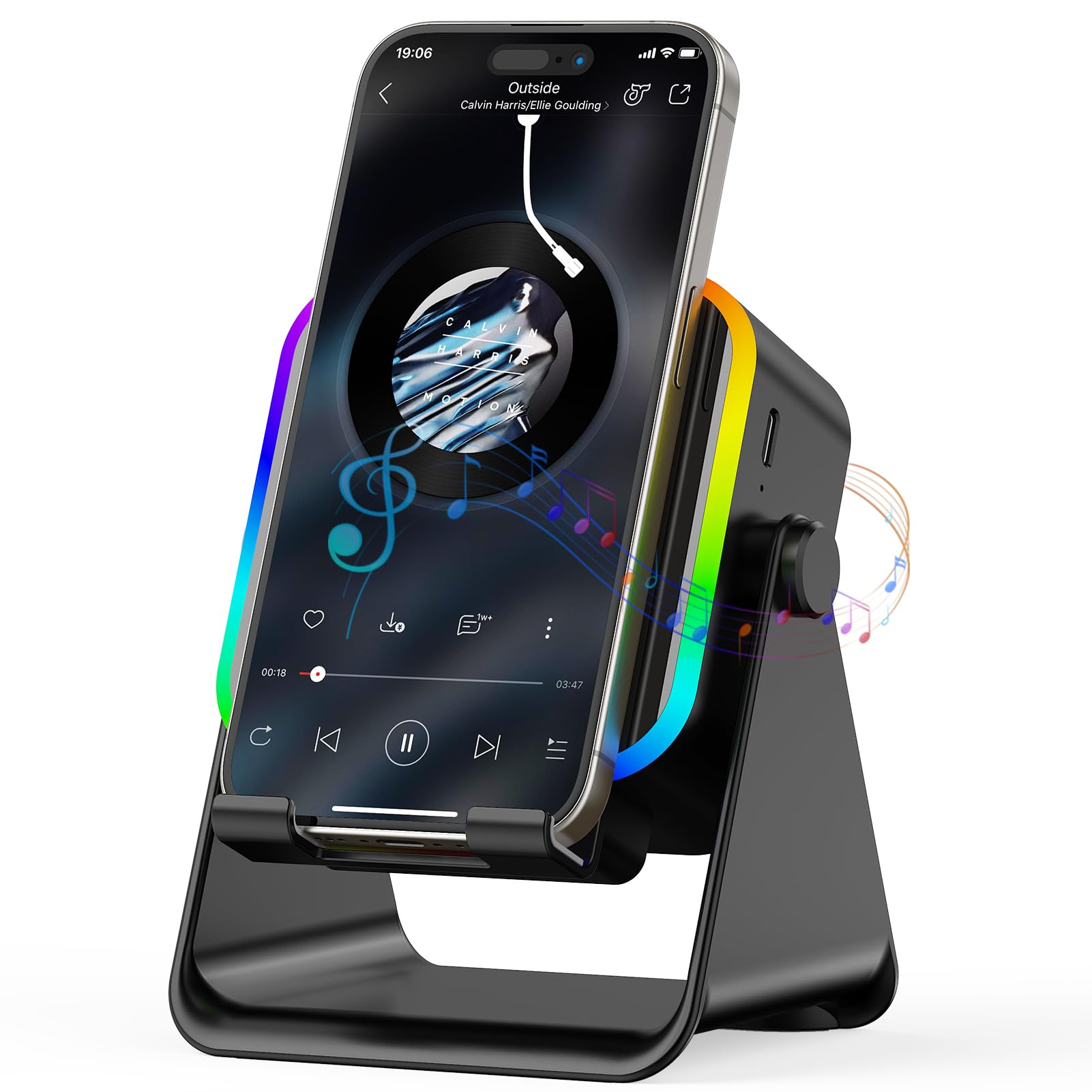
Figure 1: Front view of the GIM Wireless Induction Portable Bluetooth Speaker.
Key Components
- Power Button: Long press to turn on/off.
- Mode Button (M): Short press to switch between Induction and Bluetooth modes. Long press to turn ambient light on/off.
- Volume Buttons (<< / >>): Adjust volume.
- Induction Sensor Area: Place your phone here for wireless audio amplification.
- Phone Stand: Adjustable 360° rotation with non-slip base.
- USB-C Input Port: For charging the speaker.
- USB-A Output Port: For using the speaker as a power bank.
- Speaker Grille: Located on the back for audio output.
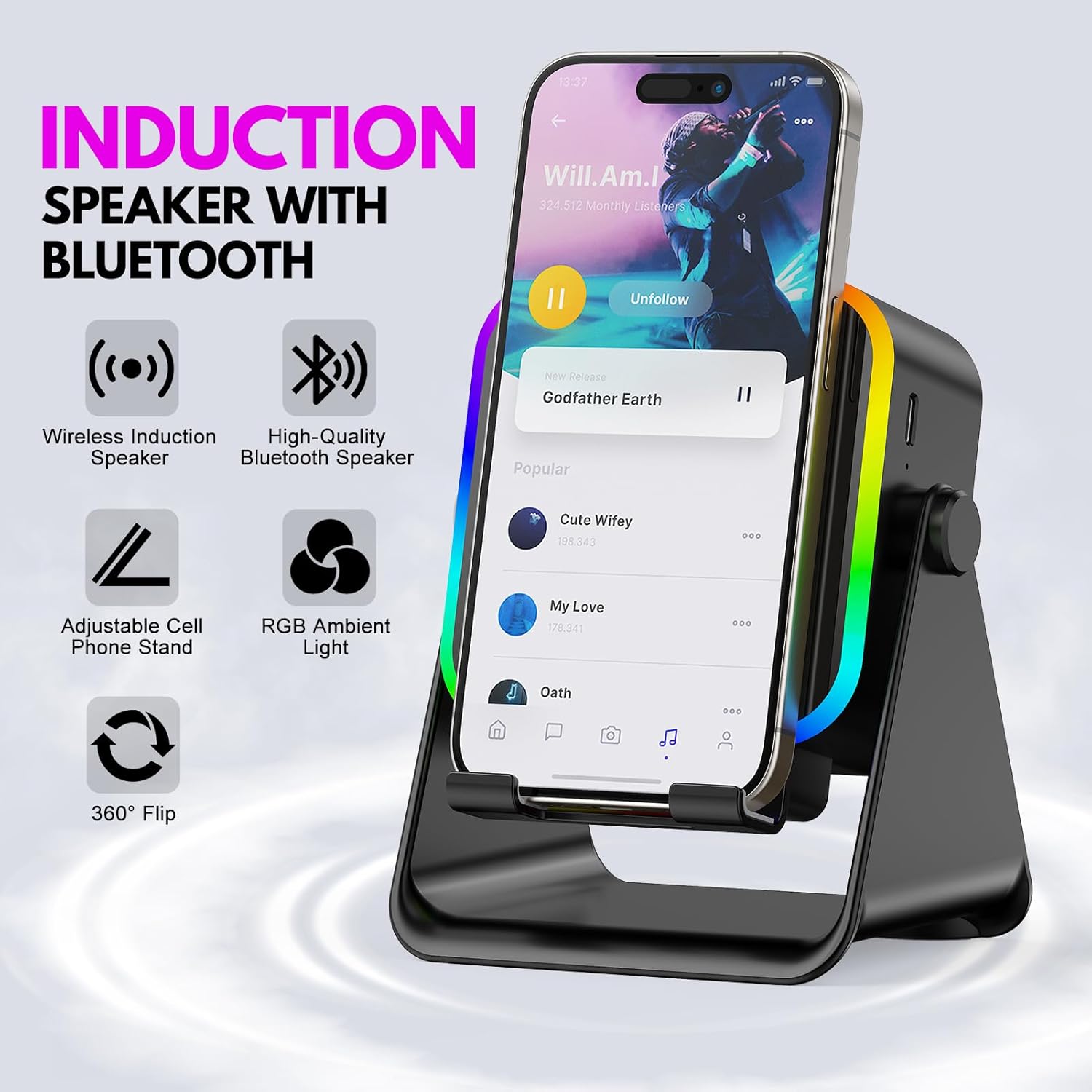
Figure 2: Overview of the speaker's 5-in-1 features including wireless induction, Bluetooth, phone stand, RGB light, and power bank.
Setup
1. Initial Charging
Before first use, fully charge the device using the provided USB-C cable. Connect the USB-C end to the speaker's input port and the USB-A end to a compatible power adapter (not included). The charging indicator light will show the charging status.

Figure 3: The speaker connected to a power source for charging.
2. Powering On/Off
To turn the speaker on or off, long press the power button (marked with a power symbol) located on the top panel of the device.
Operating Instructions
1. Induction Mode (No Bluetooth Pairing Required)
Ensure the speaker is powered on and in Induction Mode (indicated by a voice prompt or light pattern). If not, short press the 'M' button to switch modes.
Place your smartphone directly onto the phone stand, aligning the phone's speaker with the induction sensor area on the device. Audio from your phone will be instantly amplified. Remove your phone to stop amplification.
Note: Tablets are only supported in Bluetooth mode for audio amplification.
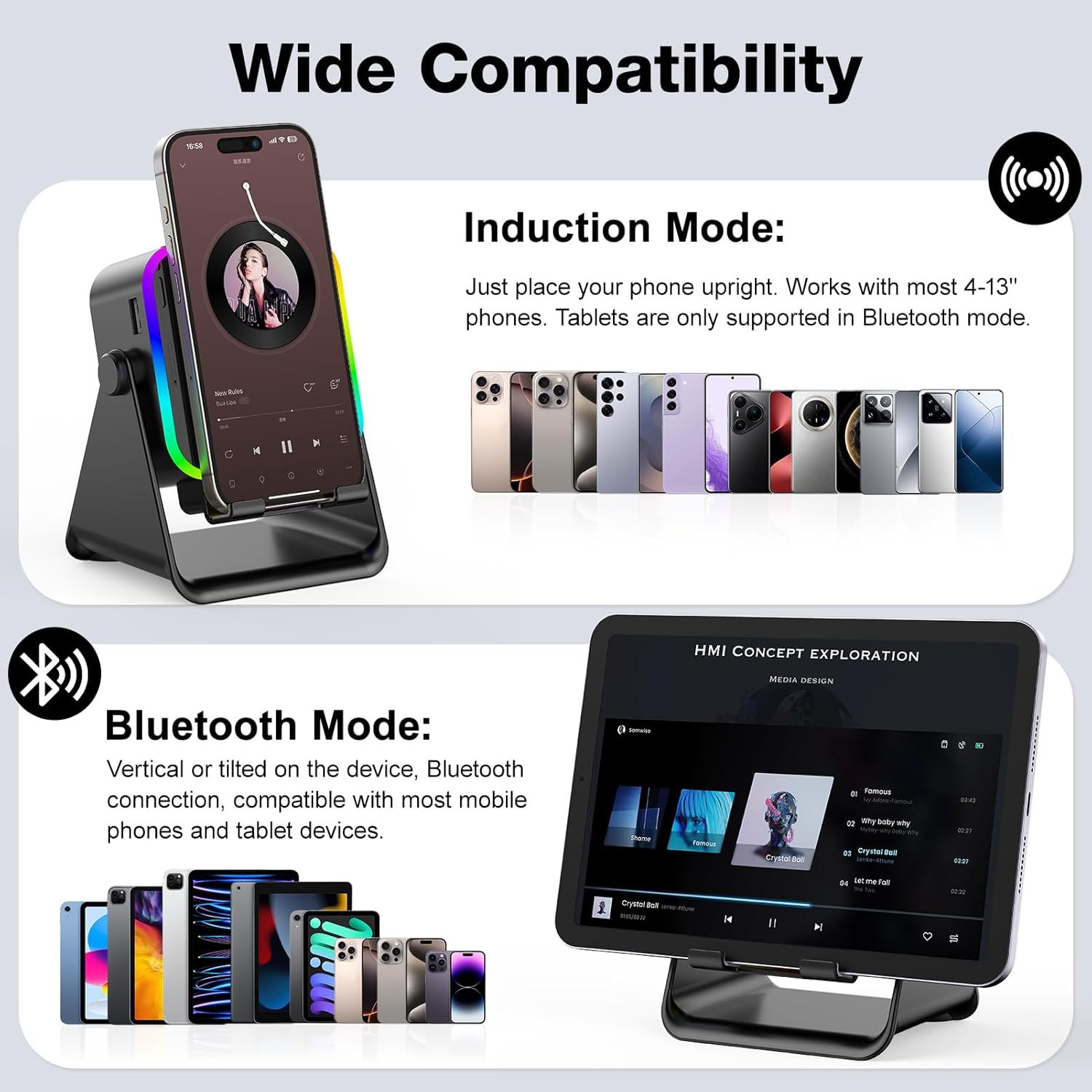
Figure 4: Demonstrating induction mode compatibility with various smartphones.
Video 1: A user demonstrating the GIM induction speaker's ease of use by simply placing a phone on it to amplify sound.
2. Bluetooth Mode
Short press the 'M' button to switch to Bluetooth Mode (indicated by a voice prompt "Bluetooth Mode" and a blue light).
On your device (phone, tablet), search for Bluetooth devices and select "ZJ-027" to pair. Once paired, audio will play through the speaker.

Figure 5: A user connecting their device to the GIM speaker using Bluetooth mode.
3. Adjusting Volume
Use the volume buttons (<< and >>) on the top panel of the speaker to adjust the audio level. You can also control the volume directly from your connected device.
4. Colorful Ambient Light
The speaker features 7-color RGB lighting. Short press the 'M' button to cycle through different light colors and patterns. To turn off the ambient light, long press the 'M' button.

Figure 6: The speaker displaying its colorful RGB ambient light feature in a desk environment.
5. Phone Stand Functionality
The integrated phone stand provides a stable base for your device. It features a 360° rotatable design, allowing you to adjust the viewing angle for optimal comfort. The widened anti-slip base and silicone grooves ensure your device remains secure.
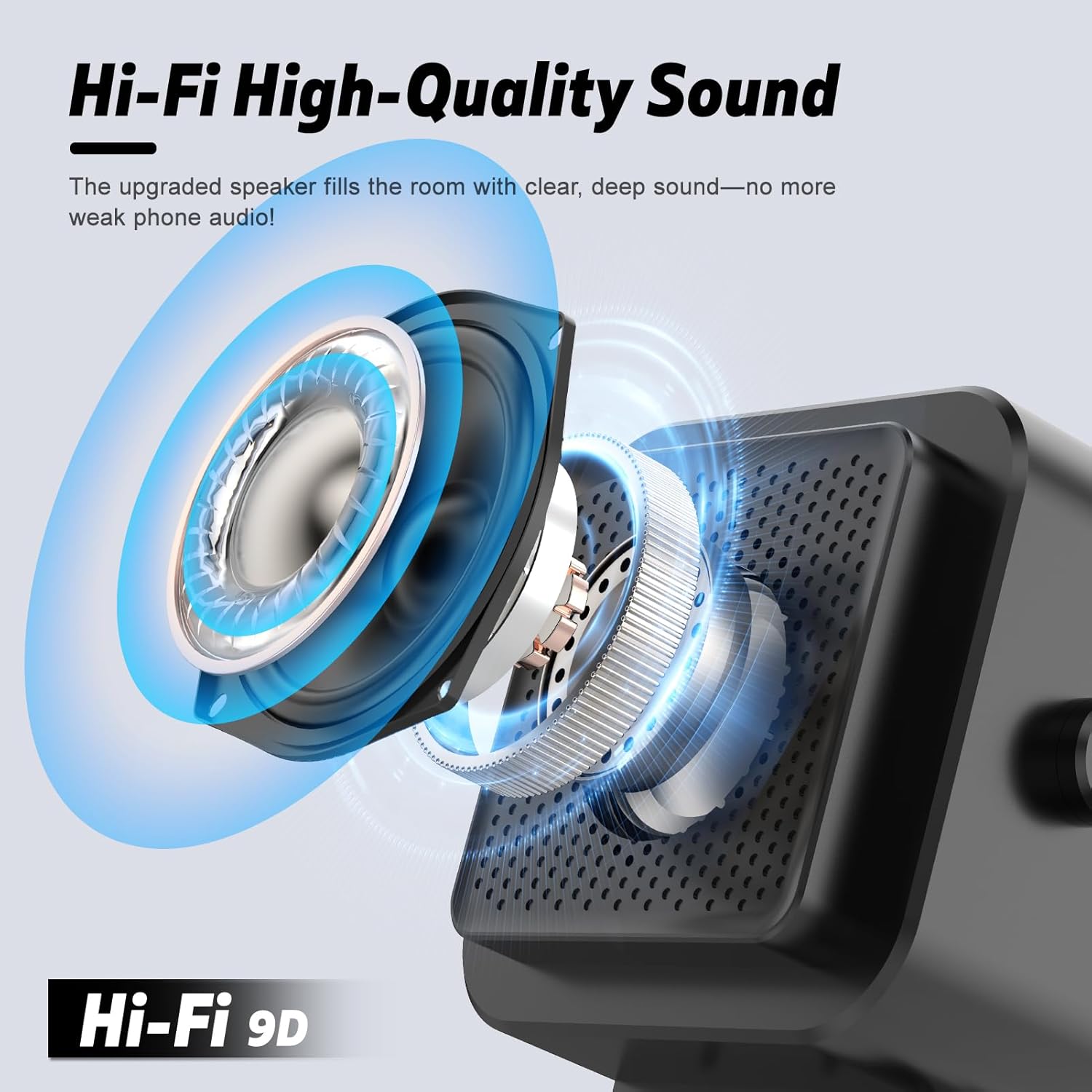
Figure 7: Close-up of the adjustable phone stand and its non-slip base.
6. Power Bank Feature
The speaker can be used as a power bank to charge other devices. Connect your device to the USB-A output port on the side of the speaker using a compatible charging cable.
Maintenance
Clean the speaker with a soft, dry cloth. Do not use abrasive cleaners or immerse the device in water.
Store in a cool, dry place when not in use.
Troubleshooting
No Sound in Induction Mode:
- Ensure the speaker is powered on and in Induction Mode.
- Verify your phone's speaker is aligned with the induction sensor.
- Check your phone's volume level.
- Ensure your phone is playing audio through its internal speaker, not a connected Bluetooth device or headphones.
Bluetooth Not Connecting:
- Ensure the speaker is in Bluetooth Mode (short press 'M' button).
- Turn off and on your device's Bluetooth, then try searching again for "ZJ-027".
- Ensure the speaker is not already connected to another device.
Ambient Light Not Working:
- Short press the 'M' button to cycle through light modes.
- Long press the 'M' button to ensure the light hasn't been turned off.
Device Not Charging via Power Bank:
- Ensure the speaker has sufficient battery charge.
- Verify the charging cable and your device are compatible with the USB-A output.
Specifications
| Feature | Detail |
|---|---|
| Brand | GIM |
| Model Number | ZJ-027 |
| Speaker Maximum Output Power | 5 Watts |
| Frequency Response | 50 Hz |
| Connectivity Technology | Bluetooth, Wireless Induction |
| Audio Output Mode | 360-degree |
| Mounting Type | Tabletop Mount |
| Enclosure Material | Plastic |
| Additional Features | Built-In Powerbank, LED Light, Lightweight, Travel, Wireless Induction Audio, Multi-function Design |
| Control Method | Touch |
| Item Dimensions (D x W x H) | 3.42"D x 4.01"W x 5.12"H |
| Item Weight | 0.7 Pounds |
| Compatible Devices | Smartphone, Tablet |
Warranty & Support
Warranty: The GIM Wireless Induction Portable Bluetooth Speaker comes with a limited warranty. Please refer to the included Warranty Card for full details regarding coverage and duration.
Support: For further assistance, technical support, or warranty claims, please contact GIM customer support through the contact information provided in your Quick Start Guide or on the official GIM website.