
1. Introduction
This manual provides detailed instructions for the safe and efficient use of your viqee Pova 6 Pro 5G Unlocked Smartphone. Please read this manual thoroughly before operating your device to ensure optimal performance and longevity. Keep this manual for future reference.
The viqee Pova 6 Pro is a 5G-enabled smartphone featuring a 6.5-inch HD Full Display, powered by Android 14. It includes 8GB RAM, 256GB internal storage, and a 6800mAh battery, designed for reliable mobile communication and multimedia experiences.
2. Package Contents
Ensure all items are present in the package. If any item is missing or damaged, contact your retailer.
- viqee Pova 6 Pro 5G Unlocked Smartphone
- USB Cable
- User Manual (this document)
- (Other accessories like charger, SIM ejector tool, protective case may vary by region or package)
3. Device Layout
Familiarize yourself with the physical components of your smartphone.
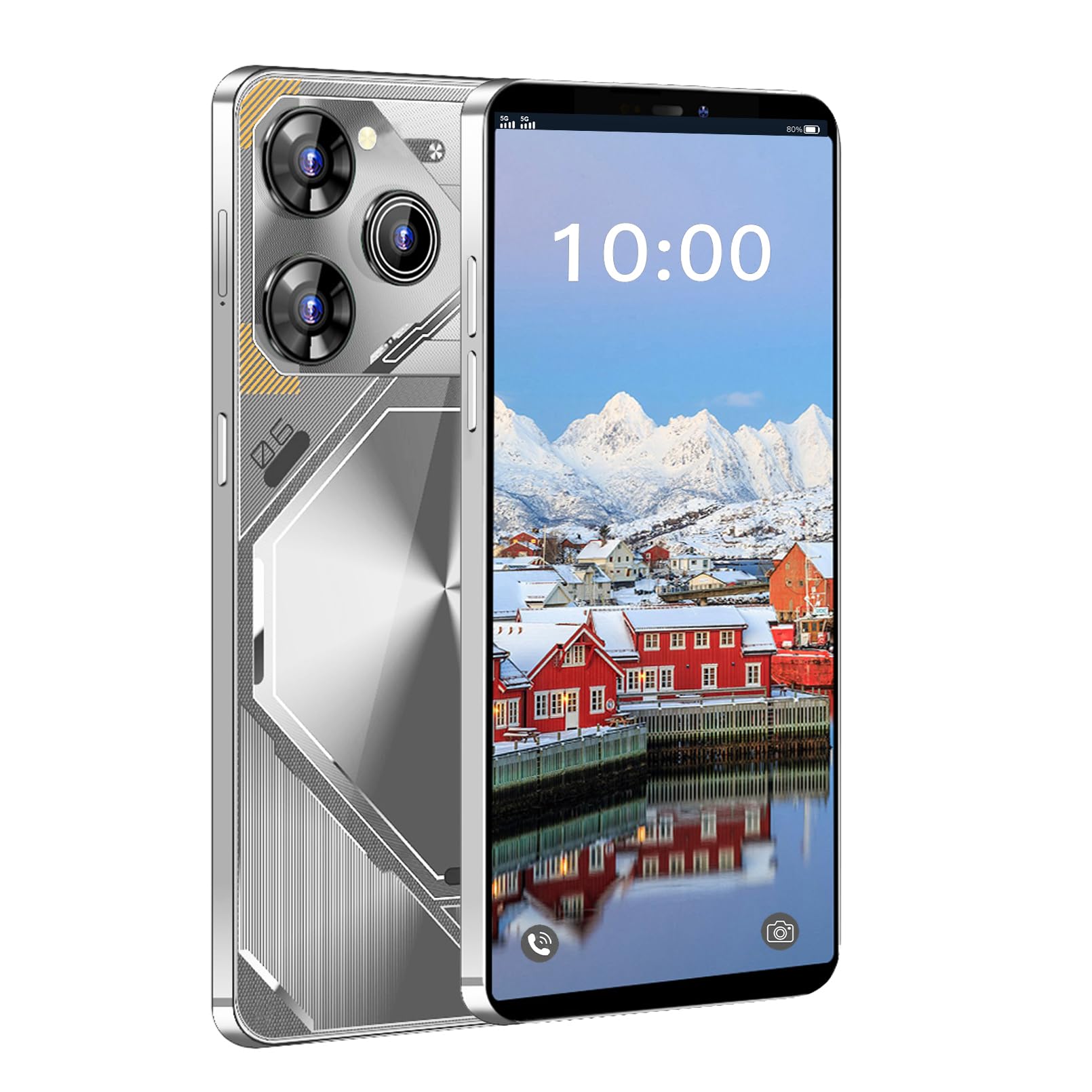
Figure 3.1: viqee Pova 6 Pro Smartphone Overview.
This image displays the viqee Pova 6 Pro smartphone. The front shows the 6.5-inch display with the time '10:00' and a scenic wallpaper of snow-capped mountains and red houses by water. The back of the phone features a silvery, metallic design with a triple camera system and a flash module in the upper left corner. The phone's sides show power and volume buttons.
3.1 Front View
- Earpiece: For listening during calls.
- Front Camera: For selfies and video calls.
- Display: 6.5-inch HD Full Display for all interactions.
3.2 Rear View
- Rear Camera System: Multiple lenses for high-quality photography.
- Flash: Provides illumination for photos in low-light conditions.
3.3 Side Views
- Power Button: Press and hold to power on/off or restart. Press to wake/sleep the screen.
- Volume Buttons: Adjust media volume, call volume, and ringtone volume.
- SIM/SD Card Slot: Insert your SIM card(s) and microSD card here.
- USB Type-C Port: For charging and data transfer.
- Speaker: For audio output.
- Microphone: For voice input during calls and recordings.
4. Setup
4.1 Inserting SIM and SD Cards
- Locate the SIM/SD card slot on the side of your phone.
- Use the provided SIM ejector tool (if included) to gently push into the small hole next to the tray until it pops out.
- Place your Nano-SIM card(s) and/or microSD card into the tray with the gold contacts facing down, ensuring they are correctly oriented.
- Carefully reinsert the tray into the phone until it clicks into place.
4.2 Charging the Battery
Before first use, fully charge the phone's battery. Connect the USB cable to the phone's USB Type-C port and the other end to a compatible power adapter (not included) or a computer's USB port. The charging indicator will appear on the screen.
4.3 Powering On/Off
- To Power On: Press and hold the Power button until the screen lights up and the viqee logo appears.
- To Power Off: Press and hold the Power button until the power options menu appears. Tap "Power off" and confirm.
- To Restart: Press and hold the Power button until the power options menu appears. Tap "Restart" and confirm.
4.4 Initial Setup
Upon first power-on, the device will guide you through the initial setup process. Follow the on-screen prompts to:
- Select your language.
- Connect to a Wi-Fi network.
- Set up your Google account.
- Configure screen lock (PIN, pattern, password, or biometrics).
- Review and accept terms and conditions.
5. Operating Your Device
5.1 Touchscreen Gestures
- Tap: Select an item or activate a button.
- Touch and Hold: Access contextual menus or drag items.
- Swipe: Navigate through screens, lists, or content.
- Pinch: Zoom in or out on images and web pages.
5.2 Making Calls and Sending Messages
- Calls: Open the Phone app, enter the number, or select a contact, then tap the call icon.
- Messages: Open the Messages app, tap the new message icon, enter the recipient and your message, then tap send.
5.3 Internet and Connectivity
- Wi-Fi: Go to Settings > Network & internet > Wi-Fi to connect to available networks.
- Mobile Data: Ensure your SIM card is active and mobile data is enabled in Settings > Network & internet > Mobile network.
- Bluetooth: Pair with other Bluetooth devices (headphones, speakers) via Settings > Connected devices > Bluetooth.
5.4 Camera Usage
Open the Camera app to capture photos and videos. Tap the shutter button to take a photo or the record button to start/stop video recording. Swipe to switch between modes (Photo, Video, Portrait, etc.).
5.5 App Management
Download apps from the Google Play Store. To uninstall an app, touch and hold its icon on the home screen or app drawer, then drag it to "Uninstall" or select the uninstall option.
6. Maintenance
6.1 Battery Care
- Avoid extreme temperatures.
- Do not let the battery completely drain frequently.
- Use only compatible chargers and cables.
6.2 Software Updates
Regularly check for and install software updates to ensure your device has the latest features, security patches, and performance improvements. Go to Settings > System > System update.
6.3 Cleaning the Device
Use a soft, lint-free cloth to clean the screen and body of the phone. Avoid using harsh chemicals or abrasive materials. Do not expose the device to excessive moisture.
6.4 Data Backup
Regularly back up your important data (photos, contacts, documents) to a cloud service (e.g., Google Drive) or a computer to prevent data loss.
7. Troubleshooting
This section addresses common issues you might encounter with your viqee Pova 6 Pro.
7.1 Device Will Not Turn On
- Ensure the battery is charged. Connect the phone to a charger for at least 30 minutes.
- Try a forced restart: Press and hold the Power button for 10-15 seconds.
7.2 Poor Network Signal or No Service
- Check if the SIM card is correctly inserted.
- Ensure you are in an area with network coverage.
- Restart the phone.
- Go to Settings > Network & internet > Mobile network and check network settings.
7.3 Apps Crashing or Freezing
- Close and reopen the app.
- Clear the app's cache and data in Settings > Apps > [App Name] > Storage & cache.
- Update the app from the Google Play Store.
- Restart the phone.
7.4 Battery Drains Quickly
- Reduce screen brightness.
- Close unused apps running in the background.
- Turn off Wi-Fi, Bluetooth, and GPS when not in use.
- Check battery usage in Settings > Battery to identify power-hungry apps.
8. Specifications
Detailed technical specifications for the viqee Pova 6 Pro smartphone.
| Feature | Specification |
|---|---|
| Model No. | Pova 6 Pro (P6pro) |
| Platform | Snapdragon 8 gen3 (as per product description, note: this might be a generic placeholder, actual chipset may vary) |
| Operating System | Android 14 |
| Display | 6.5-inch HD Full Display, 1440x3200 resolution |
| Memory (RAM) | 8GB |
| Storage (ROM) | 256GB (Expandable via dedicated micro SD Card Slot) |
| Battery | 6800mAh Lithium-ion battery |
| Cameras | Front: 35MP, Rear: 75MP |
| Network | GSM850/900/1800/1900MHz, 3GWCDMA850/1900/2100MHz, 4G LTE, 5G |
| SIM | Dual SIM dual standby |
| Connectivity | Wifi, GPS, Bluetooth, USB Type C |
| Sensors | Gravity Sensor, Face recognition |
| Dimensions (Package) | 1 x 0.5 x 0.4 inches |
| Item Weight | 7.8 ounces |
Note: Specifications are subject to change without prior notice.
9. Warranty and Support
Your viqee Pova 6 Pro smartphone is covered by a limited warranty. Please refer to the warranty card included in your package for specific terms and conditions. For technical support, service, or warranty claims, please contact your point of purchase or visit the official viqee website for contact information.
For further assistance, you may also refer to the viqee Store on Amazon.