
1. Introduction
1.1 Product Overview
The LoraTap Smart Wi-Fi Light Bulb Socket Adapter transforms any standard E26/E27 light fixture into a smart device, allowing for convenient control via smartphone app or voice commands. This adapter supports various bulb types up to 60W, including incandescent, LED, and CFL, and integrates seamlessly with Amazon Alexa and Google Assistant.
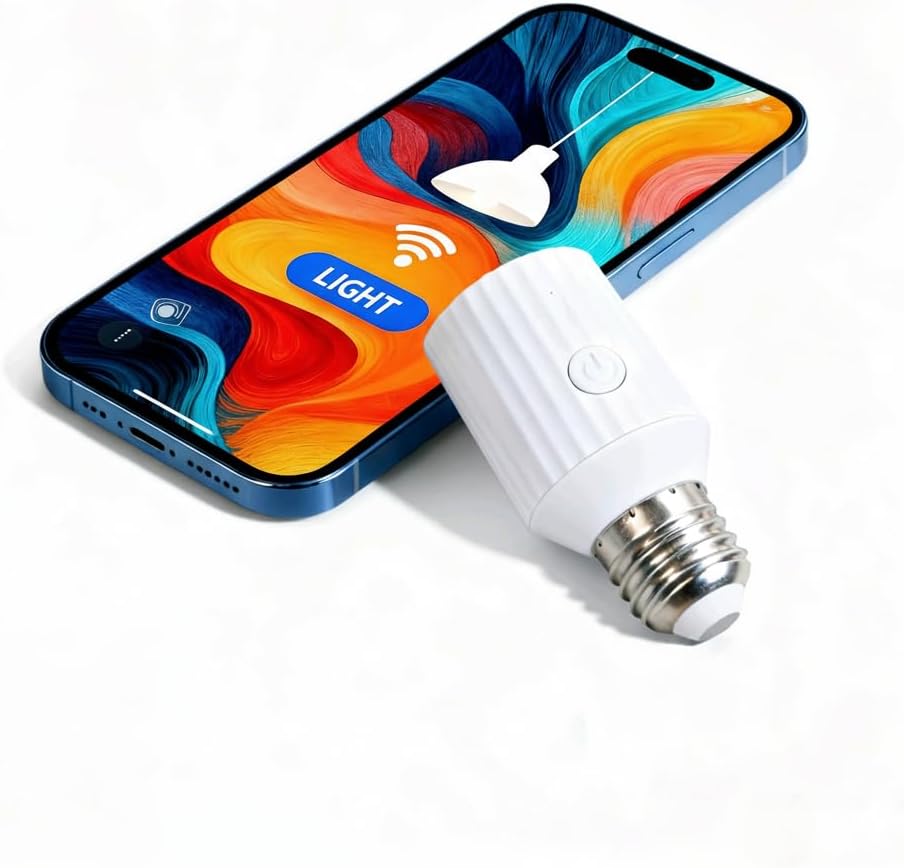
Image 1.1: The LoraTap Smart Wi-Fi Light Bulb Socket Adapter next to a smartphone, illustrating app control capabilities.
1.2 Key Features
- Voice Control: Compatible with Amazon Alexa and Google Assistant for hands-free operation.
- App Control & Group Management: Control lights remotely via the Smart Life app (2.4GHz WiFi required, no hub needed). Group multiple sockets for simultaneous control.
- Timer & Automation: Set schedules, countdowns, and custom scenes for automatic light operation.
- 60W Power & Heat Resistance: Supports bulbs up to 60W and features a heat-resistant design for stable performance.
- Easy Installation (E26/E27): Screws into existing E26/E27 sockets without tools or an electrician.
2. Setup and Installation
2.1 What's in the Box
- LoraTap Smart Wi-Fi Light Bulb Socket Adapter
- User Manual
2.2 Installation Steps
- Ensure the power to the light fixture is turned off at the circuit breaker before installation.
- Screw the LoraTap Smart Wi-Fi Light Bulb Socket Adapter into your existing E26/E27 light socket.
- Screw your light bulb (incandescent, LED, or CFL, up to 60W) into the LoraTap adapter.
- Restore power to the light fixture. The light should turn on briefly, indicating it's ready for pairing.

Image 2.1: Visual guide for installing the light bulb into the smart socket adapter and then into the fixture.
2.3 App Download and Pairing
- Download the Smart Life app from the App Store (iOS) or Google Play Store (Android).
- Register or log in to your Smart Life account.
- Tap the "+" icon in the top right corner of the app to add a device.
- Select "Lighting" > "Light Source (Wi-Fi)" or allow the app to auto-discover the device.
- Follow the in-app instructions to connect the adapter to your 2.4GHz Wi-Fi network. Ensure your phone is connected to the same 2.4GHz network during pairing.
2.4 Wi-Fi Connection Tips
- The adapter only supports 2.4GHz Wi-Fi networks. 5GHz networks are not compatible.
- Ensure the installation location is within approximately 33 feet (10 meters) of your Wi-Fi router for optimal signal strength.
- If pairing fails, try resetting the adapter by turning the light switch ON-OFF-ON-OFF-ON until the light blinks rapidly.

Image 2.2: Illustration of recommended Wi-Fi signal range for stable connection.
3. Operating Instructions
3.1 App Control
Once paired, you can control your light from anywhere using the Smart Life app.
- Turning On/Off: Tap the device icon in the app to toggle the light on or off.
- Group Control: Create groups within the app to control multiple LoraTap adapters simultaneously with a single tap.
- Real-Time Feedback: The app provides real-time status updates, allowing you to monitor if your light is on or off from any location.
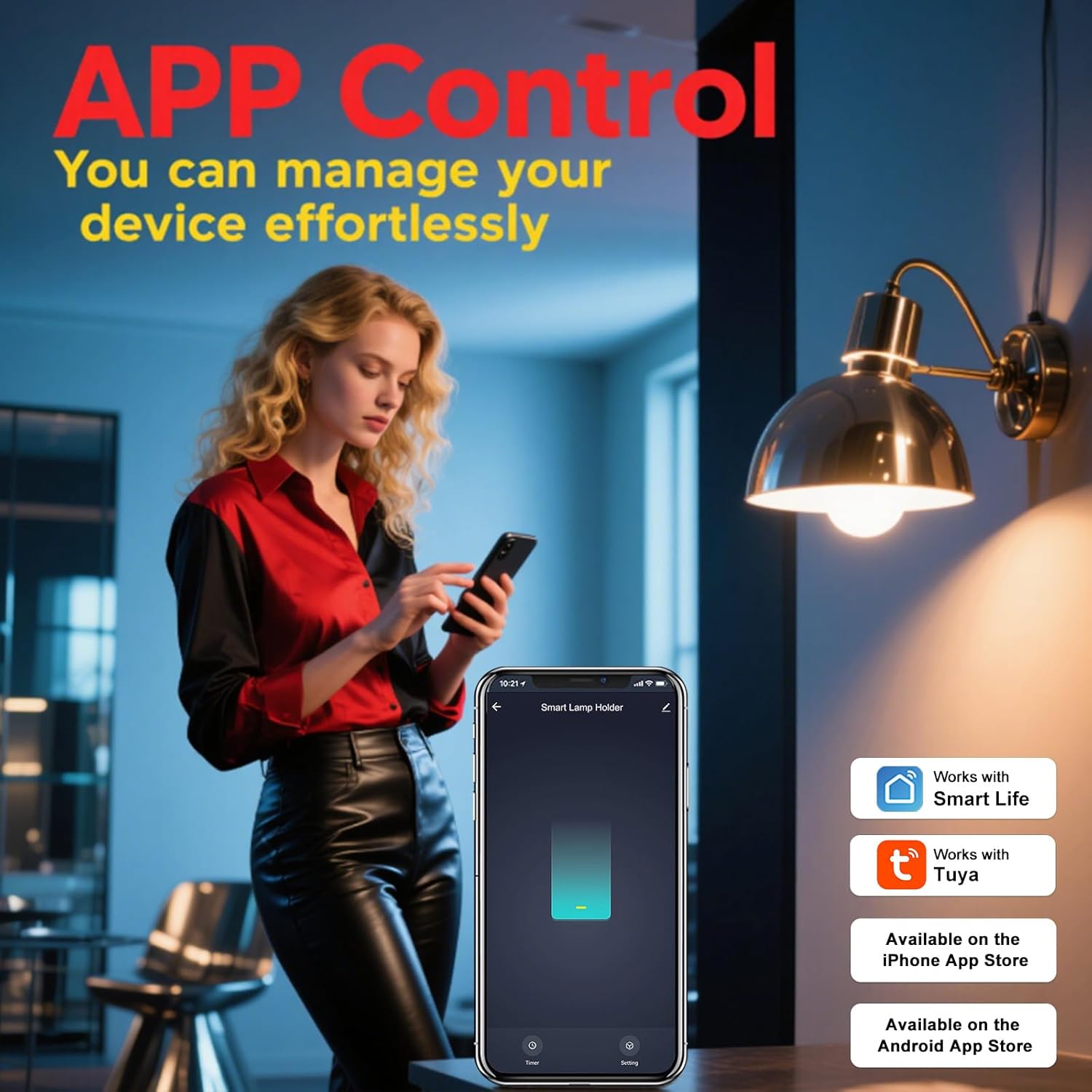
Image 3.1: A user controlling a light fixture remotely using the Smart Life app on their smartphone.

Image 3.2: Real-time feedback in the Smart Life app allows users to check light status remotely.
3.2 Voice Control
Integrate your LoraTap adapter with Amazon Alexa or Google Assistant for voice-activated control.
- In the Smart Life app, navigate to "Me" > "More Services" > "Alexa" or "Google Assistant" and follow the instructions to link your account.
- Once linked, you can use voice commands such as:
- "Alexa, turn on [Device Name]."
- "Hey Google, turn off [Device Name]."
- "Alexa, set [Device Name] to 50% brightness." (Note: Dimming functionality depends on the bulb and adapter capabilities. This adapter is not compatible with dimmable bulbs.)

Image 3.3: Voice control integration with Amazon Alexa and Google Assistant for hands-free operation.
Video 3.1: Demonstration of the LoraTap Smart Wi-Fi Light Bulb Socket Adapter's app control, voice control with Alexa, and timer scheduling features.
3.3 Timer and Schedule
Automate your lighting with custom timers and schedules.
- Setting Timers: Use the countdown function for temporary on/off states.
- Creating Schedules: Set specific times for your lights to turn on or off daily or on selected days of the week.
- Custom Scenes: Create scenes that trigger lights based on various conditions (e.g., sunrise/sunset, specific events).

Image 3.4: The Smart Life app interface for setting timers and schedules to automate light operation.
3.4 Device Sharing
Share control of your LoraTap Smart Wi-Fi Light Bulb Socket Adapter with family members.
- In the Smart Life app, go to the device settings.
- Select "Share Device" and enter the Smart Life account details of the family member you wish to share with.
- Shared users will then be able to control the device from their own Smart Life app.

Image 3.5: The device sharing feature allows multiple family members to control the smart socket adapter.
3.5 Restart Status Configuration
Configure how your smart socket adapter behaves after a power outage.
- In the Smart Life app, access the device settings for the adapter.
- Look for the "Relay Status" or "Restart Status" option.
- You can choose from three settings:
- ON: The light will turn on automatically when power is restored.
- OFF: The light will remain off when power is restored.
- Remember Last Status: The light will return to its state (on or off) prior to the power outage.

Image 3.6: Setting the restart status in the Smart Life app to manage light behavior after power interruptions.
4. Compatibility
4.1 Bulb Types
The LoraTap Smart Wi-Fi Light Bulb Socket Adapter is compatible with a variety of bulb types:
- Incandescent bulbs (up to 60W)
- LED bulbs (up to 60W equivalent)
- CFL (Compact Fluorescent Lamp) bulbs (up to 60W equivalent)
- Fluorescent Lamp bulbs (up to 60W equivalent)
Note: This adapter is not compatible with dimmable bulbs or E12/E14 bulb bases.
4.2 Physical Dimensions and Limitations
The adapter has a compact design to fit most lampshades. Please confirm the dimensions before purchase to ensure compatibility with your fixture.
- Product Dimensions: 1.7"W x 3.4"H
- Added length to the light fixture: Approximately 2.3 inches.
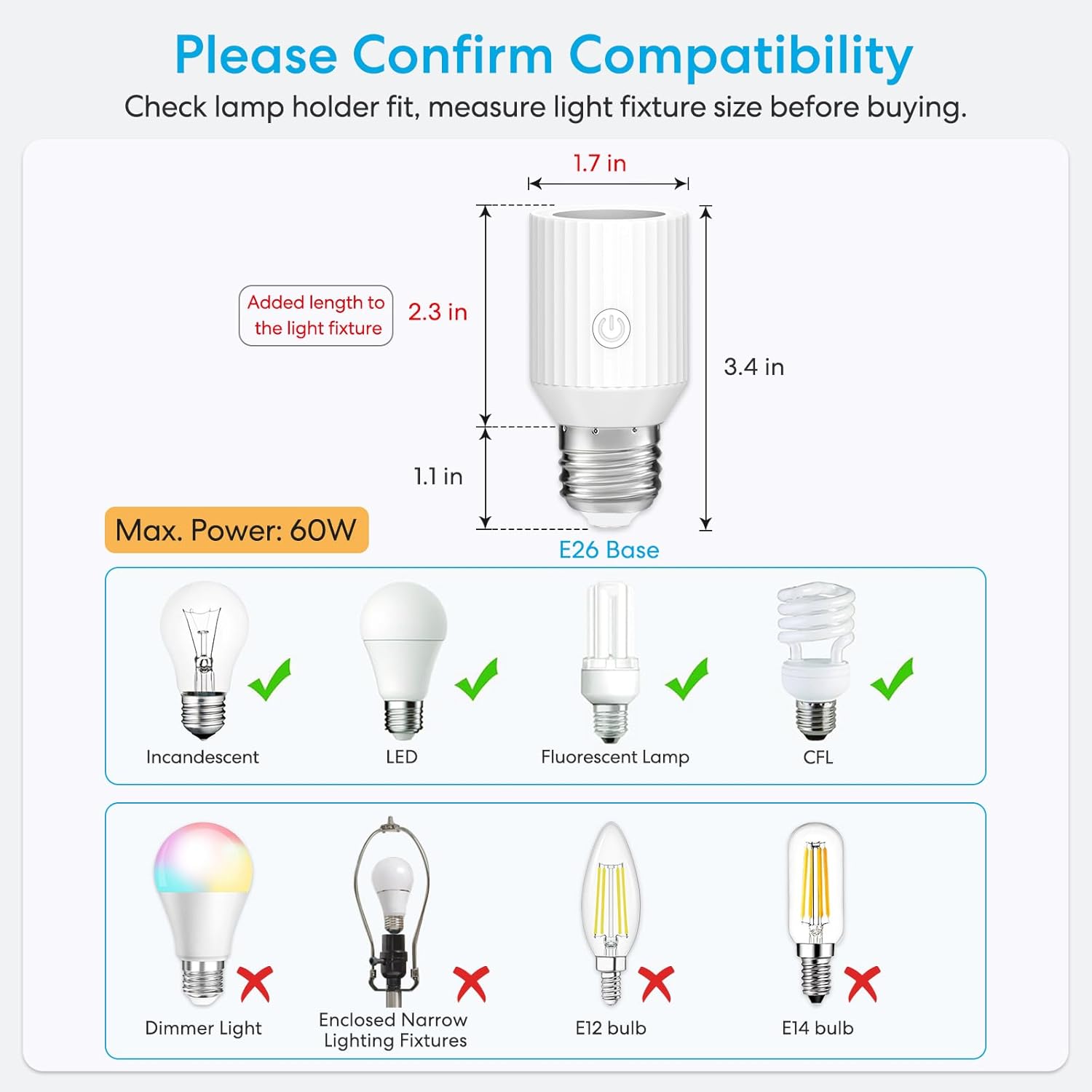
Image 4.1: Detailed compatibility chart showing supported bulb types and physical dimensions.
4.3 Version Comparison
The current version of the LoraTap Smart Wi-Fi Light Bulb Socket Adapter offers enhanced features and a more compact design compared to previous models.

Image 4.2: Comparison between the new (60W) and old (30W) versions of the smart socket adapter, highlighting size and power improvements.
5. Specifications
| Feature | Specification |
|---|---|
| Brand | LoraTap |
| Model Name | Light bulb socket (BA200W-V3) |
| Bulb Base | E26 (also compatible with E27) |
| Max Wattage | 60 Watts |
| Voltage | 100-120 Volts AC, 60 Hertz |
| Light Type Compatibility | CFL, Fluorescent Lamp, Incandescent, LED |
| Control Method | App (Smart Life), Voice (Alexa, Google Assistant) |
| Wireless Connectivity | Wi-Fi 2.4GHz (IEEE 802.11 b/g/n) |
| Material | Acrylonitrile Butadiene Styrene (ABS) |
| Product Dimensions | 1.7"W x 3.4"H |
| Item Weight | 2.89 ounces |
| Indoor/Outdoor Usage | Indoor |
| Certifications | FCC, RoHS |
6. Maintenance
The LoraTap Smart Wi-Fi Light Bulb Socket Adapter requires minimal maintenance.
- Cleaning: Ensure the power is off before cleaning. Wipe the adapter with a dry, soft cloth. Do not use liquid cleaners or abrasive materials.
- Storage: If storing the adapter for an extended period, keep it in a cool, dry place away from direct sunlight and moisture.
7. Troubleshooting
7.1 Common Issues and Solutions
- Device not connecting to Wi-Fi:
- Ensure your Wi-Fi network is 2.4GHz.
- Verify the Wi-Fi password is correct.
- Move the adapter closer to your Wi-Fi router.
- Reset the adapter by cycling power (ON-OFF-ON-OFF-ON) until the light blinks rapidly, then try pairing again.
- Voice control not working:
- Confirm that your Smart Life account is correctly linked to Amazon Alexa or Google Assistant.
- Ensure the device name in the Smart Life app matches the name used in voice commands.
- Check your internet connection.
- Light not turning on/off:
- Check if the light bulb is working correctly.
- Ensure the adapter is securely screwed into the fixture and the bulb into the adapter.
- Verify that the light fixture's power switch is in the ON position.
8. Warranty and Support
8.1 Warranty Information
Please refer to the product packaging or the official LoraTap website for specific warranty details. Generally, LoraTap products come with a manufacturer's warranty covering defects in materials and workmanship.
8.2 Customer Support
For further assistance, technical support, or warranty claims, please contact LoraTap customer service through their official website or the contact information provided in your purchase documentation.