1. Introduction
This user manual provides comprehensive instructions for the installation, operation, and maintenance of your Ossuret 9-inch Android 13 Car Radio. This unit is specifically designed for Jeep Renegade models manufactured between 2016 and 2020, offering an enhanced in-car entertainment and navigation experience.
Key features include a 9-inch high-resolution touch screen, Android 13 operating system, wireless Apple CarPlay and Android Auto support, GPS navigation, Bluetooth, WiFi, and USB connectivity. Please read this manual thoroughly before installation and use to ensure proper function and safety.
Important Note: Before purchasing and installing, please verify the size and shape of your vehicle's center console to ensure compatibility.

Figure 1.1: Compatible Jeep Renegade Center Consoles (2016-2020). Ensure your vehicle's console matches one of these configurations for proper fitment.
2. Package Contents
Please check the package carefully to ensure all items are present and undamaged. If any items are missing or damaged, contact your vendor immediately.

Figure 2.1: Overview of included components. Each item is essential for the full functionality of the car radio system.
- Main Unit (Car Radio)
- Installation Frame
- GPS Antenna
- RCA Harness (for WiFi version only)
- 4 Pin USB Cable
- 6 Pin USB Cable
- External Microphone
- Rear Camera Input RCA Cable
- Power Cable
- Canbus Decoder
- Factory USB Adapter
- Radio Antenna Adapter Cable
- Speaker
3. Setup & Installation
Installation of this car radio requires technical knowledge and experience with car electronics. It is highly recommended to have the unit installed by a qualified professional to avoid damage to the unit or your vehicle.
3.1 General Installation Steps (Consult a professional)
- Disconnect the vehicle's battery to prevent electrical shorts.
- Carefully remove the factory car radio and trim panels.
- Connect the main power cable, RCA harness, and other necessary adapters to the new unit and the vehicle's wiring harness.
- Install the GPS antenna in a location with a clear view of the sky (e.g., dashboard).
- Connect the external microphone for hands-free calling.
- If using a rear-view camera, connect its input cable.
- Integrate the Canbus decoder for steering wheel control and other vehicle data.
- Mount the new car radio into the dashboard using the provided frame.
- Reconnect the vehicle's battery and test all functions before fully reassembling the dashboard.
4. Operating Instructions
4.1 Basic Operation
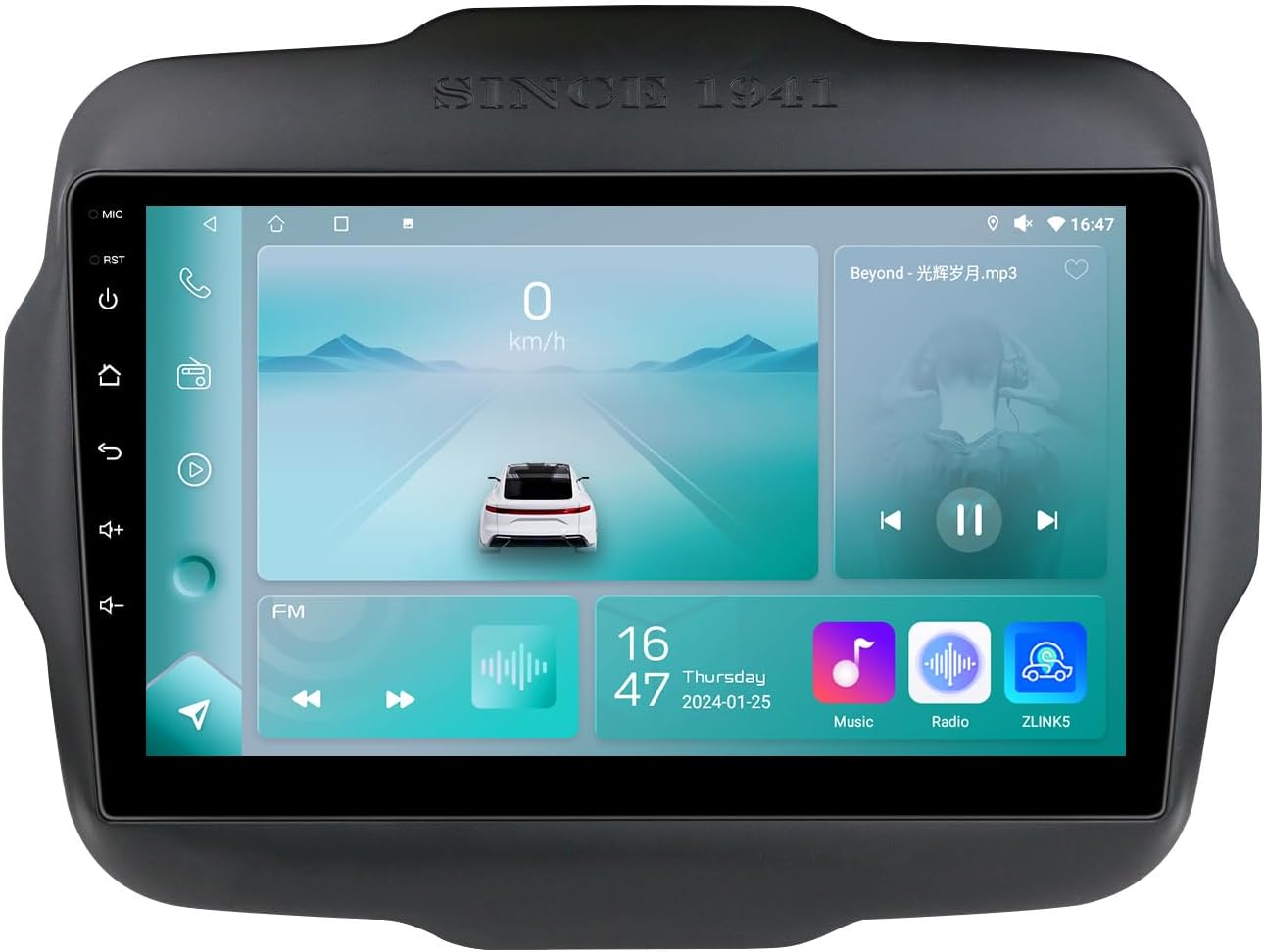
Figure 4.1: The main interface of the car radio, showing various applications and controls.
- Power On/Off: Press and hold the power button (usually on the left side) to turn the unit on or off. A short press may mute/unmute audio.
- Touch Screen: The 9-inch capacitive touch screen responds to finger gestures for navigation, selection, and control.
- Reset Button (RST): A small reset button is typically located on the front panel. Use a thin object (like a paperclip) to press it if the system becomes unresponsive.
4.2 Wireless Apple CarPlay / Android Auto
The unit supports wireless Apple CarPlay and Android Auto via the pre-installed Zlink application. This allows seamless integration of your smartphone's features, including navigation, music, messages, and calls, directly onto the car radio display.

Figure 4.2: Wireless Apple CarPlay and Android Auto provide integrated smartphone functionality on the car radio screen.
- Ensure your smartphone's Bluetooth and Wi-Fi are enabled.
- Open the Zlink app on the car radio.
- Follow the on-screen instructions to pair your phone via Bluetooth first, then establish the Wi-Fi connection for CarPlay/Android Auto.
4.3 Bluetooth Functionality
The built-in Bluetooth module enables hands-free calling and wireless audio streaming from your mobile device.
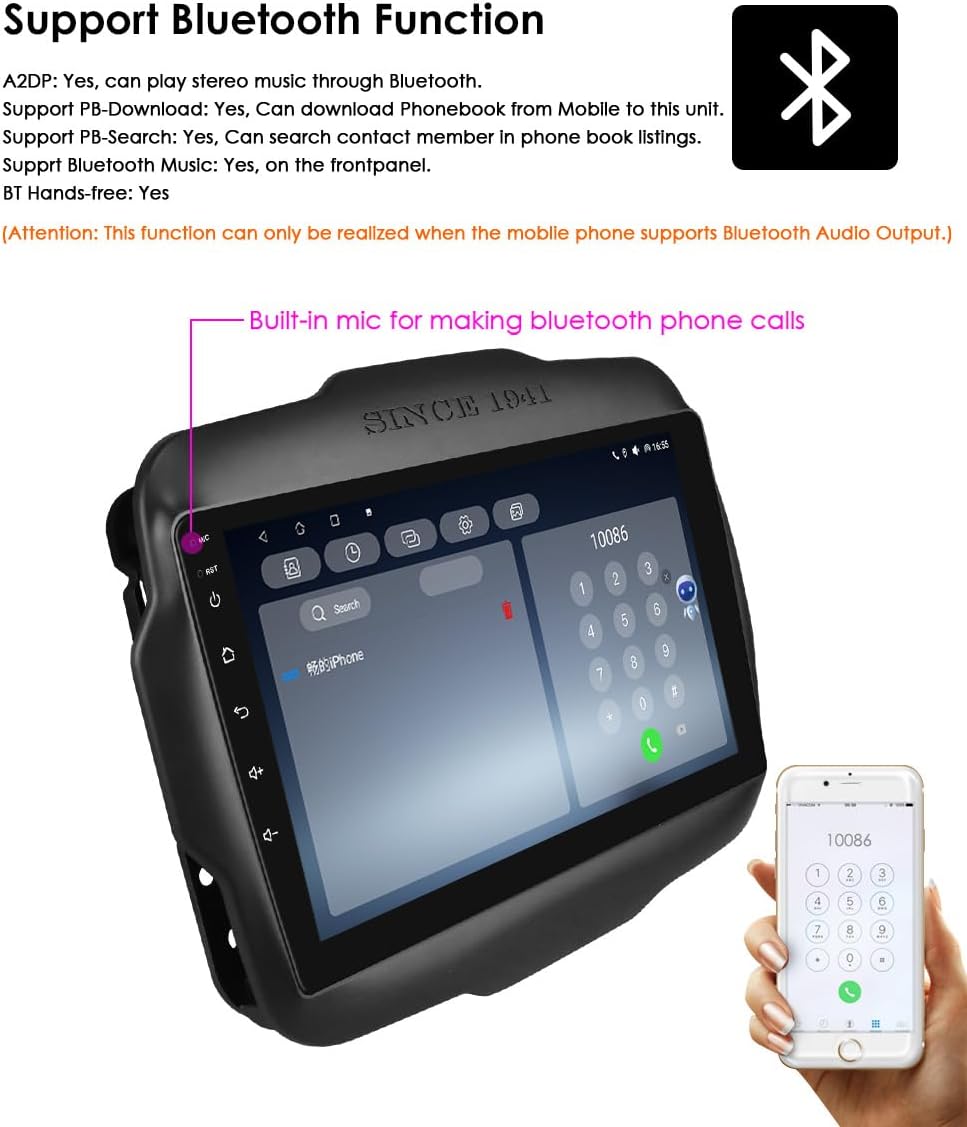
Figure 4.3: The Bluetooth interface for making calls, featuring a built-in microphone for clear communication.
- Pairing: Go to the Bluetooth settings on the car radio and your phone. Search for the car radio's Bluetooth name and pair.
- Hands-Free Calling: Once paired, you can make and receive calls directly from the car radio interface. The built-in microphone captures your voice.
- Phonebook: Download your phone's contacts to the car radio for easy access.
- Bluetooth Music (A2DP): Stream audio from your phone to the car radio wirelessly.
4.4 GPS Navigation
The unit features an integrated GPS module supporting both offline and online navigation applications. It includes voice guidance and a dual-zone function, allowing navigation to run in the background while other media plays.
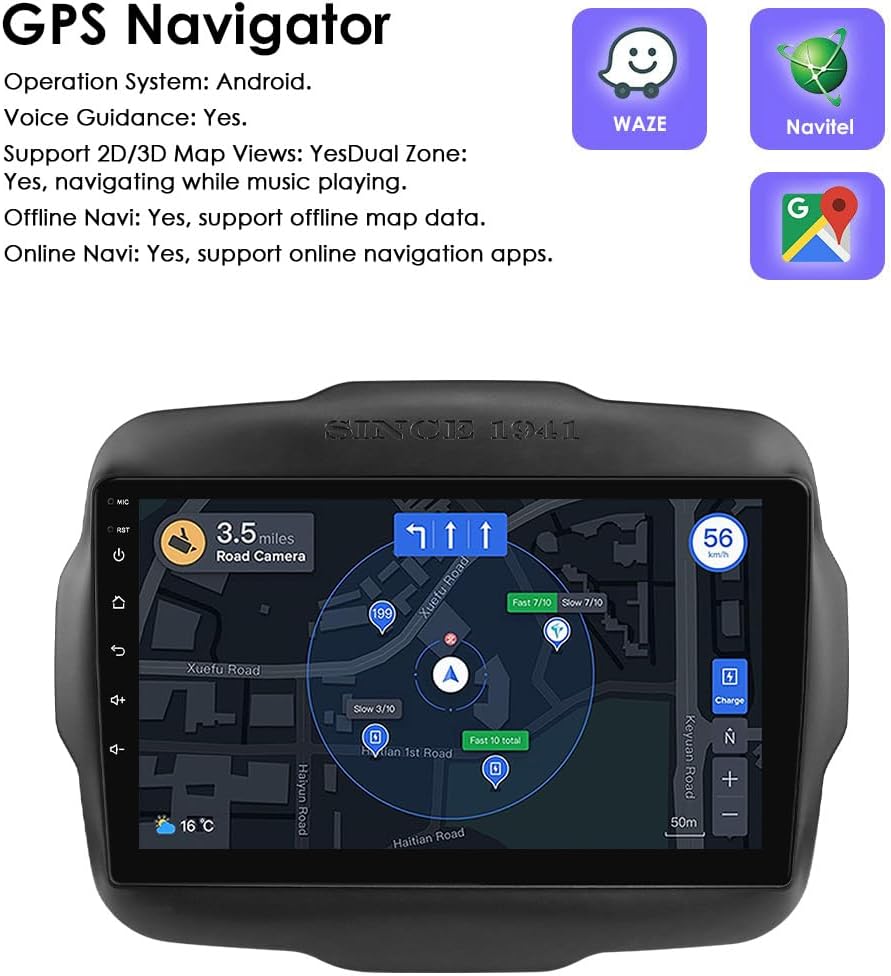
Figure 4.4: The GPS navigation screen showing a map, current speed, and road information.
- Offline Maps: Preloaded maps are available for use without an internet connection.
- Online Navigation: Connect to Wi-Fi to use popular online navigation apps like Waze or Google Maps.
- Voice Guidance: Receive turn-by-turn voice directions.
- Dual Zone: Navigate while listening to music or other audio sources.
4.5 Multimedia Playback
The car radio supports various audio and video formats, allowing playback from internal storage or external USB devices.

Figure 4.5: The car radio screen displaying video content, demonstrating its multimedia playback capabilities.
- Supported Audio Formats: MP3, WMA, AAC, RM, FLAC, etc.
- Supported Video Formats: MPEG-1/2/4, H264, H263, VC1, RV, RMVB, DivX, Sorenson Spark, VP8, AVS Stream, etc.
- USB Connection: Connect USB drives up to 2TB for media playback.

Figure 4.6: The file management interface, showing content from a connected USB device, supporting up to 2TB storage.
4.6 Steering Wheel Control
The unit supports your vehicle's factory steering wheel control functions. This allows you to adjust volume, change tracks, and manage calls without taking your hands off the wheel, enhancing safety and convenience.
4.7 Rear View Camera Input
When the vehicle is shifted into reverse gear, the car radio automatically displays the feed from a connected rear-view camera. This feature assists in parking and maneuvering by providing a clear view of obstacles behind the vehicle.
4.8 WiFi Connectivity
The car radio has a built-in WiFi modem (802.11b/g/n) for internet access. Connect to a mobile hotspot or local Wi-Fi network to use online applications, browse the web, and download apps from the Play Store.
5. Maintenance
To ensure the longevity and optimal performance of your Ossuret car radio, follow these maintenance guidelines:
- Cleaning: Use a soft, dry cloth to clean the screen and unit. For stubborn smudges, a slightly damp cloth with a mild, non-abrasive cleaner can be used, but avoid spraying liquids directly onto the unit.
- Software Updates: Periodically check for available software updates to improve performance and add new features. Follow the instructions provided with the update package.
- Avoid Extreme Temperatures: Do not expose the unit to extreme heat or cold, as this can affect its electronic components.
- Protect from Moisture: Keep the unit dry and away from liquids.
6. Troubleshooting
If you encounter issues with your car radio, refer to the following common troubleshooting steps. If the problem persists, contact customer support.
- Unit Does Not Power On: Check all power connections and fuses. Ensure the vehicle's battery is charged. Try pressing the reset button.
- No Sound: Check volume levels, audio source selection, and speaker connections. Ensure the unit is not muted.
- Touch Screen Unresponsive: Try pressing the reset button. Ensure the screen is clean and free of debris.
- GPS Signal Lost: Ensure the GPS antenna is properly connected and has a clear view of the sky. Move the vehicle to an open area if in a covered location.
- Bluetooth Connection Issues: Ensure Bluetooth is enabled on both the car radio and your phone. Delete previous pairings and try re-pairing.
- CarPlay/Android Auto Not Connecting: Verify Wi-Fi and Bluetooth are active on your phone. Ensure the Zlink app is running and updated.
7. Specifications
| Feature | Specification |
|---|---|
| Operating System | Android 13 |
| CPU | 4-Core A53 1.5Ghz |
| RAM | 2GB |
| ROM | 32GB |
| Screen Size | 9 inches |
| Screen Resolution | 1280 x 720 |
| Connectivity | Bluetooth, USB, Wi-Fi |
| Special Features | Android Auto, Apple CarPlay, GPS Navigation, Steering Wheel Control, Rear View Camera Input |
| Audio Output Mode | Stereo |
| USB Support | Up to 2TB external memory |
| Item Weight | 1.8 Kilograms |
| Package Dimensions | 30 x 23 x 10 cm |
8. Warranty & Support
This Ossuret Car Radio comes with a manufacturer's warranty to cover defects in materials and workmanship. Please retain your proof of purchase for warranty claims.
8.1 Warranty Period
The product is covered by a 12-month warranty from the date of purchase.
8.2 Manufacturer Information

Figure 8.1: Product box displaying manufacturer information and warranty period.
- Manufacturer: Dongguan Lixinhang Electronics Co., Ltd
- Address: Room 303, Bld 2, No.32 Yucheng Road, Chang'an Town, Dongguan City, Guangdong, China
- E-mail: henry20008@foxmail.com
8.3 European Representatives
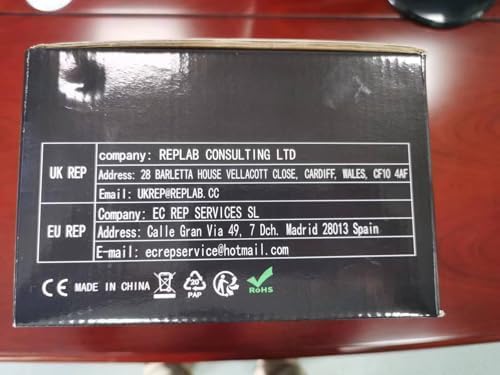
Figure 8.2: Product box displaying contact information for UK and EU representatives.
- UK Representative: REPLAB CONSULTING LTD
Address: 28 BARLETTA HOUSE VELLACOTT CLOSE, CARDIFF, WALES, CF10 4AF
Email: UKREP@REPLAB.CC - EU Representative: EC REP SERVICES SL
Address: Calle Gran Via 49, 7 Dch. Madrid 28013 Spain
Email: ecrepservice@hotmail.com
For technical support or warranty claims, please contact the appropriate representative based on your region.


