1. Introduction
This manual provides comprehensive instructions for the Generic RK-X40P Wireless Vlog Selfie Monitor. It covers product features, setup, operation, maintenance, and troubleshooting to ensure optimal performance and user experience. The RK-X40P is designed to enhance your mobile vlogging and live streaming by offering multi-touch reverse control and wireless mirroring capabilities for your smartphone's rear camera.
2. Package Contents
Verify that all the following items are included in your package:
- 1 × RK-X40P Monitor Screen
- 1 × Bluetooth Remote Control
- 1 × USB-C Charging Cable
- 1 × Magnetic Ring (for non-iPhone 12-16 models)
- 1 × User Manual
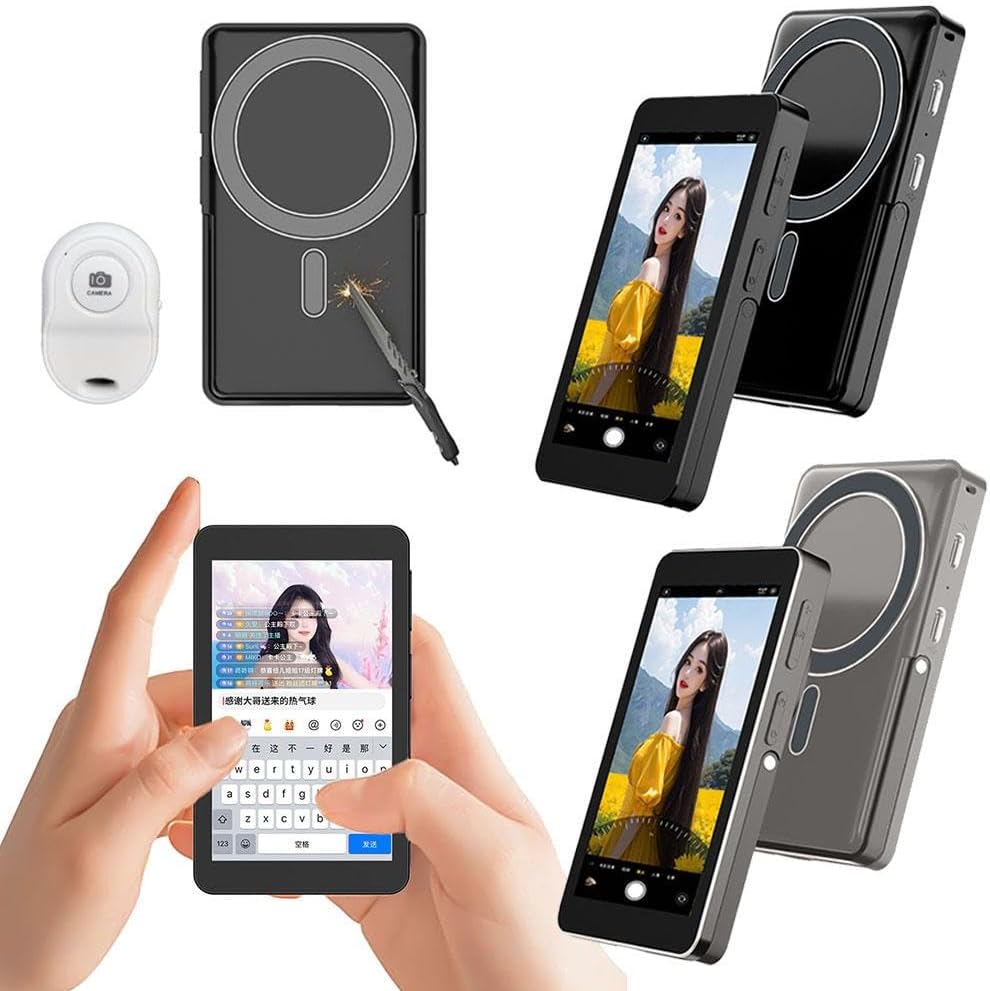
Image: Contents of the RK-X40P package, including the monitor, remote, cable, and magnetic ring.
3. Product Features
The RK-X40P monitor offers a range of features designed for mobile content creation:
- Multi-Touch Reverse Control: Interact with your phone directly from the monitor screen (tap, swipe) while using the rear camera for vlogging or live streaming.
- Wireless Mirroring & Smart Touch: Mirrors your phone’s rear camera feed and supports responsive touch gestures for seamless phone screen control.
- Adjustable Brightness: Features 3 levels of adjustable brightness (low/medium/high) to adapt to various lighting conditions.
- Integrated Battery: Built-in 2300mAh rechargeable battery provides 2-5 hours of usage time.
- Strong Magnetic Mounting: Ensures stable attachment to compatible phones (iPhone 12-16 series directly, other Android phones via included metal ring).
- Bluetooth Remote Control: Includes a remote with a 33ft range for hands-free operation, such as starting/stopping recordings.
- Ultra-Portable Design: Compact and lightweight at 138g, making it suitable for travel and on-the-go use.
- Integrated Stand: The monitor features a built-in stand for independent support.
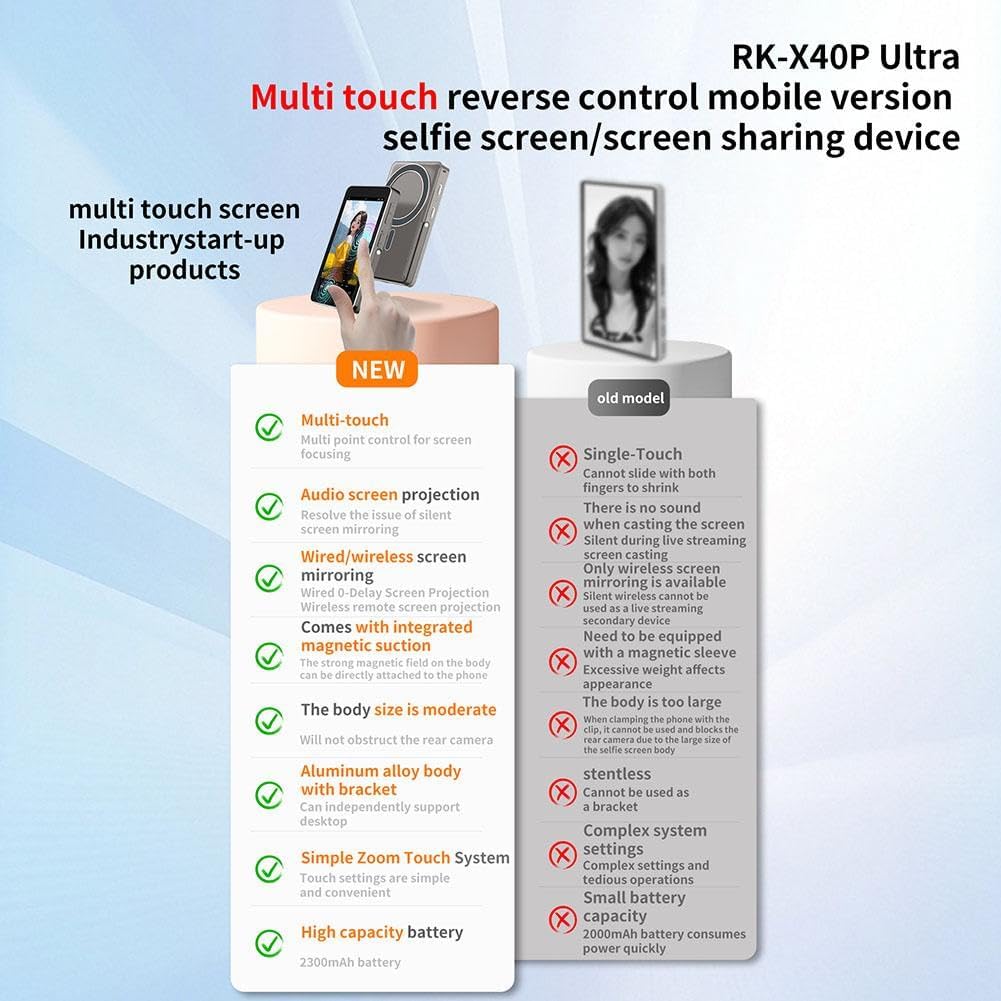
Image: A visual comparison highlighting the advanced features of the RK-X40P, such as multi-touch control and integrated magnetic suction.
4. Setup Guide
Follow these steps to set up your RK-X40P monitor:
- Charge the Monitor: Connect the provided USB-C cable to the monitor's Type-C port and a 5V/2A power adapter. The charging indicator will show the charging status.
- Attach Magnetic Ring (if necessary): If your phone is not an iPhone 12-16 series, attach the included magnetic ring to the back of your phone. Ensure it is centered for optimal magnetic connection.
- Mount the Monitor: Align the RK-X40P monitor with the magnetic area on your phone or the attached magnetic ring. The strong magnet will secure the monitor in place.
- Power On: Press and hold the power button on the monitor until the screen illuminates.
- Connect via Wireless Mirroring:
- On the RK-X40P monitor, navigate to the wireless mirroring settings.
- On your smartphone, enable Wi-Fi and search for the RK-X40P's network (usually named 'RK-X40P-XXXX').
- Connect your phone to the monitor's Wi-Fi network. Follow any on-screen prompts for pairing.
- Once connected, your phone's rear camera feed should appear on the RK-X40P monitor.
- Pair Bluetooth Remote:
- Ensure the Bluetooth remote has power (check battery if applicable).
- Activate Bluetooth pairing mode on the remote (refer to remote's mini-manual if needed).
- On your smartphone, go to Bluetooth settings and search for available devices.
- Select the remote from the list to pair.
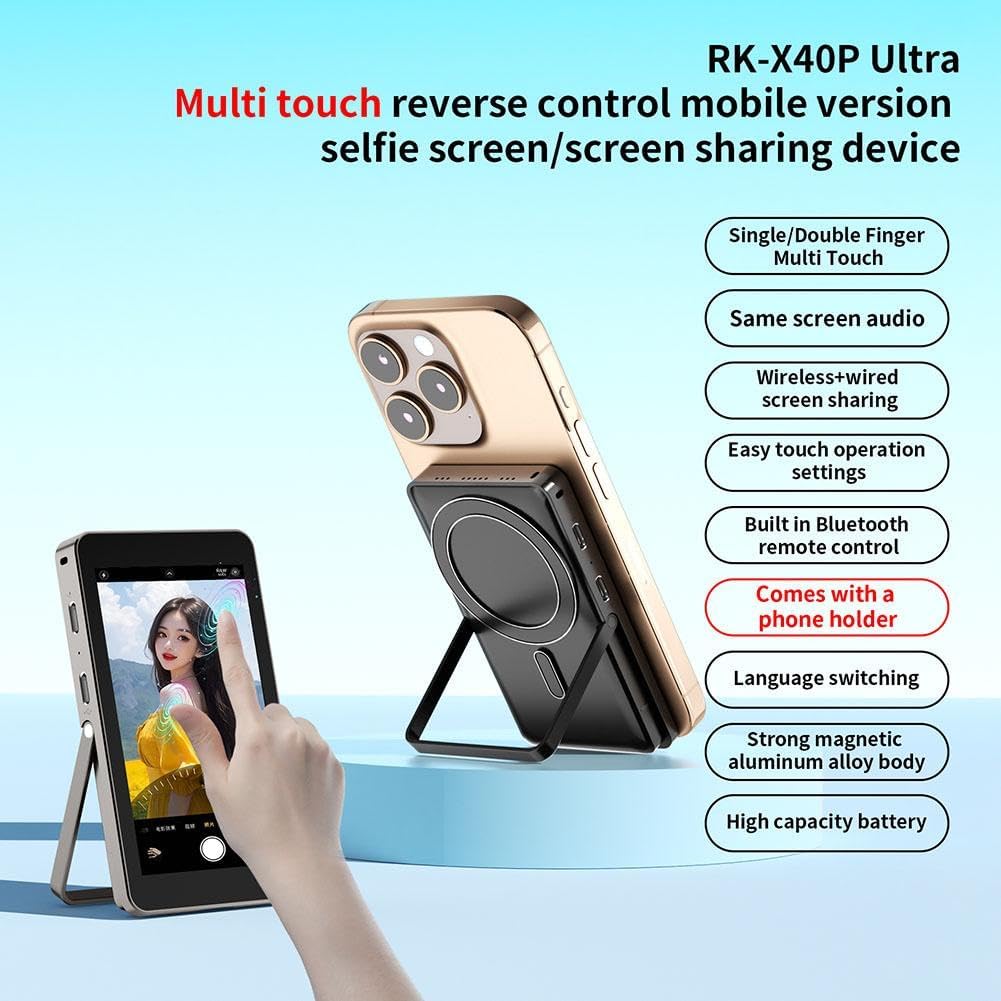
Image: The RK-X40P monitor attached to a smartphone, demonstrating the magnetic mounting and integrated stand.
5. Operating Instructions
Once set up, you can begin using your RK-X40P monitor:
- Using Multi-Touch Reverse Control:
- With wireless mirroring active, the RK-X40P screen becomes an interactive extension of your phone's display.
- You can tap, swipe, and interact with your phone's camera app or other applications directly on the monitor. This allows for real-time control while using your phone's rear camera for vlogging or live streaming.
- Adjusting Brightness:
- The monitor features 3 levels of adjustable brightness. Locate the brightness control button or setting on the monitor (refer to the device's physical buttons or on-screen menu).
- Press the button or select the option to cycle through low, medium, and high brightness settings to suit your environment.
- Using the Bluetooth Remote:
- After pairing the Bluetooth remote with your smartphone, you can use it to remotely control your phone's camera functions.
- Typically, the remote can start and stop video recordings or trigger photo captures without needing to touch your phone or the monitor.
- Utilizing the Integrated Stand:
- The RK-X40P has a built-in kickstand. Extend the stand from the back of the monitor to prop it up on a flat surface.
- This is useful for hands-free viewing or when using the monitor as a secondary display during live streams.
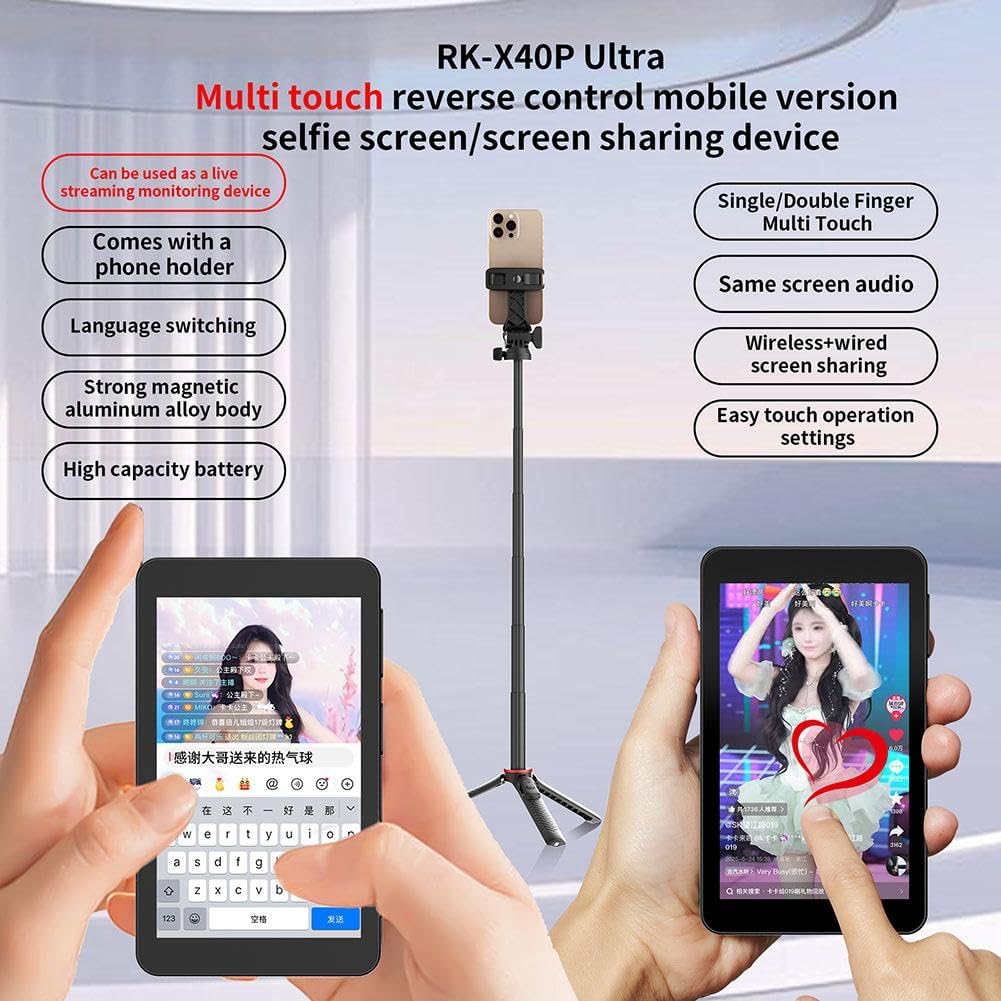
Image: The RK-X40P monitor in use with a smartphone on a stand, illustrating its application for live content creation.

Image: The RK-X40P monitor showcasing its 'Same screen audio' feature, indicating synchronized audio output.
6. Maintenance
Proper care and maintenance will extend the life of your RK-X40P monitor:
- Cleaning: Use a soft, dry, lint-free cloth to clean the screen and body of the monitor. Avoid using liquid cleaners, aerosols, or harsh chemicals, as they may damage the device.
- Storage: When not in use, store the monitor in a cool, dry place away from direct sunlight and extreme temperatures.
- Battery Care: To maintain battery health, avoid fully discharging the battery frequently. Charge the device regularly, even if not in constant use. Do not expose the battery to extreme heat or cold.
- Handling: Handle the monitor with care to prevent drops or impacts, which could damage the screen or internal components.
7. Troubleshooting
If you encounter issues with your RK-X40P monitor, refer to the following troubleshooting guide:
| Problem | Possible Cause | Solution |
|---|---|---|
| Monitor does not power on | Low or depleted battery | Connect the monitor to a power source using the USB-C cable and allow it to charge for at least 30 minutes before attempting to power on again. |
| No wireless mirroring/display | Incorrect Wi-Fi connection; Phone compatibility issue; Software glitch | Ensure your phone is connected to the RK-X40P's Wi-Fi network. Verify your phone's operating system (iOS 9+ or Android 8.0+). Restart both the monitor and your smartphone. |
| Multi-touch control not responsive | Loose wireless connection; Software issue on phone or monitor | Check the stability of the Wi-Fi connection. Restart the monitor and phone. Ensure no protective films are interfering with touch input. |
| Bluetooth remote not connecting/working | Remote battery low; Not paired correctly; Interference | Check the remote's battery. Re-pair the Bluetooth remote with your smartphone. Ensure no other Bluetooth devices are causing interference. |
| Magnetic attachment is weak | Incorrect placement of magnetic ring; Thick phone case | Ensure the magnetic ring is correctly centered on your phone. Remove any thick phone cases that might impede the magnetic connection. |
8. Specifications
Detailed technical specifications for the RK-X40P Wireless Vlog Selfie Monitor:
- Screen Size: 4 inches (1136 × 640 resolution)
- Material: Aluminum Alloy + Tempered Glass
- Power Input: 5V/2A via Type-C
- Rated Power: 1.8W
- Wireless Network: WiFi 2.4G
- Battery Capacity: 3.7V 2300mAh
- Usage Time: 2 – 5 hours (depending on usage)
- Product Dimensions: 107 x 62.8 x 13.5 mm
- Product Weight: 138g
- Brightness: 3-Level Adjustable
- Remote: Bluetooth Remote Control (33ft / 10m Range)
- Mount: Strong Tail Magnet + Phone Holder
- Function: Wireless Back Camera Mirroring with Real-Time Reverse Touch Control
- Compatibility: Compatible with iPhone (iOS 9+), Compatible with Android (8.0+)
9. Customer Support
For any issues or inquiries regarding your RK-X40P Wireless Vlog Selfie Monitor, please contact our customer support team. We are available to assist you 24/7.
Contact Information: Please refer to the contact details provided on your purchase platform or the product packaging for the most current support options.


