
1. Introduction
Thank you for choosing the cudinham X6 Mini Thermal Printer. This portable, inkless printer is designed for convenience, allowing you to print photos, notes, labels, and more directly from your smartphone. This manual provides essential information for safe and effective use of your device.
2. Package Contents
Please verify that all items are present in your package:
- cudinham X6 Mini Thermal Printer (1 unit)
- Thermal Printing Paper Roll (1 unit)
- Adhesive Printing Paper Rolls (2 units)
- Type-C Power Cable (1 unit)
- User Manual (1 unit)

Image: Contents of the cudinham X6 Mini Thermal Printer package, showing the printer, paper rolls, Type-C cable, and user manual.
3. Setup Guide
3.1 Loading Thermal Paper
- Gently open the printer cover.
- Insert the thermal paper roll into the compartment, ensuring the printing side faces upwards.
- Pull a small length of paper out of the printer and close the cover firmly.
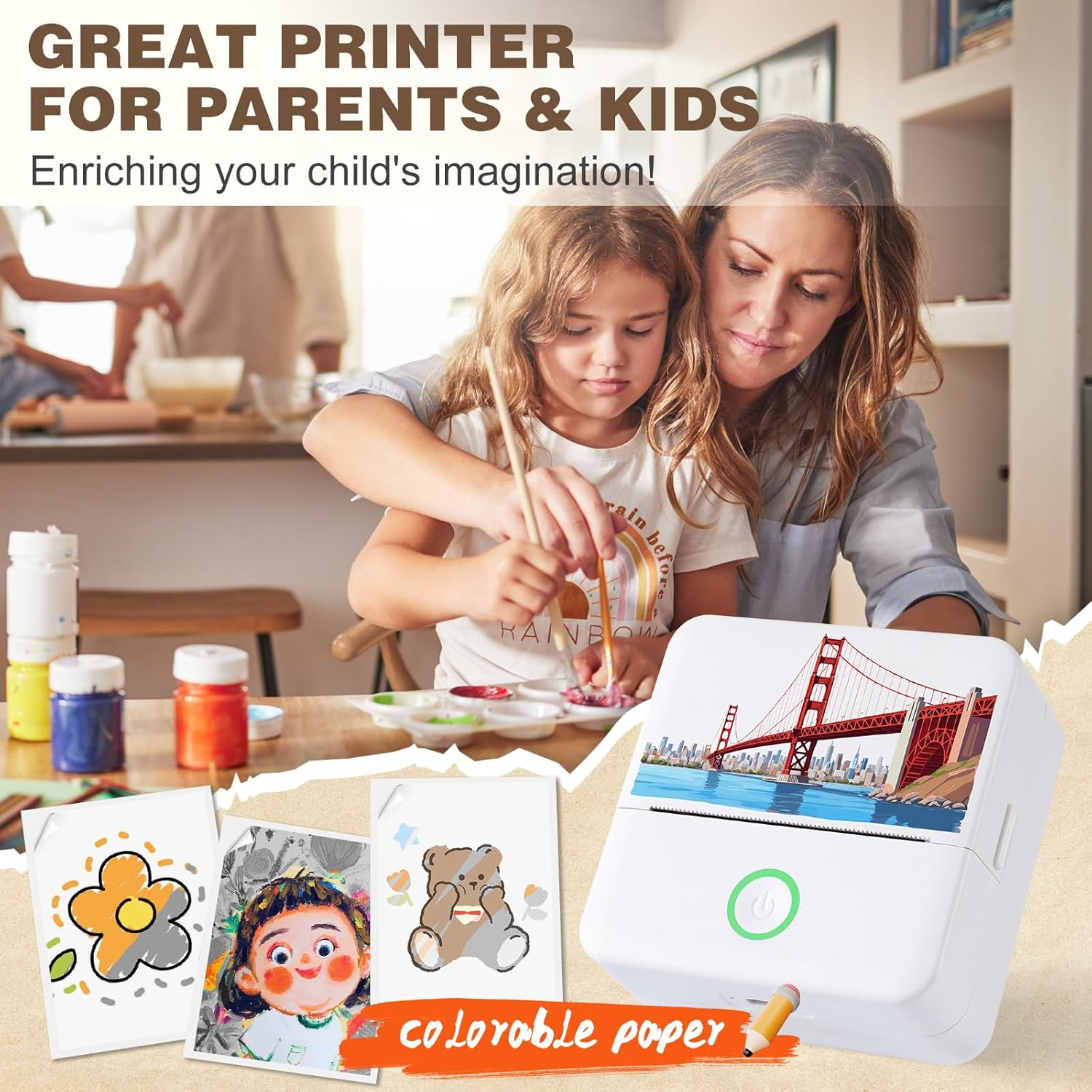
Image: Step-by-step illustration of how to correctly load thermal paper into the printer.
3.2 App Installation and Bluetooth Connection
- Download the "Tiny Print" app from your device's app store (available for iOS and Android).
- Ensure your printer is powered on by pressing the power button. The indicator light will illuminate.
- Enable Bluetooth on your smartphone.
- Open the "Tiny Print" app and follow the in-app instructions to connect to your printer via Bluetooth. Look for a device named similar to "X6H-667C".

Image: The "Tiny Print" app interface demonstrating the Bluetooth connection process.
Video: An overview of the cudinham X6 Mini Thermal Printer, demonstrating its features and ease of use, including paper loading and app connectivity.
4. Operating Instructions
The "Tiny Print" app offers various functions to maximize your printer's capabilities:
- Photo Printing: Select images from your gallery to print in black and white.
- Graphic Editing: Utilize in-app tools to edit and enhance your prints.
- Sticky Notes & Lists: Create to-do lists, shopping lists, or quick notes.
- Document Printing: Print text documents directly.
- DIY Stickers: Design and print custom stickers using adhesive paper rolls.

Image: Multiple smartphone screens showcasing the diverse functionalities and templates available within the "Tiny Print" application.

Image: A collage of various practical applications for the mini printer, such as creating scrapbook elements, labels, and personalized notes.
4.1 Printing Study Notes
The printer is ideal for quickly capturing and printing study notes or complex diagrams. Simply use the app's features to select and print the desired content.

Image: A visual comparison highlighting the clarity and efficiency of printing study notes with the cudinham X6 Mini Thermal Printer compared to manual transcription.
5. Maintenance
5.1 Cleaning the Print Head
If print quality degrades or appears unclear after repeated use, the print head (laser bar) may need cleaning. Use a cotton swab lightly dampened with alcohol to gently wipe the laser bar located within the paper loading compartment. Ensure the printer is off before cleaning.
5.2 Battery Care
The printer features a built-in 1200mAh lithium-ion battery. For optimal battery life, avoid fully discharging the battery frequently and store the printer in a cool, dry place when not in use for extended periods.
6. Troubleshooting
- Printer not connecting via Bluetooth: Ensure the printer is powered on and within range of your smartphone. Restart both the printer and your phone, then try connecting again through the "Tiny Print" app.
- Poor print quality: Check if the thermal paper is loaded correctly with the printing side facing up. Clean the print head as described in Section 5.1. Ensure the battery is sufficiently charged.
- Paper jam: Open the printer cover, carefully remove any jammed paper, and reload the paper roll correctly.
- Printer not turning on: Ensure the battery is charged. Connect the printer to a power source using the provided Type-C cable.
7. Specifications
| Feature | Specification |
|---|---|
| Model Name | X6 |
| Brand | cudinham |
| Printing Technology | Thermal |
| Connectivity Technology | Bluetooth |
| Printer Output | Monochrome |
| Max Print Speed Monochrome | 1 ppm |
| Maximum Media Size | 57 X 350 mm |
| Sheet Size | 57 X 25 Millimeters |
| Compatible Devices | Smartphones (iOS 9.0+, Android 4.0+) |
| Battery | 1200mAh Lithium-ion (built-in) |
| Product Dimensions | 3.35 x 1.78 x 3.35 inches |
| Item Weight | 12.8 ounces |
8. Warranty and Support
The cudinham X6 Mini Thermal Printer comes with a limited warranty. For specific warranty details or technical support, please refer to the contact information provided with your purchase or visit the official cudinham website.