
Introduction
Thank you for choosing the Avylet 8-inch Wireless Apple CarPlay & Android Auto Screen. This portable car stereo system is designed to enhance your driving experience by integrating smartphone functionalities directly into your vehicle's dashboard. It features wireless connectivity for Apple CarPlay and Android Auto, an 8-inch display with portrait and landscape modes, a 1080P backup camera, and voice control capabilities. Please read this manual thoroughly before installation and operation to ensure proper use and optimal performance.
Safety Information
- Always operate the device responsibly and in accordance with local traffic laws. Distracted driving can lead to accidents.
- Do not attempt to install or service the device while driving. Ensure the vehicle is parked safely before any adjustments.
- Avoid blocking your view of the road or vehicle controls with the device.
- Ensure all cables are securely routed and do not interfere with driving controls or passenger movement.
- Keep the device away from extreme temperatures, direct sunlight for prolonged periods, and moisture.
- Use only the provided power adapter and cables to prevent damage or fire hazards.
Package Contents
Verify that all items listed below are present in your package:
- 8-inch Portable Car Screen
- USB Car Charger (9.8ft cable)
- AUX Audio Cable (5ft)
- Rear Camera (19.7ft cable)
- Rear Camera Screws (x4)
- Rear Camera Adhesive (x2)
- Suction Cup Magnetic Mount
- Adhesive Gasket for Suction Cup Magnetic Mount
- User Manual (in 6 languages)
Product Overview
The Avylet T91 features an 8-inch IPS HD display, offering clear visuals and responsive touch control. It supports both Apple CarPlay and Android Auto wirelessly, allowing for seamless integration with your smartphone. The device also includes a 1080P reversing rear camera for parking assistance.
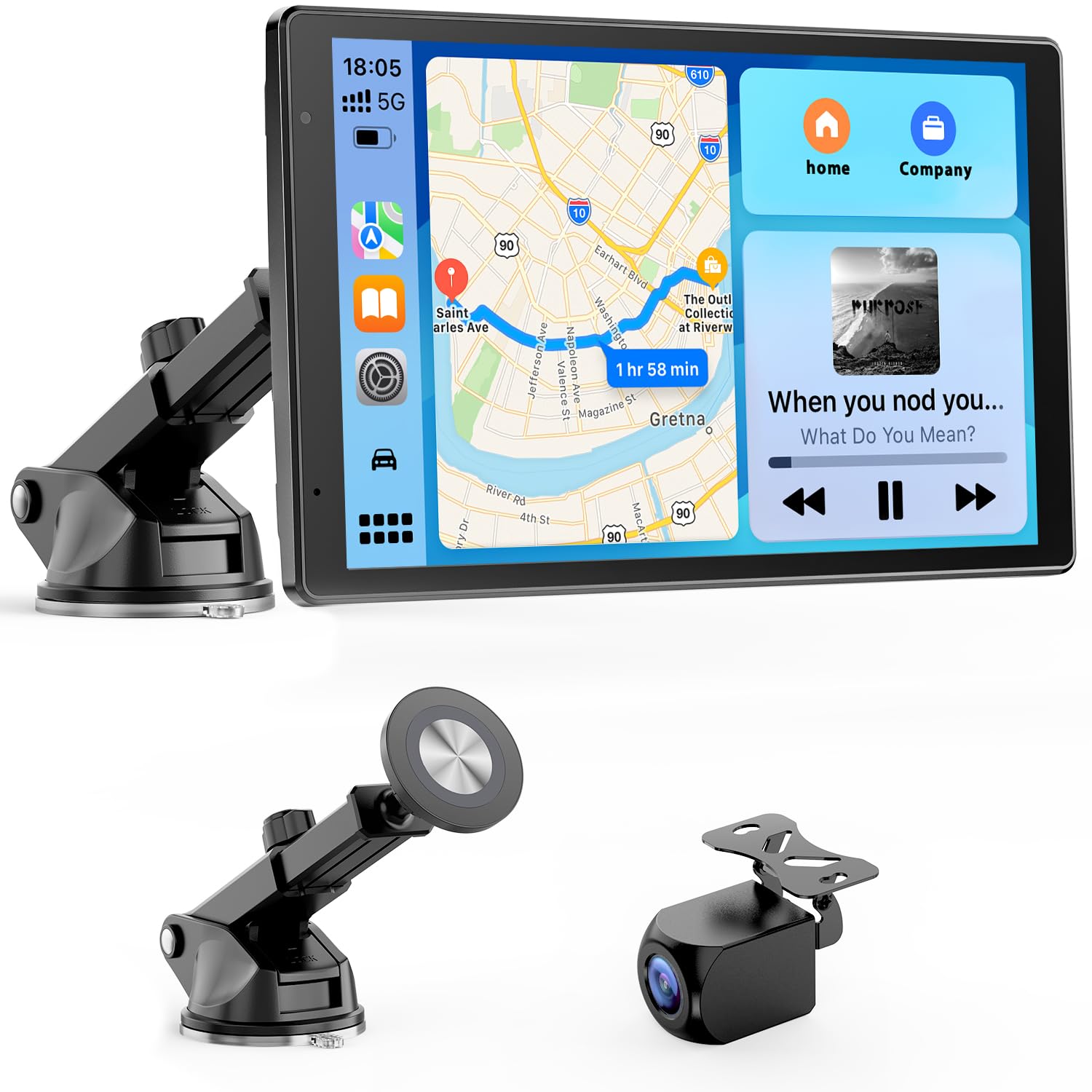
Image: Front view of the Avylet 8-inch Wireless Apple CarPlay and Android Auto Screen, showing the display and magnetic mount connection.

Image: Side view of the Avylet 8-inch Wireless Apple CarPlay and Android Auto Screen, highlighting the various input/output ports and the overall slim design.
Setup
1. Mounting the Device
- Choose a Location: Select a flat, clean surface on your dashboard or windshield that does not obstruct your view or interfere with airbags.
- Prepare the Surface: Clean the chosen surface thoroughly. If mounting on a textured dashboard, apply the adhesive gasket first for better adhesion.
- Attach the Suction Cup Mount: Press the suction cup firmly onto the prepared surface and engage the locking lever to secure it.
- Attach the Screen: The screen connects to the mount via a magnetic mechanism. Align the screen with the magnetic plate on the mount until it snaps into place. Adjust the angle for optimal viewing.
2. Power Connection
- Insert the USB car charger into your vehicle's 12V power outlet (cigarette lighter socket).
- Connect the USB-C end of the charger cable to the power input port on the Avylet screen.
- Route the cable safely to avoid interference with driving.
3. Rear Camera Installation (Optional)
- Mount the Camera: Install the 1080P rear camera at the back of your vehicle, typically above the license plate. Use the provided screws or adhesive. Ensure the camera has a clear view.
- Route the Cable: Carefully route the camera cable from the rear of the vehicle to the Avylet screen, ensuring it is protected from damage and does not interfere with vehicle components.
- Connect to Screen: Plug the camera cable into the designated camera input port on the Avylet screen.
- Note: The rear camera is powered directly by the monitor and does not support recording.
4. Audio Connection to Car Stereo
You have several options to output audio from the Avylet screen to your car's audio system:
- AUX Cable: Connect the provided 5ft AUX audio cable from the Avylet screen's AUX output to your car's AUX input port. Select AUX as the input source on your car stereo.
- FM Transmitter: On the Avylet screen, select the FM Transmitter option. Choose an unused FM frequency. Tune your car's FM radio to the same frequency.
- Bluetooth: Pair the Avylet screen with your car's Bluetooth system. This allows for audio output and hands-free calling through your car's speakers.
- Built-in Speaker: The Avylet screen has a built-in speaker for basic audio output.
Operating Instructions
1. Power On/Off
- The device will automatically power on when your vehicle's 12V power outlet receives power.
- To power off, disconnect the power cable or turn off your vehicle's ignition.
2. Initial Setup & Smartphone Connection
- Enable Wi-Fi and Bluetooth: On your smartphone, ensure both Wi-Fi and Bluetooth are enabled.
- Pair Bluetooth: On the Avylet screen, navigate to the Bluetooth settings and pair with your smartphone.
- Connect to CarPlay/Android Auto: Once Bluetooth is paired, the screen will prompt you to connect to Wireless Apple CarPlay or Android Auto. Confirm the connection on your smartphone.
- Note: The Avylet screen requires Wi-Fi to connect to your phone for CarPlay/Android Auto. If you are also using an Avylet dash cam, the same phone cannot connect to both devices simultaneously via Wi-Fi.
3. Screen Modes (Portrait & Landscape)
The Avylet T91 supports seamless switching between portrait and landscape modes. Simply rotate the screen physically to change its orientation. The display will automatically adjust.
4. Navigation
Once connected to Apple CarPlay or Android Auto, you can use your preferred navigation apps (e.g., Apple Maps, Google Maps, Waze) directly on the Avylet screen. Voice commands can be used to set destinations.
5. Music & Media Playback
Access your favorite music streaming services (e.g., Spotify, Pandora, SiriusXM) and other media apps through CarPlay or Android Auto. Control playback directly from the screen or via voice commands.
6. Voice Control (Siri / Google Assistant)
Harness the power of voice control. Activate Siri (for Apple CarPlay) or Google Assistant (for Android Auto) to make calls, send messages, get directions, or control music without touching the screen, ensuring safer driving.
7. Custom Boot Logo & Wallpaper
The device allows for custom boot logos and setting different wallpapers. Refer to the on-screen settings menu for options to personalize your display.
8. OTA Updates
The Avylet T91 supports Over-the-Air (OTA) firmware updates. Ensure the device is connected to a stable Wi-Fi network to receive and install regular software updates, keeping your system current.
9. Backup Camera Usage
When the vehicle is shifted into reverse, the screen will automatically display the live feed from the 1080P rear camera, providing reverse assistance. A dedicated touch button on the screen can also activate the rear view.
Maintenance
- Cleaning the Screen: Use a soft, lint-free cloth to gently wipe the screen. For stubborn smudges, slightly dampen the cloth with water or a screen-cleaning solution. Avoid harsh chemicals.
- Cleaning the Mount: Periodically clean the suction cup and dashboard surface to ensure strong adhesion.
- Cable Management: Regularly check all cables for wear or damage. Ensure they are securely routed and not pinched.
- Software Updates: Keep the device's software updated via OTA updates to ensure optimal performance and access to new features.
Troubleshooting
Common Issues and Solutions:
- Device not powering on:
- Ensure the USB car charger is securely plugged into the 12V outlet and the screen.
- Check if the vehicle's 12V outlet is functioning (e.g., by plugging in another device).
- Wireless CarPlay/Android Auto not connecting:
- Ensure Bluetooth and Wi-Fi are enabled on your smartphone.
- Verify that your phone is paired via Bluetooth to the Avylet screen.
- Restart both the Avylet screen and your smartphone.
- Check for any conflicting Wi-Fi connections (e.g., another Avylet dash cam).
- Note: Avylet CarPlay is not compatible with Huawei models.
- No audio output to car speakers:
- If using AUX, ensure the cable is connected correctly and your car stereo is set to AUX input.
- If using FM, ensure the Avylet screen and your car radio are tuned to the exact same, clear FM frequency.
- If using Bluetooth, ensure the Avylet screen is paired with your car's Bluetooth system and selected as the audio output.
- Backup camera not displaying:
- Check if the camera cable is securely connected to the Avylet screen.
- Ensure the camera lens is clean and unobstructed.
- Verify that the vehicle is in reverse gear, or manually activate the camera via the screen's touch button.
- Screen rotation not working:
- Ensure the screen is physically rotated to the desired orientation. The software should automatically adjust.
- If the issue persists, restart the device.
For further assistance, please refer to the FAQ section in the user manual (if available in your package) or contact Avylet customer support.
Specifications
| Feature | Detail |
|---|---|
| Model Number | T91 |
| Screen Size | 8.0 inches |
| Display Type | LCD |
| Product Dimensions | 7.68 x 4.8 x 1.18 inches (19.5 x 12.2 x 3 cm) |
| Item Weight | 12.6 ounces (0.36 kg) |
| Connectivity Technology | Bluetooth, Auxiliary, Wi-Fi, FM |
| Special Features | Wireless Apple CarPlay/Android Auto/Mirror Link, Boot Logo Customization, Real-time GPS Navigation, Suction Cup & Magnetic Bracket, Portrait & Landscape Mode, Smart Voice Control, 1080P Backup Camera |
| Audio Output Mode | Stereo |
| Human Interface Input | Microphone, Touchscreen |
Warranty and Support
For warranty information, please refer to the documentation included with your purchase. If you encounter any issues or require technical support, please contact Avylet customer service.
Customer Service Email: service@avylet.com
For rear camera extension cable requests or other inquiries, please reach out to the provided email address.
