
1. Introduction
This manual provides detailed instructions for the installation, operation, and maintenance of your ORICO External USB 3.0 to SATA Hard Drive Lay-Flat Docking Station. Please read this manual thoroughly before using the product to ensure proper functionality and to prevent damage.
Package Contents
Verify that all items listed below are present in your package:
- Flat-Down External Hard Drive Enclosure
- 12V Power Adapter
- Adapter Converter
- 1M USB 3.0 Data Cable
- User Manual (this document)

2. Safety Information
To ensure safe operation and prevent damage to the device or data loss, please observe the following safety guidelines:
- Do not expose the device to moisture, extreme temperatures, or direct sunlight.
- Use only the provided power adapter. Using an incompatible power adapter may damage the device.
- Avoid dropping or subjecting the device to strong impacts.
- Do not attempt to disassemble or modify the device. This will void the warranty.
- Ensure proper ventilation around the docking station during operation to prevent overheating.
- Always safely eject the hard drive from your operating system before physically removing it from the docking station to prevent data corruption.
3. Product Overview
The ORICO External USB 3.0 to SATA Hard Drive Lay-Flat Docking Station provides a convenient solution for accessing 2.5-inch and 3.5-inch SATA HDDs and SSDs. It features high-speed data transfer and a tool-free design.
Key Features
- USB 3.0 with UASP Support: Achieves data transfer speeds up to 5Gbps, significantly faster than standard USB 3.0. Backward compatible with USB 2.0/1.1.
- Large Capacity Support: Supports single drives up to 24TB (2.5-inch and 3.5-inch SATA I/II/III HDDs and SSDs).
- Efficient Heat Dissipation: Lay-flat design maximizes surface area for natural convection cooling, preventing overheating during prolonged use.
- Tool-Free Installation: Simple plug-and-play operation with no screws or drivers required. Supports hot-swapping.
- Wide Operating System Compatibility: Compatible with Windows XP/7/8/10/11, Linux, and Mac OS 9.1+.
Component Identification
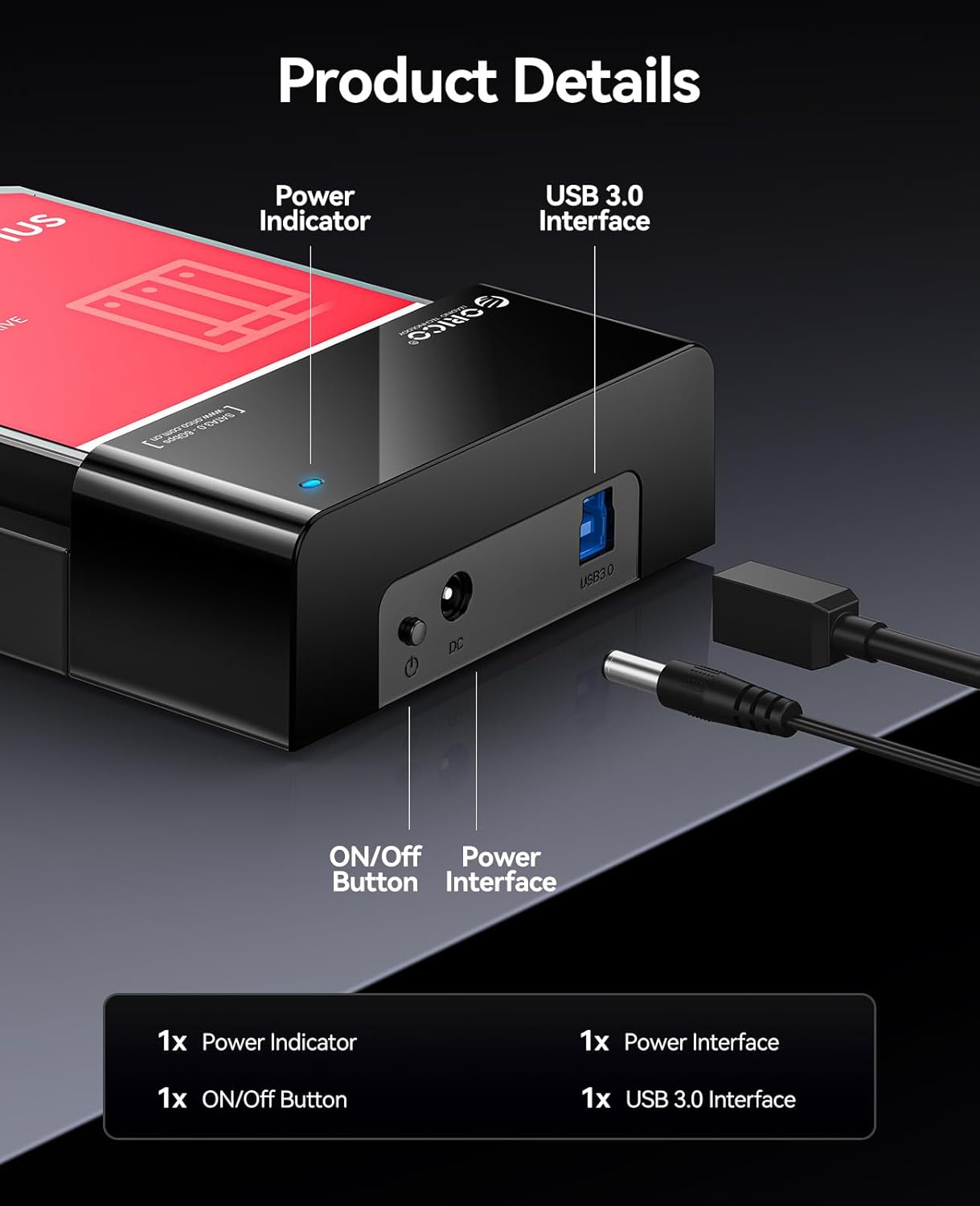
- Power Indicator: Illuminates when the device is powered on.
- ON/OFF Button: Controls the power supply to the docking station.
- Power Interface (DC 12V): Connects to the provided 12V power adapter.
- USB 3.0 Interface: Connects to your computer via the USB 3.0 data cable.
4. Setup
Follow these steps to set up your ORICO Hard Drive Docking Station:
- Insert the Hard Drive: Gently slide your 2.5-inch or 3.5-inch SATA HDD/SSD into the docking station's slot until it is firmly seated. The lay-flat design allows for easy insertion.

Image: A 3.5-inch HDD being inserted into the lay-flat docking station, illustrating the tool-free installation and open design for heat dissipation. - Connect Power: Connect the provided 12V Power Adapter to the Power Interface (DC 12V) on the docking station, then plug the adapter into a power outlet.
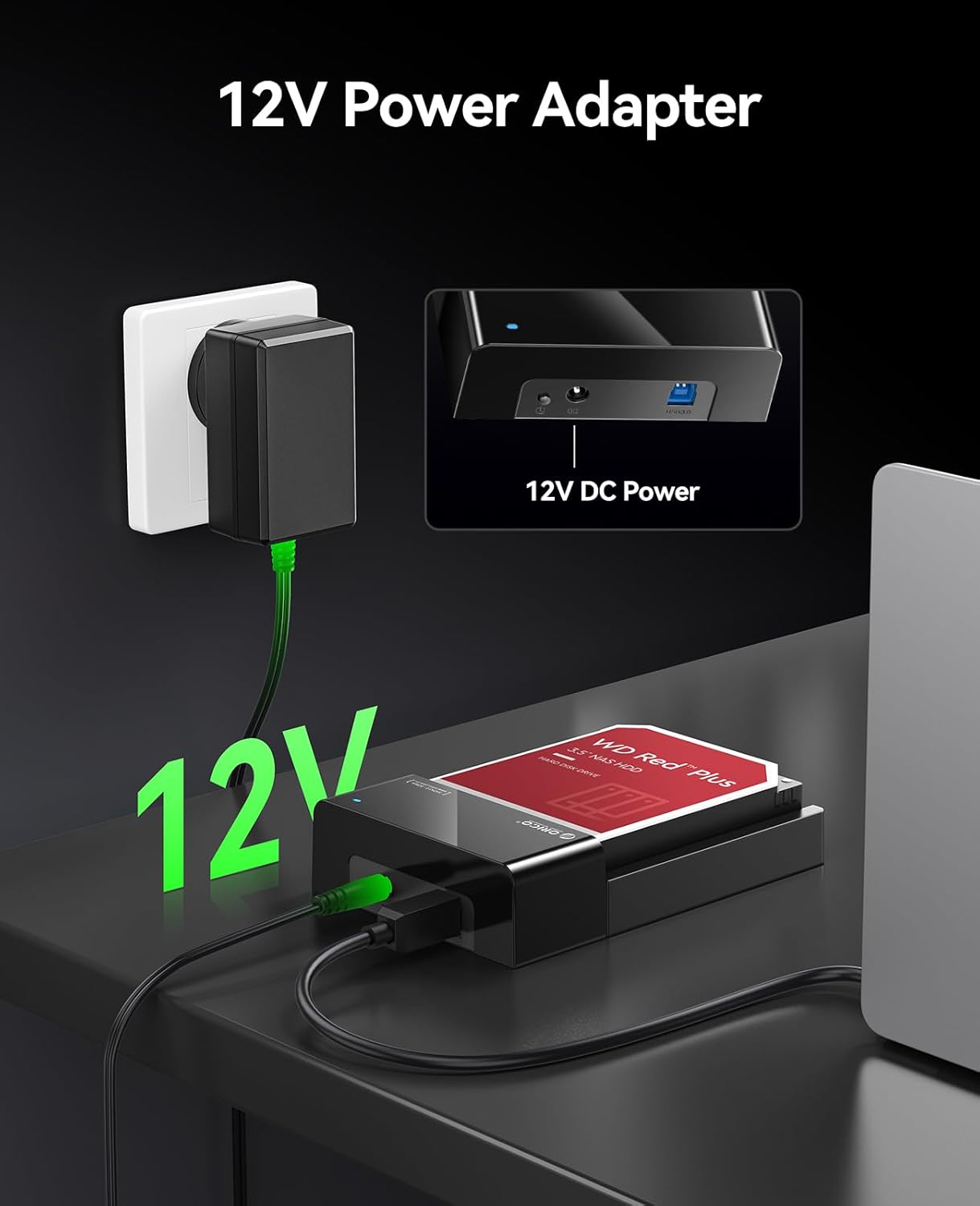
Image: The 12V power adapter connected to the docking station and plugged into a wall outlet. - Connect to Computer: Use the 1M USB 3.0 Data Cable to connect the USB 3.0 Interface on the docking station to an available USB port on your computer.
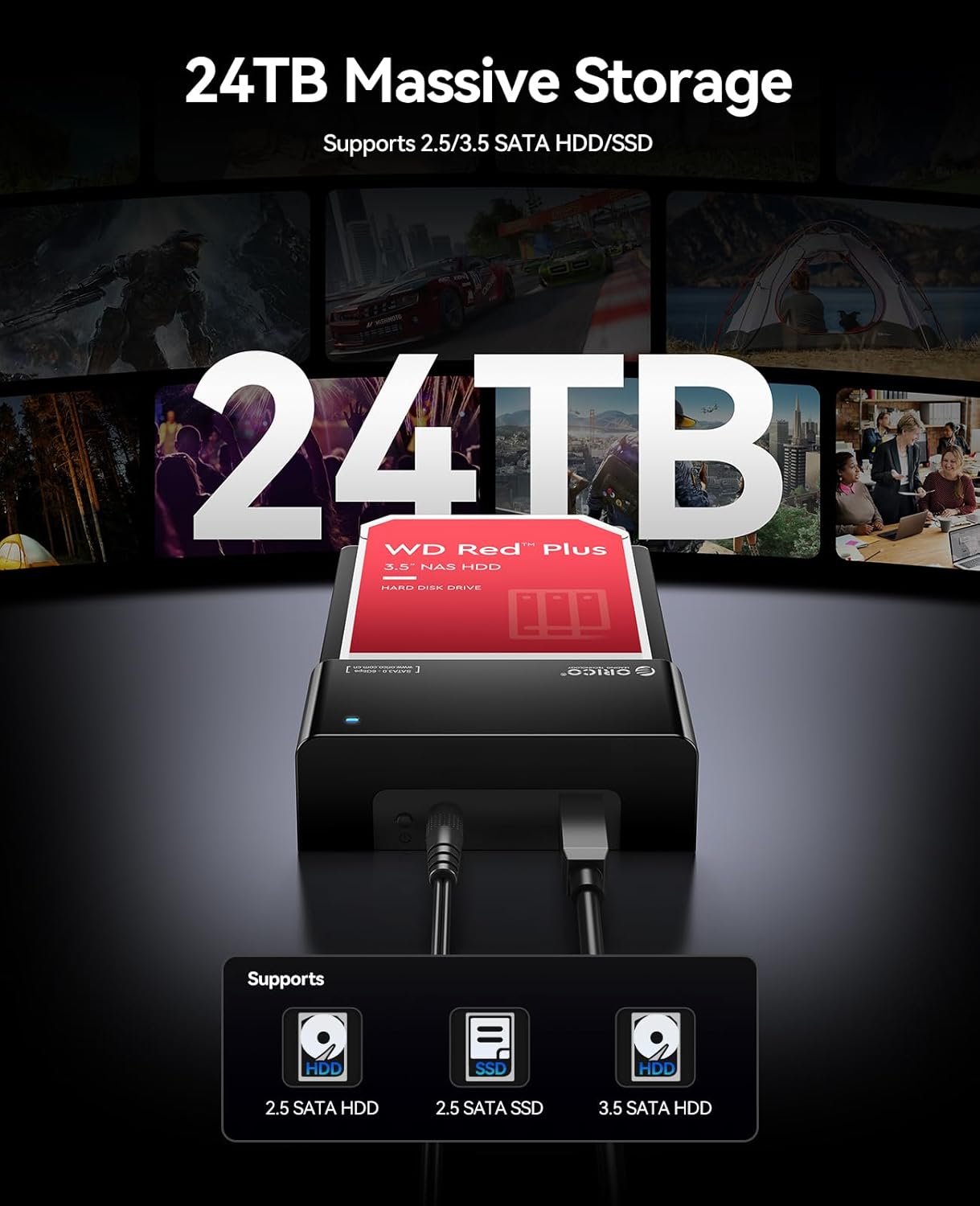
Image: The ORICO docking station connected to a laptop via a blue USB 3.0 cable, demonstrating high-speed data transfer. - Power On: Press the ON/OFF button on the docking station. The Power Indicator light will illuminate.
Your operating system should automatically detect the new hardware. No additional drivers are typically required for Windows, Linux, or Mac OS.
5. Operating Instructions
Accessing Data
Once connected and powered on, the hard drive in the docking station will appear as an external drive on your computer. You can access, transfer, and manage files as you would with any other external storage device.

Hot-Swapping Drives
The docking station supports hot-swapping. To safely remove a drive and insert another:
- Safely eject the hard drive from your operating system (e.g., "Safely Remove Hardware" on Windows, "Eject" on Mac).
- Once the operating system confirms it's safe, gently pull the hard drive out of the docking station.
- Insert the new hard drive into the slot until it clicks into place. The operating system will detect the new drive.
Video Demonstration
Watch this video for a visual guide on setting up and using the ORICO Hard Drive Docking Station.
6. Maintenance
Proper maintenance ensures the longevity and optimal performance of your docking station.
- Cleaning: Use a soft, dry cloth to wipe the exterior of the docking station. Do not use liquid cleaners or solvents.
- Storage: When not in use, store the docking station in a cool, dry place away from dust and direct sunlight.
- Ventilation: Ensure the docking station's ventilation areas are not obstructed during operation to maintain efficient heat dissipation.
7. Troubleshooting
If you encounter issues with your docking station, refer to the following common solutions:
| Problem | Possible Cause | Solution |
|---|---|---|
| Device not recognized by computer |
|
|
| Slow data transfer speeds |
|
|
| Hard drive overheating |
|
|
If the problem persists, please contact ORICO customer support for further assistance.
8. Specifications
| Feature | Detail |
|---|---|
| Brand | ORICO |
| Model | B0FHVWFPD2 |
| Hardware Interface | USB 3.0 Type A |
| Compatible Drive Types | 2.5-inch / 3.5-inch SATA I/II/III HDD & SSD |
| Max. Capacity | Up to 24 TB (single drive) |
| Data Transfer Rate | 5 Gigabits Per Second (USB 3.0) |
| Hardware Platform | Windows, Mac OS, Linux |
| Product Dimensions (L x W x H) | 7" x 1.5" x 4.8" (17.78 cm x 3.81 cm x 12.19 cm) |
| Enclosure Material | Metal, Plastic |
| Power Supply | 12V Power Adapter |
9. Warranty and Support
Warranty: This product comes with a 2-Year Warranty from the date of purchase. Please retain your proof of purchase for warranty claims. The warranty covers manufacturing defects and malfunctions under normal use. It does not cover damage caused by misuse, accidents, unauthorized modifications, or improper installation.
Customer Support: For technical assistance, troubleshooting, or warranty inquiries, please contact ORICO customer support. Refer to the ORICO official website or your purchase platform for contact details.
Return Policy: This product is subject to a 30-day return/replacement policy from the date of purchase, as per the retailer's terms.


