
FOSSiBOT F114
FOSSiBOT F114 Rugged Smartphone User Manual
Model: F114
1. Introduction
Welcome to the FOSSiBOT F114 Rugged Smartphone user manual. This guide provides essential information to help you set up, operate, and maintain your device. The FOSSiBOT F114 is designed for durability and performance, featuring a slim and lightweight build, a powerful camera system, and robust protection against water, dust, and shocks.
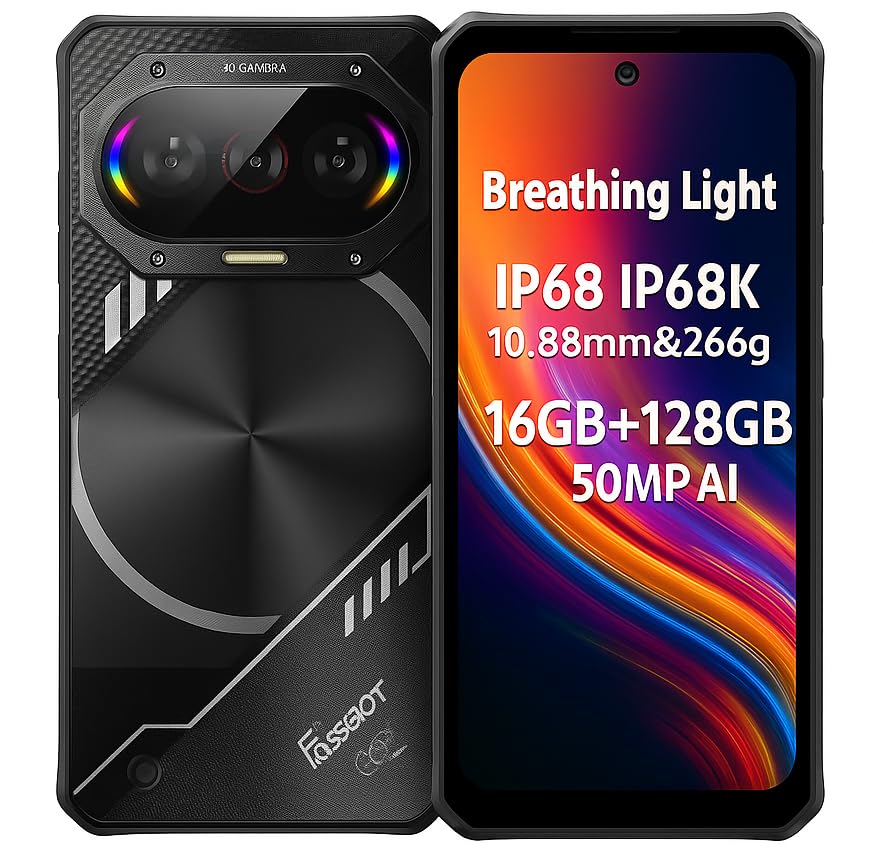
Image: The FOSSiBOT F114 rugged smartphone, showcasing its durable design.
2. Package Contents
Please check the package contents upon unboxing. If any items are missing or damaged, contact your retailer.
- FOSSiBOT F114 Smartphone
- USB Type-C Cable
- Power Adapter
- SIM Ejector Tool
- Quick Start Guide
- Warranty Card
3. Device Layout
Familiarize yourself with the physical components of your FOSSiBOT F114.

Image: Front view of the FOSSiBOT F114, showing the display and front camera.
- Front Camera: For selfies and video calls.
- Display: 6.67-inch HD+ screen.
- Volume Buttons: Adjust media and call volume.
- Power Button/Fingerprint Sensor: Turn on/off the device and unlock with your fingerprint.
- USB Type-C Port: For charging and data transfer.
- SIM/SD Card Slot: Insert your SIM cards and microSD card.
- Rear Cameras: 50MP main, 8MP wide-angle, 2MP macro lenses.
- Breathing Light System: RGB lights on the back for notifications and music synchronization.

Image: Side view of the FOSSiBOT F114, highlighting the slim profile and button placement.
4. Initial Setup
4.1. Inserting SIM and MicroSD Cards
- Locate the SIM card tray on the side of your device.
- Insert the SIM ejector tool into the small hole next to the tray and push gently until the tray pops out.
- Place your Nano-SIM card(s) and/or microSD card into the designated slots on the tray, ensuring correct orientation.
- Carefully push the tray back into the phone until it clicks into place.

Image: Illustration of inserting SIM and microSD cards into the FOSSiBOT F114.
4.2. Charging the Device
Before first use, fully charge your FOSSiBOT F114.
- Connect the USB Type-C cable to the charging port at the bottom of the phone.
- Connect the other end of the cable to the power adapter, then plug the adapter into a wall outlet.
- The device supports 18W fast charging. A charging indicator will appear on the screen.

Image: The FOSSiBOT F114 connected to its charger, showing the charging progress on screen.
4.3. Powering On/Off
- To Power On: Press and hold the Power button until the FOSSiBOT logo appears.
- To Power Off: Press and hold the Power button, then select "Power off" from the options on the screen.
- To Restart: Press and hold the Power button, then select "Restart" from the options.
5. Operating Your FOSSiBOT F114
5.1. Basic Navigation
The FOSSiBOT F114 runs on Android 15. Navigate using touch gestures on the 6.67-inch HD+ display.
- Tap: Select an item or open an app.
- Swipe: Scroll through screens or lists.
- Pinch: Zoom in or out on images and web pages.
- Glove Mode: Activate this feature in settings to use the touchscreen while wearing gloves, ideal for outdoor or cold environments.
5.2. Camera Usage
Capture high-quality photos and videos with the F114's versatile camera system.

Image: Detailed view of the FOSSiBOT F114's camera setup, showing the 50MP main camera, 8MP wide-angle, 2MP macro, and 8MP front camera.
- Rear Camera: 50MP AI main camera (f/1.8 aperture), 8MP wide-angle lens, and 2MP macro lens.
- Front Camera: 8MP (Sony IMX219 sensor).
- Modes: Supports underwater photography, AI scene recognition, night mode, macro mode, portrait mode, and more.
- To take a photo: Open the Camera app, select your desired mode, and tap the shutter button.
5.3. Breathing Light System
The F114 features a unique RGB breathing light system on the back that synchronizes with music and provides visual notifications.
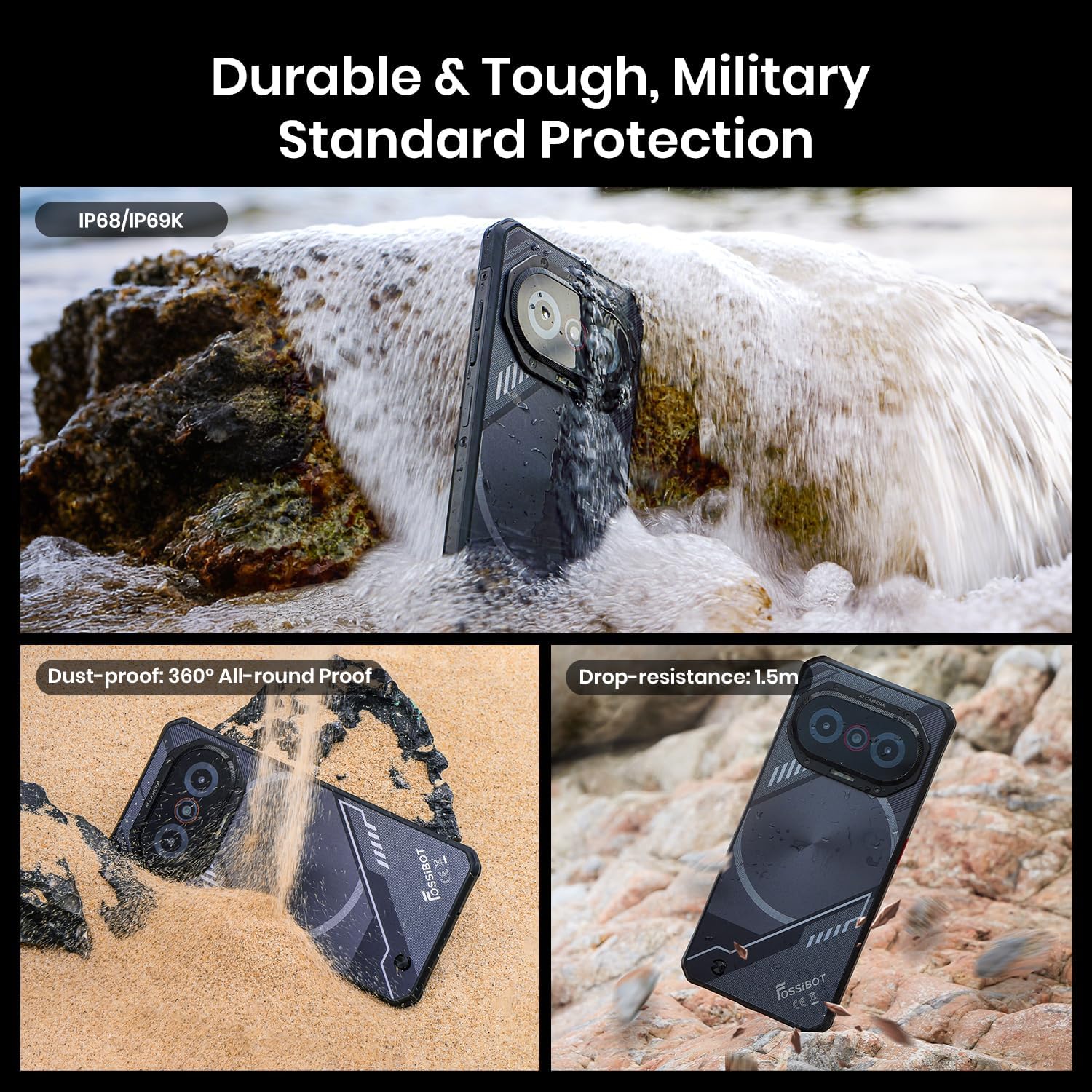
Image: The FOSSiBOT F114's rear panel showing the RGB breathing lights in different modes for charging, calls, messages, music, and low battery.
- Music Sync: Lights react to bass, mids, and highs, offering four rhythmic modes.
- Notifications: Different light patterns indicate incoming calls, messages, or low battery.
- Customize light settings in the phone's display or notification settings.
5.4. Durability Features
The FOSSiBOT F114 is built to withstand harsh environments.

Image: The FOSSiBOT F114 submerged in water and covered in sand, demonstrating its IP68/IP69K waterproof and dustproof ratings, and drop resistance.
- IP68/IP69K Rated: Resistant to dust and water immersion.
- MIL-STD-810H Certified: Military-grade durability against drops and shocks.
- Ensure all port covers are securely closed to maintain water and dust resistance.
5.5. Performance and Storage
The F114 is powered by an octa-core UNISOC T615 processor, ensuring smooth performance for daily tasks and gaming.

Image: A visual representation of the UNISOC T615 octa-core processor, highlighting its components and capabilities.
- Processor: UNISOC T615 Octa-core.
- RAM: 4GB physical RAM + up to 12GB virtual RAM (total 16GB).
- Internal Storage: 128GB ROM.
- Expandable Storage: Supports microSD cards up to 2TB.
6. Maintenance
6.1. Cleaning Your Device
- Use a soft, lint-free cloth to wipe the screen and body.
- For stubborn dirt, slightly dampen the cloth with water. Avoid harsh chemicals.
- Ensure all ports are dry before charging or connecting accessories.
6.2. Software Updates
Regularly check for and install software updates to ensure optimal performance and security.
- Go to Settings > System > System update to check for available updates.
- Ensure your device has sufficient battery and a stable Wi-Fi connection before updating.
6.3. Battery Care
- Avoid exposing the device to extreme temperatures.
- Do not let the battery completely drain frequently.
- Use only the original charger and cable provided.
7. Troubleshooting
7.1. Device Not Turning On
- Ensure the battery is charged. Connect the charger and wait a few minutes before attempting to power on.
- Press and hold the Power button for at least 10-15 seconds to force a restart.
7.2. Poor Network Connection
- Check if your SIM card is correctly inserted.
- Ensure you are within network coverage.
- Restart the device.
- Go to Settings > Network & internet > Mobile network and check network settings.
7.3. Camera Issues
- Ensure the camera lenses are clean and free from obstructions.
- Restart the Camera app or the device.
- Check app permissions for the Camera app in Settings > Apps > Camera > Permissions.
7.4. Touchscreen Unresponsive
- Restart the device by holding the Power button.
- Ensure the screen is clean and dry.
- If using a screen protector, ensure it is properly applied and not interfering with touch sensitivity.
8. Specifications
| Feature | Detail |
|---|---|
| Brand | FOSSiBOT |
| Model | F114 |
| Operating System | Android 15 |
| Processor | UNISOC T615 Octa-core |
| RAM | 4GB (expandable to 16GB virtual RAM) |
| Internal Storage | 128GB |
| Expandable Storage | Up to 2TB MicroSD |
| Display Size | 6.67 inches HD+ |
| Resolution | 720 x 1600 pixels |
| Rear Camera | 50MP Main + 8MP Wide-angle + 2MP Macro |
| Front Camera | 8MP |
| Battery Capacity | 5000 mAh |
| Charging | 18W Fast Charging |
| Durability | IP68/IP69K Waterproof & Dustproof, MIL-STD-810H Drop Resistance |
| Dimensions | 8.2 x 1.1 x 17.5 cm |
| Weight | 266g |
| Connectivity | 4G LTE, GPS, NFC, Dual SIM |
| Special Features | Breathing Light System, Glove Mode |
9. Product Video Guide
Watch the official product video for a visual overview of the FOSSiBOT F114's features and capabilities.
Video: An official FOSSiBOT F114 product video demonstrating its slim design, ruggedness, waterproof capabilities, large screen, processor, camera, and breathing lights.
10. Warranty and Support
The FOSSiBOT F114 comes with a standard manufacturer's warranty. Please refer to the warranty card included in your package for details on coverage and duration.
For technical support, service, or further inquiries, please contact FOSSiBOT customer service or visit the official FOSSiBOT website.
- Online Support: Visit the FOSSiBOT official website for FAQs and support resources.
- Email Support: Refer to your warranty card or quick start guide for contact email.
Related documentsF114


Ask a question about this manual
Ask about setup, troubleshooting, compatibility, parts, safety, or missing instructions. Manuals+ will review the question and use this page’s manual context to help answer it.