Introduction
This manual provides essential information for the safe and efficient use of your ASUS ROG Strix G18 G814 Gaming Laptop. Please read this guide thoroughly before operating your device to ensure proper setup, operation, and maintenance.
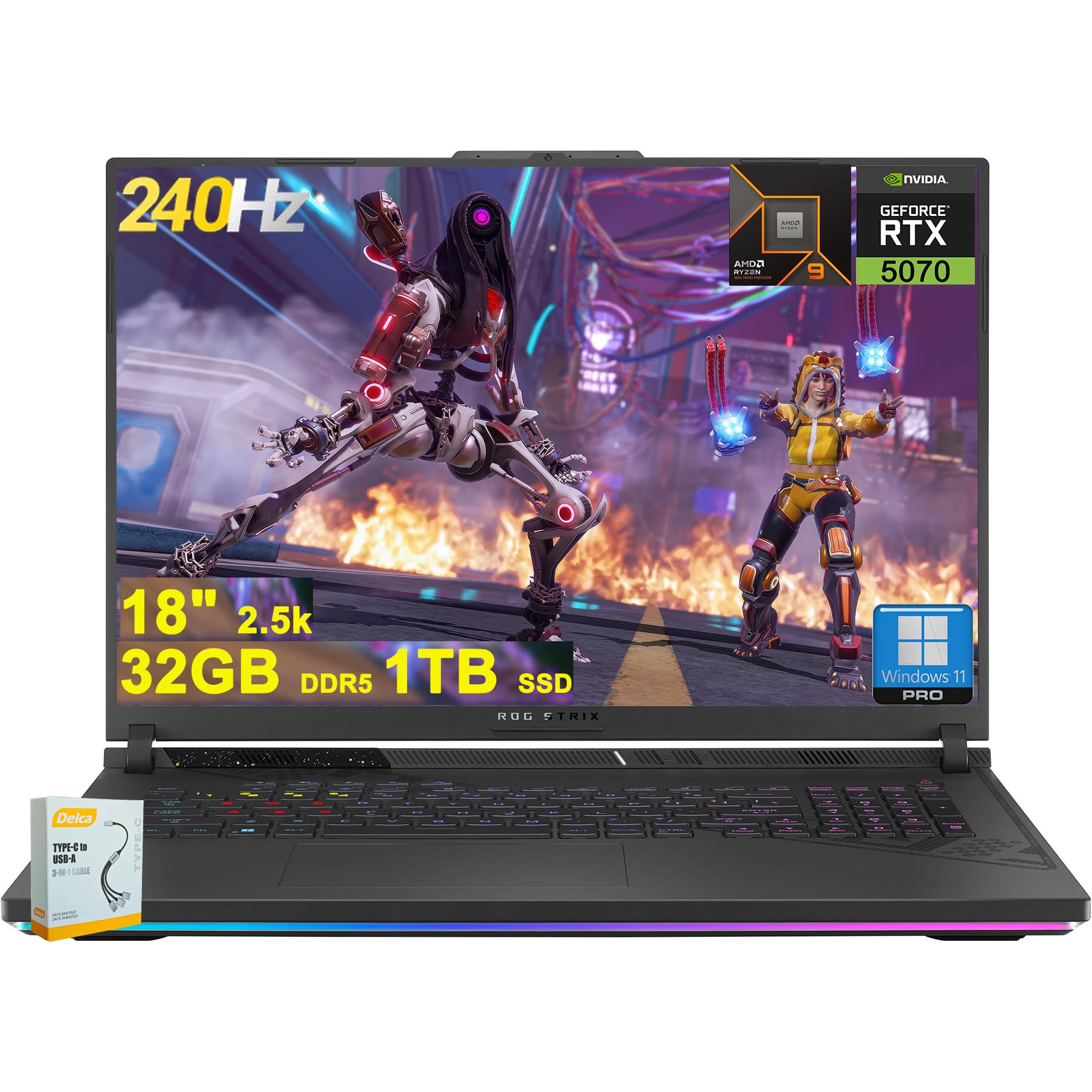
Figure 1: ASUS ROG Strix G18 G814 Gaming Laptop, front view with screen open.
What's in the Box
Verify that all items are present and in good condition upon unboxing.
- ASUS ROG Strix G18 G814 Gaming Laptop
- Power Adapter/Charger

Figure 2: Contents of the ASUS ROG Strix G18 G814 package, including the laptop and power adapter.
Setup
1. Initial Power-On
- Connect the Power Adapter: Plug the power adapter into the laptop's power input port and then into a wall outlet.
- Open the Laptop: Carefully open the laptop lid.
- Power On: Press the power button, typically located on the keyboard deck. The laptop will begin its initial boot sequence.
- Follow On-Screen Instructions: Complete the Windows 11 setup process, including language selection, network connection, and user account creation.
2. Connecting Peripherals
Connect external devices such as a mouse, keyboard, or external display to the available ports.

Figure 3: Side view of the ASUS ROG Strix G18 G814, illustrating the various input/output ports including USB-A, USB-C, HDMI, and RJ45 Ethernet.
- USB-A 3.2: For standard USB devices like mice, keyboards, and external drives. (2 ports)
- Type USB 4: For high-speed data transfer, display output, and power delivery. (1 port)
- HDMI 2.1 FRL: For connecting to external monitors or TVs.
- RJ45 Ethernet: For wired network connection.
- Headphone/Mic Combo Jack: For audio input/output.
Operating Instructions
Power Management
- Power On: Press the power button.
- Shut Down: Click the Start button, then Power, then Shut down.
- Sleep Mode: Close the lid or select Sleep from the Power menu.
Keyboard and Touchpad
The laptop features a 4-zone RGB backlit keyboard and a precision touchpad for navigation.

Figure 4: Close-up view of the ASUS ROG Strix G18 G814's 4-zone RGB backlit keyboard and touchpad.
- Backlight Control: Use the dedicated function keys (Fn + Fx) to adjust keyboard backlight brightness or effects.
- Touchpad Gestures: Refer to Windows settings for customizable multi-touch gestures.
Display and Graphics
Your laptop is equipped with an 18-inch 2560x1600 IPS display with a 240Hz refresh rate and 100% DCI-P3 color gamut, powered by an NVIDIA GeForce RTX 5070 8GB graphics card.

Figure 5: Visual representation of the 18-inch IPS display with 2560x1600 resolution and 240Hz refresh rate.

Figure 6: Image highlighting the NVIDIA GeForce RTX 5070 graphics card, emphasizing its role in visual performance.
Audio System
Experience enhanced audio with Smart Amp technology, Dolby Atmos support, and AI Noise-canceling for clear communication.

Figure 7: Visual depicting the audio features, including Dolby Atmos and AI Noise-Canceling Microphone.
Performance and Software
The laptop is powered by an AMD 16-core Ryzen 9 9955HX processor and runs on Windows 11 Pro. It includes 32GB DDR5 RAM and a 1TB SSD for fast performance and storage.

Figure 8: Image illustrating the AMD Ryzen 9 9955HX processor, highlighting its 16-core architecture.
- Operating System: Windows 11 Pro provides a secure and efficient computing environment.
- Armoury Crate: Update Armoury Crate software for optimal system management and performance tuning.
Maintenance
Cleaning the Laptop
- Screen: Use a soft, lint-free cloth lightly dampened with water or a screen cleaner. Avoid harsh chemicals.
- Keyboard and Chassis: Use a soft cloth. For stubborn dirt, a slightly damp cloth is acceptable. Ensure no liquid enters openings.
- Vents: Periodically clean dust from the ventilation grilles using compressed air to maintain optimal cooling performance.
Battery Care
- Avoid extreme temperatures.
- Do not fully discharge the battery frequently.
- For long-term storage, charge the battery to approximately 50-60%.
Troubleshooting
| Problem | Possible Solution |
|---|---|
| Laptop does not power on. | Ensure the power adapter is securely connected to both the laptop and a working power outlet. Check if the power outlet is functional. |
| Screen remains black after power on. | Connect an external monitor to verify if the issue is with the laptop's display. Try pressing Fn + F6 (or the appropriate function key) to toggle display output. |
| Slow performance. | Close unnecessary applications. Check for background processes consuming high resources. Ensure drivers are updated, especially graphics drivers. Verify sufficient free storage space on the SSD. |
| Wi-Fi connection issues. | Restart the laptop and the wireless router. Check Wi-Fi settings in Windows. Ensure Wi-Fi drivers are up to date. |
| Long reboot time after BIOS updates. | This is normal behavior for some BIOS updates. Allow the system to complete the process, which may take several minutes. Do not interrupt the power. |
| Operating System discrepancy (e.g., Windows 11 Home instead of Pro). | Verify the installed OS version via System Information. If there is a discrepancy with the purchased specification, contact your retailer or ASUS support for clarification. |
Specifications
| Model Name | ASUS ROG Strix G18 G814 |
| Processor | AMD 16-core Ryzen 9 9955HX (3 GHz) |
| Graphics | NVIDIA GeForce RTX 5070 8GB Dedicated |
| Display | 18-inch IPS, 2560x1600 resolution, 240Hz refresh rate, 100% DCI-P3 |
| RAM | 32GB DDR5 SDRAM |
| Storage | 1TB SSD (Solid State Drive) |
| Operating System | Windows 11 Pro |
| Wireless Connectivity | Wi-Fi 6E (802.11ax) |
| Ports | 2x USB-A 3.2, 1x Type USB 4, 1x HDMI 2.1 FRL, 1x RJ45 Ethernet, Headphone/Mic Combo Jack |
| Keyboard | 4-zone RGB Backlit Keyboard |
| Audio | Smart Amp, Dolby Atmos, AI Noise-canceling |
| Webcam | FHD Camera |
| Battery | 90Wh |
| Dimensions (LxWxH) | 11.57 x 15.71 x 1.21 inches |
| Weight | 6.63 pounds |
Warranty and Support
For warranty information, technical support, or service inquiries, please refer to the official ASUS support website or contact your retailer.
ASUS Support Website: https://www.asus.com/support/
Please have your product model number (ROG Strix G18 G814) and serial number ready when contacting support.


