
Introduction
This manual provides essential information for the safe and efficient use of your Vexilar W11 Robot Vacuum Cleaner and Mop. Please read it thoroughly before operating the device and retain it for future reference.

Image: The Vexilar W11 robot vacuum cleaner and its automatic emptying station, ready for use.
Important Safety Instructions
- Read all instructions before using this appliance.
- Do not allow children to play with the robot. Supervise children and pets when the robot is operating.
- Use only the charging station and power adapter provided by the manufacturer.
- Ensure the charging station is placed on a level surface against a wall, with at least 1 meter of clear space on both sides and 2 meters in front, free from obstacles.
- Do not operate the robot in areas with open flames or fragile objects.
- Keep hair, loose clothing, fingers, and all parts of the body away from openings and moving parts.
- Do not use the robot to pick up large debris, sharp objects, or liquids.
- Always turn off the robot and unplug the charging station before cleaning or maintenance.
Package Contents
Verify that all components are present in the package:
- Vexilar W11 Robot Vacuum Cleaner
- Automatic Dust Collection Station
- Mop Pad Holder
- 2 Washable Mop Pads
- 2 Side Brushes
- 2 HEPA Filters
- 2 Dust Bags (one pre-installed)
- Cleaning Brush Tool
- Remote Control
- Power Adapter
Setup
1. Charging Station Placement
Place the automatic dust collection station on a hard, level surface against a wall. Ensure there is approximately 1 meter of clear space on both sides of the station and 2 meters of clear space in front of it, free from any obstacles. This ensures the robot can return to the station for charging and emptying without obstruction.

Image: The Vexilar W11 robot vacuum positioned next to its automatic emptying and charging station.
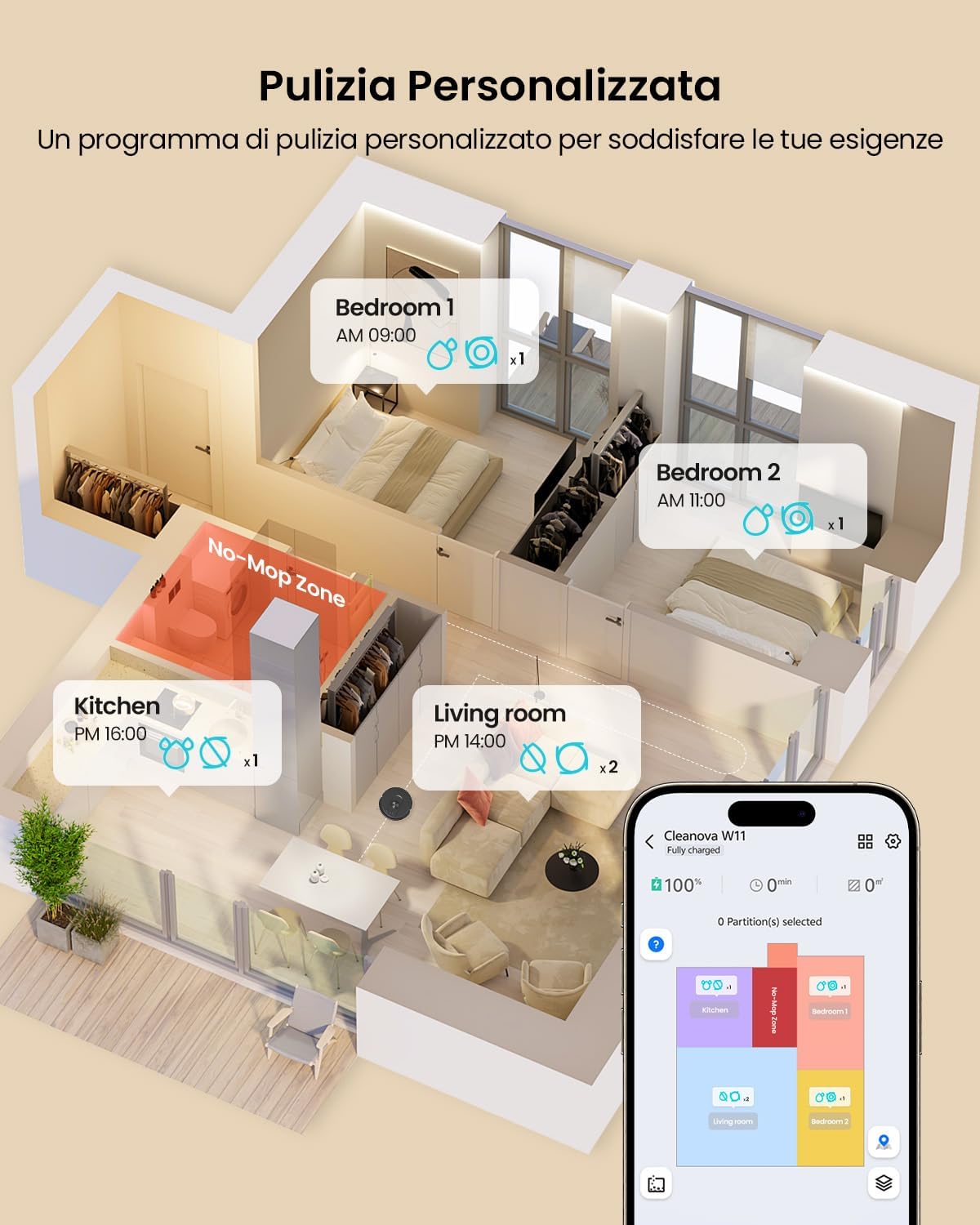
Image: Diagram illustrating the recommended clear space around the charging station for optimal robot navigation.
2. Initial Charge
Connect the power adapter to the charging station and plug it into a wall outlet. Place the robot onto the charging station. The robot will automatically begin charging. For first-time use, ensure the robot is fully charged before its initial cleaning cycle.
3. App Connection
To unlock the full features of your Vexilar W11, connect it to the companion app.
- Ensure your Wi-Fi network is set to 2.4 GHz. The robot does not support 5 GHz Wi-Fi.
- Download the Vexilar app from your device's App Store.
- Open the app and click "Add Device". Activate Bluetooth on your smartphone.
- Ensure the robot is powered on. Press and hold both buttons on the robot for 5 seconds to enter pairing mode.
- The app will automatically detect the W11 robot and open the connection page.
- Confirm connection to your 2.4 GHz Wi-Fi network.
- Wait for the robot to pair successfully.

Image: Screenshot of the Vexilar app interface, showing options for controlling the robot vacuum.
4. Initial Mapping
After successful app connection, initiate an initial cleaning cycle or mapping run. The robot uses LiDAR navigation to scan your home and create a detailed map. This map is crucial for efficient cleaning and allows for advanced features like zone cleaning and virtual walls. The robot can store up to 5 different maps, suitable for multi-floor homes.

Image: The Vexilar W11 robot vacuum actively mapping a room using its LiDAR sensor.
Note: The LiDAR sensor may not detect transparent, suspended, or low-profile objects and can only scan objects at its own height.
Operation
Cleaning Modes
The Vexilar W11 offers 3-in-1 cleaning functionality:
- Vacuuming: Powerful 8000Pa suction for dirt, dust, and pet hair.
- Mopping: Precise water control for effective floor washing.
- Combined (Vacuum & Mop): Simultaneous vacuuming and mopping for comprehensive cleaning.

Image: The Vexilar W11 robot vacuum demonstrating its 3-in-1 capability, vacuuming and mopping a floor.
Carpet Detection and Suction Adjustment
The robot automatically detects carpets and increases suction power to deeply clean embedded dirt and pet hair. The rubber brush design helps prevent hair tangles, making it ideal for homes with pets.
Mopping Water Flow Control
Adjust the mop pad's humidity with three selectable water flow levels via the app. This ensures even dampness for streak-free cleaning without excessive water.
Customizable Cleaning and Mapping Features
Utilize the app to personalize your cleaning experience:
- Schedule Cleaning: Set specific times for the robot to clean.
- Zone Cleaning: Select specific rooms or areas to clean.
- No-Go Zones & Virtual Walls: Define areas the robot should avoid, such as pet bowls or fragile items.
- Adjust Settings: Control suction power and water flow levels for different surfaces.

Image: A smartphone screen displaying the Vexilar app, showing a customized cleaning schedule for various rooms in a house.
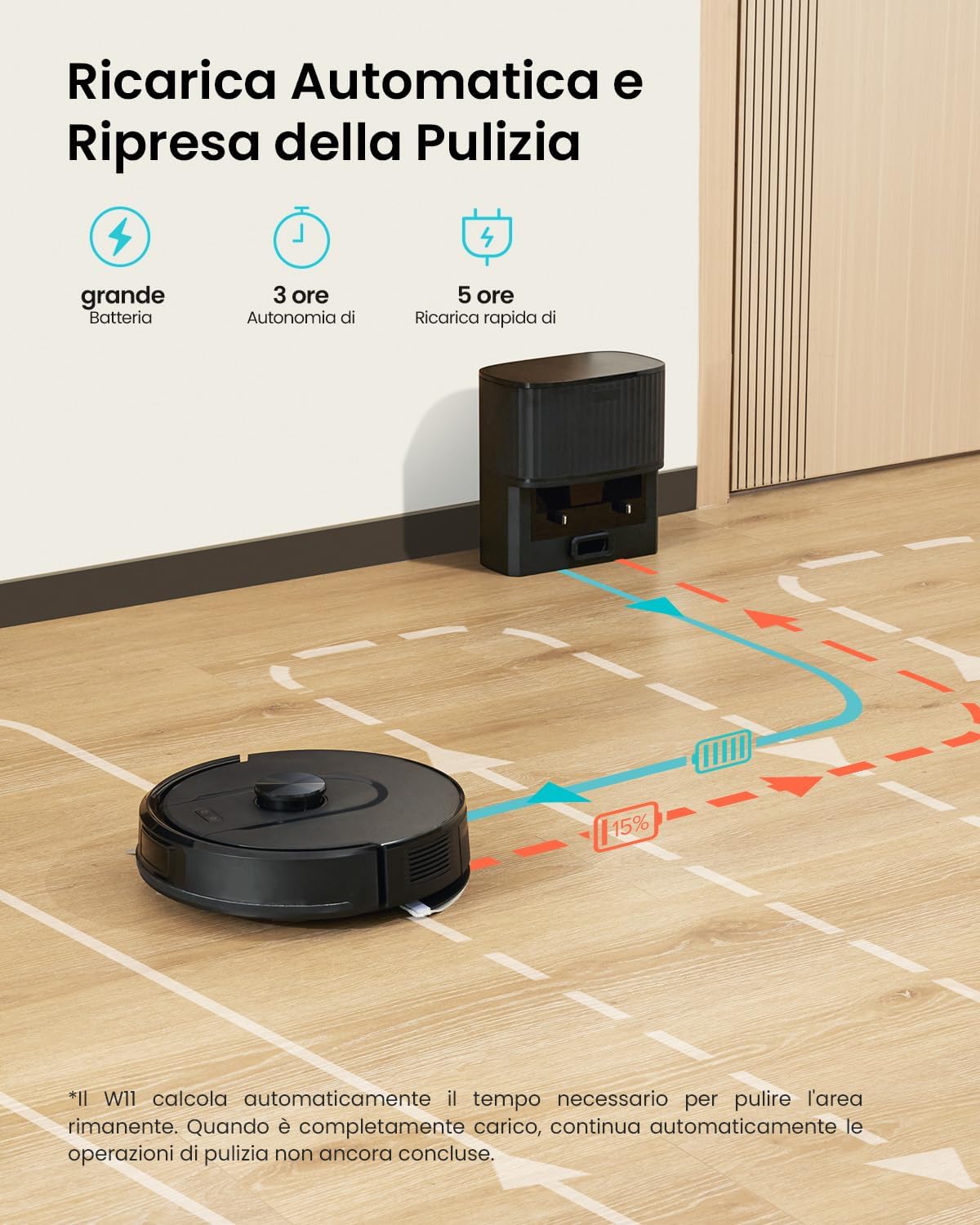
Image: The Vexilar W11 robot vacuum navigating around a virtual wall and a designated no-go zone on a floor map.
Automatic Dust Emptying
The robot automatically empties its dustbin into the 3-liter sealed dust bag within the charging station. This allows for up to 70 days of hands-free dust disposal, reducing the frequency of manual emptying.
Image: Close-up view of the automatic emptying station, showing the internal dust bag for replacement.
Battery Life and Auto-Recharge
The robot provides up to 3 hours of autonomy, covering areas up to 200 square meters on a single charge. When the battery level drops below 15%, the robot automatically returns to its charging station. Once charged to 80%, it resumes cleaning from where it left off.
Image: The Vexilar W11 robot vacuum automatically returning to its charging station to recharge.
Control Methods
Control your Vexilar W11 using multiple convenient methods:
- Smartphone App: Full control over mapping, scheduling, and settings.
- Voice Control: Compatible with Amazon Alexa, Google Assistant, and Siri.
- Remote Control: Included for basic functions.
Image: A user interacting with the Vexilar W11 robot vacuum using voice commands via a smart speaker and a dedicated remote control.
Maintenance
Regular maintenance ensures optimal performance and extends the lifespan of your Vexilar W11.
Dust Bag Replacement
The 3-liter dust bag in the automatic emptying station typically requires replacement every 70 days, depending on usage and debris volume. The app will notify you when replacement is needed.
- Open the lid of the automatic emptying station.
- Carefully remove the sealed dust bag.
- Dispose of the used bag.
- Insert a new dust bag, ensuring it is properly seated.
- Close the lid securely.
Image: Close-up view of the automatic emptying station, showing the internal dust bag for replacement.
Filter Cleaning and Replacement
The robot uses HEPA filters. Regularly clean the filter by tapping it gently to remove dust. Replace the HEPA filter every 3-6 months, or as needed, to maintain optimal suction performance.
Brush Cleaning
Periodically remove and clean the main brush and side brushes. Use the provided cleaning tool to cut and remove tangled hair or debris. Ensure brushes are free of obstructions for effective cleaning.
Mop Pad Cleaning
After each mopping cycle, remove the mop pad from its holder and wash it. The washable mop pads can be hand-washed or machine-washed. Allow them to air dry completely before reattaching.
Troubleshooting
If you encounter issues with your Vexilar W11, refer to the following common problems and solutions:
| Problem | Possible Cause | Solution |
|---|---|---|
| Robot does not connect to Wi-Fi. | Incorrect Wi-Fi frequency (5 GHz) or weak signal. | Ensure your router is broadcasting a 2.4 GHz Wi-Fi signal. Move the robot closer to the router. Re-attempt app connection steps. |
| Robot gets stuck or cannot return to charging station. | Obstacles around the charging station or in the cleaning path. | Ensure the charging station has 1m clear space on sides and 2m in front. Remove cables, small objects, and other obstructions from the cleaning area. |
| Poor cleaning performance. | Full dustbin, dirty filter, tangled brushes, or low battery. | Check and empty the dustbin. Clean or replace the HEPA filter. Remove tangled hair from main and side brushes. Ensure the robot is fully charged. |
| Mopping leaves streaks or insufficient water. | Mop pad is too dry, water tank is empty, or water flow setting is too low. | Ensure the water tank is filled. Select a higher water flow level in the app. Clean or replace the mop pad. |
| Robot loses map or navigates erratically. | LiDAR sensor obstructed or significant changes in room layout. | Clean the LiDAR sensor. If the room layout has changed significantly, consider re-mapping the area. |
For further assistance, please contact Vexilar customer support.
Specifications
| Feature | Detail |
|---|---|
| Brand | Vexilar |
| Model Name | Cleanova W11 |
| Suction Power | 8000 Pa |
| Navigation Type | LiDAR (360° scanning) |
| Battery Life | Up to 180 minutes (3 hours) |
| Coverage Area | Up to 200 m² |
| Automatic Emptying Station Capacity | 3 Liters (up to 70 days hands-free) |
| Filter Type | HEPA |
| Noise Level | 58 Decibels |
| Control Methods | App Control, Voice Control (Alexa, Google Assistant, Siri), Remote Control |
| Climbing Ability | Up to 22 mm |
| Dimensions (L x W x H) | 30L x 30W x 9.6H cm |
| Recommended Surfaces | Wood, Tile, Carpet |
Warranty & Support
The Vexilar W11 Robot Vacuum Cleaner and Mop comes with a 2-year warranty.
Our professional customer service team is available 24 hours a day, Monday to Friday, to assist you with any questions or issues. Please refer to the contact information provided in your product packaging or on the official Vexilar website for support.


