1. Introduction
This manual provides instructions for the ATK Gear A9 Ultra Gaming Mouse. Please read this manual thoroughly before using the product to ensure proper operation and to maximize its performance.
Package Contents
- ATK Gear A9 Ultra Gaming Mouse (White)
- Wireless Receiver
- USB Charging/Data Cable
- User Manual
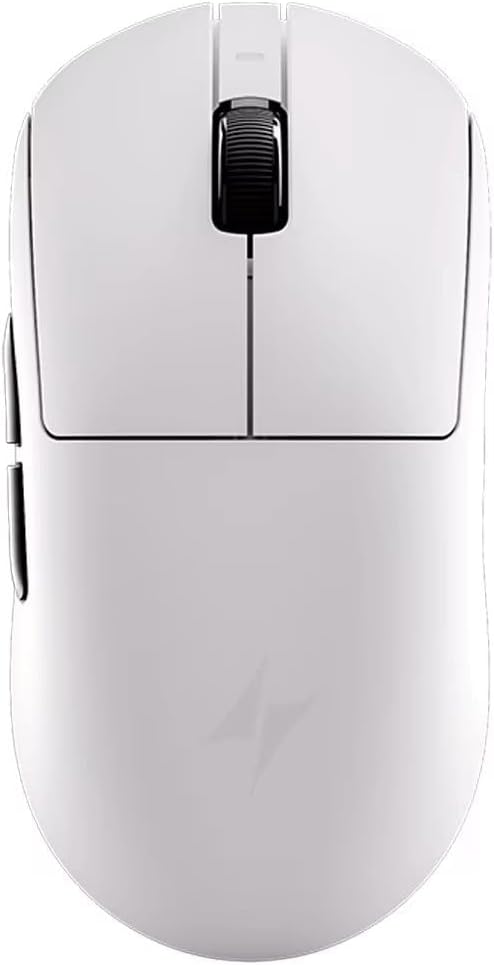
Figure 1: ATK Gear A9 Ultra Gaming Mouse (White)
2. Setup
2.1 Charging the Mouse
The ATK Gear A9 Ultra Gaming Mouse features an internal 800mAh rechargeable battery. Before first use, or when the battery is low, connect the mouse to your computer using the provided USB charging/data cable.
- Connect the small end of the USB cable to the mouse's charging port.
- Connect the larger end of the USB cable to an available USB port on your computer.
- The mouse will begin charging. An indicator light (if present) will show charging status.
2.2 Connecting the Mouse
The ATK Gear A9 Ultra Gaming Mouse supports dual-mode wireless connectivity.
Wireless Connection (2.4GHz)
- Remove the wireless receiver from its storage slot (usually on the underside of the mouse).
- Plug the wireless receiver into an available USB port on your computer.
- Turn on the mouse using the power switch located on the underside.
- Your computer should automatically detect and install the necessary drivers. The mouse is ready for use.
Wired Connection
- Connect one end of the USB charging/data cable to the mouse's USB port.
- Connect the other end of the USB cable to an available USB port on your computer.
- The mouse will function in wired mode and charge simultaneously.
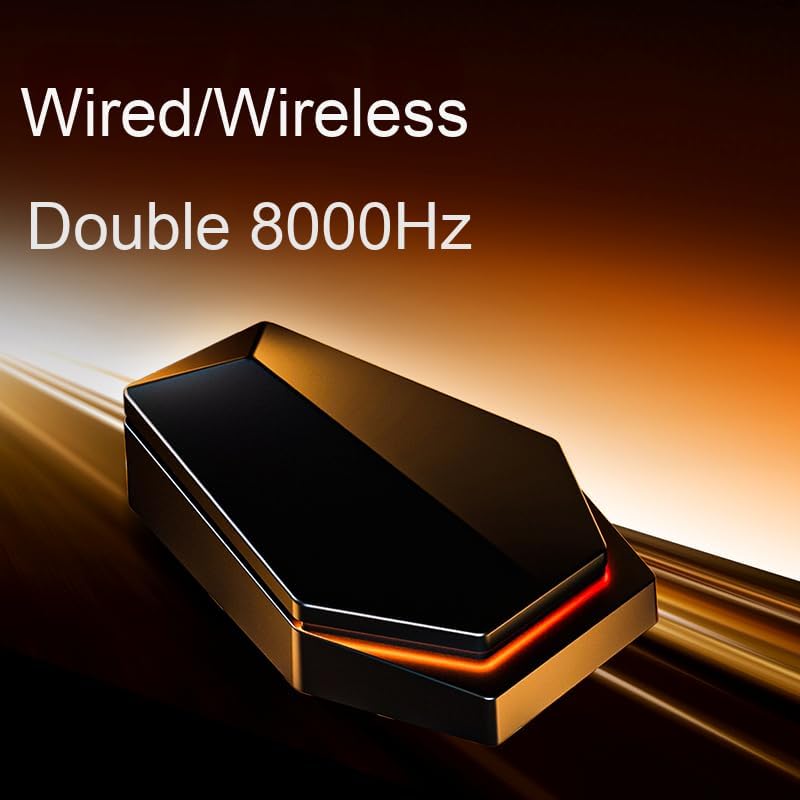
Figure 2: Wired/Wireless Connectivity
3. Operating the Mouse
3.1 Button Functions
The ATK Gear A9 Ultra Gaming Mouse features 6 programmable buttons. Default functions are as follows:
- Left Click: Primary action.
- Right Click: Secondary action/context menu.
- Scroll Wheel (Click): Middle click/universal scroll.
- Scroll Wheel (Up/Down): Scroll content.
- Side Button 1 (Forward): Default browser forward.
- Side Button 2 (Back): Default browser back.
- DPI Button (Top): Cycles through DPI settings.
3.2 DPI Adjustment
Press the dedicated DPI button (usually located behind the scroll wheel) to cycle through preset DPI levels. The mouse supports up to 42000 DPI, allowing for precise control in various applications and games. Refer to the software section for custom DPI settings.
3.3 Software and Firmware
For advanced customization, including button remapping, macro creation, custom DPI stages, and firmware updates, download the ATK Shark Professional Firmware software from the official ATK Gear website. This software allows you to unlock the full potential of your A9 Ultra mouse.
4. Key Features
4.1 PAW3950 Ultra Flagship Sensor
The A9 Ultra is equipped with the PAW3950 Ultra sensor, offering exceptional precision and tracking accuracy. This sensor supports a DPI range from 10 to 30000, overclockable to 42000 DPI, with 10 DPI per level adjustment. It features a tracking speed of 750 IPS and an acceleration of 50G, ensuring responsive and reliable performance.

Figure 3: PAW3950 Ultra Sensor Details
4.2 Nordic 52840 Master Chipset
Integrated with the Nordic 52840 Master chipset, the mouse ensures stable and low-latency wireless connectivity. This advanced chipset contributes to the mouse's high polling rate and overall reliable performance.
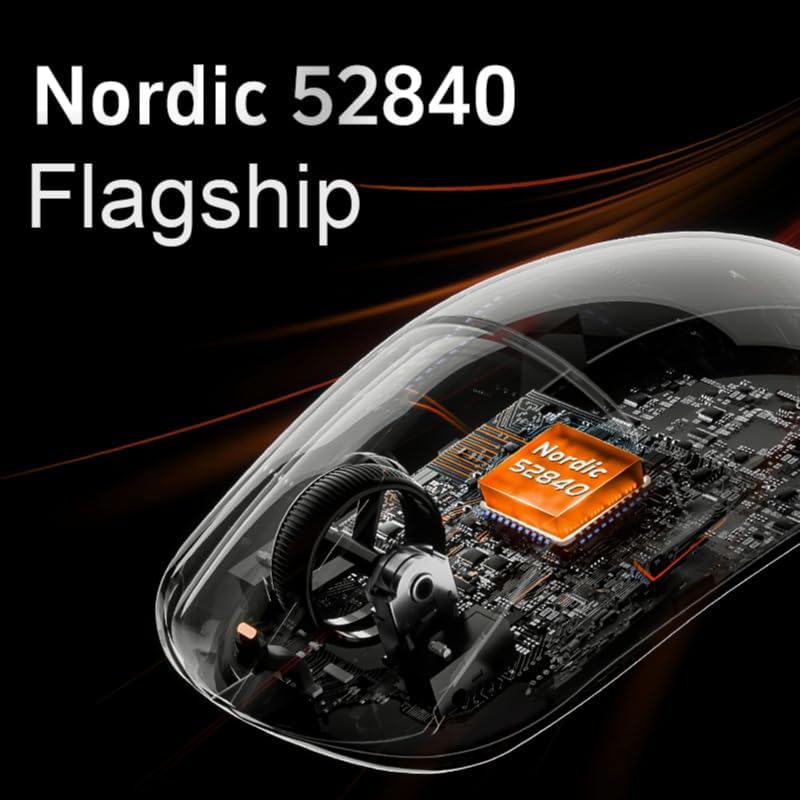
Figure 4: Nordic 52840 Chipset
4.3 Dual 8K Polling Rate
Experience ultra-responsive input with a dual 8K (8000Hz) polling rate in both wired and wireless modes. This high polling rate ensures that your mouse movements are reported to your computer up to 8000 times per second, minimizing input lag.
4.4 Lightweight and Ergonomic Design
Weighing approximately 53 grams, the A9 Ultra is designed for extended gaming sessions without fatigue. Its ergonomic shape accommodates various grip styles, providing comfortable and secure control.

Figure 5: Supported Grip Styles
4.5 Ice-Feel Coating
The mouse features an "Ice-Feel" coating, providing a cool, smooth, and non-slip surface. This coating is also stain-resistant, contributing to the mouse's durability and maintaining its aesthetic.
5. Maintenance
5.1 Cleaning
- Use a soft, dry cloth to wipe the surface of the mouse.
- For stubborn dirt, slightly dampen the cloth with water or a mild cleaning solution. Avoid harsh chemicals.
- Do not allow liquids to enter the mouse's interior.
- Clean the optical sensor periodically with a cotton swab to ensure optimal tracking performance.
5.2 Battery Care
- Avoid fully discharging the battery frequently to prolong its lifespan.
- Charge the mouse using the provided USB cable or a compatible USB power source.
- Do not expose the mouse to extreme temperatures.
6. Troubleshooting
Mouse Not Responding
- Check Power: Ensure the mouse is turned on and has sufficient battery charge. Charge the mouse if necessary.
- Check Connection:
- For wireless: Ensure the wireless receiver is securely plugged into a working USB port. Try a different USB port.
- For wired: Ensure the USB cable is securely connected to both the mouse and the computer. Try a different USB port or cable.
- Re-pair (Wireless): If the mouse loses connection, try re-pairing it with the receiver. Consult the ATK Gear website for specific re-pairing instructions if needed.
- Restart Computer: Sometimes a simple computer restart can resolve connectivity issues.
Inaccurate Tracking
- Clean Sensor: Ensure the optical sensor on the underside of the mouse is clean and free of dust or debris.
- Mouse Pad: Use the mouse on a clean, uniform surface or a high-quality mouse pad. Avoid reflective or transparent surfaces.
- DPI Settings: Adjust the DPI settings to a level suitable for your use.
Software Not Detecting Mouse
- Reinstall Software: Uninstall and reinstall the ATK Shark Professional Firmware software.
- USB Connection: Ensure the mouse is connected directly to a USB port on your computer, not through a hub, especially during software installation or firmware updates.
- Administrator Rights: Run the software as an administrator.
7. Specifications
| Model Name | A9 Ultra |
| Sensor | PAW3950 Ultra Optical Sensor |
| DPI Range | 10 - 30000 (up to 42000 via overclocking) |
| Tracking Speed | 750 IPS |
| Acceleration | 50G |
| Polling Rate | Up to 8000Hz (Wired/Wireless) |
| Chipset | Nordic 52840 Master |
| Connectivity | 2.4GHz Wireless, Wired (USB) |
| Number of Buttons | 6 |
| Hand Orientation | Right-handed |
| Weight | Approx. 53g |
| Approximate Dimensions (L x W) | 12.5 x 6.5 cm |
| Battery Type | Internal 800mAh Rechargeable |
| Color | White |
| Compatible Devices | Desktop Computer |
8. Warranty and Support
For warranty information, technical support, or further assistance, please visit the official ATK Gear website or contact their customer service. Keep your proof of purchase for warranty claims.
Website: www.atkgear.com (Please refer to product packaging or official documentation for the correct website address.)


