
1. Introduction
Thank you for choosing the Uckazy Android 14 7-inch Car Stereo. This manual provides essential information for the safe and efficient operation of your new car stereo system. This unit is designed for BMW 5 Series E53 models manufactured between 1996 and 2007, offering advanced features like Android 14 OS, CarPlay, Android Auto, Bluetooth, and an IPS touch screen.
Please read this manual thoroughly before installation and use, and keep it for future reference.

Image 1.1: Uckazy Android 14 Car Stereo installed in a BMW E53 dashboard, showing the main interface with various app icons. This image highlights the compatibility with BMW E53 models from 1996-2007.
2. Safety Information
- Professional Installation Recommended: Due to the complexity of car electrical systems, professional installation is highly recommended to prevent damage to the unit or vehicle.
- Power Supply: Ensure the unit is connected to a 12V DC power supply with a negative ground.
- Avoid Distractions: Do not operate the unit in a way that distracts you from driving. Always prioritize road safety.
- Temperature: Avoid exposing the unit to extreme temperatures or direct sunlight for prolonged periods.
- Moisture: Keep the unit away from water and excessive moisture.
- Ventilation: Ensure proper ventilation around the unit to prevent overheating.
3. Package Contents
Please check the package contents upon receipt to ensure all items are present and undamaged. The standard package typically includes:
- Uckazy Android 14 Car Stereo Unit
- Power Harness
- GPS Antenna
- USB Cables
- RCA Cables (Audio/Video Input/Output)
- User Manual (this document)
- Mounting Brackets/Screws (if applicable)
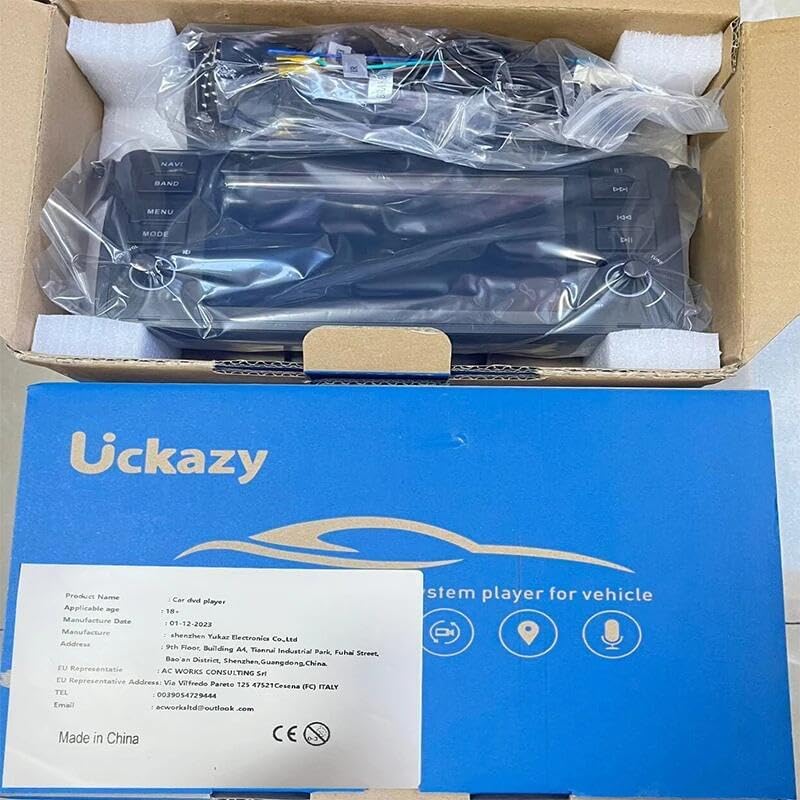
Image 3.1: Contents of the Uckazy car stereo package, including the main unit and various cables.
4. Setup and Installation
4.1 Pre-Installation Checklist
- Disconnect the vehicle's battery before starting any electrical work.
- Ensure you have all necessary tools (screwdrivers, wire strippers, electrical tape, etc.).
- Familiarize yourself with your vehicle's dashboard and existing stereo removal process.
4.2 Installation Steps
- Remove Existing Stereo: Carefully remove the original car stereo unit from your BMW E53 dashboard. Refer to your vehicle's service manual if unsure.
- Connect Wiring Harness: Connect the provided power harness and other necessary cables (GPS antenna, USB, RCA) to the corresponding ports on the Uckazy unit.
- Vehicle Wiring: Connect the Uckazy wiring harness to your vehicle's existing wiring. Ensure all connections are secure and correctly matched (e.g., power, ground, speaker wires).
- Test Functionality: Before fully reassembling the dashboard, temporarily reconnect the car battery and power on the unit to test basic functions (power, audio, touch screen).
- Secure Unit: Once tested, carefully slide the Uckazy car stereo into the dashboard opening and secure it using the provided mounting brackets and screws.
- Reassemble Dashboard: Reinstall any removed trim pieces or panels.
- Final Check: Reconnect the battery fully and perform a comprehensive test of all features.

Image 4.1: Visual comparison of the BMW E53 dashboard before and after the Uckazy car stereo installation, demonstrating seamless integration.
5. Operating Instructions
5.1 Power On/Off and Basic Controls
- Power On: The unit will typically power on automatically when the vehicle's ignition is turned on.
- Power Off: The unit will power off automatically when the ignition is turned off. A long press on the power button (if available) may manually turn it off.
- Volume Control: Use the physical volume knob or the on-screen controls to adjust the audio level.
5.2 Android Operating System
The unit runs on Android 14, providing a familiar smartphone-like interface. Navigate using the touch screen:
- Home Screen: Access frequently used apps and widgets.
- App Drawer: Swipe up or tap the app icon to view all installed applications.
- Settings: Access system settings for Wi-Fi, Bluetooth, display, sound, and more.
5.3 Wireless CarPlay and Android Auto
Connect your smartphone wirelessly to access CarPlay (for iPhone) or Android Auto (for Android phones) directly on the car stereo screen.
- Ensure Bluetooth and Wi-Fi are enabled on both your phone and the car stereo.
- On the car stereo, open the CarPlay/Android Auto application.
- Follow the on-screen prompts to pair your phone.
- Once connected, your phone's compatible apps will appear on the stereo display.

Image 5.1: The car stereo supports both Wireless CarPlay and Android Auto, allowing seamless smartphone integration.
5.4 Bluetooth Connectivity
Pair your phone via Bluetooth for hands-free calling and audio streaming.
- Go to the Bluetooth settings on the car stereo.
- Enable Bluetooth on your phone and search for available devices.
- Select the car stereo's Bluetooth name (e.g., "Uckazy Car Stereo") from your phone's list.
- Confirm the pairing code if prompted.

Image 5.2: The car stereo supports Bluetooth phone calls, allowing hands-free communication.
5.5 Navigation
The unit supports various navigation applications. Ensure the GPS antenna is properly installed for optimal performance.
- Open your preferred navigation app (e.g., Google Maps) from the home screen or app drawer.
- Enter your destination and follow the on-screen directions.

Image 5.3: The car stereo provides precise navigation capabilities, displaying maps and directions.
5.6 Voice Assistant
Utilize the integrated voice assistant for hands-free control of various functions.
- Activate the voice assistant by saying the wake word (e.g., "Hey Siri" if using CarPlay) or pressing the dedicated voice button.
- Issue commands for navigation, music playback, calls, and more.
Image 5.4: The voice assistant feature allows for hands-free control, including navigation and music playback.
5.7 Multimedia Playback
Enjoy music and videos through various sources.
- USB: Connect a USB drive to play audio or video files.
- Bluetooth Audio: Stream music from your paired smartphone.
- Online Streaming: Use installed apps like Spotify, YouTube, or other streaming services via Wi-Fi or mobile hotspot.
Image 5.5: The car stereo allows users to enjoy movies and music online or from connected devices.
5.8 App Store
Access the integrated App Store to download and install additional applications.
- Ensure the unit is connected to the internet via Wi-Fi or a mobile hotspot.
- Open the "APP Store" or "Play Store" application.
- Browse or search for desired apps and install them.

Image 5.6: The car stereo provides access to an App Store for downloading additional applications.
6. Maintenance
- Cleaning the Screen: Use a soft, lint-free cloth to gently wipe the touch screen. For stubborn smudges, slightly dampen the cloth with water or a screen-cleaning solution. Avoid harsh chemicals.
- Software Updates: Periodically check for software updates through the system settings to ensure optimal performance and access to new features.
- Avoid Liquids: Do not spill liquids on the unit.
- Temperature Control: Avoid leaving the unit in extreme hot or cold conditions for extended periods.
7. Troubleshooting
| Problem | Possible Cause | Solution |
|---|---|---|
| Unit does not power on. | Incorrect wiring; Blown fuse; Vehicle battery issue. | Check power connections; Inspect vehicle fuses; Verify battery charge. |
| No sound. | Volume too low; Mute activated; Speaker wiring issue. | Increase volume; Deactivate mute; Check speaker connections. |
| Touch screen unresponsive. | Software glitch; Screen damage. | Restart the unit; If persistent, contact support. |
| CarPlay/Android Auto not connecting. | Bluetooth/Wi-Fi off; Phone compatibility; App issues. | Ensure Bluetooth/Wi-Fi are on; Check phone compatibility; Restart phone and unit. |
| GPS signal weak or inaccurate. | GPS antenna improperly installed or obstructed. | Ensure GPS antenna has a clear view of the sky and is securely connected. |
8. Specifications
- Brand: Uckazy
- Connectivity Technology: Bluetooth
- Controller Type: Manual Control
- Item Weight: 1.57 Kilograms
- Number of Channels: 2
- Wireless Communication Technology: Bluetooth
- ASIN: B0FHQDDY5F
9. Warranty and Support
Uckazy products are designed for reliability and performance. For warranty information, please refer to the warranty card included in your product packaging or contact your retailer.
For technical support, troubleshooting assistance, or inquiries about replacement parts, please contact Uckazy customer service through the contact information provided with your purchase or on the official Uckazy website.
When contacting support, please have your product model number (Android 14 7' 2+64G Car Stereo) and ASIN (B0FHQDDY5F) ready.