
Introduction
This manual provides detailed instructions for the setup, operation, and maintenance of your SANWA GMAERGWBT22BK Wireless Ergonomic Vertical Mouse. Please read this manual thoroughly before using the product to ensure proper functionality and to maximize your user experience.
Product Features
- Ergonomic Vertical Design: Features a natural 46° tilt to promote a comfortable wrist, arm, and shoulder posture, reducing strain.
- Removable Magnetic Wrist Rest: Includes a detachable wrist rest with a finger rest and arm pad for additional support. The magnetic attachment allows for flexible use.
- Optimized for Large Hands: Specifically designed with an extended body to provide a comfortable grip for users with larger hands, minimizing fatigue during prolonged use.
- Multi-Device Connectivity: Supports seamless switching between up to three devices using 2.4G wireless and dual Bluetooth 5.4 connections.
- Silent Click Buttons: Equipped with quiet left and right click buttons for a noise-free working environment.
- Web Page Navigation Buttons: Convenient forward and backward side buttons enhance web browsing efficiency.
- Adjustable DPI Settings: Offers four DPI levels (1000/1600/2000/4000) for precise tracking across various tasks, from daily browsing to design work and gaming.
- Wide Compatibility: Compatible with Windows 11/10/8.1/8, macOS 15/14/13/12/11/10.12~10.15, iPad OS 13~18, iOS 13~18, Chrome OS, and Android 10~14.
Setup
1. Battery Installation
The mouse requires batteries for operation (not included). Locate the battery cover on the underside of the mouse. Open the cover, insert the required batteries according to the polarity indicators, and close the cover securely.
2. USB Receiver
The 2.4G wireless USB receiver is stored in a dedicated slot on the underside of the mouse for convenience. Gently remove it when needed.

Figure 1: Underside of the mouse with labels for battery slot, USB receiver, and mode switch.
3. Connecting via 2.4G Wireless
- Turn on the mouse using the ON/OFF switch located on the underside.
- Remove the USB receiver from its storage slot.
- Plug the USB receiver into an available USB port on your computer.
- Switch the mouse to 2.4G mode using the Mode Switch & Connect Button on the underside. The corresponding indicator light will illuminate.
- Your computer should automatically detect and connect to the mouse.
4. Connecting via Bluetooth
- Turn on the mouse using the ON/OFF switch.
- Switch the mouse to one of the Bluetooth modes (BT1 or BT2) using the Mode Switch & Connect Button. The corresponding indicator light will blink.
- On your device (computer, tablet, smartphone), go to Bluetooth settings.
- Select "SANWA Mouse" or a similar name from the list of available devices to pair.
- Once paired, the indicator light on the mouse will become solid.
Video 1: This video demonstrates the ergonomic design, magnetic wrist rest attachment, battery installation, USB receiver storage, and multi-device connection process for the SANWA WBT22 Ergo Mouse.
Operating Instructions
1. DPI Adjustment
Press the DPI Switch Button (3) located on the top of the mouse to cycle through the four DPI settings: 1000, 1600, 2000, and 4000. The DPI Indicator (4) will change color or blink to indicate the current DPI level.
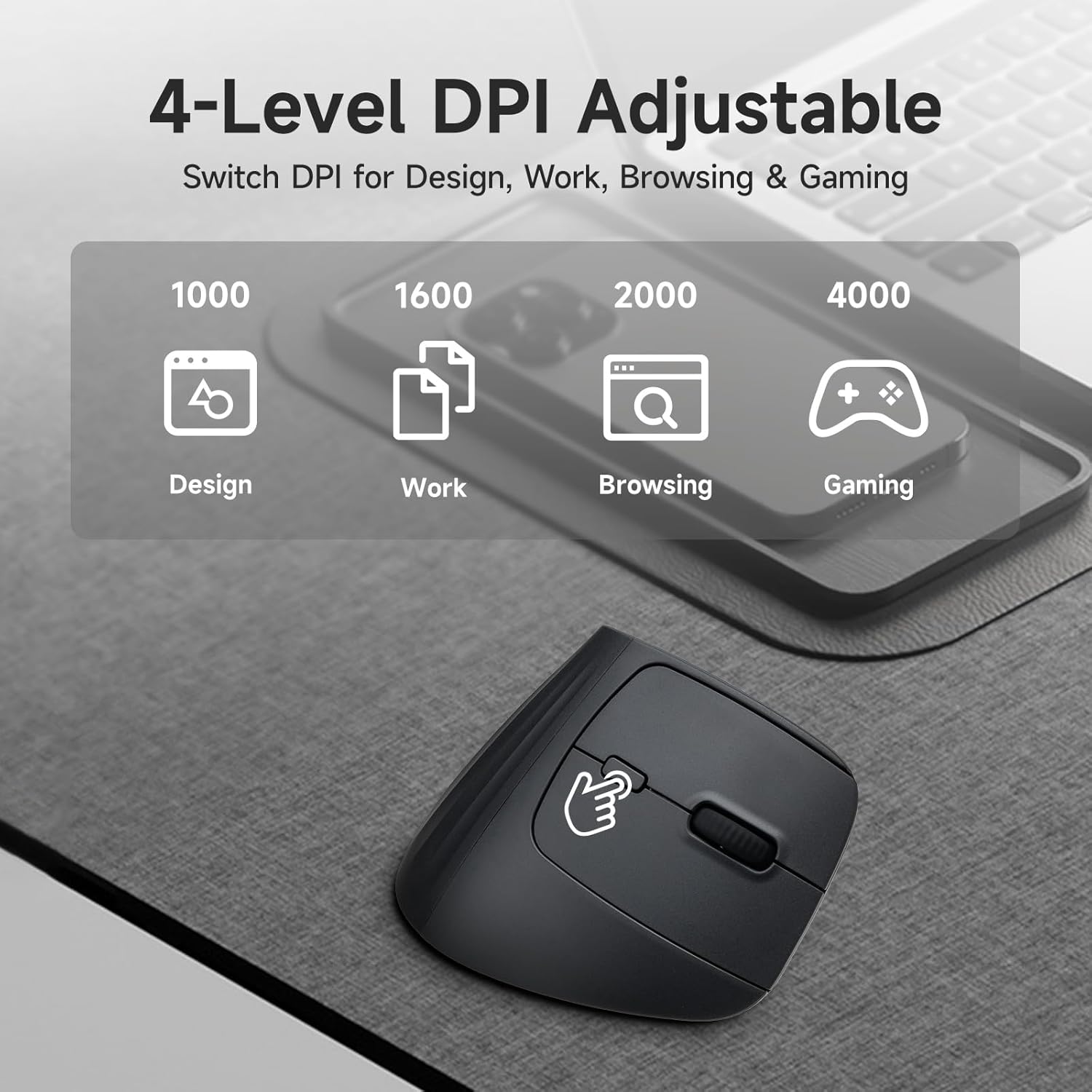
Figure 2: Illustration of the 4-level DPI adjustment for various tasks.
2. Using the Wrist Rest
The magnetic wrist rest can be easily attached or detached from the base of the mouse. For optimal ergonomic support, attach the wrist rest to keep your hand and wrist in a natural, relaxed position.

Figure 3: The magnetic wrist rest can be easily attached or removed.
3. Web Page Navigation
Use the Forward Button (5) and Back Button (6) located on the side of the mouse for quick navigation in web browsers and other applications.
4. Silent Clicks
The left and right click buttons are designed for silent operation, allowing you to work without disturbing others.

Figure 4: The silent click feature ensures a quiet working experience.
Maintenance
1. Cleaning
To clean the mouse, gently wipe its surface with a soft, dry cloth. For stubborn dirt, a slightly damp cloth can be used, ensuring no moisture enters the internal components. Avoid using harsh chemicals or abrasive cleaners.
2. Wrist Rest Care
The magnetic wrist rest can be cleaned separately with a damp cloth. Ensure it is completely dry before reattaching it to the mouse.
Troubleshooting
- Mouse not responding: Ensure the mouse is turned on and batteries are correctly installed and charged. Check the connection mode (2.4G or Bluetooth) and ensure it matches your device's connection. For 2.4G, try plugging the USB receiver into a different port. For Bluetooth, ensure the mouse is paired correctly in your device's Bluetooth settings.
- DPI not changing: Press the DPI Switch Button firmly. If the indicator light does not change, ensure the mouse is active and connected.
- Buttons not working: Verify the mouse is connected and powered on. If specific buttons are unresponsive, check for any software conflicts or try restarting your computer.
- Mouse turns off after computer restart (2.4G mode): Some systems may require manually cycling the connection on the bottom of the mouse to re-establish connection after a computer restart when using the included dongle.
Specifications
| Feature | Detail |
|---|---|
| Brand | SANWA |
| Model Name | GMAERGWBT22BK |
| Connectivity Technology | Bluetooth, 2.4G Wireless |
| Movement Detection Technology | Optical (Blue LED sensor) |
| DPI Settings | 1000 / 1600 / 2000 / 4000 |
| Button Quantity | 5 (Left, Right, Scroll Wheel, Forward, Backward) |
| Hand Orientation | Right |
| Compatible Devices | Personal Computer, Laptop, Mac, iPad, iPhone, Android devices |
| Operating System Compatibility | Windows 11/10/8.1/8, macOS 15/14/13/12/11/10.12~10.15, iPad OS 13~18, iOS 13~18, Chrome OS, Android 10~14 |
| Power Source | Battery Powered (Batteries not included) |
| Item Weight | 112 Grams |
| Item Dimensions (L x W) | 11.2"L x 8.6"W (Note: This dimension seems unusually large for a mouse, likely refers to packaging or a different measurement. Actual mouse size is 7.3x11.2x8.6cm / 2.87x4.4x3.38in as per image PT07.) |
| Material | Plastic |
| Color | Black |
Warranty Information
This SANWA product comes with a 1-year warranty from the date of purchase. This warranty covers manufacturing defects under normal use. It does not cover damage caused by misuse, accidents, unauthorized modifications, or normal wear and tear. Please retain your proof of purchase for warranty claims.
Support
For further assistance, technical support, or warranty inquiries, please refer to the contact information provided with your product packaging or visit the official SANWA website. Our support team is available to help you with any questions or issues you may encounter.


