1. Introduction
The LAFVIN ESP32S3 AI Chatbot Kit provides a platform for developing smart voice assistant functionalities. This kit is designed for quick prototyping and experimentation, featuring an ESP32-S3-WROOM module, an audio decoding module, a speaker, and a 2-inch TFT-SPI display. It supports integration with AI platforms like Deepseek and OpenAI, enabling voice interaction and real-time conversation display.
This manual provides essential information for setting up, operating, maintaining, and troubleshooting your LAFVIN ESP32S3 AI Chatbot Kit.
2. Safety Information
- Always handle electronic components with care to prevent damage from static electricity.
- Ensure all connections are correct before applying power to avoid short circuits or component damage.
- Do not expose the kit to moisture, extreme temperatures, or direct sunlight.
- Keep out of reach of children.
- Use only the recommended power supply voltage.
3. Package Contents
Verify that all components listed below are included in your package:
- ESP32-S3-WROOM Module
- Audio Codec Module
- Speaker
- 2-inch TFT-SPI Display
- Connecting Wires
- USB-C Cable
4. Product Overview
The LAFVIN ESP32S3 AI Chatbot Kit consists of several key components that work together to provide voice interaction and display capabilities.
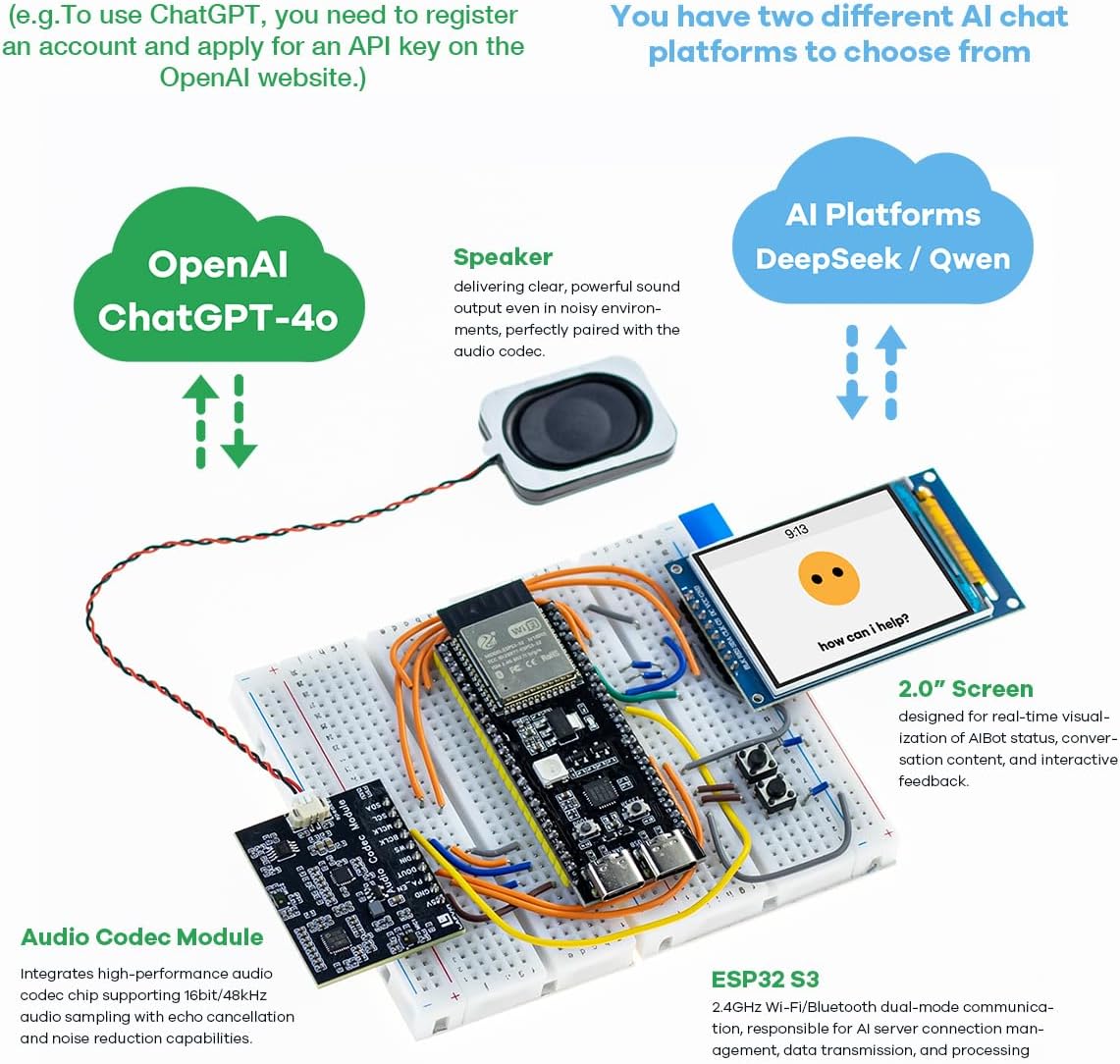
Figure 4.1: Overview of the LAFVIN ESP32S3 AI Chatbot Kit components and connections.
4.1 ESP32-S3 Main Component
The core of the kit is the ESP32-S3 N16R8 module, which includes a powerful processor and various interfaces for connectivity and control.

Figure 4.2: Detailed view of the ESP32-S3 N16R8 module.
- ESP32-S3 N16R8 Module: The main processing unit.
- Power Chip: Manages power distribution.
- Integrated RGB-LED Module: Provides visual feedback.
- BOOT Button: Used for entering bootloader mode for firmware flashing and for initiating voice commands during operation.
- PWR LED: Indicates power status.
- USB to Serial Port Chip CP2102: Facilitates communication with a computer for programming.
- RST Button: Resets the ESP32-S3 module.
- USB to Serial Port Type-C USB & OTG: Provides connectivity for power, data transfer, and On-The-Go functionalities.
4.2 Other Key Components
- Audio Codec Module: Integrates high-performance audio decoding, supporting 16bit/48kHz audio sampling with echo cancellation and noise reduction.
- Speaker: Delivers clear audio output.
- 2-inch TFT-SPI Display: Shows conversation content and interactive feedback in real-time.
5. Setup
5.1 Hardware Assembly
The kit offers two primary assembly methods: using the AI Chatbot Shield for plug-and-play functionality or a breadboard for custom configurations.

Figure 5.1: Two usage modes: On AI Chatbot Shield and Using the Breadboard.
5.1.1 On AI Chatbot Shield (Recommended for beginners)
This mode requires no additional wiring. Simply connect the ESP32-S3 module, audio codec, speaker, and display to the designated slots on the AI Chatbot Shield. Refer to the online tutorials for specific connection points.
5.1.2 Using the Breadboard
For flexible customization and modular expansion, connect the components on a breadboard using the provided connecting wires. Ensure correct pin connections as per the circuit diagrams available in the online tutorials. Pay close attention to power, ground, and data lines for the ESP32-S3, audio codec, speaker, and display.
5.2 Software Installation and Initial Configuration
The kit is compatible with the Arduino IDE and based on the IDF platform. Firmware flashing and initial setup are crucial for functionality.
- Access Online Tutorials: Visit the LAFVIN website or refer to the product page for detailed web-based tutorials. These tutorials provide step-by-step instructions for software setup.
- Install Arduino IDE: If not already installed, download and install the Arduino IDE from the official Arduino website.
- Install ESP32-S3 Board Support: Follow the online tutorial to add ESP32-S3 board support to your Arduino IDE.
- Download Firmware: Obtain the pre-installed voice dialogue project firmware for Deepseek and OpenAI platforms from the LAFVIN website.
- Flash Firmware: Connect the ESP32-S3 module to your computer using the USB-C cable. Follow the tutorial to flash the downloaded firmware onto the ESP32-S3 using the Arduino IDE or ESP-IDF tools.
- Wi-Fi Configuration: After flashing, the device will likely enter a configuration mode to connect to your local Wi-Fi network. Follow the on-screen prompts on the 2-inch display or use a serial monitor to enter your Wi-Fi credentials.
- AI Platform API Key Setup: To use AI platforms like OpenAI, you will need to register an account and obtain an API key from their respective websites. The online tutorials will guide you on how to input this API key into the device's configuration.
6. Operating Instructions
Once set up, your LAFVIN ESP32S3 AI Chatbot is ready for interaction.

Figure 6.1: Voice interaction with the AI Chatbot.
6.1 Voice Interaction
- Wake-up: The device supports voice wake-up. Speak the designated wake-up phrase (e.g., "Hello AI") to activate the chatbot.
- Initiating Conversation: Press the BOOT button once to start listening. The chatbot will continue listening until you press the BOOT button a second time. For subsequent interactions, press and hold the BOOT button to speak, then release it to stop listening and allow the chatbot to respond.
- Real-time Interruption: The independent audio decoding module supports real-time interruption, allowing you to interject during the chatbot's response.
6.2 Visual Interface
The 2-inch TFT-SPI display shows the conversation content in real-time, providing a visual representation of the chatbot's responses and status.

Figure 6.2: AI Intelligent Dialogue capabilities.
6.3 AI Platform Selection and Customization
The kit supports multiple AI chat platforms, including Deepseek and OpenAI. You can configure which platform to use through the device's settings, typically accessed via a web interface or serial monitor during setup.

Figure 6.3: Support for various AI speech models.
Some platforms allow for custom AI personality descriptions, enabling you to define the chatbot's persona within a character limit (e.g., 2000 characters). This can be configured through the AI assistant page, which may require translation for non-English sections.
7. Maintenance
- Cleaning: Use a soft, dry cloth to clean the components. Avoid using liquids or abrasive cleaners.
- Storage: Store the kit in a dry, cool environment away from direct sunlight and dust when not in use.
- Firmware Updates: Periodically check the LAFVIN website for firmware updates to ensure optimal performance and access to new features.
8. Troubleshooting
If you encounter issues with your LAFVIN ESP32S3 AI Chatbot Kit, refer to the following common problems and solutions:
- Unable to Load Files/Flash Firmware:
Ensure the USB-C cable is properly connected and recognized by your computer. Verify that the correct COM port is selected in the Arduino IDE. Make sure you have installed the necessary ESP32-S3 board support and drivers. Try pressing and holding the BOOT button while connecting the USB cable, then releasing it, to enter bootloader mode. Refer to the online tutorials for detailed flashing instructions. - No Wi-Fi Connection:
Check that your Wi-Fi credentials (SSID and password) are entered correctly during configuration. Ensure the device is within range of your Wi-Fi router. Restart the device and try the Wi-Fi configuration process again. - No Voice Response/Recognition Issues:
Verify that the speaker and audio codec module are correctly connected. Ensure the microphone on the audio codec is not obstructed. Check the volume settings if applicable. Confirm that the AI platform API key is correctly configured and active. - Display Not Working:
Check the connections to the 2-inch TFT-SPI display. Ensure the display is receiving power and data signals. Re-flash the firmware to rule out software issues. - Limited AI Chatbot Functionality:
If using a free AI account, functionality might be limited. For advanced features or specific AI models (like ChatGPT), a paid OpenAI account and API access may be required. Ensure your custom AI personality description is within the character limits and correctly formatted.
For more detailed troubleshooting guides and community support, please visit the LAFVIN official website and online tutorials.
9. Specifications
| Feature | Specification |
|---|---|
| Model Name | ESP32S3 |
| Processor Brand | Espressif |
| Number of Processors | 1 |
| RAM | LPDDR4 |
| Operating System | Linux (compatible) |
| Connectivity Technology | Bluetooth, USB, Wi-Fi |
| Display | 2-inch TFT-SPI |
| Audio | Independent audio decoding module, speaker |
| Dimensions (LxWxH) | 7.8 x 5.4 x 1.9 inches |
| Item Weight | 11.3 ounces |
10. Warranty and Support
LAFVIN provides online tutorials and email support for the ESP32S3 AI Chatbot Kit. For detailed instructions, troubleshooting assistance, and to access the latest resources, please visit the official LAFVIN website. If you require further assistance, contact LAFVIN customer support via the contact information provided on their website.


