
InnoView INCPM703-01B
InnoView 27 Inch Dual Mode Portable Monitor Instruction Manual
Model: INCPM703-01B
1. Introduction
Thank you for choosing the InnoView 27 Inch Dual Mode Portable Monitor. This manual provides essential information for setting up, operating, and maintaining your new monitor. Please read it thoroughly before use to ensure optimal performance and longevity of your device.

Image 1.1: The InnoView 27 Inch Dual Mode Portable Monitor, showcasing its sleek design and dual-mode capabilities (4K 120Hz and FHD 288Hz).
2. Safety Information
- Do not expose the monitor to rain or moisture to prevent fire or shock hazards.
- Avoid placing the monitor in direct sunlight or near heat sources.
- Ensure proper ventilation; do not block ventilation openings.
- Use only the power adapter supplied by InnoView.
- Keep the monitor away from strong magnetic fields.
- Handle with care; avoid dropping or subjecting the monitor to strong impacts.
- For indoor use only. Due to its size and weight (approximately 9.5 lbs / 4.3 kg), this monitor is not recommended for frequent travel and is best suited for stationary applications.

Image 2.1: Visual guide indicating the monitor is ideal for indoor, fixed-location use and not recommended for travel due to its size and weight.
3. Package Contents
Verify that all items are present in the package:
- InnoView 27 Inch Dual Mode Portable Monitor
- Power Adapter (65W)
- USB-C to USB-C Cable (x2)
- HDMI Cable
- Instruction Manual (this document)

Image 3.1: Illustration of the monitor and its included accessories, such as the power adapter, USB-C cables, and HDMI cable.
4. Product Overview
4.1 Monitor Components
Familiarize yourself with the monitor's ports and controls:

Image 4.1: Detailed view of the monitor's side panel, highlighting the Menu button, Volume button, Audio interface, Power button, two full-function Type-C ports, DP 1.4 port, and HDMI 2.1 port.
- Power Button: Turns the monitor on/off.
- Menu Button: Accesses the On-Screen Display (OSD) menu.
- Volume Button: Adjusts audio output volume.
- Audio Interface (3.5mm Jack): Connect external headphones or speakers.
- Type-C Ports (Full Function): Two ports for power, video, and data transmission with compatible devices.
- DP 1.4 Port: DisplayPort input for video signal.
- HDMI 2.1 Port: HDMI input for video signal.
4.2 Integrated Kickstand and VESA Mount
The monitor features a built-in 180° adjustable kickstand for flexible viewing angles. It also supports VESA mounting (100x100mm) for wall or third-party stand installations.
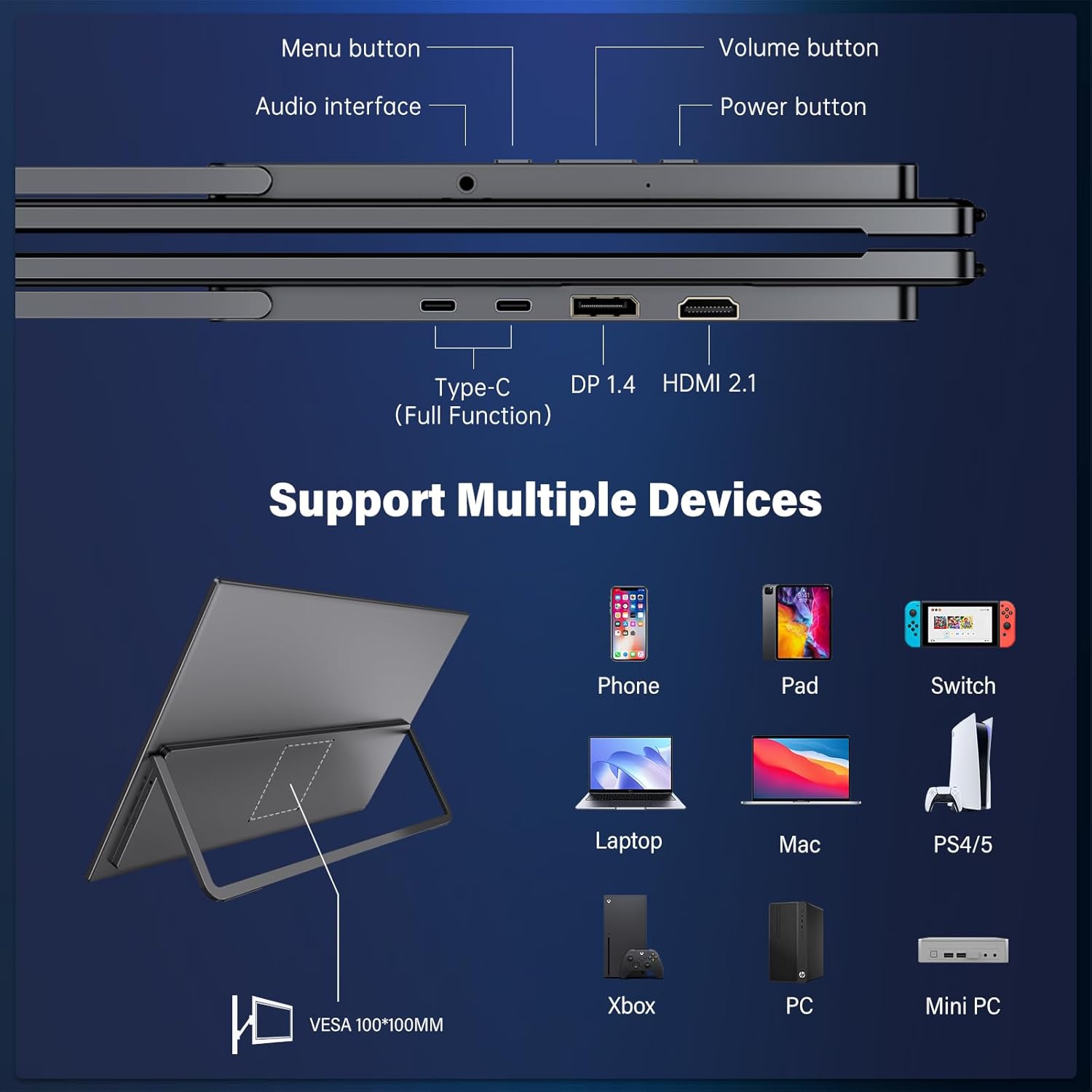
Image 4.2: The monitor positioned with its integrated adjustable kickstand, demonstrating its versatility for various viewing setups.

Image 4.3: The monitor displayed on a VESA-compatible arm, illustrating its wall-mount capability for an organized workspace.
5. Setup Instructions
5.1 Powering the Monitor
Connect the provided 65W power adapter to a power outlet and then to one of the monitor's full-function Type-C ports. The monitor requires external power for operation.
5.2 Connecting to Devices
The monitor supports various devices via USB-C and HDMI. No drivers are required for most connections.

Image 5.1: An overview of compatible devices including phones, pads, Nintendo Switch, laptops, Macs, PS4/PS5, Xbox, PCs, and Mini PCs, connecting via USB-C, DP, or HDMI.
- USB-C Connection (Full Function):
If your device (laptop, smartphone, etc.) has a full-function USB-C port that supports video output and power delivery, connect it to one of the monitor's Type-C ports using the provided USB-C cable. Ensure the monitor is separately powered with its adapter.

Image 5.2: A laptop connected to the monitor via a USB-C cable, with the monitor also connected to its power adapter, illustrating a typical setup for extended display.
- HDMI Connection:
Connect your device (PC, gaming console, etc.) to the monitor's HDMI 2.1 port using the provided HDMI cable. Ensure the monitor is powered via its adapter.

Image 5.3: A laptop connected to the monitor using an HDMI cable, with the monitor receiving power from its adapter, demonstrating a common connection method.
- DisplayPort (DP) Connection:
Connect your device to the monitor's DP 1.4 port using a DisplayPort cable (not included). Ensure the monitor is powered via its adapter.
- Gaming Consoles (PS4/PS5, Xbox, Nintendo Switch):
Connect via HDMI. For Nintendo Switch, a docking station is required, and it supports up to 1080p resolution.

Image 5.4: A Nintendo Switch connected to the monitor through a docking station, illustrating how to set up gaming consoles with the portable display.
- Mac Mini M4 Series:
Connect to the Thunderbolt port. Front USB-C ports on Mac Mini M4 are for charging only and will not transmit video.

Image 5.5: A Mac Mini M4 series device connected to the monitor via its Thunderbolt port, with a visual cue indicating the correct port for video output.
6. Operating Instructions
6.1 Power On/Off
Press the Power Button located on the side of the monitor to turn it on or off.
6.2 Dual Mode Switching
The monitor supports switching between 4K UHD at 120Hz and FHD at 288Hz. This can be done via a dedicated "Dual Mode Display Shortcut Key" (if available) or through the OSD Menu Settings.

Image 6.1: The monitor showcasing its dual-mode capability, with a visual representation of 4K 120Hz for detailed work and FHD 288Hz for high-refresh-rate gaming.

Image 6.2: An illustration of the VisionShift feature, demonstrating the instantaneous refresh rate change between 4K 120Hz and FHD 288Hz modes.
6.3 OSD Menu Navigation
Press the Menu Button to access the On-Screen Display (OSD) menu. Use the Volume and Power buttons to navigate and select options.
- Picture Settings: Adjust brightness (500 nits maximum), contrast (1500:1), sharpness, and color temperature.
- Color Options: Supports 100% sRGB and 10-bit colors (1.07 billion shades).
- Advanced Features:
- HDR Support: Enhances dynamic range for compatible content.
- FreeSync Technology: Reduces screen tearing and stuttering during gaming.
- AI Rendering: AI-enhanced rendering for improved visual quality.
- AI Blue Light Filter: Reduces blue light emission to minimize eye strain.

Image 6.3: A visual summary of the monitor's key display features, including color gamut, bit depth, brightness, contrast ratio, and eye-care technologies.

Image 6.4: A side-by-side comparison demonstrating the visual enhancement when AI rendering is enabled versus disabled.

Image 6.5: A visual comparison illustrating the difference in image quality with HDR (High Dynamic Range) enabled and disabled.

Image 6.6: A comparison showing the effect of the AI blue light filter, reducing eye strain compared to no filter or a normal blue light filter.
6.4 Audio Output
The monitor has built-in dual speakers. You can also connect external headphones or speakers via the 3.5mm audio jack.
7. Maintenance
- Cleaning the Screen: Gently wipe the screen with a soft, lint-free cloth. For stubborn marks, dampen the cloth slightly with water or a screen-cleaning solution. Do not spray liquid directly onto the screen.
- Cleaning the Casing: Use a soft, dry cloth to clean the monitor's casing. Avoid abrasive cleaners.
- Storage: When not in use for extended periods, store the monitor in a cool, dry place, preferably in its original packaging or a protective sleeve.
8. Troubleshooting
- No Signal:
- Ensure the monitor is powered on and connected to a power source.
- Verify that the video cable (USB-C, HDMI, DP) is securely connected to both the monitor and the source device.
- Check if the source device is outputting a video signal.
- Try a different cable or port.
- No Power:
- Ensure the power adapter is correctly plugged into a working power outlet and the monitor.
- Confirm the power adapter is the original 65W adapter.
- No Sound or Low Volume:
- Adjust the monitor's volume using the Volume button.
- Check the audio settings on your connected device.
- If using external speakers/headphones, ensure they are properly connected to the 3.5mm audio jack.
- Display Flickering or Unstable Image:
- Ensure the video cable is securely connected.
- Try reducing the refresh rate or resolution in your device's display settings.
- Ensure the monitor is receiving adequate power.
9. Specifications
| Feature | Detail |
|---|---|
| Model Number | INCPM703-01B |
| Screen Size | 27 Inches |
| Resolution (UHD Mode) | 3840 x 2160 Pixels (4K) @ 120Hz |
| Resolution (FHD Mode) | 1920 x 1080 Pixels (FHD) @ 288Hz |
| Aspect Ratio | 16:9 |
| Brightness | 500 Nits |
| Contrast Ratio | 1500:1 |
| Color Gamut | 100% sRGB |
| Color Depth | 10 Bit |
| Panel Type | Fast IPS |
| Screen Surface | Matte |
| Connectivity | 2x Full-Function USB-C, 1x HDMI 2.1, 1x DP 1.4, 1x 3.5mm Audio Jack |
| Speakers | Built-in Dual Speakers |
| VESA Mount | 100x100mm |
| Product Dimensions | 0.72 x 14.73 x 24.16 inches (1.83 x 37.41 x 61.37 cm) |
| Item Weight | 12.51 pounds (5.67 kg) |
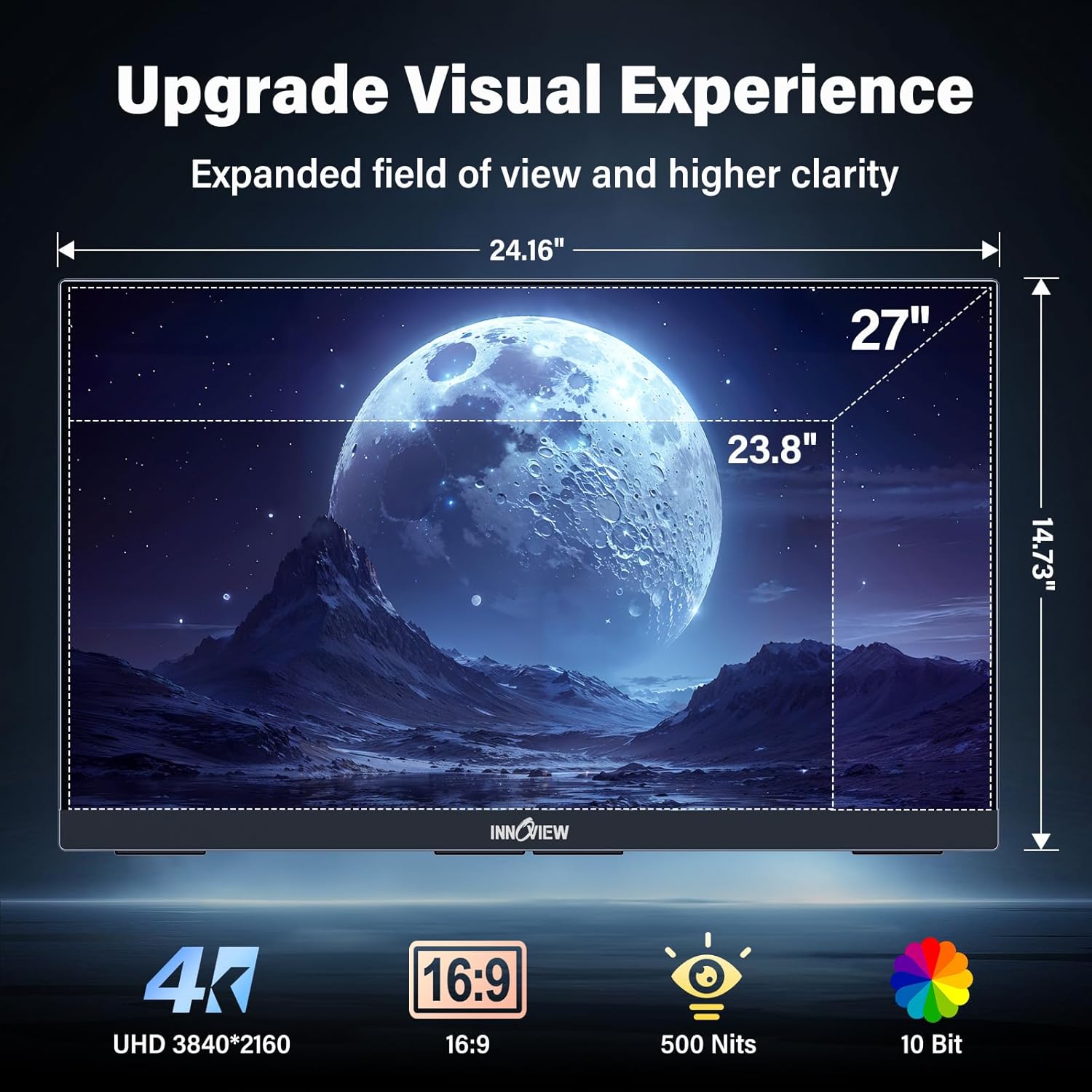
Image 9.1: Diagram illustrating the physical dimensions of the 27-inch monitor and key display specifications like 4K UHD resolution, 16:9 aspect ratio, 500 Nits brightness, and 10-bit color.
10. Warranty and Customer Support
InnoView is committed to providing reliable customer care. This monitor comes with an 18-month warranty. For any questions or issues, please contact InnoView customer support. They are available to offer prompt technical help and after-sales service.
Contact information can typically be found on the official InnoView website or through your purchase platform.
Related documentsINCPM703-01B


Ask a question about this manual
Ask about setup, troubleshooting, compatibility, parts, safety, or missing instructions. Manuals+ will review the question and use this page’s manual context to help answer it.