1. Introduction
This manual provides essential information for the safe and efficient operation of your Sceptre E345W-QU120D 34-inch Ultrawide Monitor. Please read this manual thoroughly before using the product and retain it for future reference. This monitor features a 34-inch 3440x1440 display, up to 115Hz refresh rate, 103% sRGB color gamut, and multiple connectivity options including DisplayPort and HDMI, along with built-in speakers.
2. Safety Information
Observe the following safety precautions to ensure proper operation and prevent damage to the monitor or injury to yourself.
- Do not place the monitor on an unstable cart, stand, or table.
- Do not expose the monitor to rain or moisture to avoid fire or shock hazards.
- Do not open the monitor casing. There are no user-serviceable parts inside. Refer all servicing to qualified service personnel.
- Ensure proper ventilation. Do not block any ventilation openings.
- Use only the power cord and adapter supplied with the monitor.
- Disconnect the power plug from the outlet if the monitor will not be used for an extended period.
3. Package Contents
Verify that all items are present and in good condition upon unpacking.
- Sceptre E345W-QU120D Ultrawide Monitor
- Monitor Stand (Base and Neck)
- Power Adapter and Power Cord
- DisplayPort Cable
- Screwdriver (for stand assembly)
- User Manual (this document)
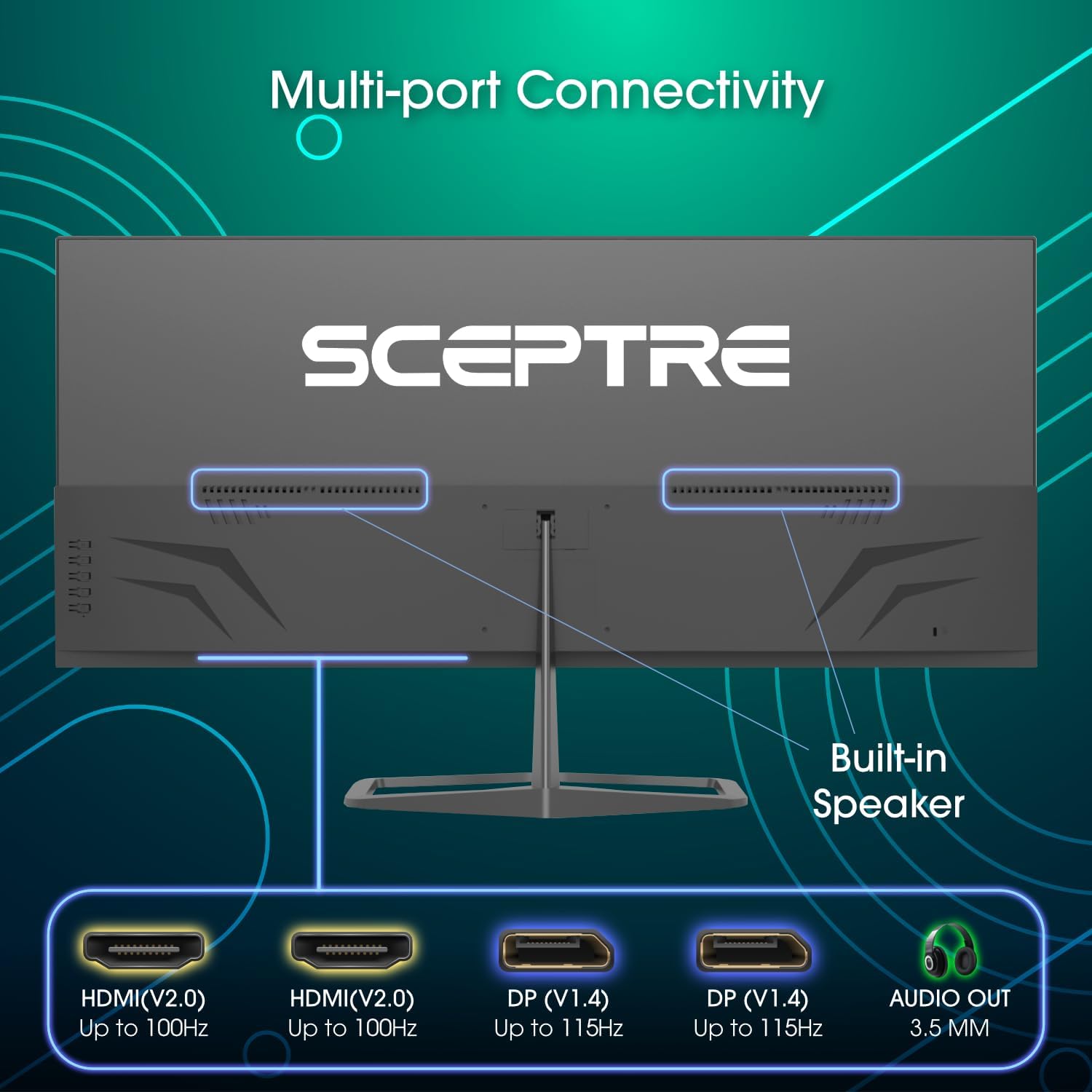
Image: Diagram illustrating the multi-port connectivity options on the Sceptre E345W-QU120D monitor, including HDMI, DisplayPort, and Audio Out. This image helps identify the various ports available on the monitor.
4. Setup
4.1 Assembling the Stand
- Carefully place the monitor face down on a soft, clean surface to prevent scratches.
- Attach the stand neck to the monitor using the provided screws.
- Connect the stand base to the neck, securing it with the remaining screws. Use the included screwdriver for assembly.
- Ensure all screws are tightened securely before placing the monitor upright.
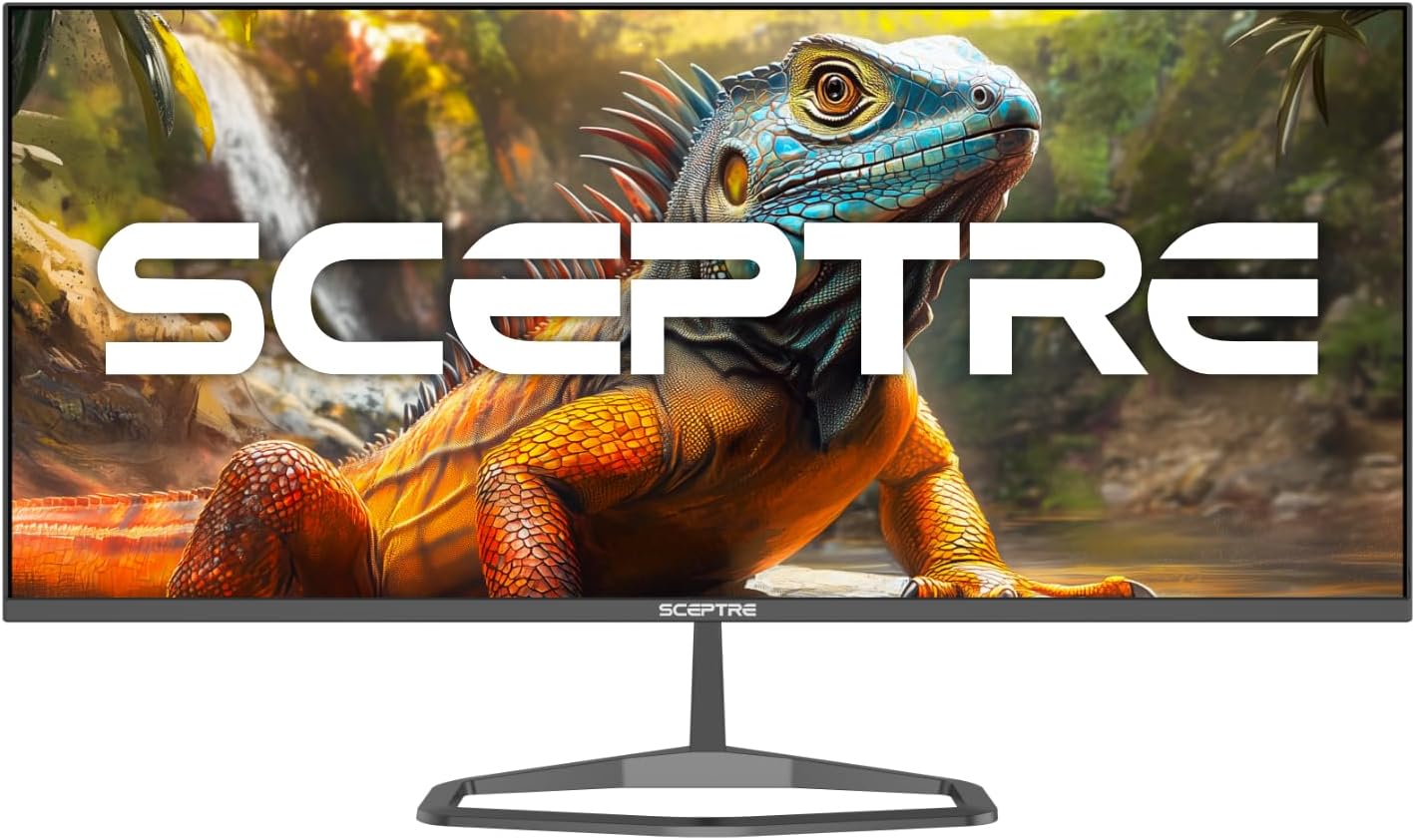
Image: The Sceptre E345W-QU120D Ultrawide Monitor displayed from the front, including its stable desktop stand. This image provides a visual reference for the assembled monitor.
4.2 Connecting to a Computer
- Ensure both the monitor and your computer are powered off.
- Connect one end of the DisplayPort cable (included) or an HDMI cable (not included) to the corresponding port on your computer's graphics card.
- Connect the other end of the cable to an available DisplayPort or HDMI input on the monitor. The monitor supports two DisplayPort (v1.4) inputs for up to 115Hz refresh rate and two HDMI (v2.0) inputs for up to 100Hz refresh rate.
- For audio output, you can use the 3.5mm Audio Out jack on the monitor to connect external speakers or headphones.
- Connect the power adapter to the monitor's power input, then plug the power cord into a wall outlet.
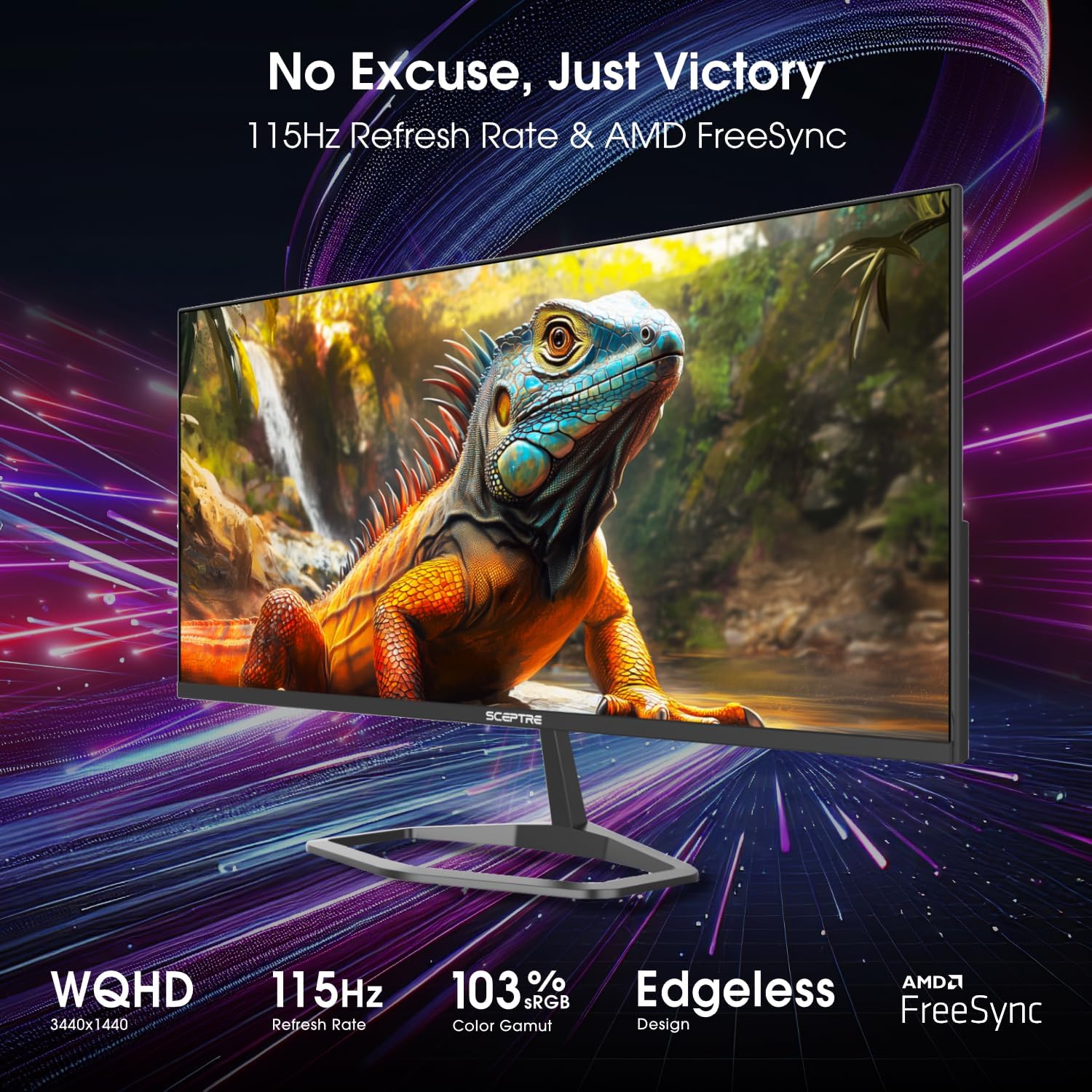
Image: Rear view of the Sceptre E345W-QU120D Ultrawide Monitor, highlighting the input ports and VESA mount area. This image assists in locating the various connection points.
5. Operating the Monitor
5.1 Power On/Off
Press the power button, typically located on the back or bottom right side of the monitor, to turn the monitor on or off. The power indicator light will illuminate when the monitor is on.
5.2 On-Screen Display (OSD) Menu
The OSD menu allows you to adjust various monitor settings. Use the control buttons (usually located on the back or bottom of the monitor) to navigate the menu.
- Input Source: Select between DisplayPort 1, DisplayPort 2, HDMI 1, or HDMI 2.
- Picture Settings: Adjust brightness, contrast, sharpness, and color temperature.
- Color Settings: Fine-tune color balance and gamma. The monitor features 103% sRGB color gamut for accurate color reproduction.
- Audio Settings: Adjust volume for the built-in speakers or connected audio devices.
- OSD Settings: Configure OSD language, transparency, and timeout.
- Advanced Settings: Enable or disable features like AMD FreeSync and Blue-Light Shift.

Image: Front view of the Sceptre E345W-QU120D 34-inch Ultrawide Monitor, showcasing its edgeless design and wide display. This image provides a general view of the monitor during operation.
5.3 Key Features
- High Refresh Rate: Up to 115Hz via DisplayPort and 100Hz via HDMI for smoother visuals.
- AMD FreeSync: Synchronizes the monitor's refresh rate with your graphics card's frame rate to eliminate screen tearing and stuttering. Enable this feature in the OSD menu and your graphics card settings.
- Blue-Light Shift: Reduces harmful blue light emissions to alleviate eye strain during prolonged use. This can be adjusted or enabled/disabled via the OSD menu.
- Integrated Speakers: Provides audio output without the need for external speakers.
6. Maintenance
6.1 Cleaning the Monitor
- Always unplug the monitor from the power outlet before cleaning.
- Use a soft, lint-free cloth lightly dampened with water or a non-abrasive screen cleaner.
- Do not spray cleaner directly onto the screen or into any openings.
- Wipe the screen gently to remove dust and smudges.
- For the monitor casing, use a soft, dry cloth.
6.2 General Care
- Avoid placing heavy objects on the monitor or its cables.
- Keep the monitor away from direct sunlight, heat sources, and excessive dust.
- Ensure adequate space around the monitor for proper ventilation.
7. Troubleshooting
If you encounter issues with your monitor, refer to the following troubleshooting guide.
| Problem | Possible Cause | Solution |
|---|---|---|
| No power | Power cable not connected; Power outlet not working; Monitor power button off. | Ensure power cable is securely connected to monitor and outlet. Test outlet with another device. Press monitor power button. |
| No signal | Video cable not connected; Incorrect input source selected; Computer not outputting signal. | Check video cable connections (DisplayPort/HDMI) to both monitor and computer. Select correct input source via OSD menu. Restart computer. |
| Image flickering or distorted | Loose video cable; Incorrect resolution/refresh rate; Graphics card driver issues. | Secure video cable. Adjust resolution and refresh rate in computer display settings. Update graphics card drivers. |
| No audio from built-in speakers | Volume too low; Muted; Incorrect audio output selected on computer. | Increase monitor volume via OSD. Check computer's audio settings to ensure monitor is selected as output device. |
| HDMI ports feel hot | Potential overheating; Cable issue. | Ensure proper ventilation around ports. Try a different HDMI cable. If problem persists, contact support. |
8. Specifications
| Feature | Detail |
|---|---|
| Model Number | E345W-QU120D |
| Screen Size | 34 Inches |
| Resolution | 3440 x 1440 (WQHD) |
| Max Refresh Rate (DisplayPort) | 115Hz |
| Max Refresh Rate (HDMI) | 100Hz |
| Aspect Ratio | 21:9 |
| Color Gamut | 103% sRGB |
| Connectivity | 2x HDMI (v2.0), 2x DisplayPort (v1.4), 1x Audio Out (3.5mm) |
| Built-in Speakers | Yes |
| VESA Mount Compatible | Yes |
| Item Weight | 9.7 pounds (approx. 4.4 kg) |
| Product Dimensions (LxWxH) | 32 x 9 x 21 inches (approx. 81.3 x 22.9 x 53.3 cm) |
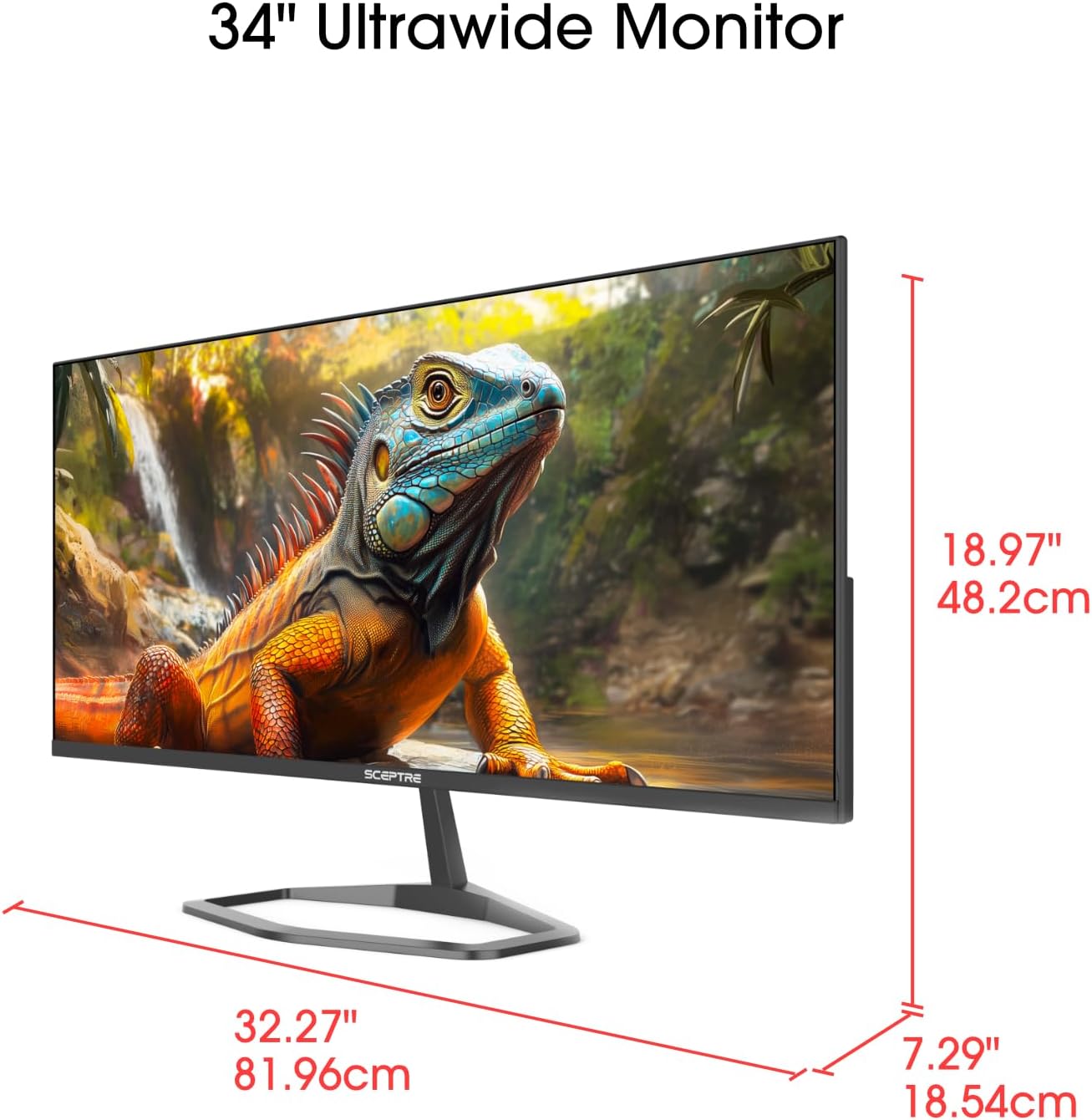
Image: This image displays the physical dimensions (height, width, and depth) of the Sceptre E345W-QU120D 34-inch Ultrawide Monitor, providing precise measurements for placement and setup.
9. Warranty Information
Sceptre products are covered by a limited warranty. For detailed warranty terms, conditions, and registration information, please refer to the official Sceptre website or the warranty card included with your product. Keep your proof of purchase for warranty claims.
10. Customer Support
If you require further assistance or have questions not covered in this manual, please contact Sceptre customer support.
- Online Support: Visit the official Sceptre website for FAQs, driver downloads, and support resources.
- Contact Information: Refer to the Sceptre website or your product packaging for the most current contact details (phone, email).
- Sceptre Store: You can also visit the Sceptre Store on Amazon for product information and accessories.