
1. Introduction
Welcome to the Aobante 10-inch Android 15 Tablet user manual. This guide provides essential information to help you set up, operate, and maintain your new tablet. Please read this manual thoroughly before using your device to ensure proper functionality and safety.
2. Safety Information
- Do not expose the tablet to extreme temperatures, direct sunlight, or high humidity.
- Avoid dropping or subjecting the tablet to strong impacts.
- Use only the provided charger and accessories to prevent damage and ensure safety.
- Keep the tablet away from water and other liquids.
- Do not attempt to disassemble or repair the tablet yourself. Contact customer support for assistance.
3. Package Contents
Verify that all items are present in your package:
- 1 x Aobante 10-inch Android 15 Tablet
- 1 x Charger and Charging Cable
- 1 x Protective Case
- 1 x Wireless Keyboard
- 1 x Wireless Mouse
- 1 x Stylus
- 1 x Instruction Manual (this document)

Image: Aobante Tablet with keyboard case, wireless mouse, charging cable, and power adapter, illustrating the complete package contents.
4. Product Overview
The Aobante K80 tablet features a powerful octa-core processor and runs on Android 15, providing a smooth user experience. It includes a 10.1-inch IPS HD display, dual cameras, and a 6000mAh battery.

Image: The Aobante tablet displaying its navigation interface and highlighting the face security unlocking feature.
4.1 Key Features
- Processor: Octa-Core 2.0 GHz (Unisoc T615)
- Operating System: Android 15
- Display: 10.1-inch IPS HD (1280x800 pixels)
- Memory: 24GB RAM (8GB physical + 16GB virtual)
- Storage: 128GB ROM, expandable up to 1TB via MicroSD card
- Cameras: 5MP Front, 8MP Rear
- Battery: 6000mAh
- Connectivity: Wi-Fi 6E, Bluetooth 5.4, USB-C
- Special Features: Detachable Keyboard, USB OTG support, Face Security Unlocking, GPS-Enabled

Image: An illustration of the tablet's internal T615 Octa-core processor, highlighting its performance capabilities.
5. Getting Started (Setup)
5.1 Charging the Tablet
Before first use, fully charge your tablet. Connect the provided USB-C cable to the tablet's USB-C port and the other end to the power adapter. Plug the adapter into a wall outlet. The charging indicator will show the charging status.
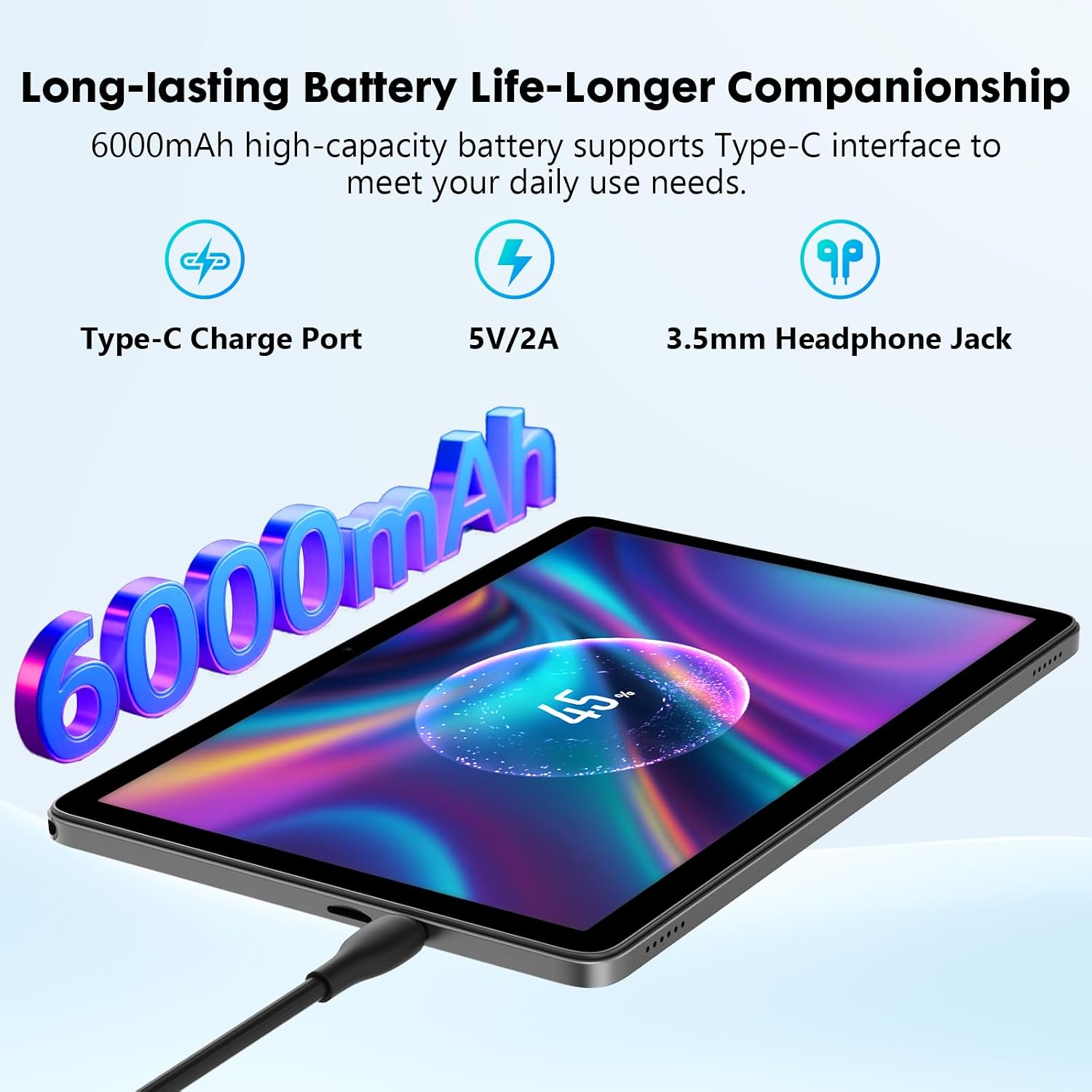
Image: The Aobante tablet being charged via its USB-C port, with an indication of its 6000mAh battery capacity.
5.2 Power On/Off
- To Power On: Press and hold the Power button on the side of the tablet until the Aobante logo appears.
- To Power Off: Press and hold the Power button until a power menu appears on the screen. Select "Power off" and confirm.
- To Restart: From the power menu, select "Restart" and confirm.
5.3 Initial Setup
Upon first power-on, follow the on-screen prompts to configure basic settings:
- Select your preferred language.
- Connect to a Wi-Fi network.
- Sign in with your Google account or create a new one.
- Review and accept the terms and conditions.
- Set up screen lock (PIN, pattern, password, or face unlock).
5.4 Connecting Accessories (Keyboard, Mouse, Stylus)
The included keyboard, mouse, and stylus connect via Bluetooth.
- Ensure the accessories are charged and powered on.
- On your tablet, go to Settings > Connected devices > Bluetooth.
- Turn on Bluetooth and scan for available devices.
- Select the keyboard, mouse, or stylus from the list to pair. Follow any on-screen prompts to complete pairing.
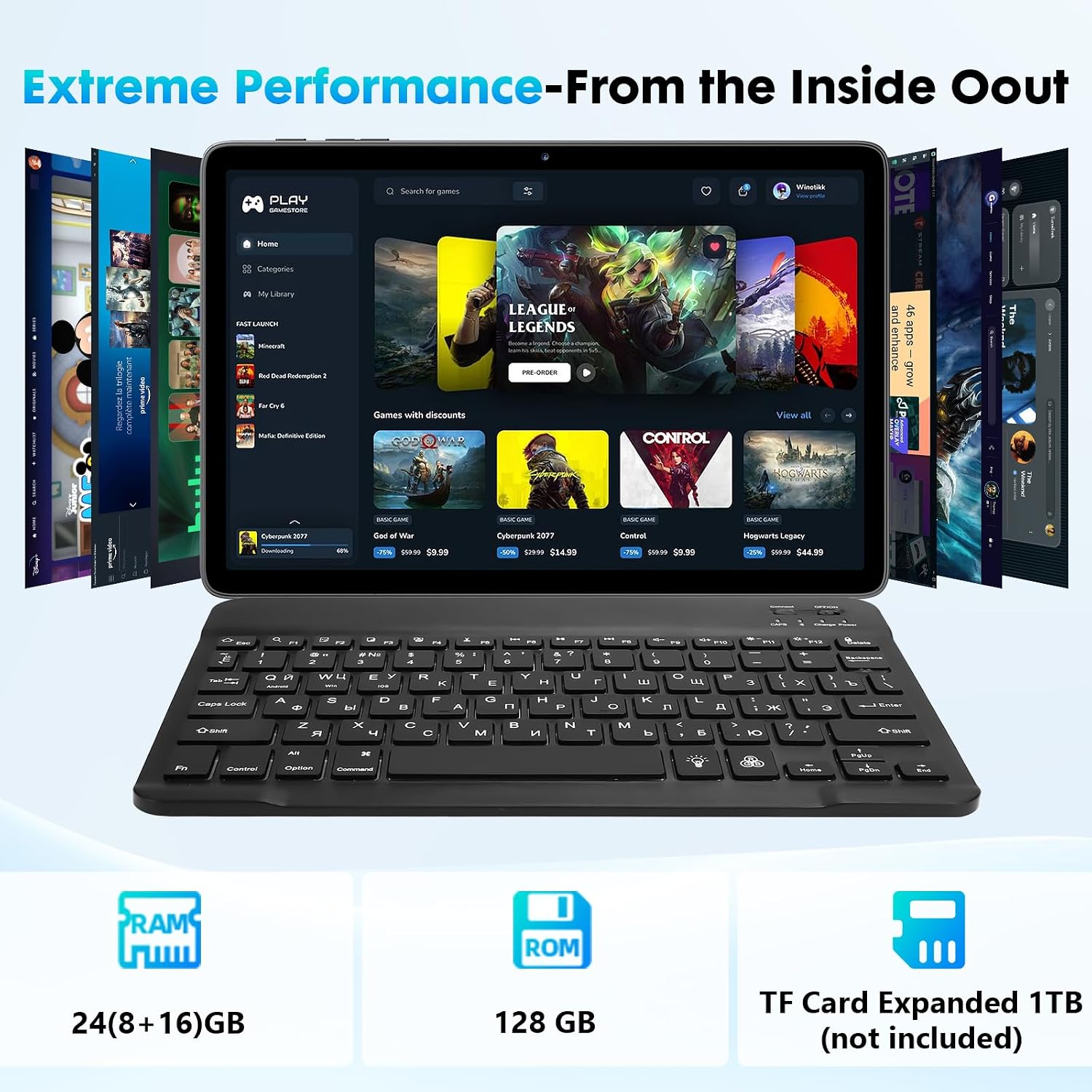
Image: The Aobante tablet connected to its keyboard, showcasing a variety of applications and games on its screen.
5.5 Inserting a MicroSD Card
The tablet supports MicroSD cards up to 1TB for expanded storage.
- Locate the MicroSD card slot on the side of the tablet.
- Gently insert the MicroSD card into the slot with the gold contacts facing down until it clicks into place. Ensure proper alignment to avoid damage.
- To remove, gently press the card inward to release it, then pull it out.
6. Operating the Tablet
6.1 Touch Screen Navigation
The tablet's 10.1-inch IPS HD touch screen allows for intuitive interaction:
- Tap: Select an item or open an app.
- Tap and Hold: Access contextual menus or move items.
- Swipe: Scroll through pages or screens.
- Pinch-to-Zoom: Zoom in or out on images and web pages.
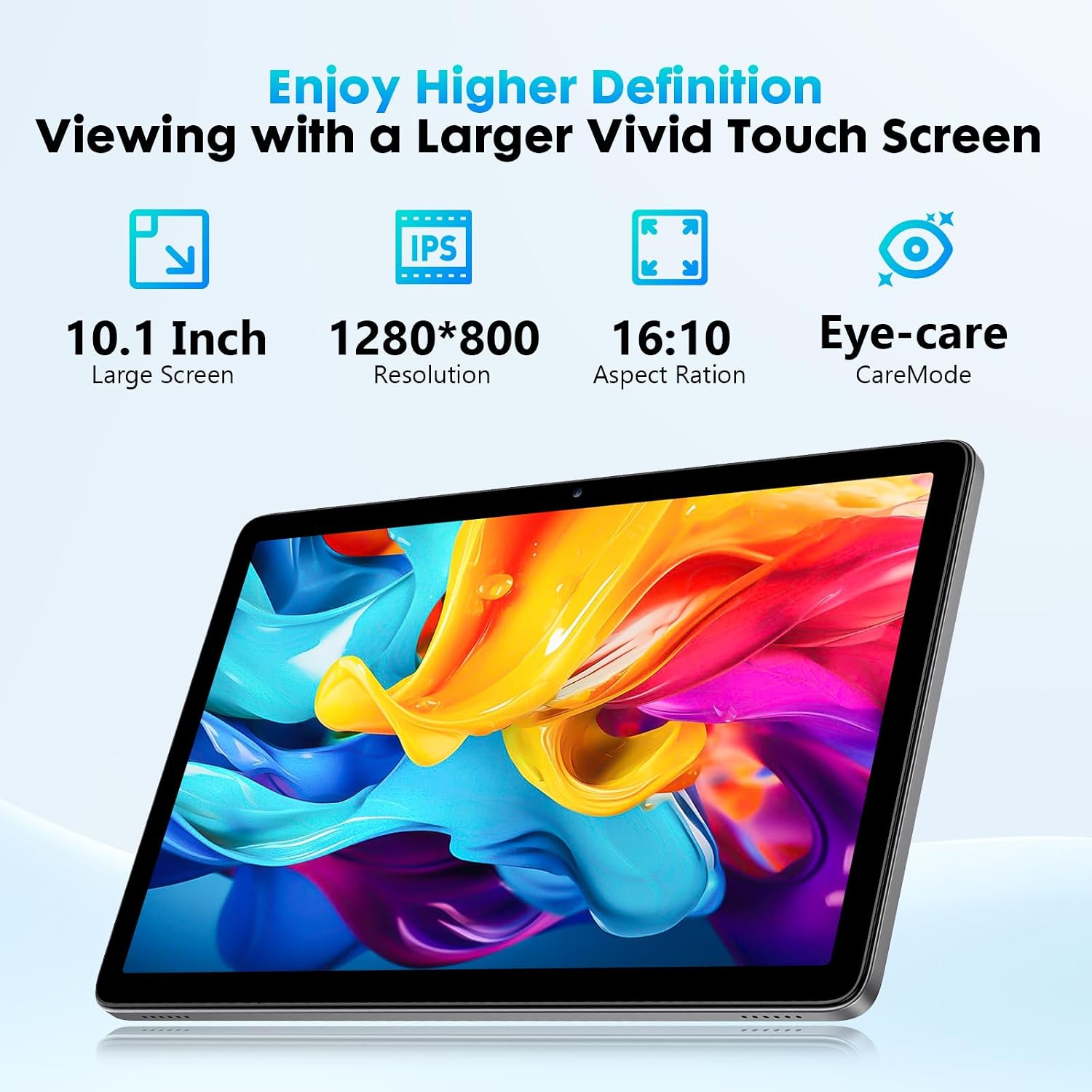
Image: The Aobante tablet's vivid touch screen, highlighting its 10.1-inch IPS display, 1280x800 resolution, 16:10 aspect ratio, and eye-care mode.
6.2 Android 15 Features
Your tablet runs on the latest Android 15 operating system, offering enhanced performance, improved privacy features, and a wide range of compatible applications. Explore the intuitive interface and customize it to your preferences.
6.3 Camera Usage
The tablet is equipped with a 5MP front camera and an 8MP rear camera for capturing photos and videos.
- Open the Camera app from the home screen or app drawer.
- Switch between front and rear cameras using the camera icon.
- Tap the shutter button to take a photo or start/stop video recording.

Image: A group of people using the Aobante tablet to take photos, demonstrating its 5MP front and 8MP rear cameras for clear photos and smooth video calls.
6.4 Storage Management
Your tablet comes with 128GB of internal storage (ROM) and 24GB of RAM (8GB physical + 16GB virtual). You can expand storage up to 1TB using a MicroSD card. Regularly check your storage usage in Settings > Storage to manage files and apps effectively.
6.5 Battery Management
The 6000mAh battery provides extended usage. To optimize battery life:
- Adjust screen brightness.
- Close unused apps running in the background.
- Turn off Wi-Fi or Bluetooth when not in use.
- Enable battery saver mode in Settings > Battery.
6.6 Face Security Unlocking
For convenient and secure access, set up Face Security Unlocking:
- Go to Settings > Security & privacy > Face unlock.
- Follow the on-screen instructions to register your face.
- Once set up, simply look at the front camera to unlock your tablet.
6.7 GPS Navigation
The tablet is GPS-enabled, allowing you to use navigation apps for directions and location services. Ensure location services are enabled in Settings > Location for optimal performance.
7. Maintenance
7.1 Cleaning Your Tablet
- Use a soft, lint-free cloth to clean the screen and body of the tablet.
- For stubborn smudges, slightly dampen the cloth with water or a screen cleaner.
- Avoid using harsh chemicals or abrasive materials.
7.2 Software Updates
Software updates are periodically released to improve system stability, add new features, and enhance security. To check for updates:
- Ensure your tablet is connected to Wi-Fi.
- Go to Settings > System > System update.
- Follow the on-screen instructions to download and install any available updates.
8. Troubleshooting
If you encounter issues with your tablet, refer to the following common solutions:
| Problem | Solution |
|---|---|
| Tablet does not power on | Ensure the tablet is fully charged. Press and hold the Power button for at least 10-15 seconds. |
| MicroSD card not recognized | Remove and reinsert the MicroSD card. Ensure it is properly seated. Check if the card is formatted correctly (FAT32 or exFAT). |
| Wireless accessories (keyboard/mouse) not connecting | Ensure Bluetooth is enabled on the tablet and the accessories are powered on and in pairing mode. Check battery levels of the accessories. Try re-pairing them. |
| Slow performance or apps crashing | Close unnecessary background applications. Clear app caches in Settings > Apps. Restart the tablet. |
| Touch screen unresponsive | Restart the tablet. If the issue persists, ensure the screen is clean and free of debris. |
9. Specifications
| Feature | Detail |
|---|---|
| Brand | Aobante |
| Model Number | K80 |
| Operating System | Android 15 |
| Processor | Octa-Core 2.0 GHz (Unisoc SPRD T615) |
| RAM | 24 GB (8 GB installed + 16 GB virtual) |
| Internal Storage (ROM) | 128 GB |
| Expandable Storage | Up to 1 TB via MicroSD card |
| Screen Size | 10.1 inches |
| Display Resolution | 1280 x 800 Pixels (IPS HD) |
| Aspect Ratio | 16:10 |
| Refresh Rate | 60 Hz |
| Front Camera | 5 MP |
| Rear Camera | 8 MP |
| Battery Capacity | 6000 mAh (Lithium Polymer) |
| Connectivity | Wi-Fi 6E (802.11a/b/ac/ad/ax), Bluetooth 5.4, USB-C (USB 2.0), 3.5mm Headphone Jack |
| Special Features | Detachable Keyboard, USB OTG Support, Touch Feedback, Expandable Storage, GPS-Enabled |
| Dimensions (L x W x H) | 22.4 x 16.2 x 0.8 cm |
| Weight | 1.43 kilograms |
| Supported Audio Formats | AAC, MP3, MP4 |
10. Warranty and Support
10.1 Warranty Information
Your Aobante tablet is covered by a 1-year manufacturer's warranty from the date of purchase. This warranty covers manufacturing defects and malfunctions under normal use. It does not cover damage caused by misuse, accidents, unauthorized repairs, or normal wear and tear.
Please retain your proof of purchase for warranty claims.
10.2 Customer Support
For technical assistance, warranty claims, or any questions regarding your Aobante tablet, please contact Aobante customer support through the retailer's platform or the official Aobante website. Provide your model number (K80) and a detailed description of the issue for faster service.

