
Product Overview
The UGREEN 10-Port PoE Ethernet Switch (Model 35372US) is designed to provide efficient power delivery and seamless network connectivity for various devices. It features 8 PoE+ Gigabit ports and 2 Gigabit uplink ports, with a total power budget of 60W. This switch supports multiple operating modes and intelligent power management features.
Key Features
- More Ports, PoE Ready: Offers 8 PoE+ (802.3at/af) Gigabit ports (up to 30W each) and 2 Gigabit uplink ports, with a total power budget of 60W.
- Intelligent Power Management: If power exceeds 60W, it cuts ports in priority order (8–1) to prevent overload. It auto-detects PoE devices, supplies power to them, and transmits data only to non-PoE devices. Short-circuited ports shut off independently.
- PoE Auto Recovery: In Extend Mode, ports 1–6 automatically detect and restart powered devices (such as cameras or access points) when they go offline or freeze, ensuring stable PoE operation without manual monitoring or restart.
- One Touch, Three Modes: The switch can easily switch between Standard, VLAN, and Extend modes. VLAN isolates ports 1-8 for better management and storm prevention. Extend mode supports PoE up to 820FT, ideal for security and remote network coverage.
- High-Speed, Low Latency: Offers 1000Mbps connectivity for real-time, lag-free monitoring with security cameras, efficient IP phone connections for work, and enhanced performance for wireless access points across your network.
Package Contents
Verify that all items are present in the package:
- Ethernet Switch
- AC Power Cord
- User Manual

Image: The UGREEN 10-Port PoE Switch with its power cord and user manual, illustrating the complete package contents.
Setup Instructions
Connecting the Power
Connect the provided AC power cord to the power port on the back of the UGREEN Ethernet Switch and then to a power outlet. The power LED indicator on the switch will illuminate.

Image: A close-up of the rear of the UGREEN Ethernet Switch, highlighting the power input port and the wall-mount slots.
Network Connections
Use standard Ethernet cables (Cat5e or higher recommended) to connect your network devices to the RJ45 ports on the switch.
- Uplink Ports (Ports 9-10): Connect these two Gigabit uplink ports to your router, modem, or main network infrastructure.
- PoE+ Ports (Ports 1-8): Connect PoE-compatible devices such as security cameras, IP phones, or wireless access points to these ports. The switch will automatically detect and provide power to these devices. Non-PoE devices can also be connected to these ports for data transmission only.

Image: The UGREEN 10-Port PoE Switch with various devices like security cameras, IP phones, and access points connected, demonstrating typical usage.
Wall Mounting (Optional)
The switch features mounting slots on its underside for wall installation. Securely attach the switch to a wall using appropriate screws (not included) through these slots.
Operating Modes
The UGREEN Ethernet Switch offers three operating modes, selectable via a physical switch on the device.

Image: A detailed view of the UGREEN Ethernet Switch's side, showing the physical switch for selecting Standard, VLAN, or Extend modes.
Standard Mode
In Standard mode, all ports function normally, allowing all connected devices to communicate freely within the network. This is the default mode for general network usage.

Image: A network diagram showing devices connected to the UGREEN switch in Standard mode, where all ports communicate freely.
VLAN (Port Isolation) Mode
When VLAN mode is activated, ports 1-8 are isolated from each other but can communicate with the uplink ports (9-10). This enhances network control, prevents broadcast storms, and improves security by segmenting traffic.

Image: A network diagram showing devices connected to the UGREEN switch in VLAN mode, where ports 1-8 are isolated from each other but connect to uplink ports.
Extend Mode
Extend mode is designed for long-distance PoE deployments. In this mode, PoE ports 1-6 support data transmission up to 820 feet (250 meters), though the speed reduces to 10Mbps. This is ideal for security cameras and remote network coverage.

Image: A diagram illustrating the Extend mode feature, showing long-distance PoE transmission up to 820 feet for devices like security cameras.
Intelligent Power Management
The switch incorporates intelligent power management features to ensure stable and safe operation.
- PoE Budget Control: If the total power consumption exceeds 60W, the switch will automatically cut power to ports in a priority order (from port 8 down to 1) to prevent overload and protect connected devices.
- PoE Auto Detection: The switch automatically detects whether a connected device is PoE-compatible. Power is only supplied to PoE devices, preventing damage to non-PoE equipment.
- Short-Circuit Protection: In the event of a short circuit on a port, the switch will cut power to that specific port while other ports remain active, ensuring network stability.
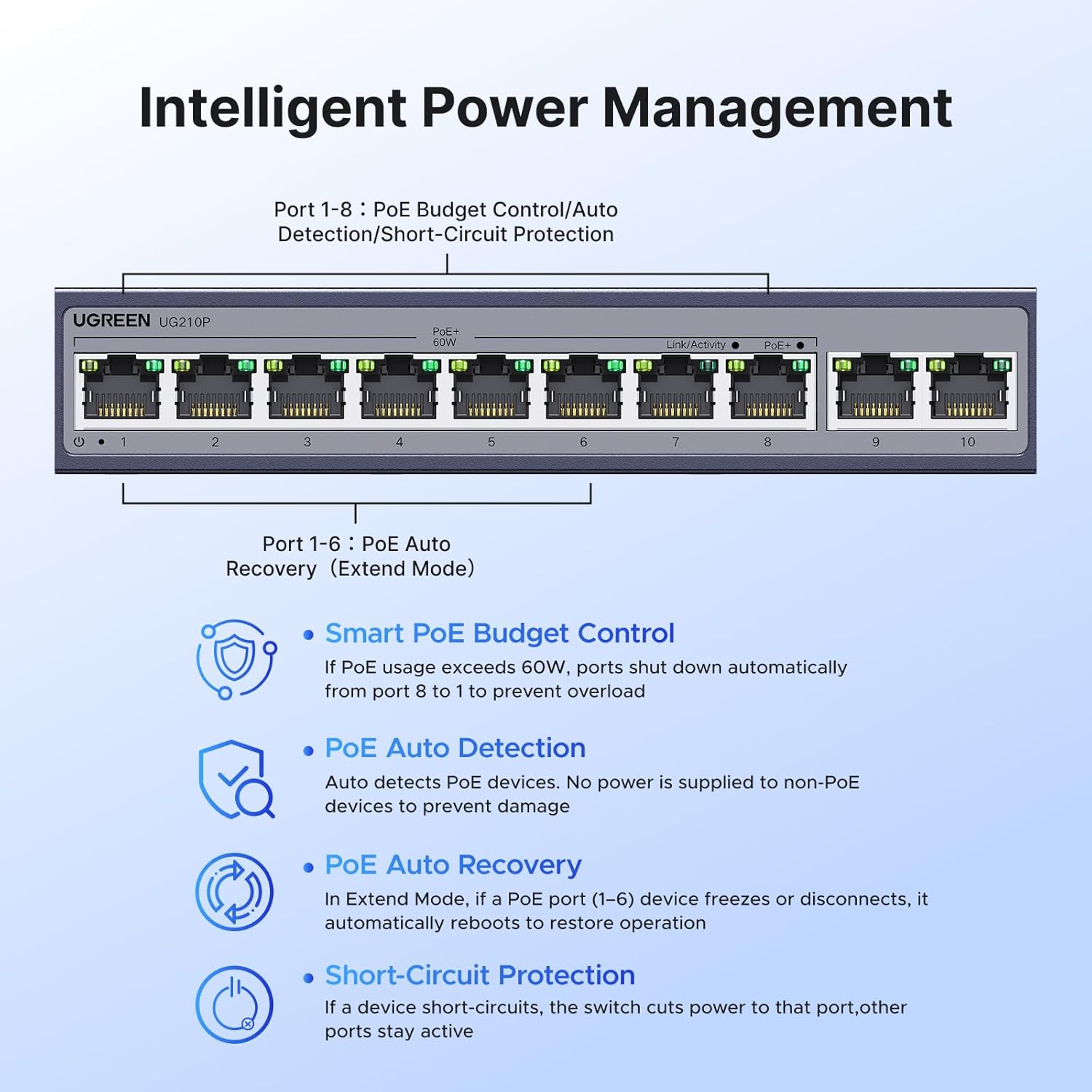
Image: A diagram detailing the intelligent power management features of the UGREEN PoE Switch, including PoE budget control, auto-detection, auto-recovery, and short-circuit protection.
PoE Auto Recovery
In Extend Mode, ports 1-6 are equipped with PoE Auto Recovery. This feature automatically detects if a powered device (such as a security camera or wireless access point) goes offline or freezes. The switch will then automatically restart the device to restore its operation without manual intervention.

Image: A diagram illustrating the PoE Auto Recovery function, showing how the switch automatically reboots devices like IP TVs, IP phones, NAS, security cameras, and access points when they become unresponsive in Extend mode.
Specifications
| Feature | Detail |
|---|---|
| Brand | UGREEN |
| Model Number | 35372US |
| Number of Ports | 10 (8 PoE+, 2 Gigabit Uplink) |
| PoE Standard | 802.3at/af |
| Max Power Per PoE+ Port | 30W |
| Total PoE Power Budget | 60W |
| Data Transfer Rate | 1000 Megabits Per Second (Gigabit) |
| Interface Type | RJ45 |
| Case Material | Metal |
| Item Weight | 1.8 pounds |
| Package Dimensions | 7.76 x 6.34 x 2.32 inches |
| Compatible Devices | Camera, Desktop, Laptop, Router |
| Special Features | Standard/VLAN/Extend Mode, PoE Auto Recovery, 6KV Lightning Protection |
Maintenance
- Cleaning: Use a soft, dry cloth to clean the exterior of the switch. Do not use liquid or aerosol cleaners.
- Ventilation: Ensure the switch is placed in a well-ventilated area to prevent overheating. Do not block the side vents.
- Firmware Updates: Check the official UGREEN website periodically for any available firmware updates to ensure optimal performance and security.
- Cable Management: Organize network cables to prevent tangles and ensure proper airflow around the device.
Troubleshooting
No Power
- Ensure the AC power cord is securely connected to both the switch and a working power outlet.
- Verify that the power outlet is functional by plugging in another device.
No Network Connectivity
- Check all Ethernet cable connections to ensure they are secure and properly seated in the ports.
- Verify that the connected devices (router, computer, camera) are powered on and functioning correctly.
- Confirm the operating mode switch is set appropriately for your network configuration (Standard, VLAN, or Extend).
- If using Extend mode, remember that data speed is reduced to 10Mbps for ports 1-6.
PoE Device Not Receiving Power
- Ensure the device connected is PoE-compatible (802.3at/af standard).
- Check the total power budget (60W) to ensure it's not exceeded. If exceeded, lower priority ports (8-1) may be shut off.
- If in Extend Mode, PoE Auto Recovery should restart unresponsive devices. If not, manually power cycle the device or the switch.
- Inspect the Ethernet cable for damage; a faulty cable can prevent PoE delivery.
Slow Network Speed
- Ensure you are using Cat5e or higher Ethernet cables for Gigabit speeds.
- If in Extend Mode, ports 1-6 operate at 10Mbps. Switch to Standard or VLAN mode for full Gigabit speeds if long distance is not required.
- Check for network congestion or issues with your internet service provider.
Important Safety Information
- Do not expose the device to water or excessive humidity.
- Do not attempt to open or repair the device yourself. Refer to qualified service personnel.
- Use only the provided power adapter or a compatible replacement.
- Protect the device from extreme temperatures and direct sunlight.
- The device features 6KV lightning protection; however, it is recommended to disconnect during severe electrical storms.
Warranty and Support
UGREEN products come with a standard manufacturer's warranty. For detailed warranty information, technical support, or service inquiries, please visit the official UGREEN website or contact their customer support.