
1. Introduction
This manual provides essential information for the safe and efficient operation of your YFDSPSM JY360 Video Projector. The JY360 is a portable projector featuring 1080P native resolution, 350 ANSI lumens brightness, Android 13 operating system, Wi-Fi and Bluetooth connectivity, automatic keystone correction, autofocus, and a 180° rotation function for flexible projection angles. Please read this manual thoroughly before using the product.

Image 1.1: YFDSPSM JY360 Video Projector with projected screen showing streaming applications.
2. Safety Information
To ensure safe operation and prevent damage, observe the following precautions:
- Ventilation: Do not block the ventilation openings. Ensure adequate airflow around the projector to prevent overheating.
- Power Source: Use only the provided power adapter. Connect to a power outlet that matches the voltage specified on the adapter.
- Handling: Avoid dropping or subjecting the projector to strong impacts. Do not hold the projector in your hand and swing it randomly; place it in a fixed position without moving it during operation.
- Environment: Operate the projector in a clean, dry environment. Avoid extreme temperatures, humidity, and dusty conditions.
- Lens Care: Do not touch the projector lens directly. Use a soft, lint-free cloth for cleaning.
- Disassembly: Do not attempt to disassemble or modify the projector. Refer all servicing to qualified personnel.
- Eye Safety: Do not look directly into the projector lens when the lamp is on, as the bright light can cause eye strain or damage.
3. Package Contents
Verify that all items are present in the package:
- YFDSPSM JY360 Video Projector
- Remote Control (requires 2 AAA batteries, not included)
- Power Cable
- User Manual

Image 3.1: Included accessories: Remote control, power cable, user manual, and the projector unit.
4. Product Overview
Familiarize yourself with the projector's physical components and connection ports.
4.1. Front View
The front of the projector features the projection lens and the autofocus sensor.
4.2. Rear View
The rear panel typically includes ventilation outlets and the power input port. The design ensures the power cable does not obstruct the 180° rotation function.
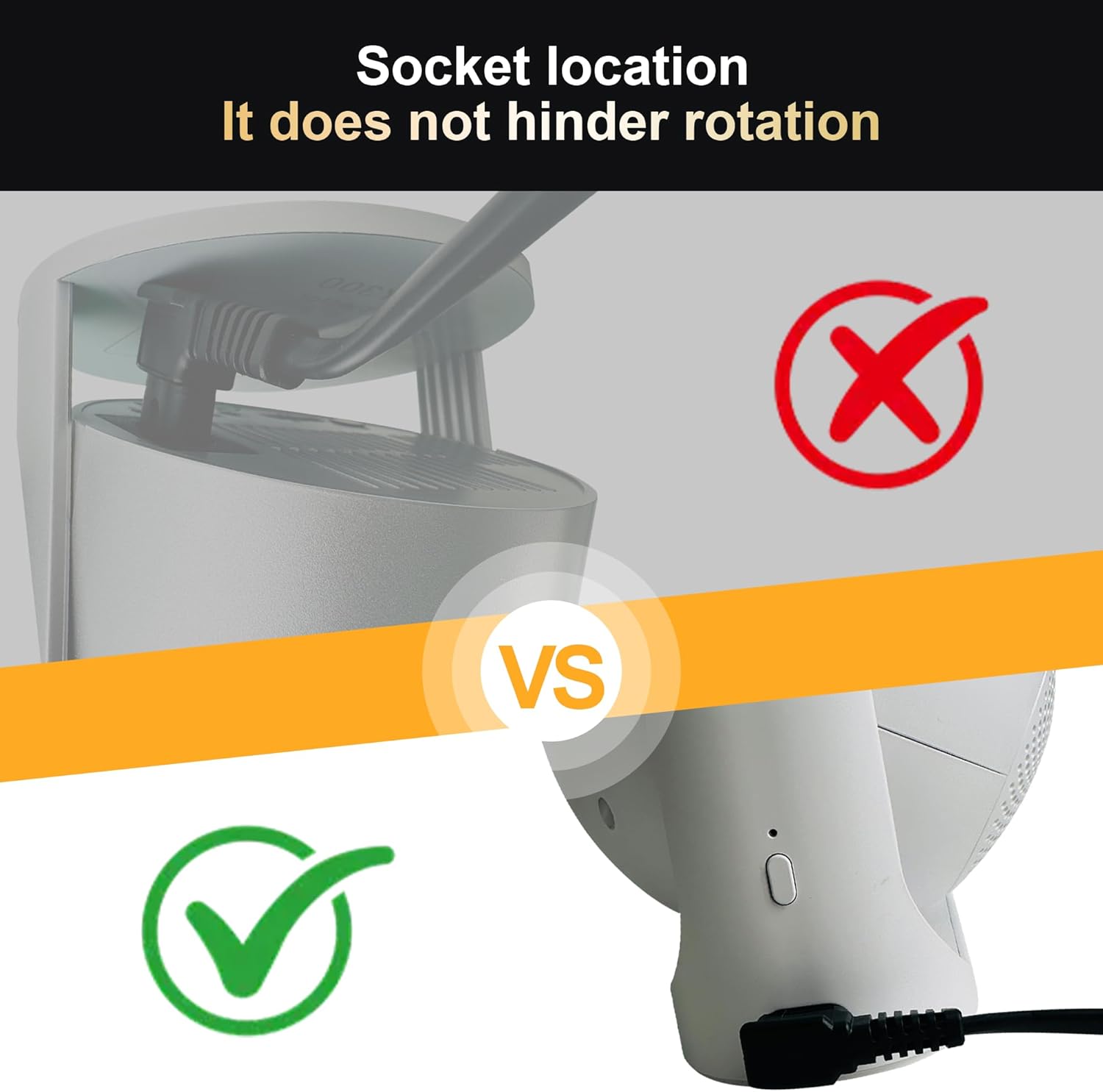
Image 4.1: Power socket location designed for unhindered rotation.
4.3. Side/Connectivity Ports
The projector is equipped with various ports for connecting external devices:
- HDMI Port: For connecting devices such as laptops, gaming consoles, or TV boxes.
- USB Port: For connecting USB flash drives to play media files directly.
- Audio Jack: For connecting external headphones or speakers.
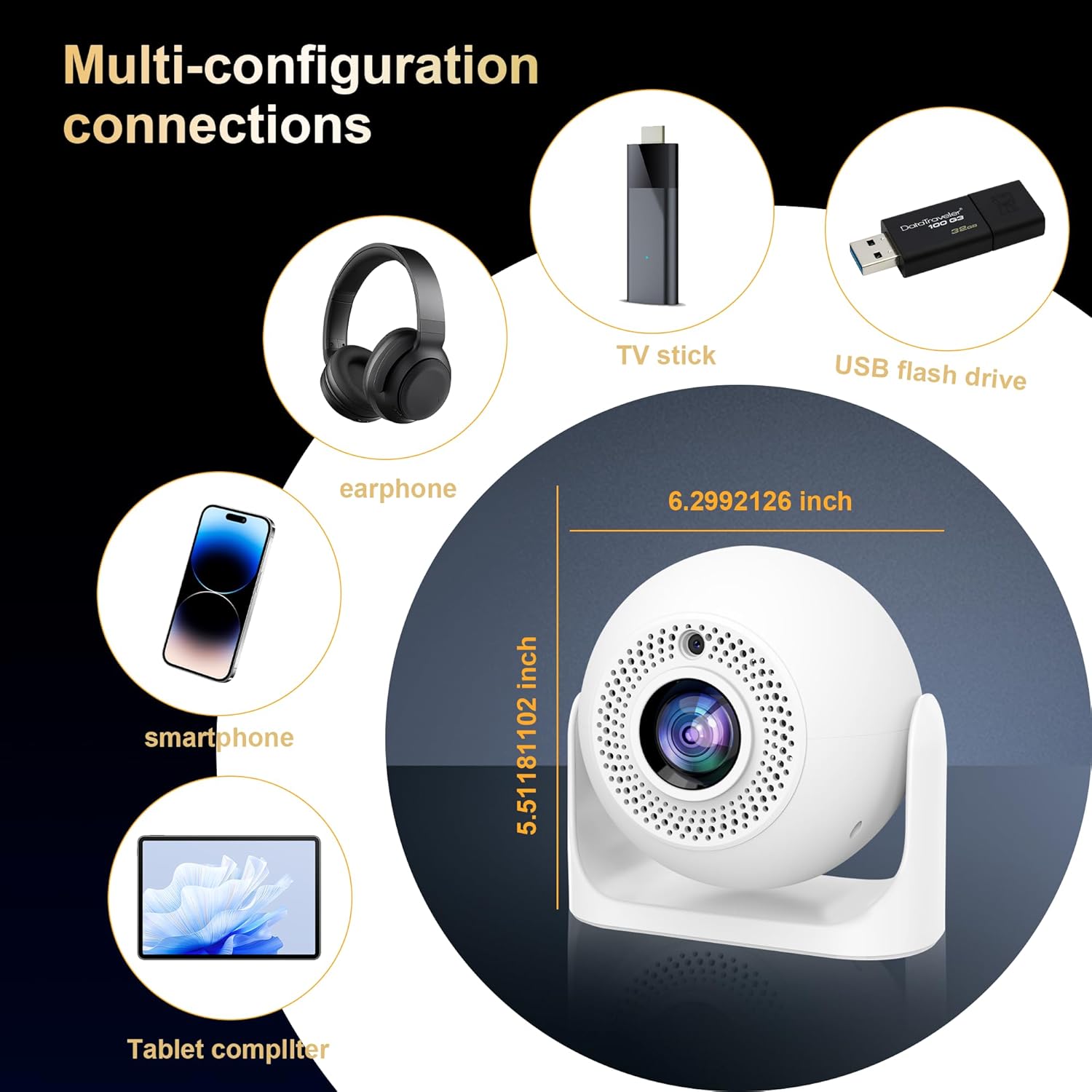
Image 4.2: Multi-configuration connections for various devices.
5. Setup
5.1. Placement
Position the projector on a stable, flat surface. The 180° rotation feature allows projection onto walls, ceilings, or other surfaces. Ensure the projection surface is clear and flat for optimal image quality. For best results, project in a relatively dark environment.
5.2. Power Connection
- Connect the power cable to the projector's power input port.
- Plug the other end of the power cable into a suitable electrical outlet.
5.3. Initial Power On
Press the power button on the projector or the remote control to turn on the device. The projector will boot up and display the home screen.
5.4. Automatic Keystone Correction and Autofocus
The JY360 projector features automatic keystone correction and autofocus. When the projector is moved or its angle is adjusted, it will automatically correct the image shape and focus. To trigger the auto-focus function, swing the product quickly. Ensure there are no ambient light sources directly interfering with the projection area, as this may hinder the auto-focus from operating properly.

Image 5.1: Illustration of automatic keystone correction and autofocus in action.
5.5. Remote Control Setup
Insert two AAA batteries into the remote control, observing the correct polarity. The remote control is essential for navigating the projector's interface and settings.
6. Operating Instructions
6.1. Wi-Fi Connection
- From the home screen, navigate to Settings.
- Select Network & Internet.
- Turn on Wi-Fi and select your desired network from the list.
- Enter the Wi-Fi password if prompted and connect.
A strong Wi-Fi signal is recommended for stable connectivity. If you encounter difficulties, check your router or other external factors.
6.2. Bluetooth Connection
- From the home screen, navigate to Settings.
- Select Connected Devices or Bluetooth.
- Turn on Bluetooth and put your Bluetooth device (e.g., speaker, headphones) into pairing mode.
- Select your device from the list of available devices to pair.
6.3. App Management (Android 13)
The projector runs on Android 13, providing access to the Google Play Store. You can install and update streaming applications like Netflix, YouTube, and Prime Video directly on the device.
- From the home screen, select the Apps icon or navigate to the Google Play Store.
- Search for the desired application.
- Select Install to download and install the app.
6.4. Connecting External Devices (HDMI/USB)
- HDMI: Connect an HDMI cable from your external device (e.g., laptop, game console) to the projector's HDMI port. The projector should automatically detect the input or allow you to select it from the input source menu.
- USB: Insert a USB flash drive into the USB port. The projector's media player will typically prompt you to browse the contents of the drive.
6.5. Screen Mirroring
The projector supports screen mirroring from iOS and Android devices. Note that due to copyright restrictions, some streaming services (e.g., Netflix, Hulu) may not allow screen mirroring of their content from a mobile device. For these services, it is recommended to use the built-in apps on the projector.
7. Maintenance
Regular maintenance helps prolong the life of your projector.
- Lens Cleaning: Use a soft, lint-free cloth or lens cleaning paper to gently wipe the projector lens. Avoid abrasive materials or harsh chemicals.
- Exterior Cleaning: Wipe the projector's exterior with a soft, dry cloth. Do not use liquid cleaners directly on the device.
- Ventilation: Periodically check that the ventilation openings are free from dust and debris. Ensure the projector is placed in an area with good air circulation.
- Storage: When not in use for extended periods, store the projector in a cool, dry place, away from direct sunlight and extreme temperatures.
8. Troubleshooting
If you encounter issues with your projector, refer to the following common problems and solutions:
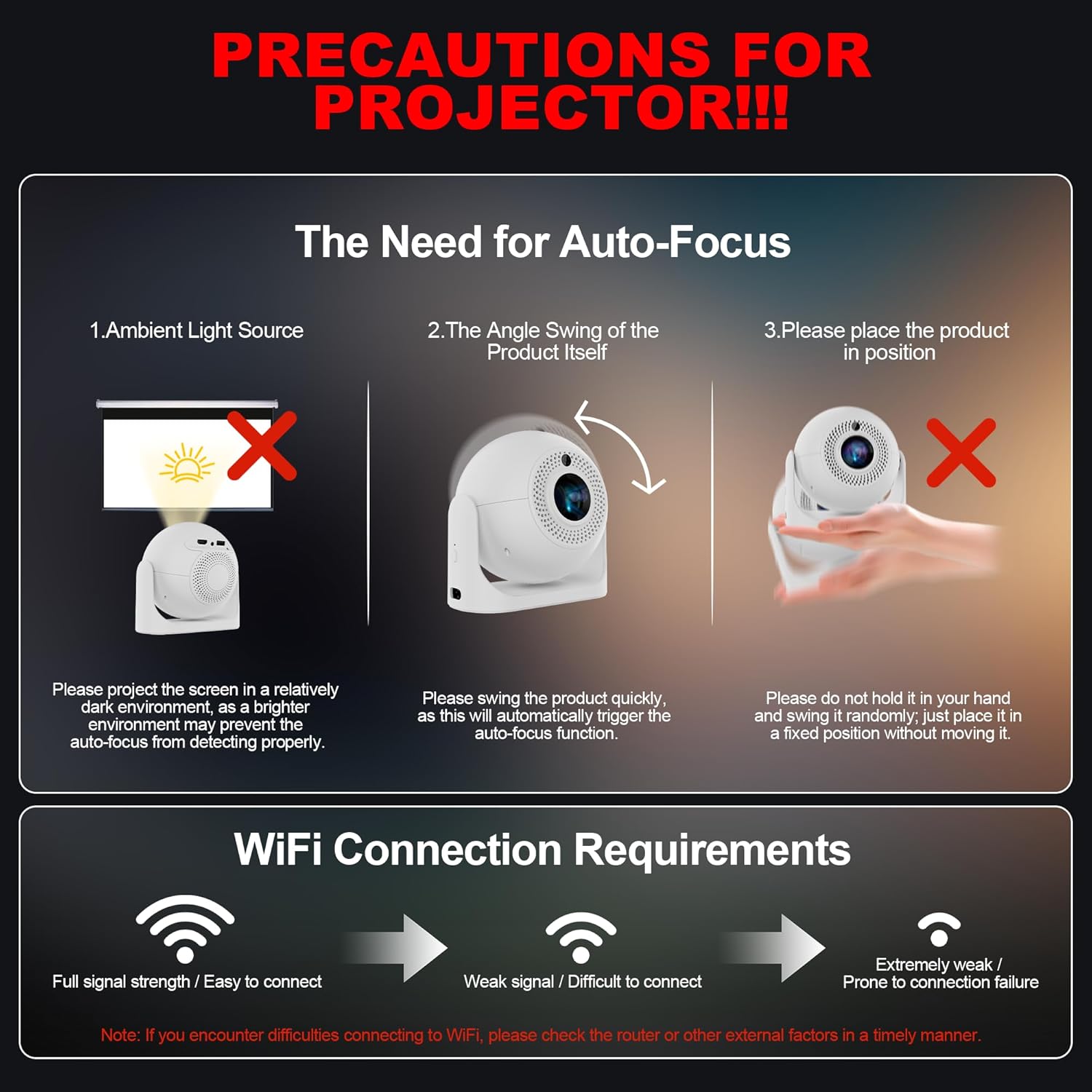
Image 8.1: Precautions for projector operation, including auto-focus and Wi-Fi connection tips.
| Problem | Possible Cause | Solution |
|---|---|---|
| No Power | Power cable not connected; Power outlet issue; Projector off. | Ensure power cable is securely connected. Try a different power outlet. Press the power button on the projector or remote. |
| No Picture | Incorrect input source; Cable not connected; Lens cap on (if applicable). | Select the correct input source (HDMI, USB). Check HDMI/USB cable connections. Ensure no obstructions on the lens. |
| Blurry Image | Autofocus issue; Projector moved during operation; Ambient light interference. | Swing the projector quickly to re-trigger autofocus. Ensure the projector is stable. Reduce ambient light. |
| No Sound | Volume too low; Incorrect audio output; Bluetooth device not connected. | Increase volume. Check audio output settings (internal speaker, Bluetooth, audio jack). Re-pair Bluetooth device. |
| Wi-Fi Connection Issues | Weak signal; Incorrect password; Router issue. | Ensure strong Wi-Fi signal. Verify password. Restart router. |
| Remote Not Responding | Dead batteries; Obstruction; Out of range. | Replace AAA batteries. Ensure clear line of sight to the projector. Move closer to the projector. |
9. Specifications
| Feature | Specification |
|---|---|
| Brand | YFDSPSM |
| Model Number | JY360 |
| Brightness | 350 ANSI Lumens |
| Native Resolution | 1920 x 1080P |
| Operating System | Android 13 |
| Connectivity Technology | Wi-Fi, Bluetooth |
| Special Features | Digital Keystone Correction, Autofocus, 180° Rotation |
| Recommended Uses | Home Cinema |
| Item Weight | 2.05 pounds |
| Product Dimensions | 8 x 5 x 8 inches |
10. Warranty and Support
The YFDSPSM JY360 Video Projector comes with a manufacturer's warranty. For specific warranty terms, duration, and to register your product, please refer to the warranty card included in your package or visit the official YFDSPSM website. For technical support, troubleshooting assistance beyond this manual, or service inquiries, please contact YFDSPSM customer support through their official channels or the retailer where the product was purchased.