
1. Introduction
This manual provides detailed instructions for the setup, operation, and maintenance of your JYX USB Condenser RGB Microphone (Model U120). Please read this manual thoroughly before using the product to ensure optimal performance and longevity.
2. Package Contents
Verify that all items are present in the package:
- JYX USB Condenser RGB Microphone (Model U120)
- Microphone base
- USB-C to USB-A/USB-C cable
- Headphones
- User Manual
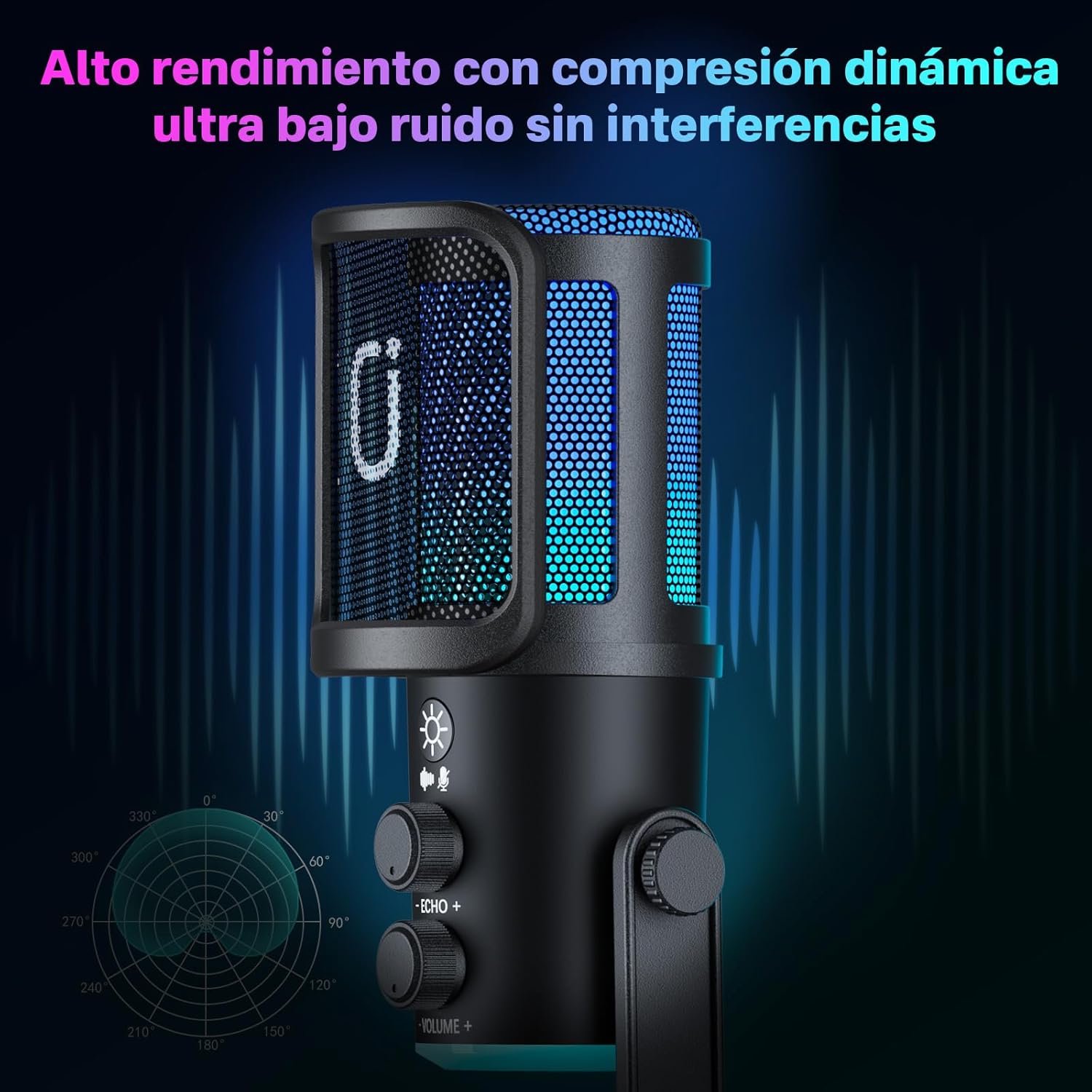
Image: The JYX USB Condenser RGB Microphone shown with its included accessories: the microphone unit, a stable base, a versatile USB-C data cable, and a pair of headphones for real-time monitoring.
3. Product Features and Controls
The JYX U120 microphone is designed with user-friendly controls and features for various audio applications.
- High-Sensitivity Condenser Microphone: Captures clear and professional audio, reducing unwanted noise.
- Dynamic RGB LED Lighting: Enhances your setup with customizable lighting effects.
- Integrated Echo and Volume Controls: Adjust echo and output volume directly on the microphone.
- Real-time Headphone Output: Monitor your audio without latency.
- USB-C Plug and Play Connectivity: No drivers required for Windows or Mac computers.
- Wide Compatibility: Works with popular platforms like Zoom, OBS, Discord, Skype, and Audacity.
- Durable and Compact Design: Features a stable metal base and an elegant design.

Image: The JYX USB Condenser RGB Microphone, highlighting its sleek design, RGB lighting, and accessible control knobs for echo and volume.

Image: Detailed view of the microphone's control panel, featuring buttons for light mode and mute, along with rotary knobs for echo and volume adjustments.
4. Setup Guide
- Assemble the Microphone: Attach the microphone unit to its stable metal base. Ensure it is securely fastened.
- Connect to Device: Use the provided USB-C cable to connect the microphone to your computer (Windows or Mac) or compatible mobile device. The microphone is plug-and-play, requiring no additional driver installation.
- Connect Headphones (Optional): For real-time audio monitoring, plug your headphones into the 3.5mm jack located at the bottom of the microphone.
- Select as Input/Output Device: On your computer's sound settings, select "JYX U120 Microphone" as your default input device. If using headphones with the microphone, also select it as your output device for monitoring.
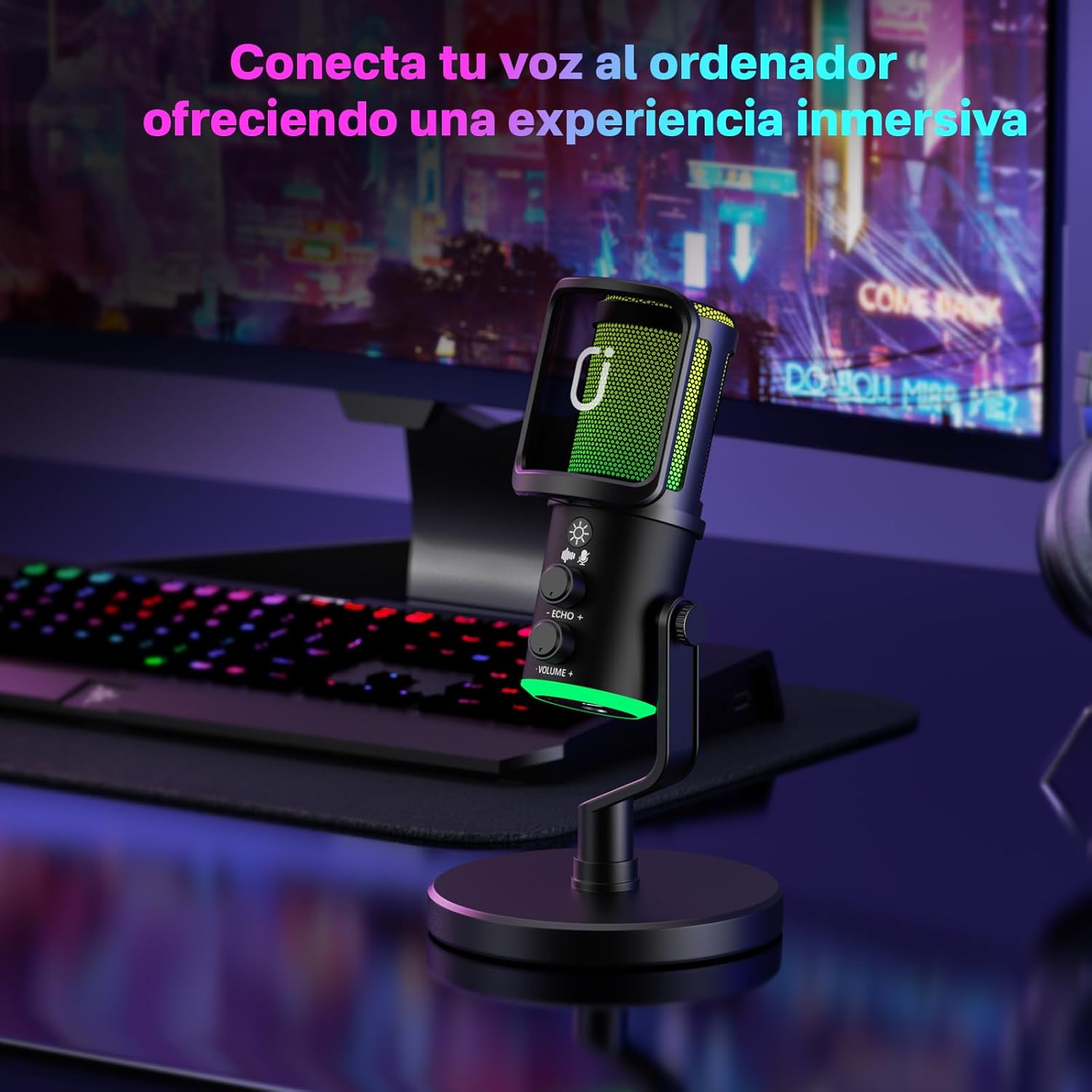
Image: The JYX USB Condenser RGB Microphone set up on a desk, connected to a computer via its USB cable, ready for use.
5. Operating Instructions
5.1. Adjusting Volume and Echo
- Volume Control: Rotate the "VOLUME" knob clockwise to increase the microphone's output volume and counter-clockwise to decrease it.
- Echo Control: Rotate the "ECHO" knob clockwise to add more echo effect to your voice and counter-clockwise to reduce it.
5.2. Controlling RGB Lighting
- Change Light Mode: Press the light button (sun icon) briefly to cycle through different RGB lighting effects and colors.
- Turn Off Lights: Press and hold the light button to turn off the RGB lighting. Press again briefly to reactivate the last selected mode.
5.3. Mute Function and Noise Reduction
- Mute/Unmute: Press the mute button (microphone icon) briefly to mute or unmute the microphone. The indicator light will change to red when muted.
- Noise Reduction: Double-press the mute button to activate or deactivate the noise reduction feature.

Image: The microphone showcasing its dynamic RGB lighting, which can be customized to match your mood or setup.
6. Maintenance
- Cleaning: Use a soft, dry cloth to clean the microphone's exterior. Avoid using liquid cleaners or abrasive materials.
- Storage: When not in use, store the microphone in a cool, dry place away from direct sunlight and extreme temperatures.
- Cable Care: Avoid bending or twisting the USB cable excessively to prevent damage.
7. Troubleshooting
| Problem | Possible Cause | Solution |
|---|---|---|
| No sound output from microphone. | Microphone is muted; incorrect input device selected; loose cable connection. | Press the mute button to unmute. Check computer sound settings to ensure JYX U120 is selected as input. Reconnect the USB cable securely. |
| RGB lights are not working. | Lights are turned off; power issue. | Press the light button to cycle through modes or turn them on. Ensure the microphone is properly connected and receiving power. |
| Echo effect is too strong/weak. | Echo knob setting. | Adjust the "ECHO" knob to your desired level. |
| Poor sound quality/background noise. | Noise reduction off; environmental noise; microphone placement. | Double-press the mute button to activate noise reduction. Ensure microphone is placed away from noise sources. Adjust microphone position. |
8. Specifications
- Brand: JYX
- Model: U120
- Part Number: JYX-U120
- Hardware Platform: PC, Laptop
- Compatible Devices: Voice Recorder, Karaoke Machine, Personal Computer, Laptop
- Special Features: Echo Control, Volume Control, Plug-in Function, Stand, Noise Reduction
- Number of Products: 1
- Noise Level: 16 Decibels
- Power Source: Corded Electric
- Batteries Required: No
- Signal-to-Noise Ratio: 70 dB
- Connector Type: USB
- Product Dimensions: 17 x 8 x 23 cm; 580 g
9. Warranty and Support
JYX offers a 360-day warranty service for this product. For any questions or issues, our customer support team is available to provide professional and timely assistance.
Contact Support: service@jyxspeaker.com
Image: JYX customer service details, highlighting warranty period, local support, and contact email for technical assistance.