
Introduction
Thank you for choosing the Gamrombo Wireless Controller. This manual provides essential information for setting up, operating, and maintaining your controller to ensure optimal performance across various platforms, including Xbox One, Xbox Series X/S, PC, Mac, and mobile devices.
Please read this manual thoroughly before use and retain it for future reference.

Image: The Gamrombo Wireless Controller, highlighting its upgraded features and broad compatibility with various platforms and connection types.
Product Features
The Gamrombo Wireless Controller is designed to enhance your gaming experience with a range of advanced features:
- Multi-platform Compatibility: Seamlessly connects with Xbox Series X/S, Xbox One/One S/One X, PC, Mac, and mobile devices (iOS/Android).
- Dual Vibration Motors: Built-in motors provide realistic haptic feedback for an immersive gaming experience.
- Semi-Automatic Turbo Function: Enables rapid firing for enhanced gameplay in action-oriented titles.
- Standard 3.5mm Audio Jack: Allows direct connection of compatible headsets for in-game audio and communication.
- Ergonomic Design: Sculpted surfaces and refined geometry ensure comfort and control during extended play sessions.
- 6-Axis Motion Sensor: Provides dynamic feeling and precise control through motion sensing capabilities.
- Anti-slip Grip: Textured surfaces on both sides of the controller ensure a secure hold.

Image: Overview of the controller's multifunctional features, including double shock, motion control, 360° joystick, turbo, macro, and more.
Setup Instructions
1. Battery Installation
- Locate the battery compartment on the back of the controller.
- Open the battery cover.
- Insert two (2) AA batteries (not included), ensuring correct polarity (+/-).
- Close the battery cover securely.
2. Connecting to Xbox Consoles (Xbox One, Xbox Series X/S)
- Ensure your Xbox console is powered on.
- Press and hold the Home button on the controller until it powers on and the indicator light flashes.
- On your Xbox console, press the Pairing button (usually located on the front or side of the console).
- Press and hold the Pairing button on the top edge of the Gamrombo controller until the indicator light flashes rapidly.
- The controller's indicator light will become solid when successfully paired.
3. Connecting to PC/Mac/Mobile Devices
The controller supports connection via Bluetooth or a wired USB connection (USB dongle not included for wireless PC connection).
Bluetooth Connection (PC/Mac/Mobile)
- Ensure Bluetooth is enabled on your device.
- Press and hold the Home button on the controller until it powers on.
- Press and hold the Pairing button on the top edge of the controller until the indicator light flashes rapidly.
- On your device, search for new Bluetooth devices and select "Gamrombo Controller" (or similar) from the list.
- The controller's indicator light will become solid upon successful pairing.
Wired Connection (PC)
- Connect the controller to your PC using a compatible USB cable (not included).
- The PC should automatically detect and install the necessary drivers.
- The controller will be ready for use once the drivers are installed.

Image: The Gamrombo controller highlighting its broad compatibility across multiple gaming platforms and operating systems.
Controller Firmware Upgrade
If you experience connectivity issues with your Xbox console, a firmware upgrade may be required. This process is performed on a Windows PC.
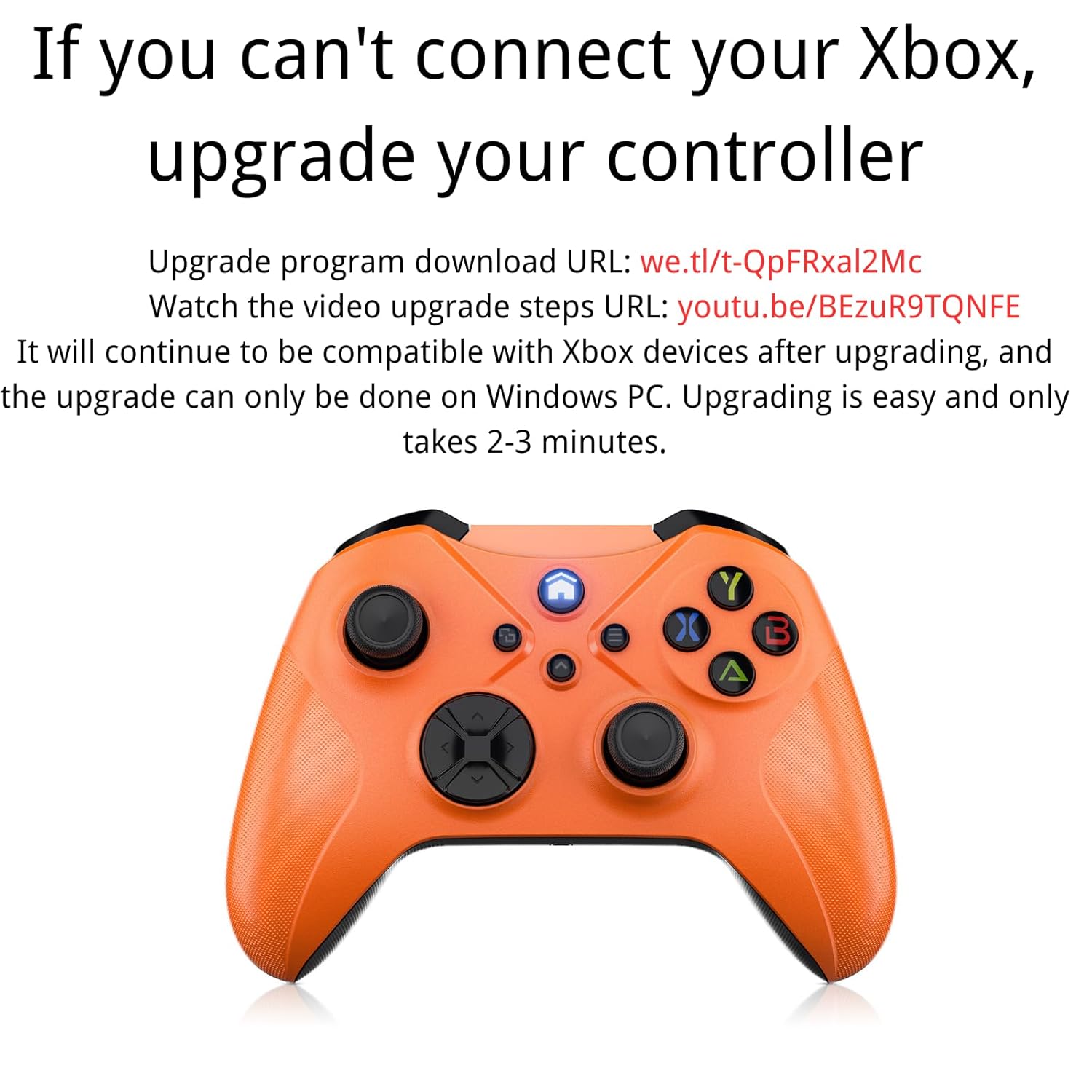
Image: Instructions for upgrading the controller firmware if connection issues occur with Xbox.
Upgrade Steps:
- Download the upgrade program from the official source. (Refer to product packaging or manufacturer's website for the specific URL).
- Connect the Gamrombo controller to a Windows PC using a USB cable.
- Run the downloaded upgrade program.
- Follow the on-screen instructions to complete the upgrade. The process typically takes 2-3 minutes.
- After the upgrade, the controller will remain compatible with Xbox devices.
Operating Instructions
1. Basic Button Functions
The controller features standard Xbox layout buttons:
- A, B, X, Y Buttons: Action buttons for in-game commands.
- Directional Pad (D-Pad): For precise directional input.
- Left/Right Analog Sticks: For movement and camera control.
- Left/Right Bumpers (LB/RB): Shoulder buttons for various actions.
- Left/Right Triggers (LT/RT): Pressure-sensitive triggers for acceleration, firing, etc.
- Home Button: Powers on/off the controller, accesses system menus.
- View/Share Button: Accesses in-game menus or share features.
- Menu Button: Accesses game or system options.

Image: Rear view of the controller showing the location of shoulder buttons (LB, RB, LT, RT) and programmable back buttons (PR, PL) with a 'set' button.
2. Turbo Function
The semi-automatic turbo function allows for continuous rapid input of a button press. To activate:
- Press and hold the Turbo button (if present, refer to controller diagram) and then press the desired action button (e.g., A, B, X, Y, LB, RB, LT, RT).
- Release both buttons. The selected action button will now continuously repeat its input when held down.
- To deactivate, repeat the process: press and hold the Turbo button and then press the same action button again.

Image: The controller illustrating the semi-automatic turbo function for faster action in games.
3. Dual Vibration
The controller features dual vibration motors that provide varying levels of feedback based on in-game events. The intensity of vibration is typically controlled by the game itself.

Image: The controller demonstrating its dual-motor shock feature, capable of weak, moderate, and strong vibration effects.
4. 3.5mm Audio Jack
Connect any compatible 3.5mm headset to the audio jack located at the bottom of the controller for in-game audio and voice chat.

Image: The controller with a 3.5mm stereo audio jack, allowing connection of headphones for immersive sound.
5. 6-Axis Motion Sensor
The integrated 6-axis motion sensor provides enhanced dynamic control in supported games, allowing for intuitive movements like direction control, visual field angle changes, and responsive actions.

Image: The controller's 6-axis motion sensor in action, illustrating its use for direction control, visual field changes, and responsive actions in games.
Maintenance
- Cleaning: Use a soft, dry cloth to clean the controller. Avoid using harsh chemicals or abrasive materials.
- Storage: Store the controller in a cool, dry place away from direct sunlight and extreme temperatures.
- Battery Care: Remove batteries if the controller will not be used for an extended period to prevent leakage.
- Avoid Drops: Protect the controller from drops and impacts, which can damage internal components.
Troubleshooting
1. Controller Not Connecting/Pairing
- Ensure batteries are correctly installed and have sufficient charge.
- Verify that the controller is within the wireless range (approximately 33 feet).
- Re-attempt the pairing process as described in the Setup section.
- If connecting to Xbox, ensure the controller firmware is up to date (refer to the Controller Firmware Upgrade section).
- Try connecting the controller via a USB cable to rule out wireless issues.
2. Buttons/Joysticks Not Responding
- Check battery level and replace if necessary.
- Restart the controller and the connected device.
- Ensure no debris is obstructing the buttons or joysticks.
- If using a wired connection, try a different USB port or cable.
3. No Audio from Headset
- Ensure the headset is fully plugged into the 3.5mm audio jack.
- Check the headset's volume controls and mute settings.
- Verify audio settings on your console or PC to ensure output is directed to the controller.
- Test the headset with another device to confirm it is functional.
Specifications
| Feature | Detail |
|---|---|
| Model Number | Xbox One (Compatible) |
| Compatibility | Xbox Series X/S, Xbox One/One S/One X, PC (Windows 7/8/10), Mac, iOS, Android |
| Connectivity | Wireless (Xbox Wireless Technology), Bluetooth, Wired (USB) |
| Wireless Range | Up to 33 feet (10 meters) |
| Power Source | 2 x AA Batteries (not included) |
| Audio Port | 3.5mm Stereo Headset Jack |
| Special Features | Dual Vibration, Semi-Automatic Turbo, 6-Axis Motion Sensor, Macro Function |
| Dimensions | 6.73 x 4.72 x 2.8 inches (approximate) |
| Weight | 10.2 ounces (approximate, without batteries) |
Warranty and Support
For warranty information and technical support, please refer to the documentation included with your purchase or visit the official Gamrombo website. Keep your proof of purchase for warranty claims.
If you encounter any issues not covered in this manual, please contact Gamrombo customer service for assistance.


