1. Introduction
Welcome to the user manual for your Generic W3 MAX Foldable Drone. This drone is designed for beginners and children, offering an easy-to-fly experience with features like dual HD cameras, one-key takeoff, altitude hold, and obstacle avoidance. Its compact, foldable design ensures portability and convenience. Please read this manual thoroughly before operating the drone to ensure safe and optimal performance.
2. Package Contents
Verify that all items listed below are included in your package. If any items are missing or damaged, please contact customer support.
- W3 MAX Foldable Drone
- Remote Control
- 2 x Rechargeable Drone Batteries
- USB Charging Cable
- Spare Propellers (set)
- Screwdriver
- User Manual
3. Product Overview
Familiarize yourself with the main components of your W3 MAX drone and its remote control.
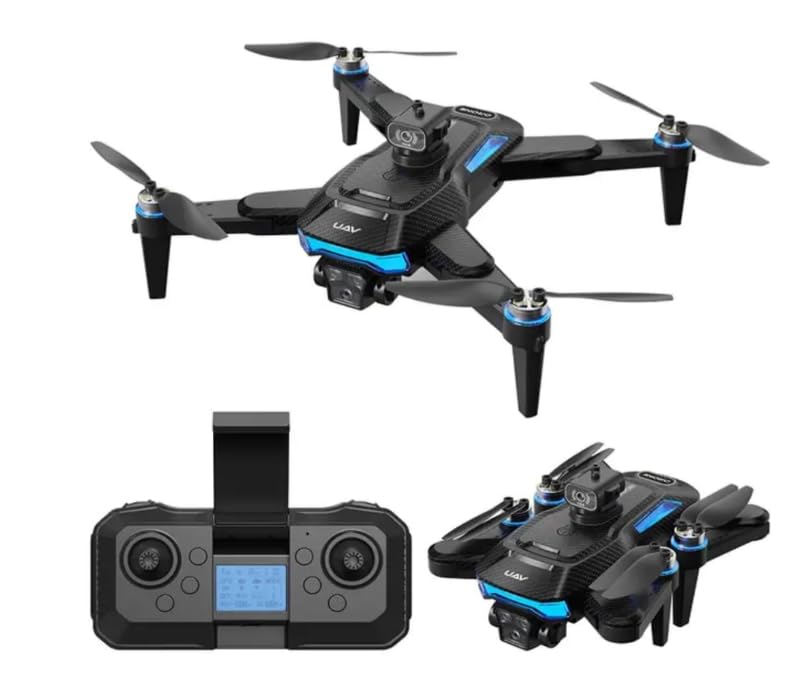
Figure 3.1: W3 MAX Foldable Drone in flight, showcasing its compact design and propellers.
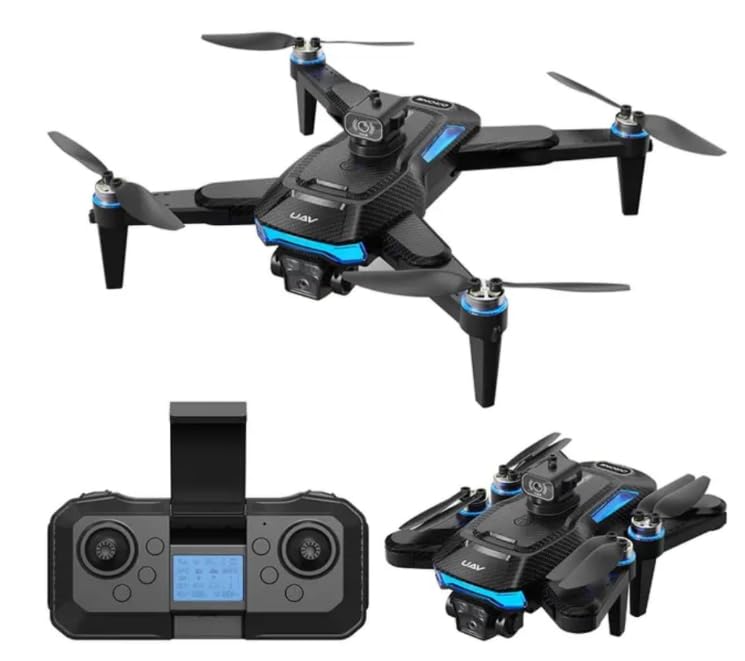
Figure 3.2: The W3 MAX drone in both unfolded and folded configurations, alongside its remote control.
Drone Components:
- Foldable Arms: Allow for compact storage and portability.
- Propellers: Four propellers for flight.
- Dual HD Cameras: Front-facing and bottom-facing cameras for photo and video capture.
- Obstacle Avoidance Sensors: Detect nearby objects to prevent collisions.
- Battery Compartment: Houses the drone's rechargeable battery.
- Power Button: To turn the drone on/off.
Remote Control Components:
- Left Joystick: Controls throttle (ascend/descend) and yaw (rotate left/right).
- Right Joystick: Controls forward/backward and left/right flight.
- One-Key Takeoff/Landing Button: Initiates automatic takeoff or landing.
- Headless Mode Button: Activates headless flight.
- 360° Flip Button: Performs aerial flips.
- Speed Adjustment Button: Toggles between different flight speeds.
- Photo/Video Button: Captures images or starts/stops video recording.
- Phone Holder: Secures your smartphone for FPV viewing and app control.
4. Setup
4.1 Charging the Drone Battery
- Remove the drone battery from the drone.
- Connect the battery to the USB charging cable.
- Plug the USB cable into a 5V/1A USB power adapter (not included) or a computer's USB port.
- The indicator light on the USB cable will show charging status (e.g., red for charging, off for fully charged).
- Charging typically takes approximately 60-90 minutes. Do not overcharge.
4.2 Installing Remote Control Batteries
- Open the battery compartment on the back of the remote control.
- Insert 2 x AA batteries (included) according to the polarity markings (+/-).
- Close the battery compartment securely.
4.3 Unfolding the Drone
- Gently unfold the four arms of the drone until they lock into place.
- Ensure all arms are fully extended and secure before flight.
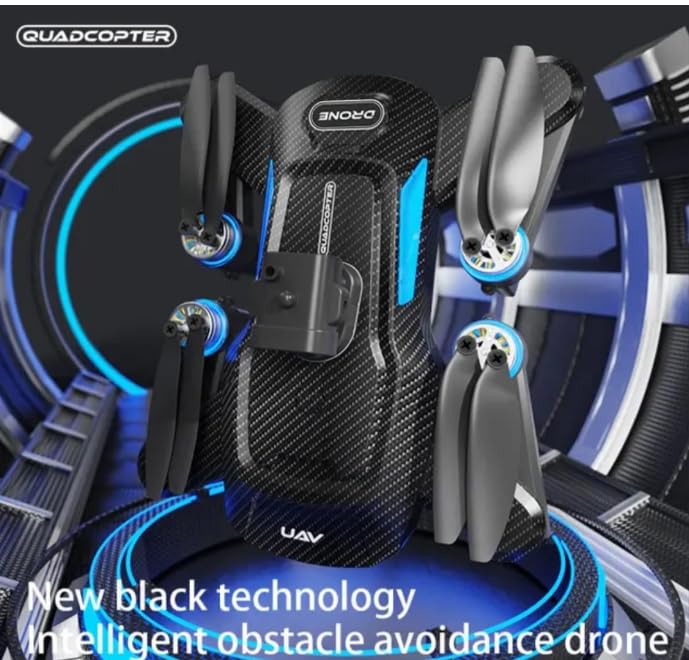
Figure 4.1: The W3 MAX drone demonstrating its folded and unfolded positions for portability and flight readiness.
4.4 Powering On and Pairing
- Place the drone on a flat, level surface.
- Press and hold the power button on the drone until the indicator lights flash.
- Turn on the remote control. The remote's indicator light will flash.
- Push the left joystick (throttle) all the way up, then all the way down. The drone and remote lights will become solid, indicating successful pairing.
5. Operating Instructions
5.1 Basic Flight Controls
- One-Key Takeoff/Landing: Press the dedicated button on the remote to automatically take off or land.
- Ascend/Descend: Push the left joystick up to ascend, pull down to descend.
- Forward/Backward: Push the right joystick up to fly forward, pull down to fly backward.
- Turn Left/Right (Yaw): Push the left joystick left to rotate left, right to rotate right.
- Fly Left/Right (Strafe): Push the right joystick left to fly left, right to fly right.
5.2 Special Features
- Altitude Hold: The drone will automatically maintain its current altitude, allowing for stable hovering.
- Headless Mode: When activated, the drone's orientation becomes irrelevant. It will fly according to the remote control's orientation (e.g., pushing forward on the remote will always make the drone fly away from you, regardless of which way the drone's front is facing).
- 360° Flips: Press the 360° flip button, then move the right joystick in the desired direction to perform an aerial flip. Ensure sufficient altitude.
- Obstacle Avoidance: The drone is equipped with sensors to detect nearby obstacles and automatically adjust its flight path to avoid collisions. This feature enhances safety, especially for new pilots.
- Speed Adjustment: Press the speed button to cycle through different flight speeds (e.g., low, medium, high) to match your skill level and environment.
5.3 Camera Operation
- Taking Photos: Press the photo button on the remote control once to capture an image.
- Recording Video: Press and hold the video button to start recording. Press again to stop recording.
- Dual HD Cameras: The drone features both front and bottom cameras. The active camera can typically be switched via the mobile app.
6. App Control and FPV
Enhance your flying experience by connecting your smartphone to the drone via the dedicated app.
- Download the App: Scan the QR code in the quick start guide (or search for "W3 MAX Drone" app) on your smartphone's app store.
- Connect to Wi-Fi: Turn on the drone. On your smartphone, go to Wi-Fi settings and connect to the drone's Wi-Fi network (e.g., "W3 MAX-XXXXXX").
- Launch the App: Open the app. You should see a live FPV (First Person View) feed from the drone's camera.
App Features:
- FPV Live Stream: View real-time video from the drone's camera on your phone.
- Flight Path Drawing: Draw a desired flight path on your phone screen, and the drone will follow it.
- Gesture Control: Use specific hand gestures to trigger photo or video capture.
- Virtual Joysticks: Control the drone directly from your smartphone screen.
- Camera Switching: Toggle between the front and bottom HD cameras.
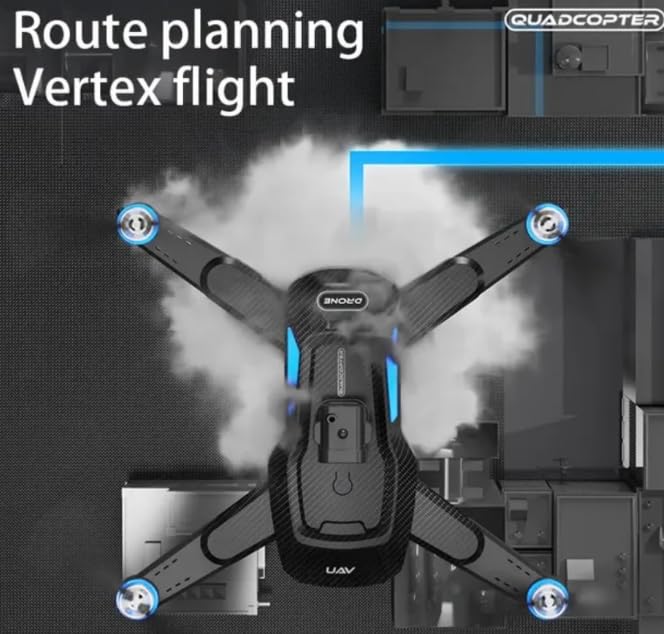
Figure 6.1: Illustration of the W3 MAX drone executing a pre-planned route, a feature accessible via the mobile app.
7. Maintenance
Proper maintenance ensures the longevity and optimal performance of your drone.
- Cleaning: Use a soft, dry cloth to clean the drone body and camera lenses. Avoid using liquids.
- Propeller Inspection: Regularly check propellers for damage (cracks, bends). Replace damaged propellers immediately using the provided spare parts and screwdriver.
- Battery Care:
- Do not overcharge or over-discharge batteries.
- Store batteries in a cool, dry place away from direct sunlight.
- If not used for extended periods, charge batteries to about 50% capacity.
- Storage: Fold the drone arms and store it in its original packaging or a protective case when not in use.
8. Troubleshooting
Refer to this section for solutions to common issues.
| Problem | Possible Cause | Solution |
|---|---|---|
| Drone does not power on. | Battery is dead or not properly installed. | Charge the drone battery. Ensure battery is securely connected. |
| Remote control does not respond. | Remote batteries are dead or not installed correctly. Not paired. | Replace remote batteries. Re-pair the drone and remote (Section 4.4). |
| Drone flies erratically or drifts. | Not calibrated. Damaged propellers. | Place drone on a flat surface and re-calibrate (refer to quick start guide for calibration steps). Check and replace damaged propellers. |
| Camera not working or FPV feed is unstable. | Poor Wi-Fi connection. App issue. | Ensure strong Wi-Fi signal. Restart the app and drone. Reconnect Wi-Fi. |
| Obstacle avoidance not working. | Sensors are dirty or obstructed. | Clean the obstacle avoidance sensors carefully. |
9. Specifications
Key technical specifications for the W3 MAX Foldable Drone.
| Feature | Detail |
|---|---|
| Brand | Generic |
| Model Name | W3 Max |
| Special Features | Gyroscopic Stabilization, Obstacle Avoidance, One Button Return, One Key Rotation, Speed Adjustment |
| Color | Black |
| Video Capture Resolution | 1080p |
| Effective Still Resolution | 4 MP |
| Connectivity Technology | Wi-Fi |
| Skill Level | All (Beginner-Friendly) |
| Item Weight | 245 Grams |
| Drone Battery Capacity | 1800 Milliamp Hours (Li-Po) |
| Remote Control Technology | IR |
| Material | ABS |
| Product Dimensions (unfolded) | 29.5L x 7W x 28.5H Centimeters |
| Batteries Required (Remote) | 2 x AA batteries (included) |
10. Safety Guidelines
Adhere to these safety guidelines to prevent accidents and ensure a safe flying experience.
- Age Recommendation: This drone is suitable for children and beginners. Adult supervision is recommended for younger users.
- Flight Environment:
- Fly in open areas, away from people, animals, buildings, and power lines.
- Avoid flying in strong winds or adverse weather conditions.
- Do not fly near airports or restricted airspace.
- Pre-Flight Check: Always inspect the drone and remote control for any damage before each flight. Ensure batteries are fully charged.
- Propeller Safety: Keep fingers, hair, and loose clothing away from rotating propellers.
- Battery Safety: Use only the provided charging cable and recommended power sources. Do not puncture, short-circuit, or expose batteries to extreme temperatures.
- Respect Privacy: Be mindful of others' privacy when using the camera features.
- Emergency Landing: In case of emergency, press the one-key landing button or cut power if necessary.
11. Warranty and Support
For warranty information or technical support, please refer to the contact details provided with your purchase or visit the manufacturer's official website. Keep your proof of purchase for warranty claims.


