
1. Introduction
The RunStar Smart Scale FI2419LB is an advanced body composition scale designed to provide comprehensive health metrics. It features 8 electrodes and dual-frequency Bioelectrical Impedance Analysis (BIA) technology for detailed body analysis. This manual provides essential information for setting up, operating, and maintaining your smart scale.
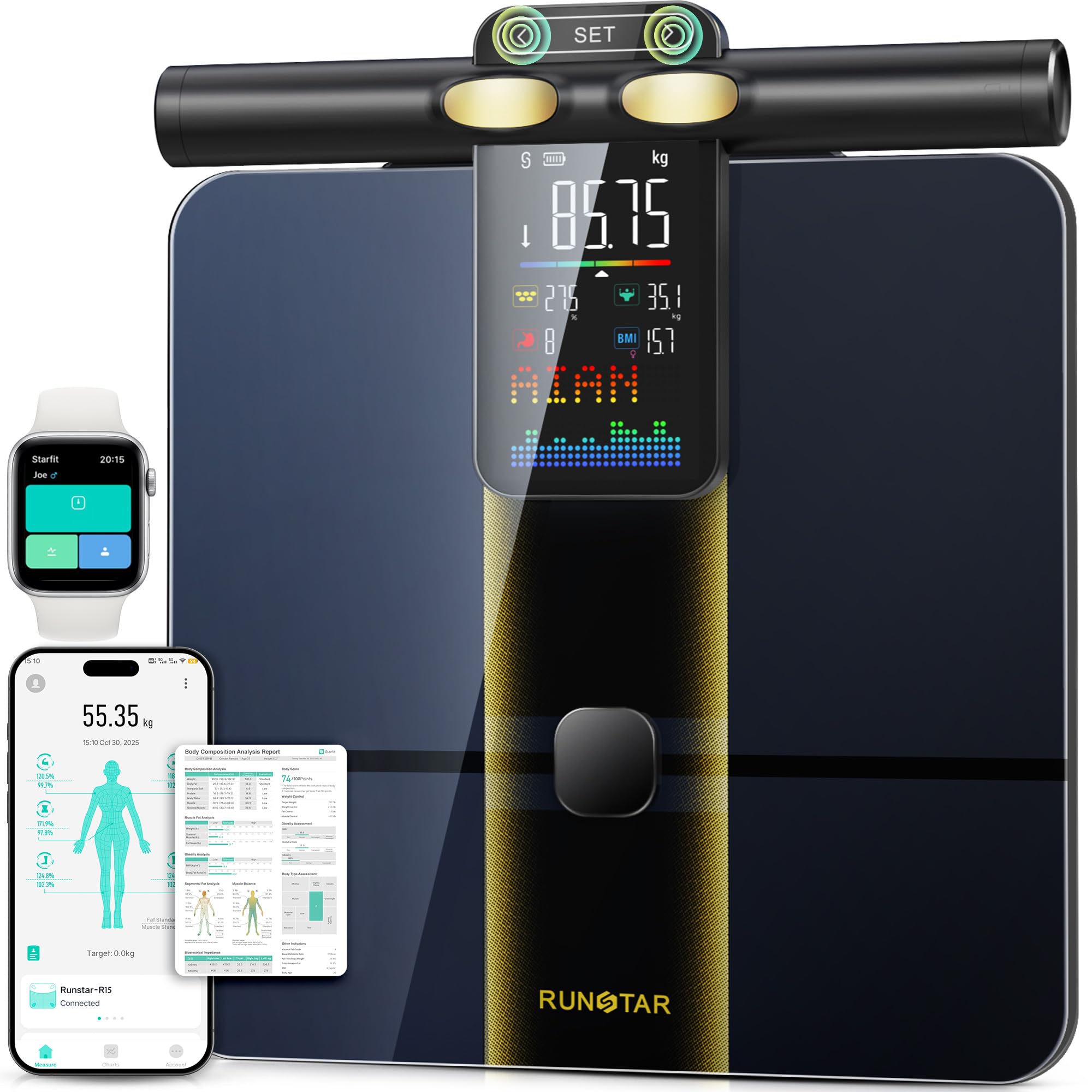
Image: The RunStar Smart Scale FI2419LB, showcasing its main unit with the integrated handle and digital display.
2. Safety Information
- Consult a medical professional before using this scale if you have a pacemaker or other internal medical device.
- Do not use this scale if you are pregnant.
- Ensure the scale is placed on a hard, flat surface for accurate measurements. Avoid carpets or uneven flooring.
- The scale surface can be slippery when wet. Use caution to prevent falls.
- Keep the scale away from water and extreme temperatures.
- This scale is for household use only and not intended for medical diagnosis or treatment.
3. Package Contents
Verify that all items are present in the package:
- RunStar Smart Scale FI2419LB (main unit with handle)
- 4 x AAA Batteries (pre-installed or included separately)
- User Manual (this document)
4. Setup
4.1 Battery Installation
The RunStar Smart Scale requires 4 AAA batteries. These are typically included with the product. If not pre-installed, open the battery compartment on the underside of the scale and insert the batteries, ensuring correct polarity (+/-).
Image: An illustration detailing the battery compartment location and the insertion of 4 AAA batteries into the RunStar Smart Scale.
4.2 App Installation and Pairing
- Download the Starfit App from your device's app store (iOS App Store or Google Play Store).
- Create a new user account or log in if you already have one.
- Enable Bluetooth on your smartphone.
- Open the Starfit App and follow the on-screen instructions to pair your scale. The app will guide you through the connection process.
4.3 Initial User Setup (Offline)
The scale's touch-control SET handle allows for offline user setup. This means you can configure user profiles directly on the scale without needing the app connected.
- Press the 'SET' button on the handle to enter setup mode.
- Use the arrow buttons to navigate options such as user profiles (height, age, gender), unit switching (lb/kg), and volume adjustment.
- Confirm selections using the 'SET' button.

Image: The RunStar Smart Scale handle display showing various offline settings such as user profile selection, unit conversion, and data review.
5. Operation
5.1 Weighing Process
- Place the scale on a hard, flat surface.
- Step onto the scale barefoot, ensuring your feet are centered on the ITO platform.
- Hold the handle firmly with both hands, ensuring your thumbs are on the electrodes.
- Stand still until the measurement is complete and the display shows your metrics.
Image: A person standing barefoot on the RunStar Smart Scale, holding the handle for a full body composition analysis.
5.2 Using the Handle Display
The handle display provides real-time feedback during and after your measurement. It shows 8 key body metrics directly on the screen:
- Weight
- Body Fat Percentage
- BMI (Body Mass Index)
- Muscle Mass
- Visceral Fat
- Weight Changes
- Body Type
- Weight Trends
Image: The RunStar Smart Scale handle display illustrating the 8 key body metrics visible instantly after a measurement.
5.3 Starfit App Features
When connected to the Starfit App, the scale syncs 28 detailed body composition metrics for comprehensive tracking and analysis. The app allows you to:
- View detailed analytics of 28 body compositions (e.g., BMI, Body Fat, Muscle Mass, Bone Mass, Protein, BMR, etc.).
- Track progress over time with graphs and historical data.
- Sync data with popular fitness apps like Apple Health, Fitbit, and Health Connect.
- Share your progress with friends and family.
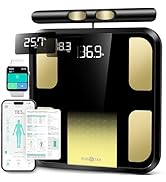
Image: The Starfit App interface displaying a comprehensive breakdown of 28 body metrics and options for syncing with other health apps and social media.
5.4 Special Modes
The Starfit App offers various modes to accommodate different users:
- Baby Mode: For weighing infants while held by an adult.
- Toddler Mode: Optimized for young children.
- Child Mode: For older children.
- Standard Mode: For general adult use.
- Pregnant Mode: Provides specific tracking for pregnant users.
Switch between these modes within the Starfit App to ensure accurate tracking for each family member.
Image: A family demonstrating the multi-user capabilities of the RunStar Smart Scale, highlighting the various modes available for different age groups and conditions.
6. Maintenance
6.1 Cleaning
Wipe the scale surface with a damp cloth and mild detergent. Do not use abrasive cleaners or immerse the scale in water.
6.2 Storage
Store the scale in a cool, dry place. Avoid placing heavy objects on the scale when not in use.
7. Troubleshooting
- Inaccurate Readings: Ensure the scale is on a hard, flat surface. Step on barefoot and hold the handle correctly. Check battery levels.
- Scale Not Turning On: Check if batteries are correctly installed and not depleted. Replace batteries if necessary.
- App Not Connecting: Ensure Bluetooth is enabled on your device and the scale is within range. Restart the app and try pairing again.
- No Body Composition Data: Ensure you are standing barefoot on the scale and holding the handle with both hands, making good contact with the electrodes.
8. Specifications
| Feature | Detail |
|---|---|
| Model Number | FI2419LB |
| Weight Capacity | Up to 400 lbs (180 kg) |
| Measurement Increments | 0.1 lb / 0.05 kg |
| Electrodes | 8 (4 on platform, 4 on handle) |
| Technology | Dual-frequency BIA |
| Power Source | 4 x AAA Batteries |
| Platform Material | ITO (Indium Tin Oxide) coated glass |
| Platform Dimensions | 12.2 x 12.2 inches (31 x 31 cm) |
| Product Dimensions | 14.9 x 16.8 x 3.1 inches |
| Product Weight | 6 Pounds |
| App Compatibility | Starfit App, Apple Health, Fitbit, Health Connect |
9. Warranty and Support
For warranty information and customer support, please refer to the documentation included with your purchase or visit the official RunStar website. Contact details for technical assistance and service inquiries can typically be found there.


