1. Introduction
This manual provides essential information for the proper setup, operation, and maintenance of your KOORUI G2721X 27-inch 1440p QHD Gaming Monitor. Please read this manual thoroughly before using the product to ensure optimal performance and safety. Keep this manual for future reference.

Figure 1.1: Front view of the KOORUI G2721X monitor, showcasing its slim bezels and stand.
2. Package Contents
Verify that all items are present in the package. If any items are missing or damaged, please contact your retailer or KOORUI customer support.
- KOORUI G2721X Monitor (x1)
- Monitor Base (x1)
- Instruction Manual (x1)
- DisplayPort (DP) Cable (x1)
- Power Adapter (x1)
3. Product Overview
3.1 Key Features
- Display: 27-inch QHD (2560x1440) resolution for crisp visuals.
- Refresh Rate: Up to 260Hz (supports 240Hz) for smooth gameplay.
- Response Time: 1ms (GTG) for minimal motion blur.
- Panel Type: Fast IPS for vibrant colors and wide viewing angles.
- HDR Support: HDR400 for enhanced contrast and brightness.
- Adaptive Sync: Eliminates screen tearing and stuttering.
- Color Gamut: 99% sRGB and 90% DCI-P3 for accurate color reproduction.
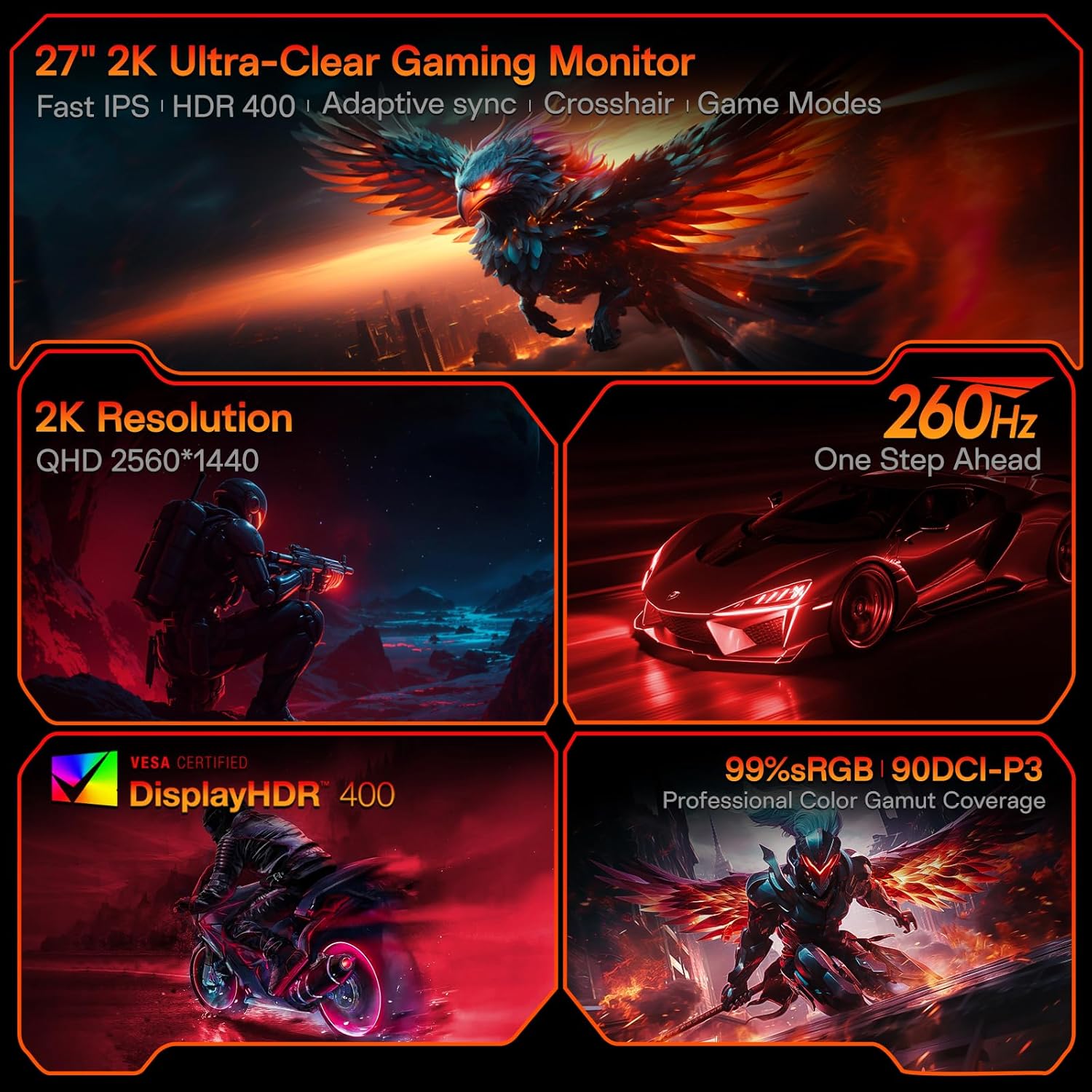
Figure 3.1: Visual representation of the monitor's core features.
3.2 Ports and Controls
The monitor features a variety of input and output ports for versatile connectivity, along with an intuitive control system.
- Video Inputs: Two HDMI 2.0 ports, one DisplayPort 1.4 port.
- Audio Output: One 3.5mm audio jack.
- Power Input: One DC power port.
- Control: A 5-way joystick located on the rear for On-Screen Display (OSD) navigation.
- Design: Hawk-wing backplate with integrated cooling stripes for efficient heat dissipation.

Figure 3.2: Rear view of the monitor detailing port locations and physical adjustments.
4. Setup
4.1 Stand Installation
- Carefully remove the monitor and base from the packaging.
- Align the monitor stand with the slot on the back of the monitor.
- Gently push the stand into the slot until it clicks into place, indicating a secure connection.
- Place the assembled monitor on a stable, flat surface.
4.2 Cable Connections
- Connect the provided DisplayPort (DP) cable from your computer's graphics card to the DP 1.4 port on the monitor. Alternatively, use an HDMI cable to connect to one of the HDMI 2.0 ports.
- Connect the power adapter to the DC power port on the monitor, then plug the other end into a power outlet.
- If using external speakers or headphones, connect them to the 3.5mm Audio Out port.
4.3 Video Guide: Installation and Features
Watch this video for a visual guide on installing the monitor stand and an overview of its features.
Video 4.1: A detailed demonstration of the KOORUI G2721X monitor's assembly and key functionalities. This video covers the physical setup, port connections, and highlights features such as the 260Hz refresh rate, QHD resolution, and Adaptive Sync technology.
5. Operating Instructions
5.1 On-Screen Display (OSD) Navigation
The monitor's settings can be adjusted using the 5-way joystick located on the back of the display. Press the joystick to open the OSD menu, then move it up/down/left/right to navigate and select options.
5.2 Motion Performance
The G2721X offers an ultra-smooth 260Hz refresh rate, crucial for competitive gaming. It also features 3-level Overdrive settings to optimize response time:
- Normal: 5ms response time.
- Fast: 3ms response time.
- Extreme: 1ms response time.
Adjust these settings via the OSD menu to find the optimal balance for your gaming experience.

Figure 5.1: Illustrates the visual difference in motion clarity between 260Hz and 120Hz refresh rates.
5.3 Color Performance
The monitor covers 99% sRGB and 90% DCI-P3 color gamuts, displaying 16.7 million colors (8-bit). This wide color range enhances in-game visuals and provides accurate color reproduction for various applications.

Figure 5.2: Demonstrates the monitor's extensive color capabilities.
5.4 Adaptive Sync
Adaptive Sync technology synchronizes the monitor's refresh rate with your graphics card's frame rate, effectively eliminating screen tearing and stuttering during fast-paced action. Ensure Adaptive Sync is enabled in both the monitor's OSD and your graphics card's control panel for optimal performance.
5.5 HDR400 Support
With HDR400 support, the monitor delivers brighter colors, deeper blacks, and enhanced contrast, providing a more immersive visual experience in compatible content.
5.6 Game Modes
The G2721X includes dedicated game display modes to enhance your gaming experience:
- Crosshair: Provides an on-screen crosshair for improved aiming accuracy.
- Timer: Displays an on-screen timer for managing game events.
- FPS: Optimized settings for First-Person Shooter games.
- RCG: Optimized settings for Racing games.
- RPG: Optimized settings for Role-Playing Games.

Figure 5.3: Examples of the monitor's dedicated game modes.
6. Specifications
| Feature | Specification |
|---|---|
| Model Number | G2721X |
| Screen Size | 27 Inches |
| Panel Type | Fast IPS |
| Resolution | 2560 x 1440 (QHD) |
| Refresh Rate | 260Hz (supports 240Hz) |
| Response Time | 1ms (GTG) |
| Brightness | 350 cd/m² (Nit) |
| HDR Support | HDR400 |
| Color Gamut | 99% sRGB, 90% DCI-P3 |
| Color Depth | 16.7 Million Colors (8-bit) |
| Pixel Density | 109 PPI |
| Aspect Ratio | 16:9 |
| Connectivity | 2x HDMI 2.0, 1x DisplayPort 1.4, 1x Audio Out, 1x DC Power |
| VESA Compatibility | 75x75mm |
| Tilt Adjustment | -5° to 20° |
| Product Dimensions (W x D x H) | 24 x 8.46 x 18.59 inches |
| Item Weight | 10.83 pounds |
7. Maintenance
Proper maintenance ensures the longevity and optimal performance of your monitor.
- Cleaning the Screen: Use a soft, lint-free cloth slightly dampened with water or a specialized screen cleaner. Do not use alcohol-based cleaners or abrasive materials.
- Cleaning the Casing: Wipe the monitor casing with a soft, dry cloth. Avoid using strong detergents or solvents.
- Ventilation: Ensure the monitor's ventilation slots are clear and not obstructed to prevent overheating.
- Power Off: Always turn off the monitor and unplug it from the power outlet before cleaning or if it will not be used for an extended period.
8. Troubleshooting
If you encounter issues with your monitor, refer to the following common troubleshooting steps:
- No Power:
- Ensure the power cable is securely connected to both the monitor and the power outlet.
- Verify the power outlet is functioning correctly by plugging in another device.
- No Signal:
- Check that the video cable (DP or HDMI) is securely connected to both the monitor and your computer's graphics card.
- Ensure the correct input source is selected on the monitor via the OSD menu.
- Test with a different video cable or port if available.
- Flickering Screen:
- Check the video cable for damage or loose connections.
- Adjust the refresh rate in your computer's display settings.
- Disable Adaptive Sync temporarily to see if the issue persists.
- Image Quality Issues (Blurry, Distorted Colors):
- Ensure the monitor's resolution is set to its native 2560x1440 in your computer's display settings.
- Reset the monitor to factory settings via the OSD menu.
- Adjust color settings (brightness, contrast, color temperature) in the OSD.
9. Warranty and Support
Your KOORUI G2721X monitor is backed by a 1-year panel warranty and 3-year accessory coverage. Please note that terms and conditions apply to the warranty. For detailed warranty information or technical assistance, please refer to the official KOORUI website or contact their customer support directly.
If you have any questions or require further assistance, please do not hesitate to reach out to KOORUI customer support.


