
1. Product Overview
The Maclean MC-156W Under Desk Adjustable Keyboard Tray is designed to enhance workspace organization and ergonomic comfort. This tray mounts beneath your desk, freeing up valuable desktop space and promoting a comfortable typing posture. Constructed from robust materials, it offers stability and durability, supporting keyboards up to 5 kg. Key features include an extendable mouse tray for both left and right-handed users, and adjustable tilt from -15° to +15° to reduce wrist and forearm strain. The tray also offers full horizontal movement and 180° rotation, allowing you to easily adjust its position or store it discreetly under the desk when not in use.

Image 1.1: The Maclean MC-156W keyboard tray installed under a desk, providing an ergonomic setup.
2. Specifications
| Brand | Maclean |
| Model Number | MC-156 |
| Color | White |
| Material | Powder-coated steel, Plastic |
| Product Compatibility | Keyboard |
| Maximum Load Capacity | 5 kg |
| Tray Dimensions (L x W) | 465-645 mm x 240 mm |
| Tray Thickness | 26 mm |
| Tilt Adjustment | -15° to +15° |
| Rotation Adjustment | 180° |
| Height Adjustment Range | 155 mm (as per image 2.5) |
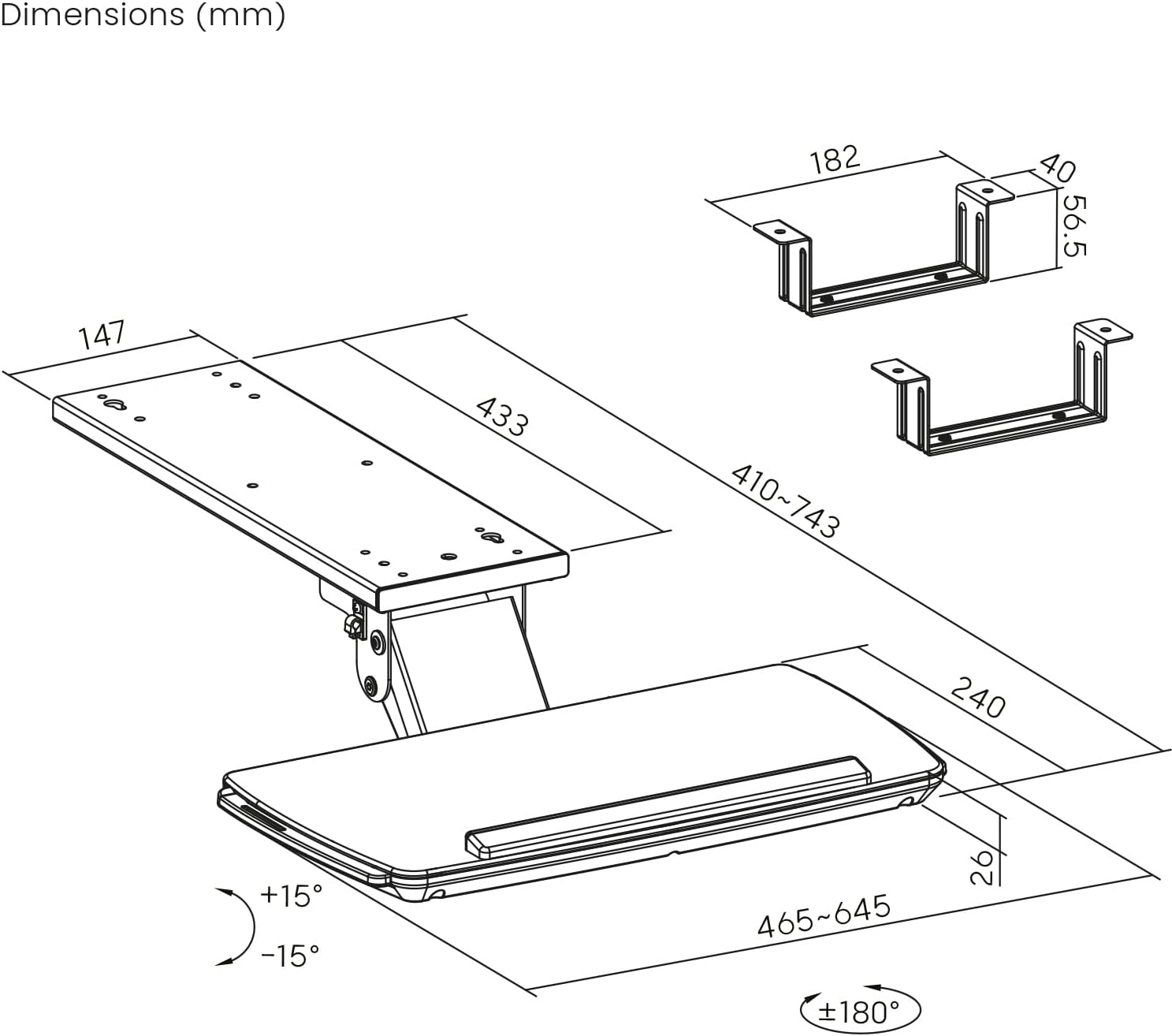
Image 2.1: Detailed dimensions and adjustable ranges of the keyboard tray.
3. Safety Information
Please read and understand all instructions before installation and use. Failure to follow these instructions may result in property damage or personal injury.
- Ensure your desk surface is sturdy and capable of supporting the weight of the keyboard tray and its contents (up to 5 kg).
- Do not overtighten screws during assembly to avoid damaging the desk or the product.
- Keep small parts away from children.
- Verify that the installation area on your desk is free from obstructions like cables, power outlets, or structural elements that might interfere with the tray's movement or stability.
- Regularly check all connections and fasteners to ensure they remain secure.
- Avoid placing excessive weight on the keyboard tray beyond its specified maximum load capacity.
4. Package Contents
Before beginning installation, please ensure all parts are present and undamaged. Refer to the included assembly instructions for a complete list of components.
- Keyboard Tray (main platform)
- Mounting Brackets (for under-desk attachment)
- Mounting Hardware (screws, washers, etc.)
- Allen Key (for assembly)
- Instruction Manual
Video 4.1: Unboxing and overview of components for a similar keyboard tray (BONTEC KMT01). This video demonstrates the typical parts included and initial setup steps.
5. Setup & Installation
Follow these steps for proper installation of your Maclean MC-156W keyboard tray. A second person may be helpful for certain steps.
- Prepare the Desk: Ensure the underside of your desk is clean and free of any obstacles. The desk thickness should be compatible with the clamping mechanism.
- Mark Drilling Points: Use the provided template (if included) or measure carefully to mark the screw holes on the underside of your desk. Ensure the tray will be centered and allow for full movement.
- Attach Mounting Brackets: Secure the mounting brackets to the marked points on the underside of the desk using the provided screws. Use a power drill with appropriate bit, but do not overtighten.
- Assemble Tray Components: If the tray comes in multiple pieces (e.g., two panels), connect them securely using the provided hardware.
- Attach Tray to Brackets: Slide the keyboard tray onto the installed mounting brackets. Ensure it locks securely into place.
- Install Wrist Rest (Optional): If a wrist rest is included, attach it to the front edge of the keyboard tray.
- Test Movement: Gently pull out and push in the tray, and test the tilt and swivel functions to ensure smooth operation and proper installation.
Video 5.1: Step-by-step installation guide for a similar under-desk keyboard tray (NearHub). This video illustrates the process of connecting panels, attaching clamps, and securing the tray to the desk.
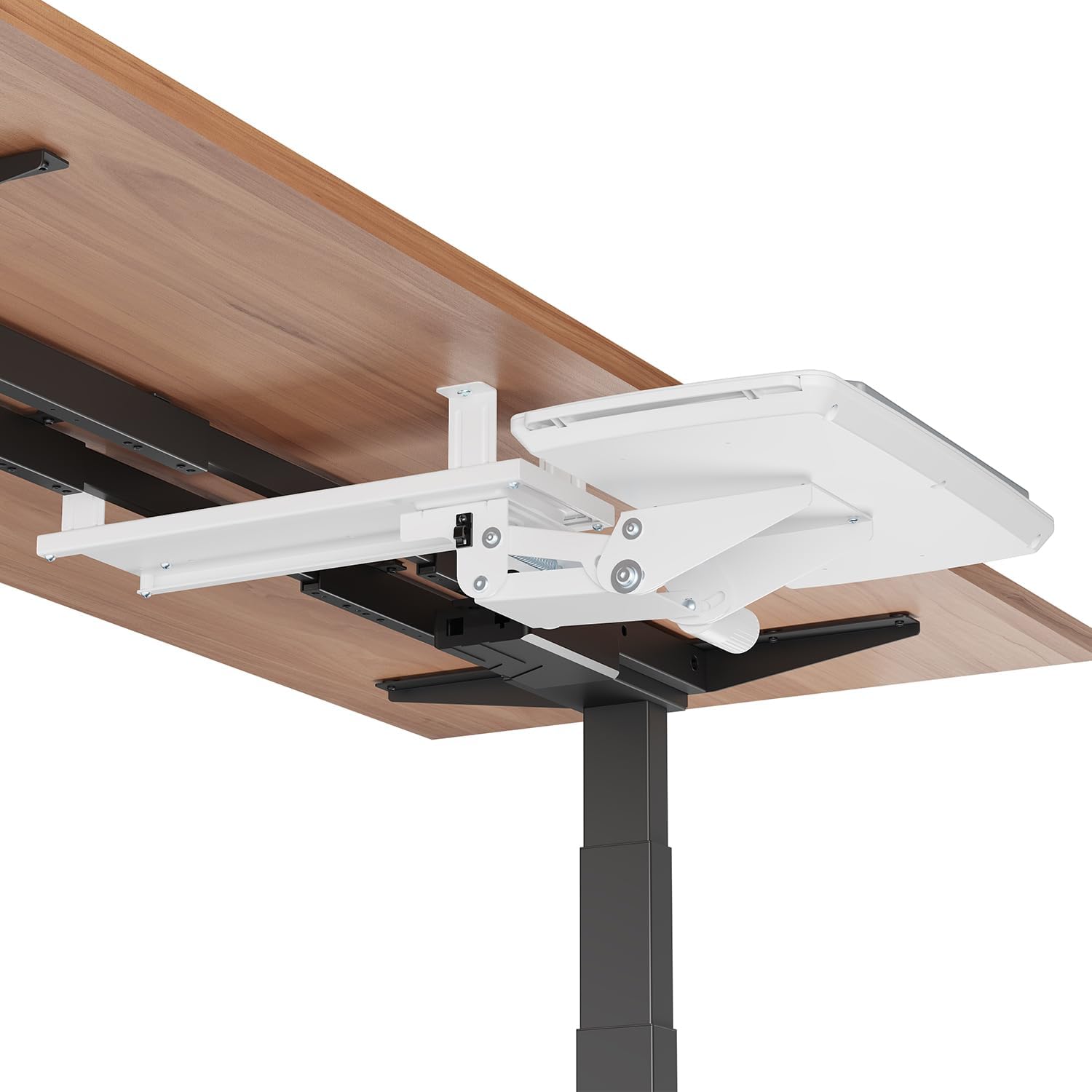
Image 5.1: View of the keyboard tray's underside, illustrating how it attaches to the desk.
6. Operating Instructions
The Maclean MC-156W keyboard tray offers several adjustment options for optimal ergonomic positioning and space-saving convenience.
- Extend/Retract: Gently pull the tray towards you to extend it for use, and push it back under the desk to retract it for storage.
- Height Adjustment: The tray can be adjusted vertically by 155 mm. Locate the height adjustment mechanism (usually a lever or knob) and adjust to your preferred height.
- Tilt Adjustment: Adjust the keyboard tray's tilt angle from -15° to +15° to find the most comfortable typing position for your wrists and forearms. This typically involves a lever or knob on the side of the tray.
- Rotation: The tray can rotate up to 180° horizontally. This allows you to angle the keyboard as needed or swing it completely out of the way.
- Extendable Mouse Tray: The mouse tray can be extended from either the right or left side, accommodating both right-handed and left-handed users.

Image 6.1: The keyboard tray offers an adjustable extension range for comfortable positioning.
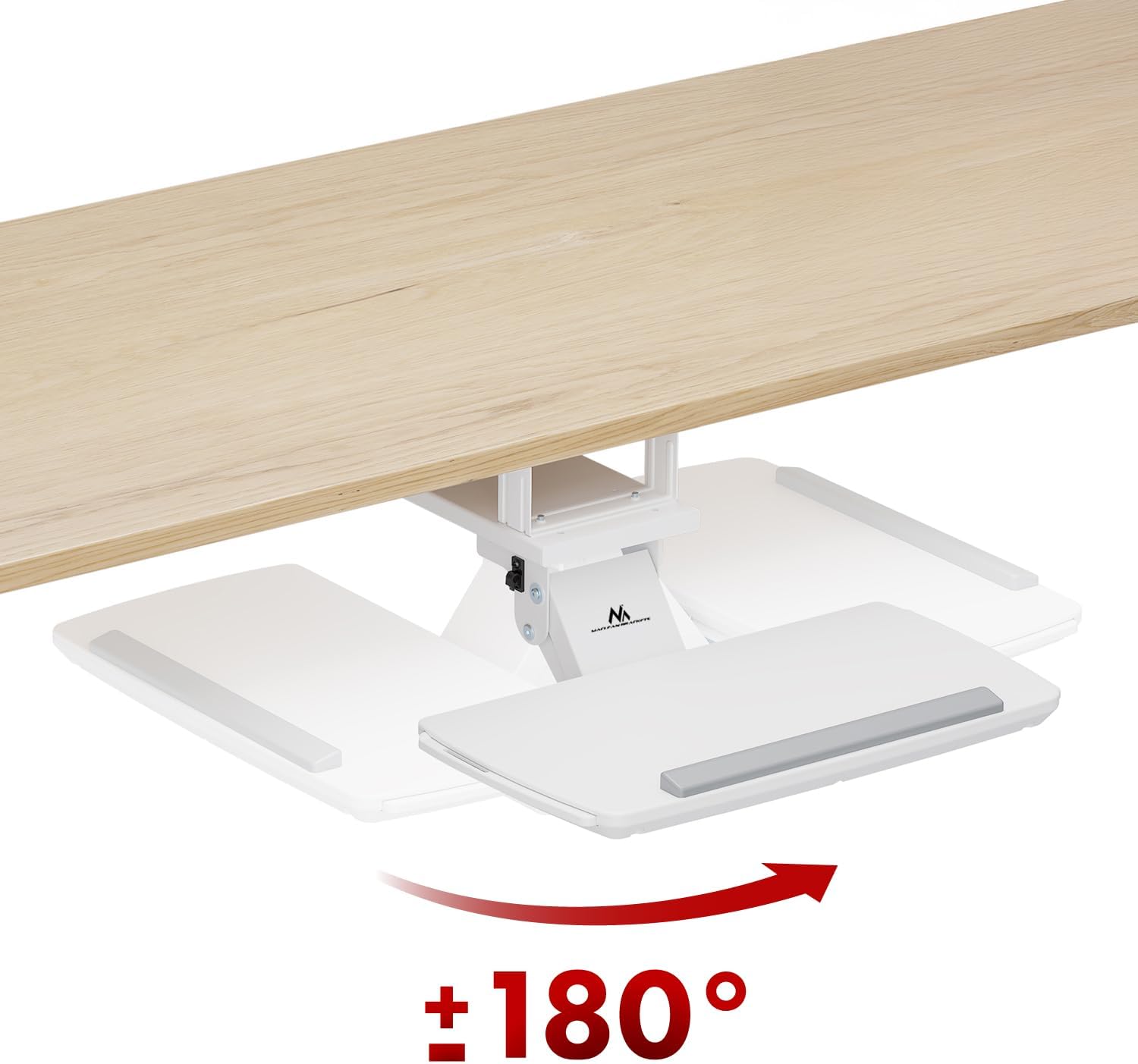
Image 6.2: The tray can rotate 180 degrees for flexible positioning or storage.

Image 6.3: Vertical adjustment allows you to set the tray to your ideal height.

Image 6.4: Adjust the tilt from -15° to +15° for ergonomic wrist support.
Video 6.1: Demonstration of how to use and adjust a similar keyboard tray, highlighting its various movements and ergonomic benefits.
Video 6.2: This video showcases the ergonomic design and space-saving features of an under-desk keyboard tray, including its smooth sliding and adjustable nature.
7. Maintenance
To ensure the longevity and optimal performance of your keyboard tray, follow these simple maintenance guidelines:
- Cleaning: Wipe the tray surface with a soft, damp cloth. Avoid abrasive cleaners or harsh chemicals that could damage the finish.
- Lubrication: Periodically check the sliding mechanisms. If movement becomes stiff, apply a small amount of silicone-based lubricant to the tracks.
- Fastener Check: Every few months, inspect all screws and bolts to ensure they are tight. Retighten if necessary to maintain stability.
- Load Management: Do not overload the tray. Adhere to the maximum weight capacity of 5 kg to prevent damage.
8. Troubleshooting
If you encounter any issues with your Maclean MC-156W keyboard tray, refer to the following common problems and solutions:
- Tray is wobbly:
- Ensure all mounting screws are securely tightened to the desk.
- Verify that the tray is correctly seated in its tracks.
- Check if the desk surface itself is stable.
- Tray does not slide smoothly:
- Inspect the sliding tracks for any debris or obstructions. Clean if necessary.
- Apply a silicone-based lubricant to the sliding mechanisms.
- Tray does not hold its position (tilt/height):
- Check the adjustment levers or knobs. Ensure they are fully tightened after setting the desired position.
- Verify that the tray is not overloaded beyond its 5 kg capacity.
- Difficulty installing clamps:
- Ensure your desk thickness is within the compatible range for the clamps.
- Check for any desk aprons or raised edges that might prevent proper clamp attachment (refer to video 8.1 for incompatible desk styles).
Video 8.1: Troubleshooting video for a similar keyboard tray (BONTEC KMT01), demonstrating common issues and incompatible desk types.
9. Warranty & Support
Information regarding specific warranty terms and conditions for the Maclean MC-156W keyboard tray is typically provided with your purchase documentation. Please retain your proof of purchase for any warranty claims.
For technical support, missing parts, or further assistance, please contact Maclean customer service through the retailer where you purchased the product or visit the official Maclean website for contact information.