
CUQI MX208
CUQI 20m 200 LED IP65 RGB Outdoor Light Tube
Model: MX208
Introduction
Thank you for purchasing the CUQI 20m 200 LED IP65 RGB Outdoor Light Tube. This product is designed to provide versatile and vibrant lighting for various indoor and outdoor applications. Please read this manual carefully before installation and use to ensure proper operation and safety.
Safety Information
- The light tube itself is IP65 waterproof, suitable for outdoor use. However, the USB port is NOT waterproof. Ensure the USB connection is protected from water exposure when used outdoors.
- Operate the lights using a 5V low-voltage power supply for safety and energy efficiency.
- Do not attempt to modify or repair the product. Contact customer support if issues arise.
- Keep out of reach of children.
- Avoid wrapping the lights too tightly around sharp objects to prevent damage to the PVC tube.
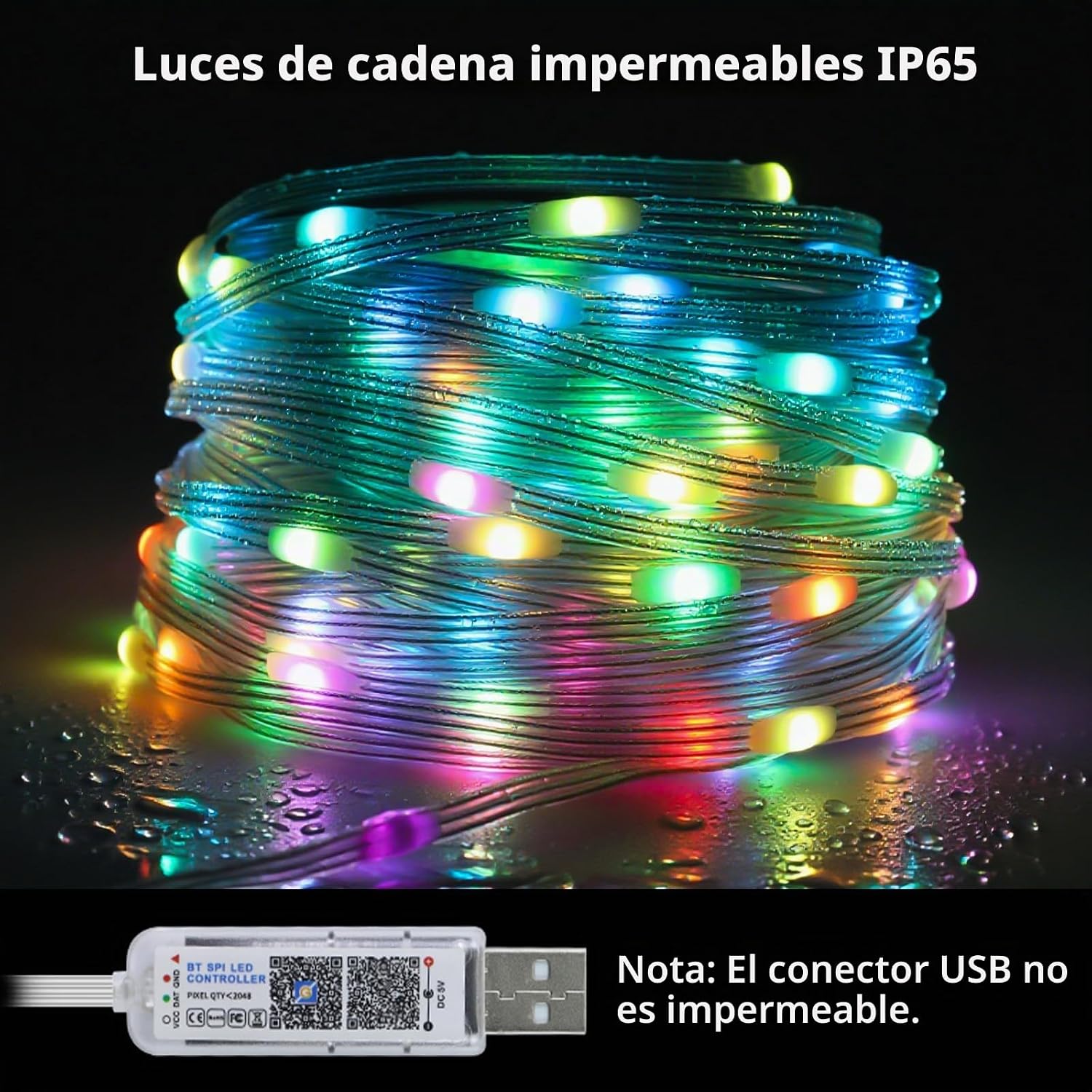
Image: The coiled CUQI RGB LED Light Tube with water droplets, highlighting its IP65 waterproof rating. The USB connector is shown with a warning that it is not waterproof.
Package Contents
Please check the package for the following items:
- 1 x CUQI 20m RGB LED Light Tube
- 1 x Remote Control (Batteries not included)
- 1 x User Manual (QR code for app download)
Specifications
| Feature | Detail |
|---|---|
| Model Number | MX208 (Manufacturer Part Number: LLA-20M) |
| Length | 20 meters |
| LED Quantity | 200 LED beads |
| Light Color | RGB Multicolor |
| Waterproof Rating | IP65 (Light tube only, USB port is not waterproof) |
| Power Source | USB (5V Low Voltage) |
| Control Method | Bluetooth App Control ("MR star" app) and Remote Control |
| Special Features | Dimmable, 59 lighting modes, Music sync, Timer function |
| Material | PVC (flexible, high temperature resistance) |

Image: The coiled CUQI RGB LED Light Tube demonstrating its 5V low-voltage power compatibility with a wall adapter, power bank, laptop, and PC.
Setup
- Unpack: Carefully remove the light tube and all accessories from the packaging.
- Placement: Determine the desired location for installation. The flexible PVC tube allows for bending and shaping to fit various spaces.
- Power Connection: Connect the USB plug to a 5V USB power source (e.g., USB wall adapter, power bank, computer USB port).
- Initial Power On: Once connected, the lights should illuminate.
- Secure Installation: Use appropriate fasteners (not included) to secure the light tube in place, especially for outdoor or permanent installations. Ensure the USB connection is protected from moisture if used outdoors.
Operating Instructions
A. Using the Remote Control
Insert 2x AAA batteries (not included) into the remote control. Point the remote control towards the USB controller to operate the lights.
- ON/OFF: Press the power button to turn the lights on or off.
- Mode Selection: Use the mode buttons (e.g., M1, M2, M3) to cycle through preset lighting effects.
- Brightness Adjustment: Use the brightness buttons to increase or decrease the light intensity.
- Color Selection: Select specific colors if available on the remote.

Image: A smartphone showing the "MR star" app interface for light control, alongside the physical remote control. Note: Batteries for the remote are not included.
B. Using the "MR star" App (Bluetooth Control)
- Download App: Scan the QR code provided in the printed manual or on the USB controller to download the "MR star" application from your device's app store (Google Play Store or Apple App Store).
- Enable Bluetooth: Ensure Bluetooth is enabled on your mobile phone.
- Connect to Lights: Open the "MR star" app. The app should automatically detect and connect to the CUQI RGB LED Light Tube via Bluetooth.
- Control Functions:
- Color Change: Select from a wide range of colors.
- Lighting Scenes: Choose from 59 preset lighting modes or create custom scenes.
- Music Sync: Synchronize the lights with music playing on your device.
- Timer Function: Schedule the lights to turn on/off at specific times.
- Brightness/Speed: Adjust brightness and the speed of dynamic effects.

Image: Four smartphone screens displaying the "MR star" app's features: Favorites, Scenes, Rhythm (Music Sync), and Schedule (Timer). App store logos for ZENGGE, Apple App Store, and Google Play are also visible.
Maintenance
- Cleaning: Wipe the light tube with a soft, damp cloth. Do not use harsh chemicals or abrasive cleaners. Ensure the USB port is dry before cleaning.
- Storage: When not in use for extended periods, disconnect the power, clean the light tube, and store it in a cool, dry place away from direct sunlight.
- Inspection: Periodically check the light tube and wiring for any signs of damage. If damage is found, discontinue use and contact customer support.
Troubleshooting
| Problem | Possible Cause | Solution |
|---|---|---|
| Lights do not turn on. | No power, loose connection, faulty USB port. | Ensure USB is securely connected to a working 5V power source. Try a different USB port or adapter. |
| Remote control not working. | Dead batteries, remote out of range, obstruction. | Replace batteries (2x AAA). Ensure remote is pointed at the USB controller and within range. Remove any obstructions. |
| App cannot connect to lights. | Bluetooth off, app not updated, lights not powered. | Ensure Bluetooth is enabled on your phone. Power cycle the lights. Restart the app. Check for app updates. |
| Lights flicker or change colors unexpectedly. | Unstable power supply, interference, damaged cable. | Use a stable 5V power source. Avoid strong electromagnetic interference. Inspect the cable for damage. |
Warranty Information
CUQI products are manufactured to high-quality standards. This product comes with a standard manufacturer's warranty against defects in materials and workmanship. Please refer to your purchase documentation or contact customer support for specific warranty terms and duration.
The warranty does not cover damage caused by improper installation, misuse, unauthorized modifications, or natural disasters.
Support
For technical assistance, troubleshooting, or warranty claims, please contact CUQI customer support through the retailer where the product was purchased or visit the official CUQI website for contact information.
When contacting support, please have your product model number (MX208) and purchase details available.
Ask a question about this manual
Ask about setup, troubleshooting, compatibility, parts, safety, or missing instructions. Manuals+ will review the question and use this page’s manual context to help answer it.