
Introduction
This manual provides comprehensive instructions for the safe and efficient use of your ORIGBELIE TP520 External USB 3.0 Type-C CD/DVD Drive. Please read this manual thoroughly before operating the device and retain it for future reference.
Package Contents
- 1 x ORIGBELIE External CD/DVD Drive
- 1 x USB A to DC 5V Charging Cable
- 1 x User Manual
- 1 x Storage Bag

The package includes the external CD/DVD drive, a USB A to DC 5V charging cable for supplementary power, a user manual for detailed instructions, and a storage bag for protection and portability.
Setup Instructions
- Connect the Drive: Locate the integrated 2-in-1 data cable on the back of the drive. This cable features both a USB Type-A and a USB Type-C connector.
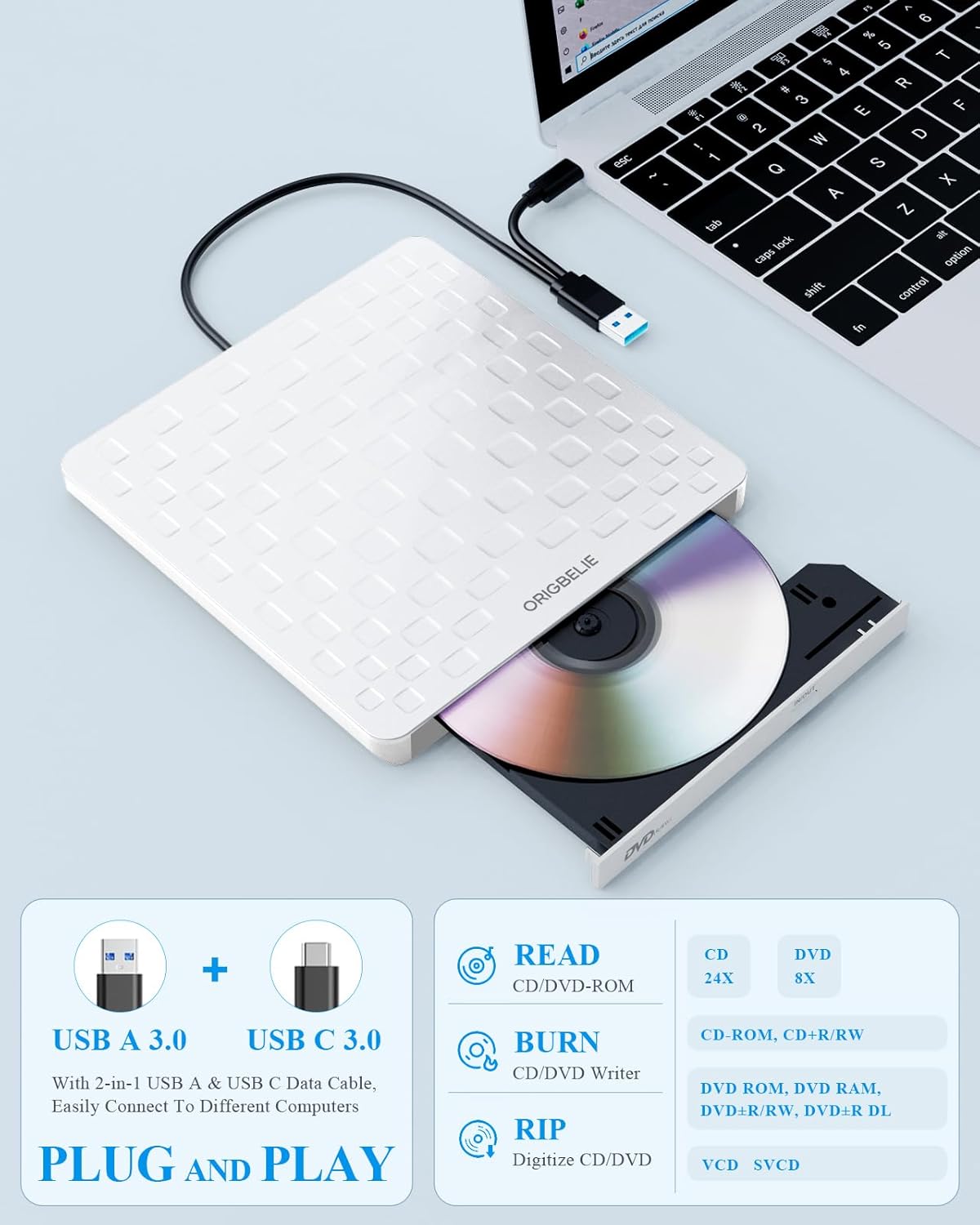
Image: The external CD/DVD drive connected to a laptop via its integrated USB cable, illustrating the plug-and-play setup. The drive features an integrated USB 3.0 Type-A and Type-C cable for direct connection to your computer. Simply plug the appropriate connector into an available USB port on your laptop or desktop PC.
- Power Supply (if needed): The drive is typically powered via the USB port. However, if your computer's USB port does not provide sufficient power (e.g., for some desktop front USB ports or older laptops), use the included USB A to DC 5V Charging Cable. Connect the DC end to the drive's power input and the USB A end to a 5V charger or power bank.

Image: Demonstrates connecting the drive to both a desktop PC (suggesting rear USB port for power) and a laptop, with an important note about using a 5V power bank or adapter if the computer's USB port lacks sufficient power. For optimal performance with desktop PCs, connect the drive to a rear USB port on the motherboard. If power issues arise, utilize the provided charging cable with a 5V power source.
- Automatic Recognition: The external DVD drive should be detected automatically by your computer. No additional drivers are required for most operating systems.
For Mac systems, the device icon will appear only after a disc is inserted and successfully read.
Operating Instructions
Inserting and Ejecting Discs
- Open the Disc Tray: Press the eject button located on the front of the drive. The disc tray will slide out.

Image: The disc tray of the external drive is open, ready for disc insertion. The image also highlights the USB 3.0 and Type-C connectivity. The drive features a pop-up design for easy disc insertion. Press the button to open the tray.
- Insert Disc: Carefully place a CD or DVD onto the tray, ensuring it is centered on the spindle.
- Close the Disc Tray: Gently push the tray back into the drive until it clicks into place.
- Accessing Disc Content: Your computer's operating system should recognize the disc. You can then use appropriate software to read, play, or burn content.
- Ejecting Disc: Press the eject button again to open the tray and remove the disc. Alternatively, you can eject the disc through your computer's operating system (e.g., right-click on the drive icon and select "Eject").
Supported Functions
The ORIGBELIE TP520 supports a variety of functions:
- Reading: Reads CD±R/RW, CD-ROM, DVD±R/RW, DVD-ROM, DVD-RAM, DVD+R DL, DVD-R DL, VCD, and SVCD formats.
- Writing/Burning: Writes to CD±R/RW, DVD±R/RW, DVD-RAM, DVD+R DL, DVD-R DL formats.
- Multimedia Playback: Watch movies and listen to music from discs.
- Data Management: Perform data backup, install software, operating systems, or games.

This drive offers versatile functionality, allowing users to install software, digitize discs, burn CDs/DVDs, perform data backups, watch movies, and play games directly from optical media.
Region Code Information
DVDs are often region-coded. The disc can only be played if the region code of the DVD drive matches that of the DVD. The drive allows for region code changes up to 4 times.

Understanding DVD region codes is crucial for playback. The drive's region must match the disc's region. Note that region changes are limited to four times.
Maintenance
- Keep the drive clean and free from dust. Use a soft, dry cloth for cleaning the exterior.
- Avoid exposing the drive to extreme temperatures or humidity.
- Do not attempt to open or repair the drive yourself, as this will void the warranty.
- Handle discs carefully to prevent scratches, which can affect readability.
Troubleshooting
| Problem | Possible Cause | Solution |
|---|---|---|
| Drive not recognized by computer. | Insufficient power from USB port; loose connection; driver issue. |
|
| Disc not reading/playing. | Scratched/dirty disc; incorrect disc format; region code mismatch; insufficient power. |
|
| Disc burning fails. | Low disc quality; insufficient power; software issue. |
|
| Drive makes unusual noise. | Unbalanced disc; drive placed on an uneven surface. |
|
Specifications
| Feature | Detail |
|---|---|
| Brand | ORIGBELIE |
| Model Number | TP520 |
| Interface | USB 3.0 (Type-A & Type-C) |
| Read Speed (Max) | 24x CD, 8x DVD |
| Write Speed (Max) | 24x CD, 8x DVD |
| Supported Disc Formats | CD±R/RW, CD-ROM, DVD±R/RW, DVD-ROM, DVD-RAM, DVD+R DL, DVD-R DL, VCD, SVCD |
| Compatibility | Windows 11/10/8/7/XP/98/SE/ME/2000, Vista 7/8, Linux, Mac OS 10.6 or above (e.g., MacBook Air, iMac, Mac Mini, MacBook Pro) |
| Incompatible Systems/Devices | Blu-ray discs, Cars, TV, iPads, Tablets, Phones, PS3/4/5, Xbox, Switch, Projectors, Chromebook, Surface (some models), Ubuntu system |
| Dimensions (LxWxH) | 5.7 x 5.7 x 0.5 inches (14.8 x 14.7 x 1.3 cm) |
| Item Weight | 7.3 ounces (0.2 kg) |
| Special Features | Backward Compatible, Error Correction, Noise Reduction Technology, Plug & Play, Ultra-Slim Design |

The drive is designed for high performance with features like strong error correction, anti-shock capabilities, noise reduction, and high-speed data transfer. Its ultra-slim movement ensures efficient operation.
Official Product Video
This video provides a visual overview of the ORIGBELIE external CD/DVD drive, highlighting its ultra-slim design, 2-in-1 USB 3.0 Type A & Type C connector, plug-and-play functionality, pop-up design, and various uses such as watching movies, burning/ripping discs, installing software, data backup, and playing games. It also details internal components like the metal bracket, high-speed rotor, and ultra-slim movement, along with wide compatibility across different operating systems.
Warranty and Support
Your ORIGBELIE TP520 External CD/DVD Drive comes with a 90-Day Warranty. For any technical problems or support inquiries, please refer to the contact information provided in the user manual included in your package or visit the official ORIGBELIE website.
For further assistance, you may also visit the ORIGBELIE Store on Amazon.


