1. Introduction
The Tenda BE3600 Dual Band WiFi 7 Mesh Wi-Fi System ME3 Pro is designed to provide extensive and high-speed wireless coverage throughout your home or office. Utilizing the latest Wi-Fi 7 technology, this system ensures a stable and fast internet connection for numerous devices, eliminating dead zones and supporting demanding online activities.

Image 1.1: A single Tenda BE3600 WiFi 7 Mesh System ME3 Pro unit.

Image 1.2: Overview of the Tenda BE3600 system's capabilities, emphasizing speed and low latency.
2. Package Contents
Verify that all items are present in your package:
- ME3 Pro unit (x1)
- Power adapter (x1)
- Quick Installation Guide (QIG) (x1)
- Gigabit Ethernet cable (x1)
3. Key Features
- Latest Wi-Fi 7 Technology: Equipped with advanced Wi-Fi 7 (802.11be) for next-level speed and efficiency, including MLO (Multi-Link Operation) and 4K-QAM.
- Dual-Band Speeds: Delivers combined dual-band speeds up to 3.6 Gbps (2882 Mbps on 5GHz + 688 Mbps on 2.4GHz), offering significant speed improvements over Wi-Fi 6.
- Extended Coverage: Provides seamless Wi-Fi coverage across approximately 2,500 sq.ft., effectively eliminating dead zones.
- High Device Capacity: Supports over 160 connected devices simultaneously without performance degradation, suitable for busy households.
- Stable Signal Performance: Features 5 high-gain antennas and 5 high-power FEMs per node for extended range and consistent signal strength.
- Seamless Roaming: Advanced algorithms ensure devices automatically connect to the strongest node as you move, maintaining uninterrupted connectivity.
- Gigabit Ethernet Ports: Each unit includes 3 auto-sensing Gigabit ports for high-speed wired connections to devices like gaming consoles or PCs.
- Enhanced Interference Resistance: Preamble Puncture technology improves wireless performance in environments with high interference.
- WPA3 Security: Incorporates WPA3 for robust network security and privacy protection.
- NFC One-Touch Networking: Allows for quick and effortless device connections via NFC (device must support NFC-based network connection).
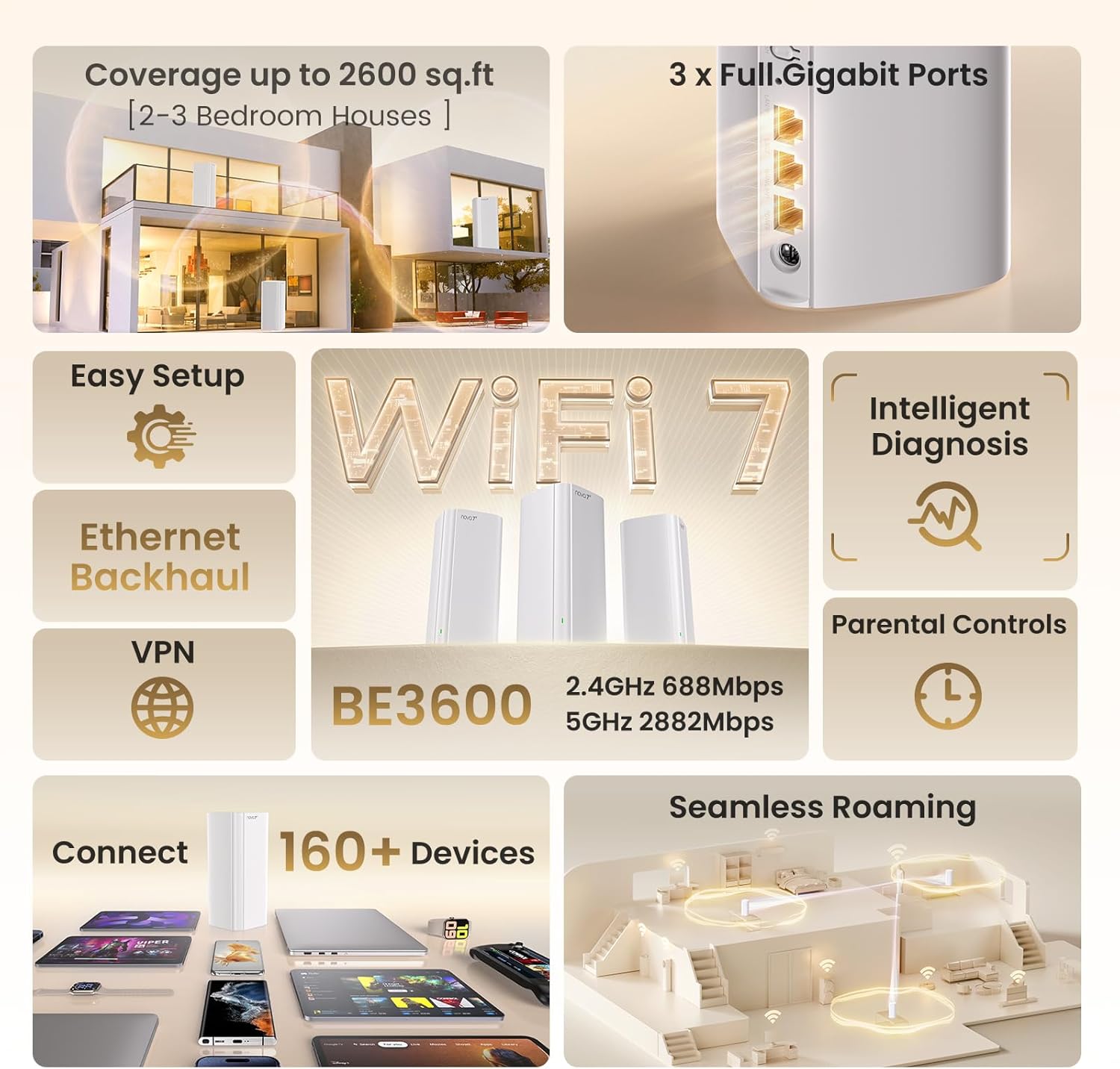
Image 3.1: Visual summary of key features including coverage, speed, and device support.

Image 3.2: Illustration of the high-speed Wi-Fi 7 capabilities.

Image 3.3: Depiction of reliable whole-home Wi-Fi coverage.

Image 3.4: Close-up of the efficient 6nm Wi-Fi 7 chip.
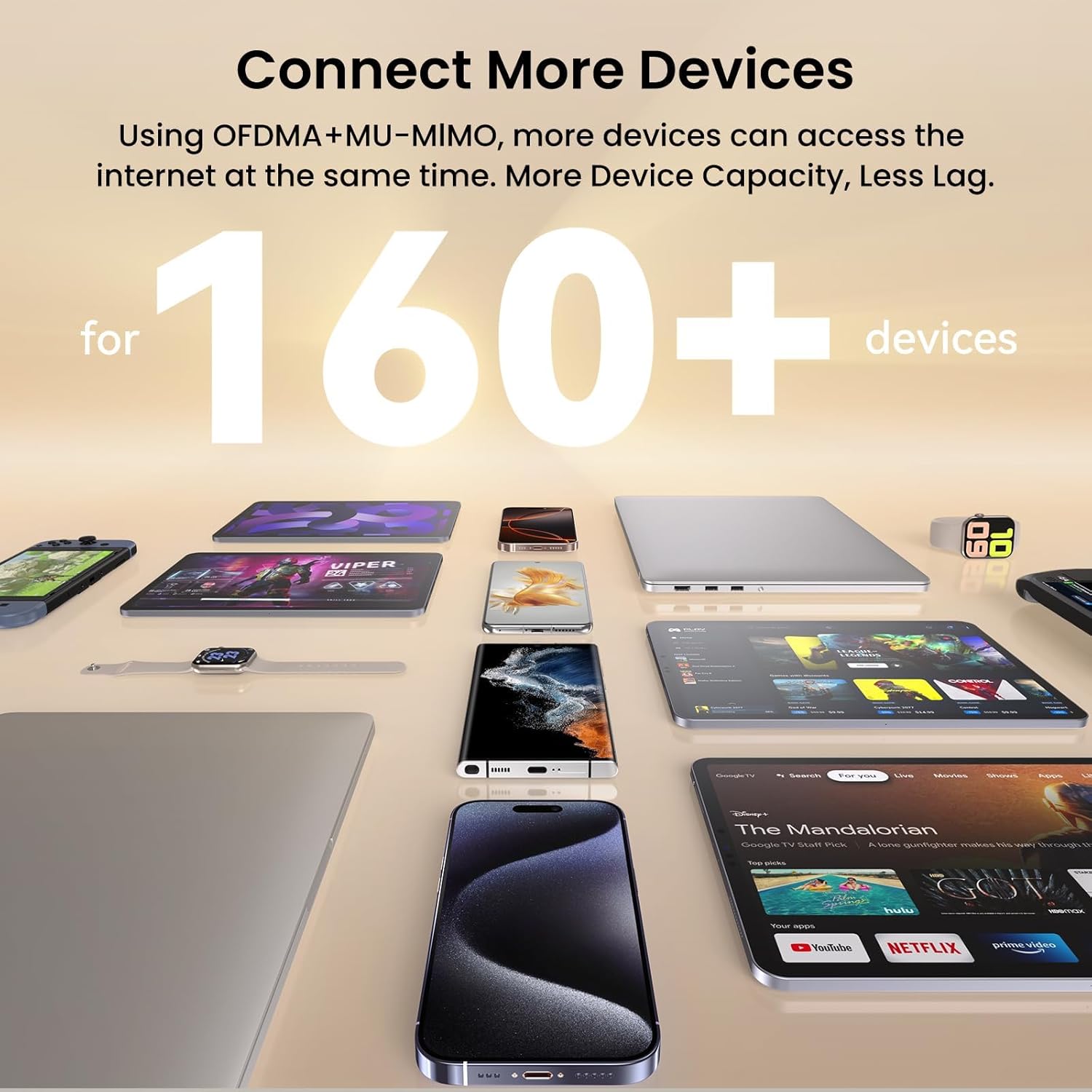
Image 3.5: Visual representation of the system's capacity to connect numerous devices.

Image 3.6: Overview of additional technologies including Multi-Band Support, Beamforming, BSS Coloring, Security Center, WPA3, IPv6, and VPN.
4. Setup Instructions
4.1 Initial Setup
- Unpack: Remove all components from the packaging.
- Connect Power: Plug the power adapter into the ME3 Pro unit and then into a power outlet.
- Connect to Modem: Use the provided Ethernet cable to connect one of the Gigabit ports on the ME3 Pro unit to your internet modem or existing router. The ME3 Pro features auto-sensing ports, simplifying this connection.
- Power On: Wait for the indicator light on the ME3 Pro unit to turn solid green, indicating it is ready.
- Download App: Download the Tenda Wi-Fi app from your mobile device's app store.
- Configure Network: Open the Tenda Wi-Fi app and follow the on-screen instructions to set up your new mesh Wi-Fi network, including setting a Wi-Fi name (SSID) and password.
4.2 Adding Additional Mesh Nodes (if applicable)
If you have multiple ME3 Pro units, they are designed to connect automatically:
- Power On: Place additional ME3 Pro units in desired locations within your home and plug them into power outlets.
- Automatic Pairing: The additional units will automatically detect and connect to the main ME3 Pro unit, extending your mesh network. The indicator light will turn solid green once connected.
- Optimal Placement: For best performance, place mesh nodes strategically to ensure overlapping coverage and strong signal strength between units.
4.3 One-Touch Networking with NFC
For compatible devices, you can use NFC for quick connection:
- Enable NFC: Ensure NFC is enabled on your mobile device.
- Tap to Connect: Tap your NFC-enabled device near the NFC tag on the ME3 Pro unit to automatically connect to the Wi-Fi network.
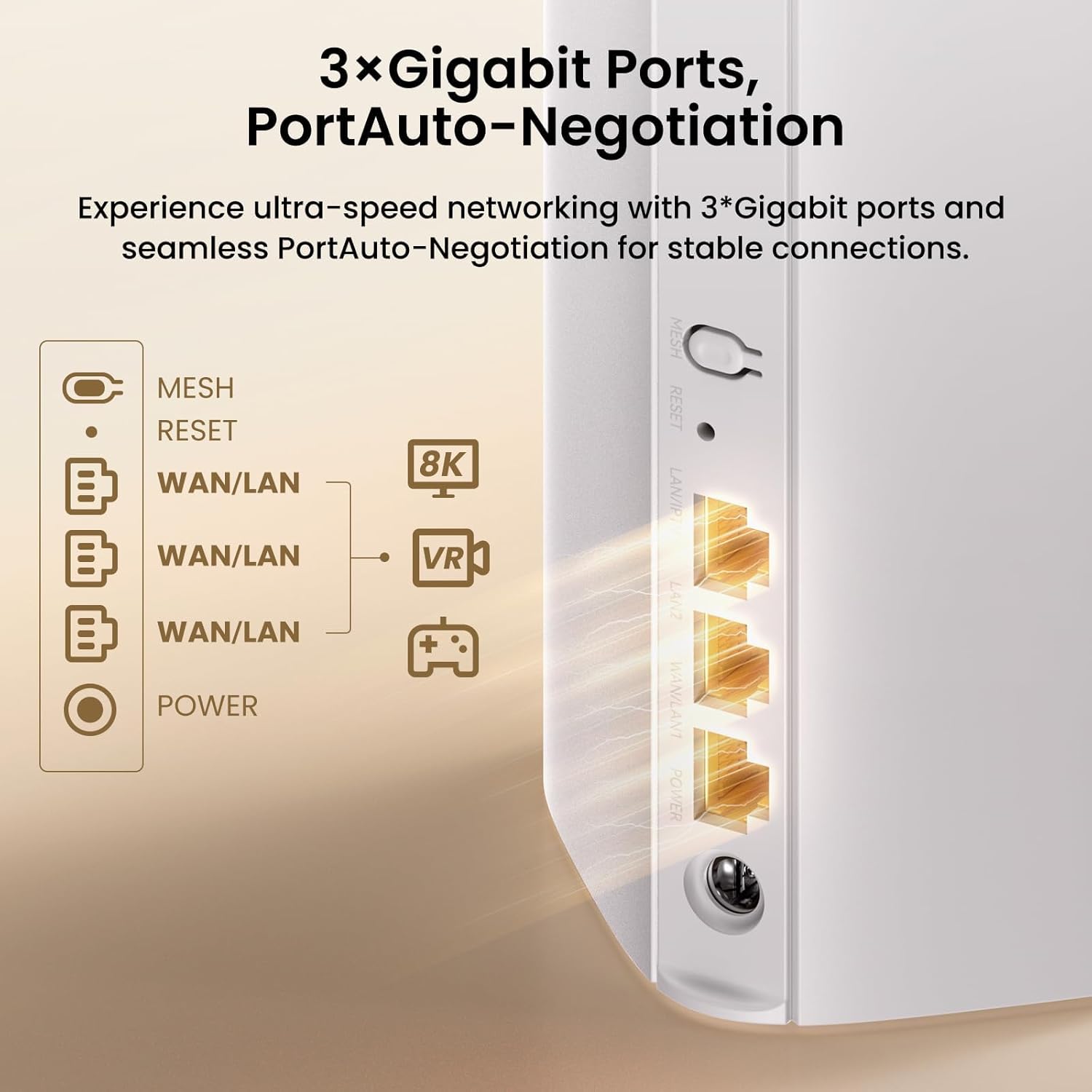
Image 4.1: Rear view of the ME3 Pro unit showing the 3 Gigabit Ethernet ports and power input.

Image 4.2: Demonstrating the NFC one-touch networking feature for easy device connection.
5. Operating the System
5.1 Network Management via App/Web Interface
The Tenda Wi-Fi app and web interface provide comprehensive control over your mesh network:
- Bandwidth Management: Prioritize devices or applications for optimal performance.
- Guest Network: Create a separate Wi-Fi network for guests, keeping your main network secure.
- Mesh Network Optimization: The system automatically optimizes connections for the best signal.
- Network Diagnosis: Use the app for intelligent diagnosis of network issues.
- Parental Control: Set internet time limits and filter websites for connected devices.
- VPN Support: Supports VPN protocols (PPTP, L2TP) for secure remote access.

Image 5.1: Screenshot of the Tenda app and web interface for network setup and management.
5.2 Seamless Roaming
The Tenda BE3600 system ensures a smooth transition between mesh nodes as you move around your coverage area. This means your devices will automatically switch to the strongest Wi-Fi signal without interruption, ideal for voice calls, streaming, and online gaming.

Image 5.2: Illustration of seamless roaming technology, showing continuous connectivity across multiple rooms.
5.3 Network Security
The ME3 Pro supports WPA3 encryption, providing enhanced security for your wireless network. The Tenda app also allows for device control to manage who connects to your network.

Image 5.3: Visual representation of WPA3 Privacy Guard for network security.
6. Maintenance
- Firmware Updates: Regularly check the Tenda Wi-Fi app for available firmware updates to ensure optimal performance and security.
- Optimal Placement: Ensure mesh nodes are placed in open areas, away from obstructions like large metal objects or thick walls, to maximize signal strength.
- Cleaning: Keep the units clean and free from dust to prevent overheating and maintain proper ventilation. Use a soft, dry cloth for cleaning.
- Restarting: If you experience network issues, try restarting the main ME3 Pro unit and then any satellite units.
7. Troubleshooting
7.1 No Internet Connection
- Verify that your modem is working correctly and has an active internet connection.
- Ensure the Ethernet cable connecting the ME3 Pro to your modem is securely plugged in.
- Check the indicator lights on the ME3 Pro unit. Refer to the Quick Installation Guide for light status meanings.
- Restart both your modem and the ME3 Pro unit.
7.2 Slow Wi-Fi Speeds
- Ensure your devices are connected to the 5GHz band for higher speeds, if supported.
- Check the placement of your mesh nodes. They should be within reasonable range of each other for optimal backhaul connection.
- Reduce interference by moving the units away from other electronic devices (e.g., microwaves, cordless phones).
- Use the Tenda Wi-Fi app's network diagnosis tool to identify potential issues.
7.3 Devices Cannot Connect to Wi-Fi
- Verify that you are entering the correct Wi-Fi password.
- Ensure the device is within the Wi-Fi coverage area.
- Check if the device has been blocked via parental controls or device management settings in the Tenda app.
- Restart the ME3 Pro unit.
7.4 Resetting the Device
If you encounter persistent issues, you may need to reset the ME3 Pro unit to factory settings. Locate the reset button (often a small pinhole) on the unit, press and hold it for approximately 10 seconds until the indicator light changes, then release. This will erase all custom settings, and you will need to reconfigure the network.
8. Specifications
| Brand | Tenda |
| Model Name | ME3 Pro |
| Product Dimensions | 3.39 x 3.39 x 7.48 inches |
| Item Weight | 13.8 ounces |
| Frequency Band Class | Dual-Band (2.4GHz & 5GHz) |
| Wireless Communication Standard | 802.11be (Wi-Fi 7) |
| Connectivity Technology | Ethernet, Wi-Fi |
| Ethernet Ports | 3 x Full Gigabit Auto-Sensing Ports |
| Special Features | Access Point Mode, Alexa Compatible, Beamforming, Guest Mode, Parental Control, MLO, 4K QAM, VPN |
| Compatible Devices | Personal Computer, Security Camera, Smart Television, Smartphone, Tablet |
| Recommended Uses | Business, Gaming, Home |
| Color | White |
9. Warranty and Support
9.1 Warranty Information
Tenda products typically come with a limited warranty. Please refer to the warranty card included in your product packaging or visit the official Tenda website for detailed warranty terms and conditions specific to your region.
9.2 Technical Support
For technical assistance, troubleshooting, or product inquiries, please contact Tenda customer support:
- Email: support.usa@tenda.cn (for US customers)
- Website: Visit the official Tenda website for support resources, FAQs, and contact information for other regions.


