1. Introduction
This manual provides detailed instructions for the safe and effective operation of your suangrc RC Truck with Camera, Model B0FMD8ZYMQ. Please read this manual thoroughly before first use and retain it for future reference.

Image 1: suangrc RC Truck with Camera and Remote Control.
2. What's in the Box
Verify that all components are present upon unboxing:
- 1x RC Camera Truck
- 1x 2.4GHz Remote Controller with Screen
- 1x 4GB SD Card + Reader
- 1x USB Charging Cable
- 1x Rechargeable Lithium Ion Battery
- 1x Screwdriver
- 1x User Manual (this document)
- 1x Gift Box (packaging)

Image 2: Package contents including RC truck, remote, battery, and accessories.
3. Key Features
- Real-Time FPV HD Camera & 2.4" Display: Features an electrically adjustable 45° camera for live video streaming to the 2.4-inch color screen on the 2.4GHz remote control. Includes a 4GB SD card and reader (supports up to 64GB) for recording.
- Durable All-Terrain Off-Road Design: Constructed with a tough alloy metal body, spring shock absorbers, and rugged rubber tires for handling various terrains like grass, dirt, gravel, and slopes.
- Two Speed Modes: Offers Fast (8.5 km/h) and Slow (4.5 km/h) modes. The 2.4GHz remote provides a control range of up to 35 meters and 20-meter audio reception.
- Extended Playtime: Equipped with a powerful rechargeable 600mAh battery, providing up to 44 minutes of continuous driving.
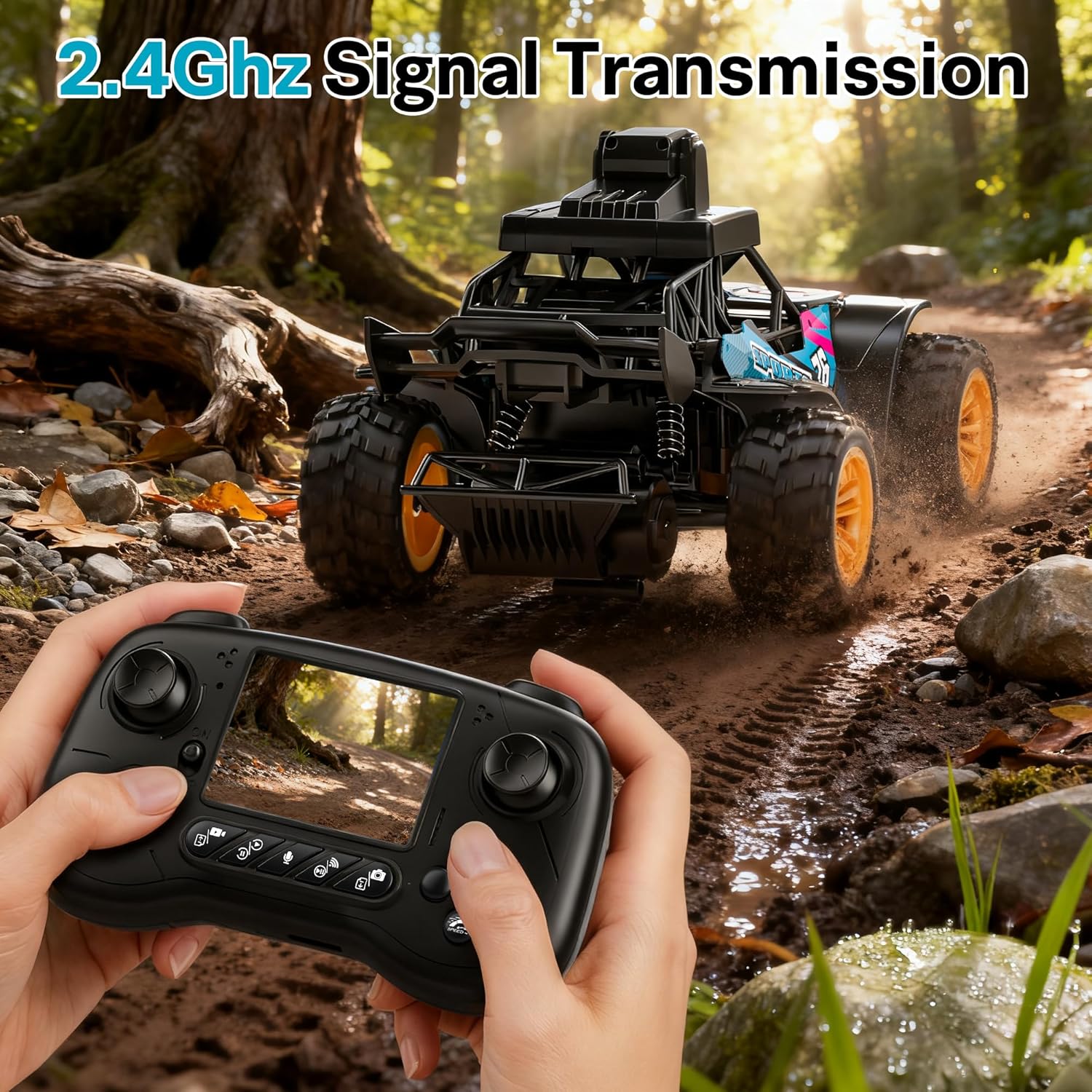
Image 3: Remote control with integrated 2.4-inch LCD screen for FPV viewing.
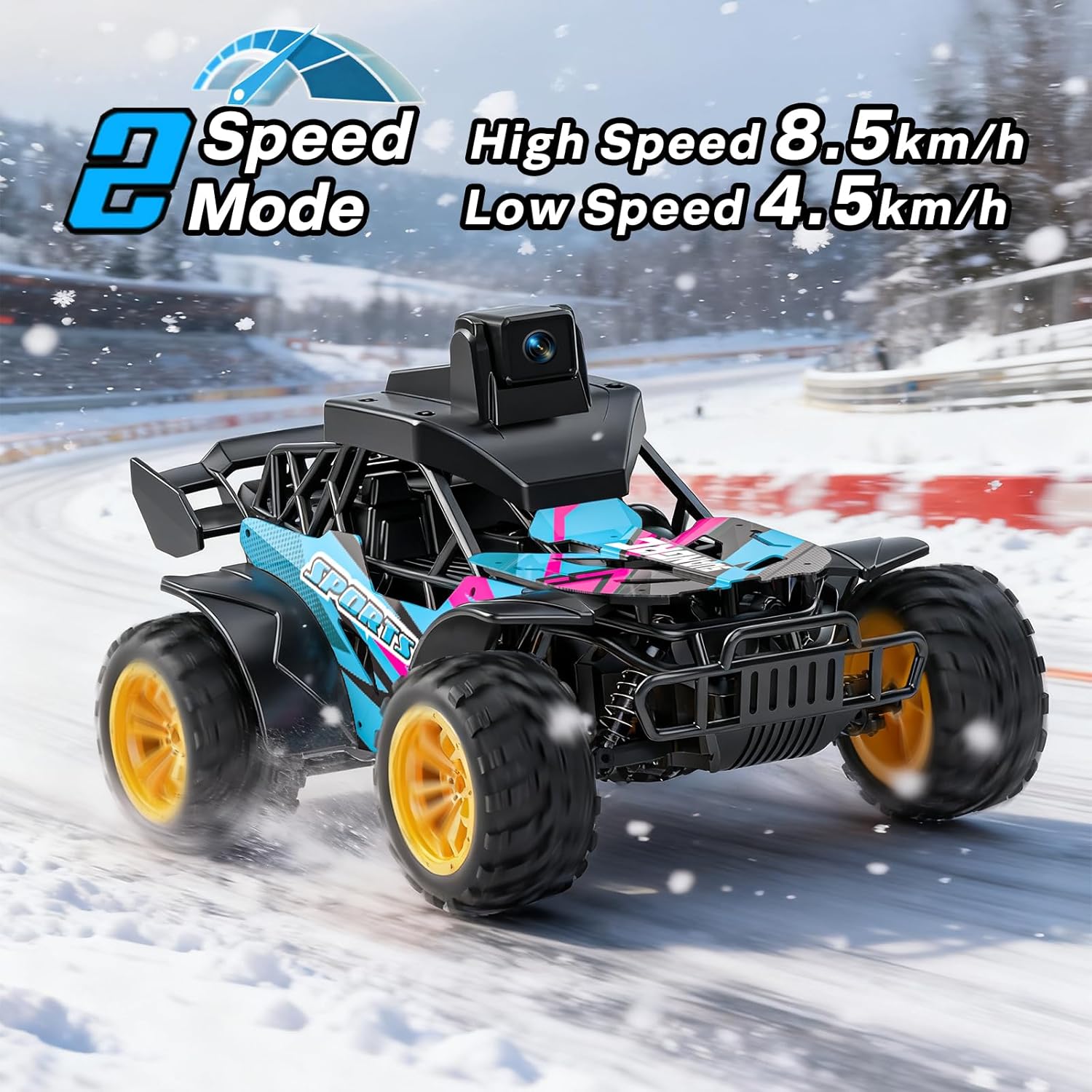
Image 4: Visual representation of the two speed modes available on the RC truck.
4. Setup Guide
4.1. Battery Installation and Charging
- Charge the Battery: Connect the provided USB charging cable to the rechargeable Lithium Ion battery. Plug the USB end into a standard USB power adapter (not included). The charging indicator will show status (refer to battery instructions for specific light patterns). Ensure the battery is fully charged before first use.
- Install Battery in Truck: Use the included screwdriver to open the battery compartment on the RC truck. Insert the fully charged battery, ensuring correct polarity. Securely close the compartment.
- Install Batteries in Remote Control: Open the battery compartment on the remote control. Insert the required batteries (not included, typically AA or AAA, refer to remote control markings). Close the compartment.
4.2. SD Card Installation
- Locate the SD card slot on the remote control.
- Insert the provided 4GB SD card into the slot until it clicks into place. Ensure the card is inserted in the correct orientation. The remote supports up to 64GB SD cards.

Image 5: Demonstrating the insertion of the SD card into the remote control.
4.3. Pairing the Remote Control and Truck
- Turn on the RC truck.
- Turn on the remote control.
- The remote control and truck should automatically pair. A successful connection is usually indicated by a solid light on both devices. If pairing fails, turn both devices off and repeat the process.
5. Operating Instructions
5.1. Driving the RC Truck
- Use the left joystick on the remote control to control forward and backward movement.
- Use the right joystick to control left and right steering.
- Speed Modes: Press the speed mode button on the remote to switch between Fast (8.5 km/h) and Slow (4.5 km/h) modes. Slow mode is recommended for beginners.
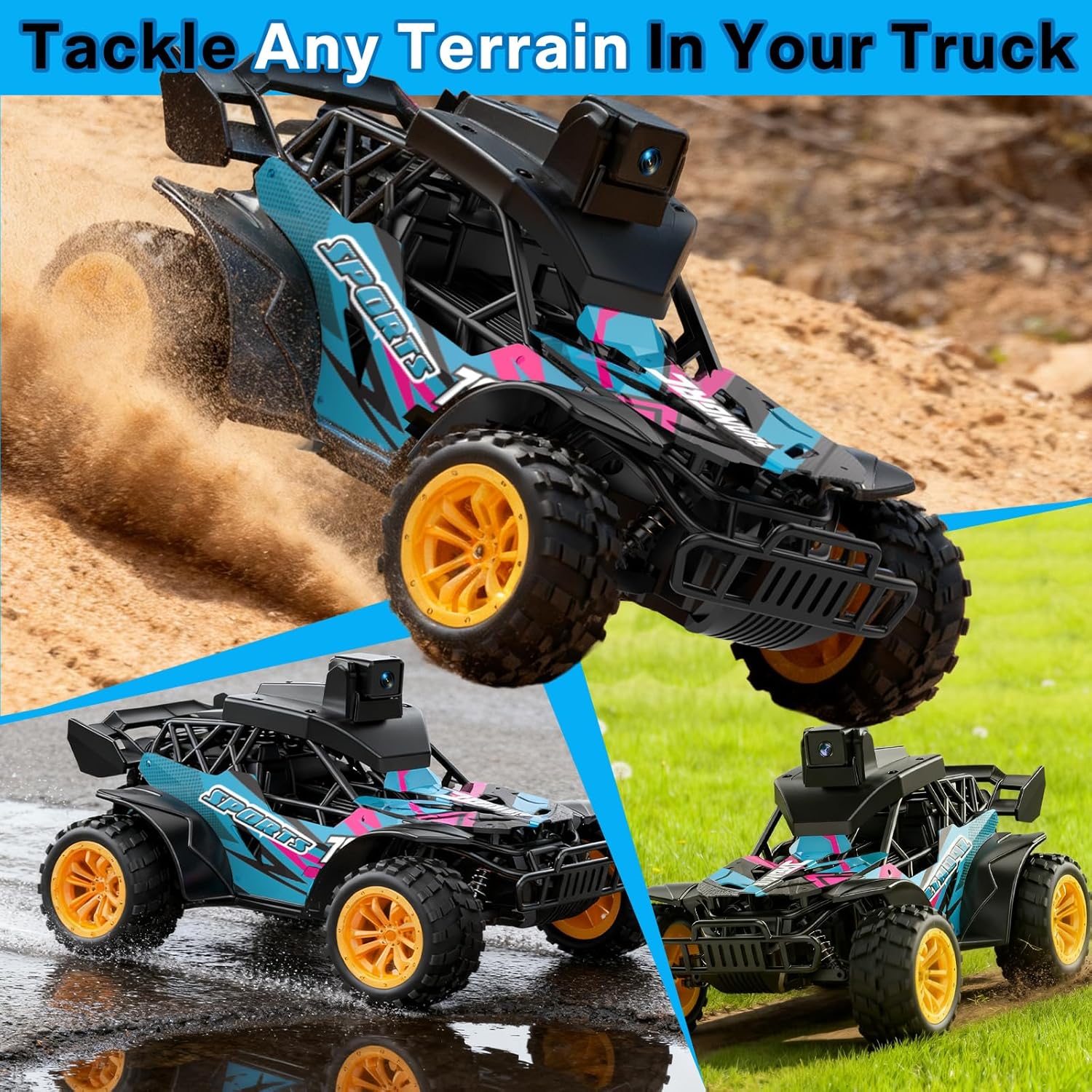
Image 6: Operating the RC truck with the remote control on an outdoor terrain.
5.2. Using the FPV Camera and Recording
- The 2.4-inch LCD screen on the remote control displays the live video feed from the truck's camera.
- Adjusting Camera Angle: Use the dedicated button on the remote to electrically adjust the camera's 45° angle for optimal viewing.
- Taking Photos: Press the photo button on the remote to capture still images.
- Recording Video: Press the video button on the remote to start and stop video recording. Recorded files are saved to the installed SD card.
- Audio Reception: The remote control features 20-meter audio reception, allowing you to hear sounds from the truck's vicinity.
Video 1: Demonstration of the RC truck's features, including the FPV camera and durable design.

Image 7: The remote control's LCD screen showing a live FPV view from the RC truck's camera.
6. Maintenance
- Cleaning: After each use, especially in dusty or muddy conditions, gently wipe down the truck with a dry or slightly damp cloth. Avoid using harsh chemicals.
- Battery Care: Always fully charge the battery before storage. If storing for extended periods, charge the battery every 3 months to maintain its health. Remove batteries from the remote control if not in use for a long time.
- Storage: Store the RC truck and remote control in a cool, dry place away from direct sunlight and extreme temperatures.
- Tire Inspection: Regularly check tires for wear and tear. Ensure they are free from debris that could affect performance.
7. Troubleshooting
| Problem | Possible Cause | Solution |
|---|---|---|
| Truck does not respond to remote. | Low battery in truck or remote; not paired; out of range. | Charge truck battery, replace remote batteries, re-pair devices, ensure within 35m range. |
| FPV video feed is unstable or absent. | Weak signal; camera obstruction; SD card issue. | Ensure clear line of sight, check camera for debris, ensure SD card is correctly inserted and functional. |
| Truck performance is sluggish. | Low truck battery; debris in wheels/axles; operating in Slow mode. | Charge truck battery, clean wheels, switch to Fast mode. |
| Cannot record photos/videos. | No SD card; full SD card; faulty SD card. | Insert SD card, delete files to free space, try a different SD card. |
8. Specifications
- Model: B0FMD8ZYMQ
- Product Dimensions: 9.4 x 5.9 x 5.1 inches
- Item Weight: 1.66 pounds
- Recommended Age: 18 years and up
- Battery: 1 Lithium Ion battery (included)
- Manufacturer: suangrc
- Camera: FPV HD, 45° adjustable
- Remote Control: 2.4GHz with 2.4" LCD screen
- Speed Modes: Fast (8.5 km/h), Slow (4.5 km/h)
- Control Range: Up to 35 meters
- Audio Reception: 20 meters
- SD Card Support: Up to 64GB (4GB included)
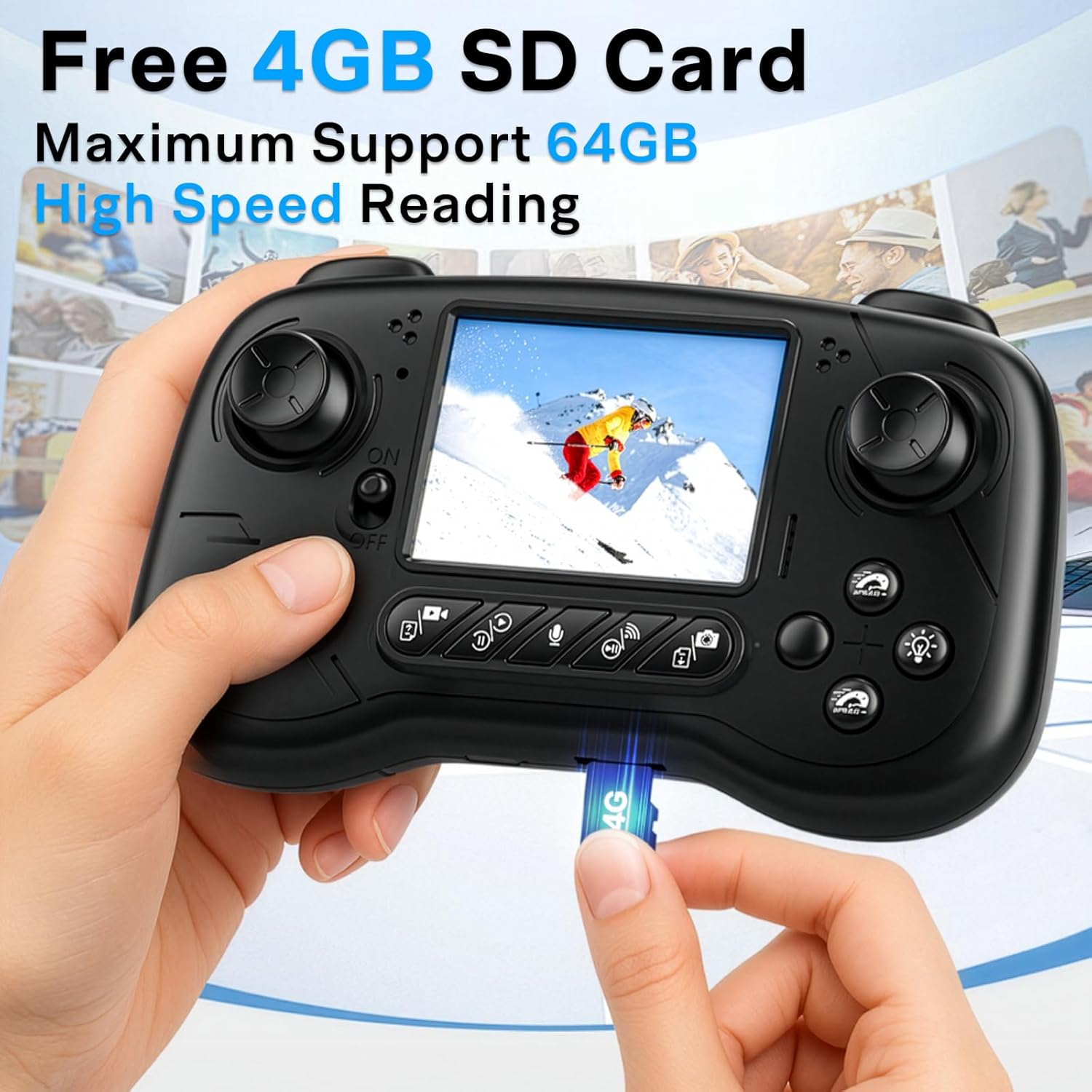
Image 8: Key structural and performance features of the RC truck.
9. Safety Information
It is recommended to use this product under adult supervision.
- Do not operate near people, animals, or obstacles.
- Avoid operating in wet conditions or near water to prevent electrical damage.
- Do not touch moving parts during operation.
- Ensure batteries are handled and charged according to instructions to prevent fire or injury.
- Keep small parts away from children to prevent choking hazards.
10. Warranty and Support
For warranty information, technical support, or replacement parts, please contact suangrc customer service. Refer to your purchase documentation for specific warranty terms.
Contact Email: suangrc@gmail.com