
1. Introduction
This manual provides essential information for setting up, operating, maintaining, and troubleshooting your ASUS ROG Strix G18 G814 Gaming Laptop. Please read this guide thoroughly to ensure proper use and to maximize the performance and longevity of your device.
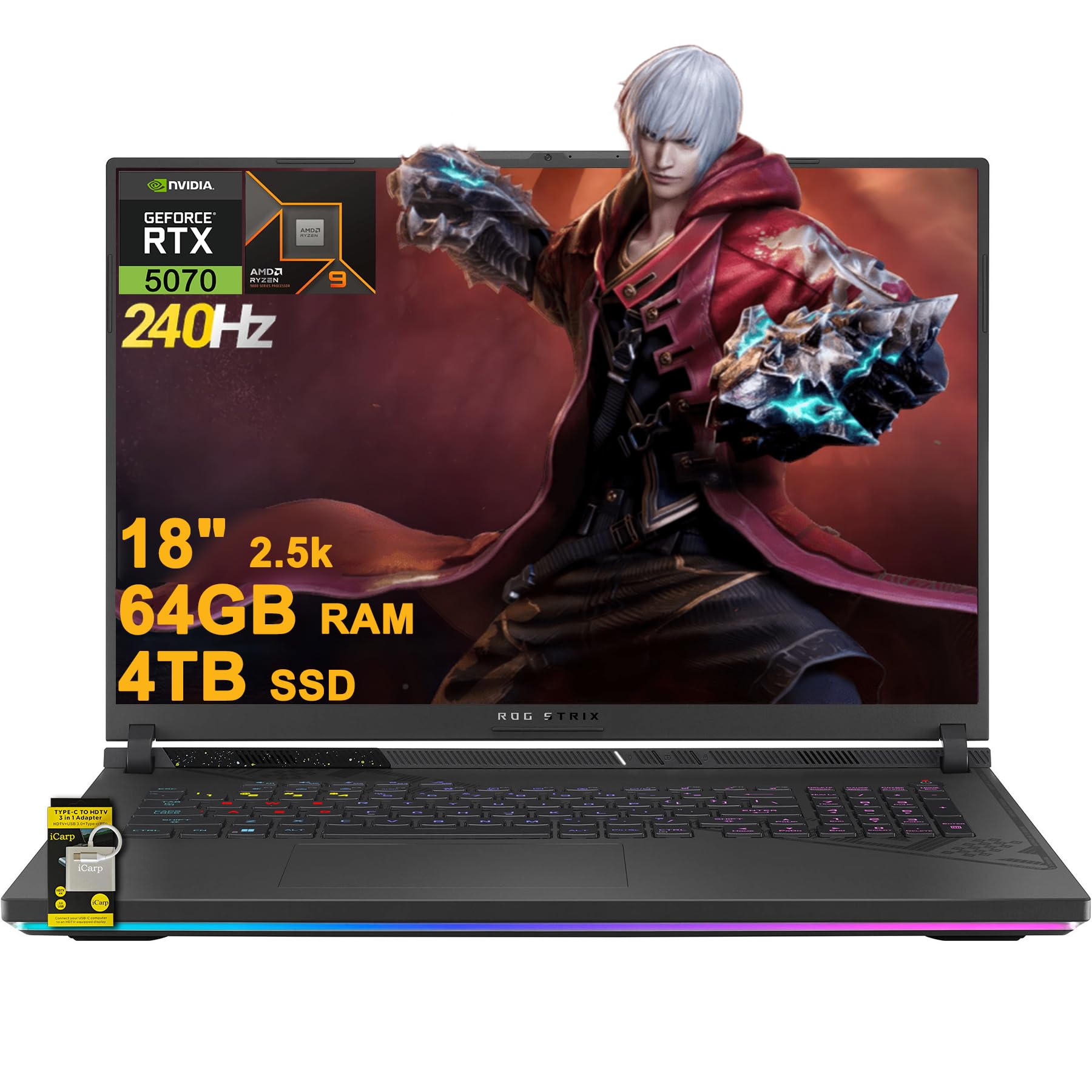
Figure 1.1: ASUS ROG Strix G18 G814 Gaming Laptop
The ASUS ROG Strix G18 G814 is a high-performance gaming laptop designed for demanding applications and immersive gaming experiences. It features an AMD 16-core Ryzen 9 9955HX processor, NVIDIA GeForce RTX 5070 graphics, 64GB DDR5 RAM, and a 4TB SSD, all showcased on an 18-inch 2.5K (2560x1600) 240Hz IPS display.
2. Setup
2.1 Unpacking and Initial Inspection
Carefully remove the laptop and all accessories from the packaging. Inspect for any signs of damage. Retain the original packaging for future transport or service needs.
2.2 Connecting the Power Adapter
Connect the power adapter to the laptop's power input port and then plug it into a wall outlet. It is recommended to fully charge the battery before initial use.
2.3 First Power On
Open the laptop lid and press the power button. The laptop will guide you through the initial setup of Microsoft Windows 11 Home. Follow the on-screen instructions to configure your operating system, network connection, and user accounts.
2.4 External Device Connectivity
Your laptop includes various ports for connecting external devices. Refer to the 'Ports and Slots' section for a detailed overview.

Figure 2.1: Overview of ASUS ROG Strix G18 G814 Key Features
2.5 Included Accessories: iCarp Type-C 3-in-1 Hub
Your package includes an iCarp Type-C 3-in-1 Hub, which expands your connectivity options. This hub provides USB 3.0, HDTV 4K Output, and Type-C (PD) functionality. Connect it to a compatible USB-C port on your laptop to utilize its features, such as connecting to an HDTV-equipped display.

Figure 2.2: iCarp Type-C 3-in-1 Hub for expanded connectivity
3. Operating Your Laptop
3.1 Keyboard and Input
The laptop features a full-size 4-zone RGB backlit keyboard. You can customize the lighting effects and colors through the pre-installed software (e.g., Armoury Crate). The touchpad supports multi-touch gestures for navigation.
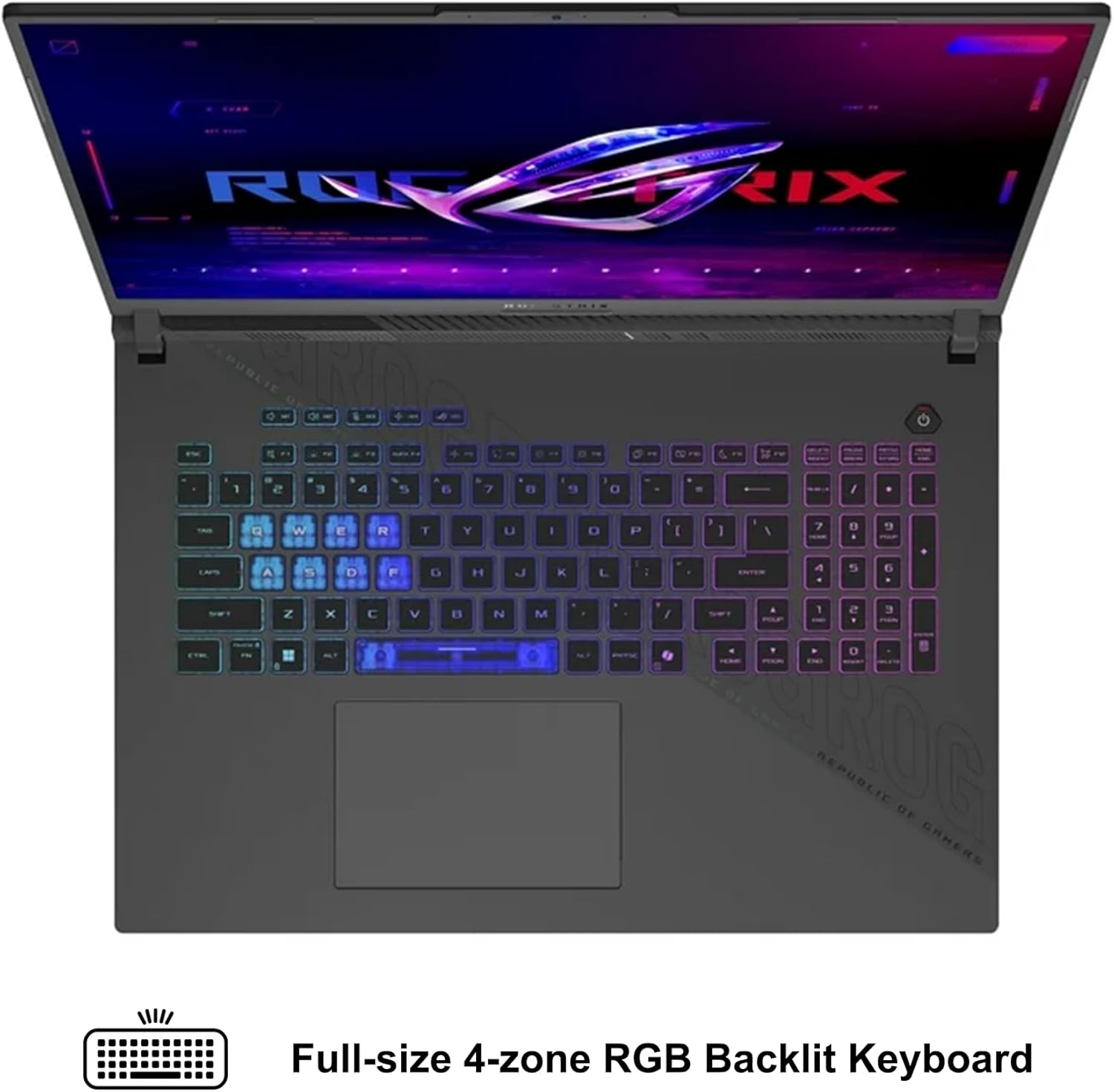
Figure 3.1: Full-size 4-zone RGB Backlit Keyboard
3.2 Display Settings
The 18-inch 2.5K (2560x1600) IPS display offers a 240Hz refresh rate for smooth visuals. You can adjust display settings, including resolution and refresh rate, through Windows display settings or the NVIDIA Control Panel for optimal gaming and productivity.
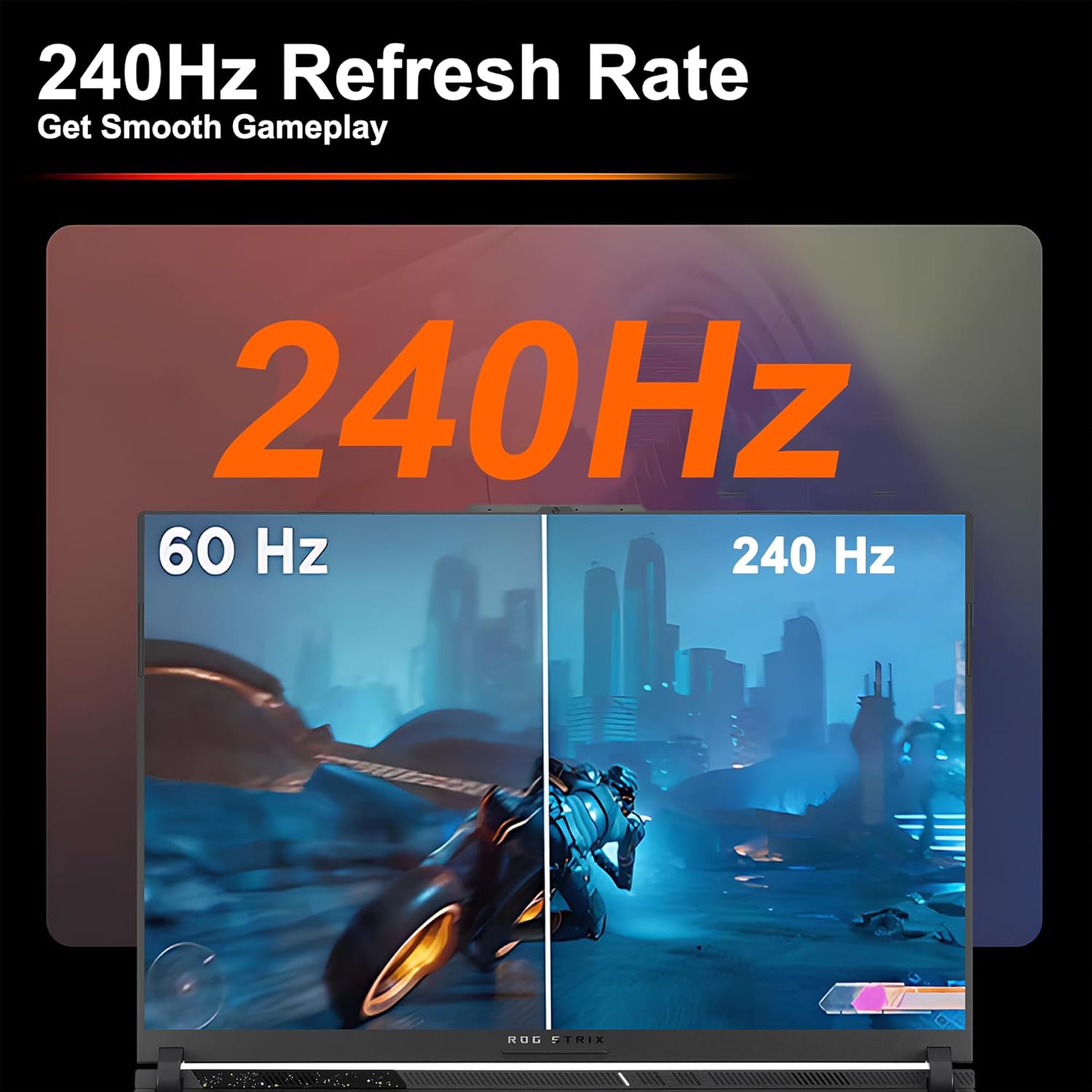
Figure 3.2: Visual comparison of 60Hz vs. 240Hz refresh rates
3.3 Audio and Communication
The laptop features Dolby Atmos audio for an immersive sound experience. The integrated FHD camera and AI Noise-canceling technology enhance communication during video calls and online gaming by reducing background noise.
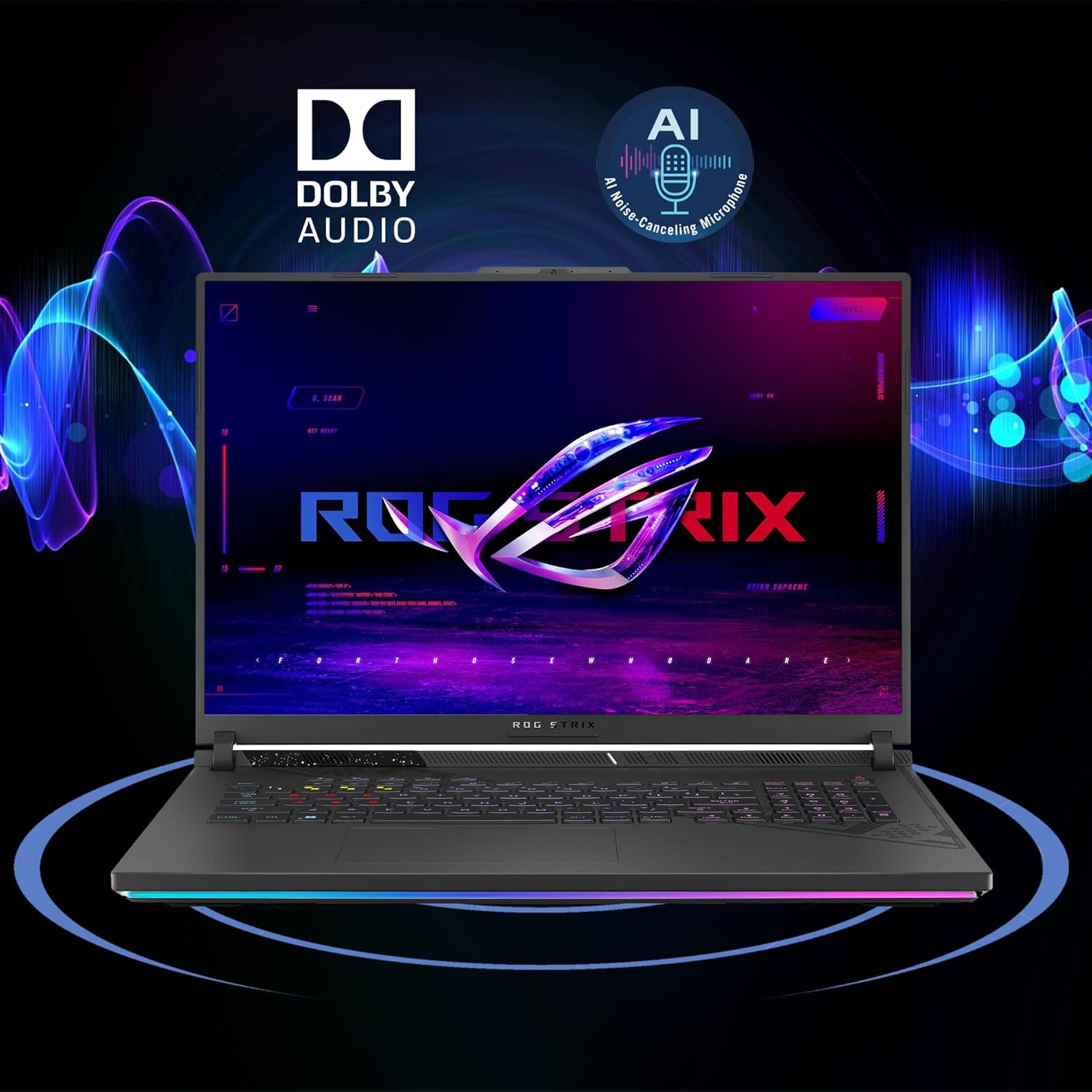
Figure 3.3: Dolby Audio and AI Noise-canceling features
3.4 Wireless Connectivity
The laptop supports Wi-Fi 6E for high-speed wireless internet access. Ensure your router also supports Wi-Fi 6E to take full advantage of its capabilities. Bluetooth is also available for connecting wireless peripherals.
4. Maintenance
4.1 Cleaning Your Laptop
Regularly clean the screen with a soft, lint-free cloth and a screen-specific cleaning solution. For the keyboard and chassis, use a soft cloth dampened with a mild cleaning solution. Avoid spraying liquids directly onto the laptop.
4.2 Optimizing Cooling
To prevent overheating, ensure that the laptop's ventilation openings are not obstructed. When operating under heavy load, especially in 'Turbo' mode, the fans will increase speed and noise. Maintain adequate clearance (at least 2-3 inches) behind the laptop, particularly near the rear exhaust vents, to allow for proper heat dissipation.
4.3 Battery Care
To prolong battery life, avoid frequently discharging the battery completely. If storing the laptop for an extended period, charge it to approximately 50-60% and store it in a cool, dry place. Avoid exposing the battery to extreme temperatures.
5. Troubleshooting
5.1 Common Issues and Solutions
- Laptop not powering on: Ensure the power adapter is securely connected and the battery has sufficient charge. Try a different power outlet.
- Overheating: Check for obstructed vents. Ensure the laptop is on a hard, flat surface. Adjust power profiles in Armoury Crate to 'Silent' or 'Performance' if 'Turbo' mode causes excessive heat.
- Display issues: Verify display cable connections if using an external monitor. Update graphics drivers. Check display settings in Windows.
- No sound: Check volume levels, speaker connections, and audio drivers. Ensure AI Noise-canceling is not muting desired audio.
- Wi-Fi connectivity problems: Restart your router and laptop. Check Wi-Fi settings and ensure drivers are up to date.
5.2 Contacting Support
If you encounter issues that cannot be resolved using the troubleshooting steps above, please refer to the 'Support' section for information on how to contact ASUS customer service.
6. Specifications
| Feature | Detail |
|---|---|
| Processor | AMD Ryzen 9 9955HX (16-core, up to 5.4GHz) |
| Graphics | NVIDIA GeForce RTX 5070 8GB Dedicated Graphic |
| Memory | 64GB DDR5 RAM |
| Storage | 4TB SSD (PCIe 5.0 speeds) |
| Display | 18-inch 2.5K (2560x1600) IPS 240Hz (100% DCI-P3, 3ms, Anti-glare) |
| Operating System | Microsoft Windows 11 Home |
| Ports | 2 x USB-A 3.2, 1 x Type USB 4 (DP1.4, G-SYNC, PD 3.0), 1 x HDMI 2.1 FRL, 1 x RJ45 Ethernet |
| Wireless | Wi-Fi 6E, Bluetooth |
| Battery | 90Wh |
| Dimensions (LxWxH) | 11.57" x 15.71" x 1.21" |
| Weight | 6.61 lbs |
| Keyboard | 4-zone RGB Backlit Keyboard |
| Camera | FHD Camera |
| Audio | Dolby Atmos, AI Noise-canceling Technology |
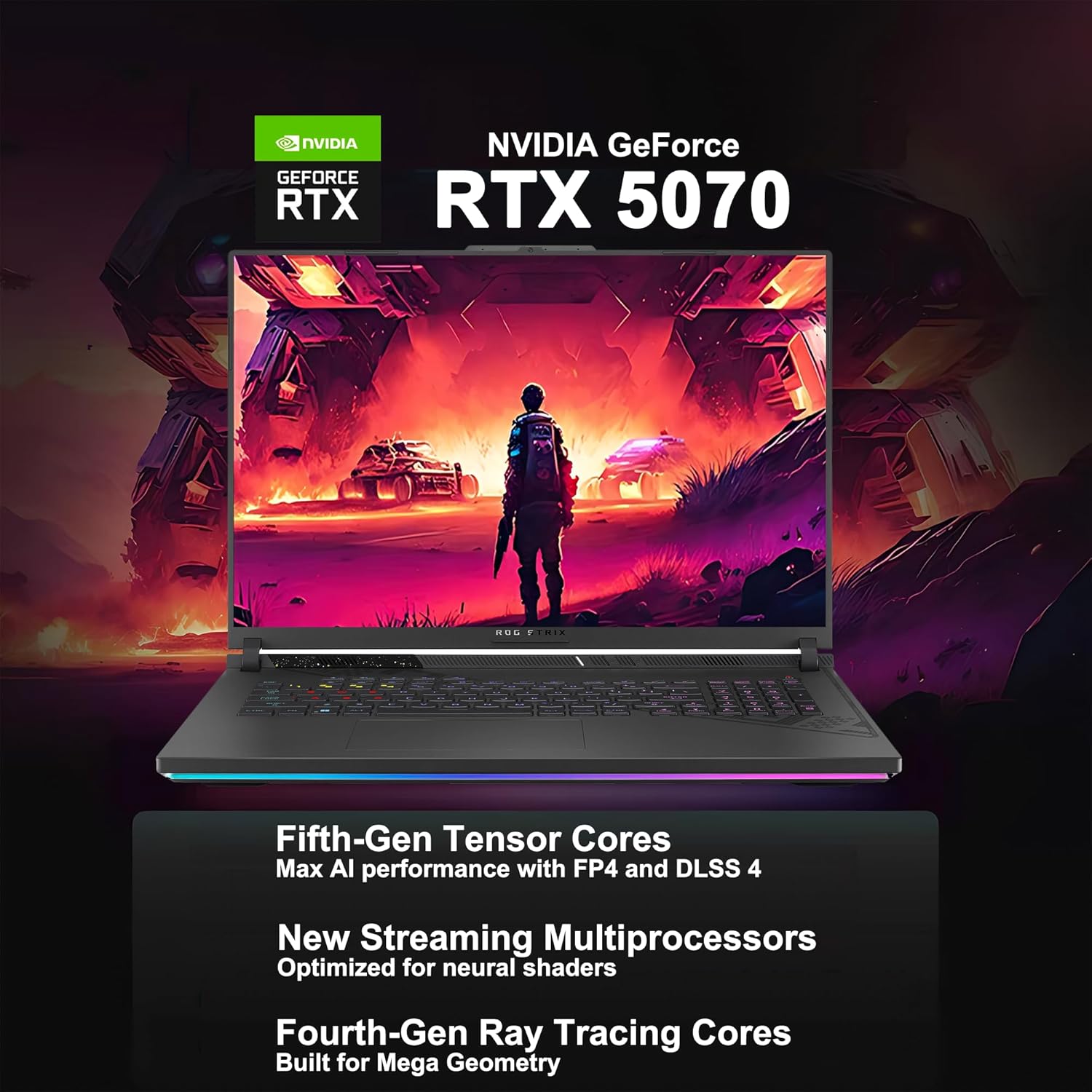
Figure 6.1: AMD Ryzen 9 9955HX Processor Specifications
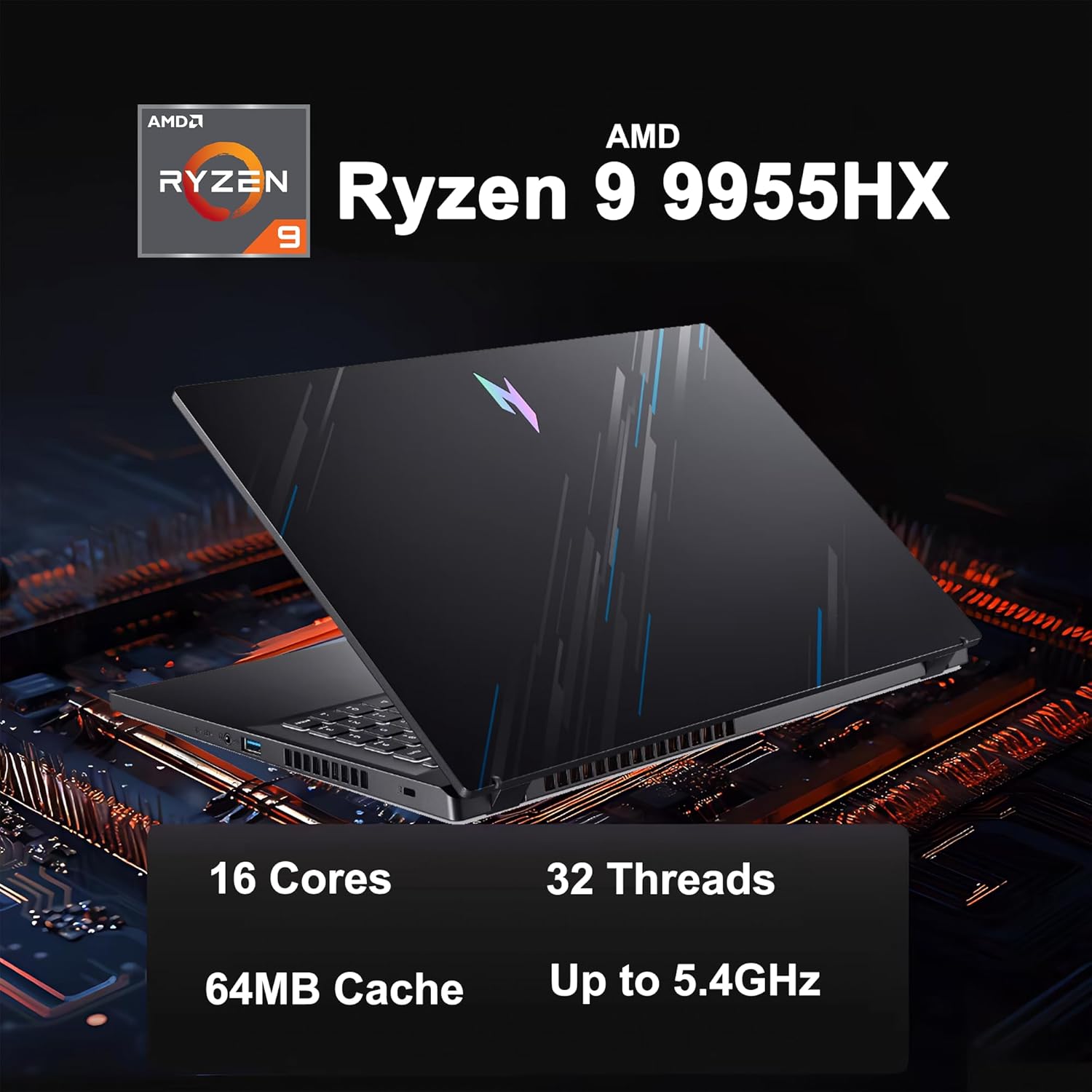
Figure 6.2: NVIDIA GeForce RTX 5070 Graphics Card Features
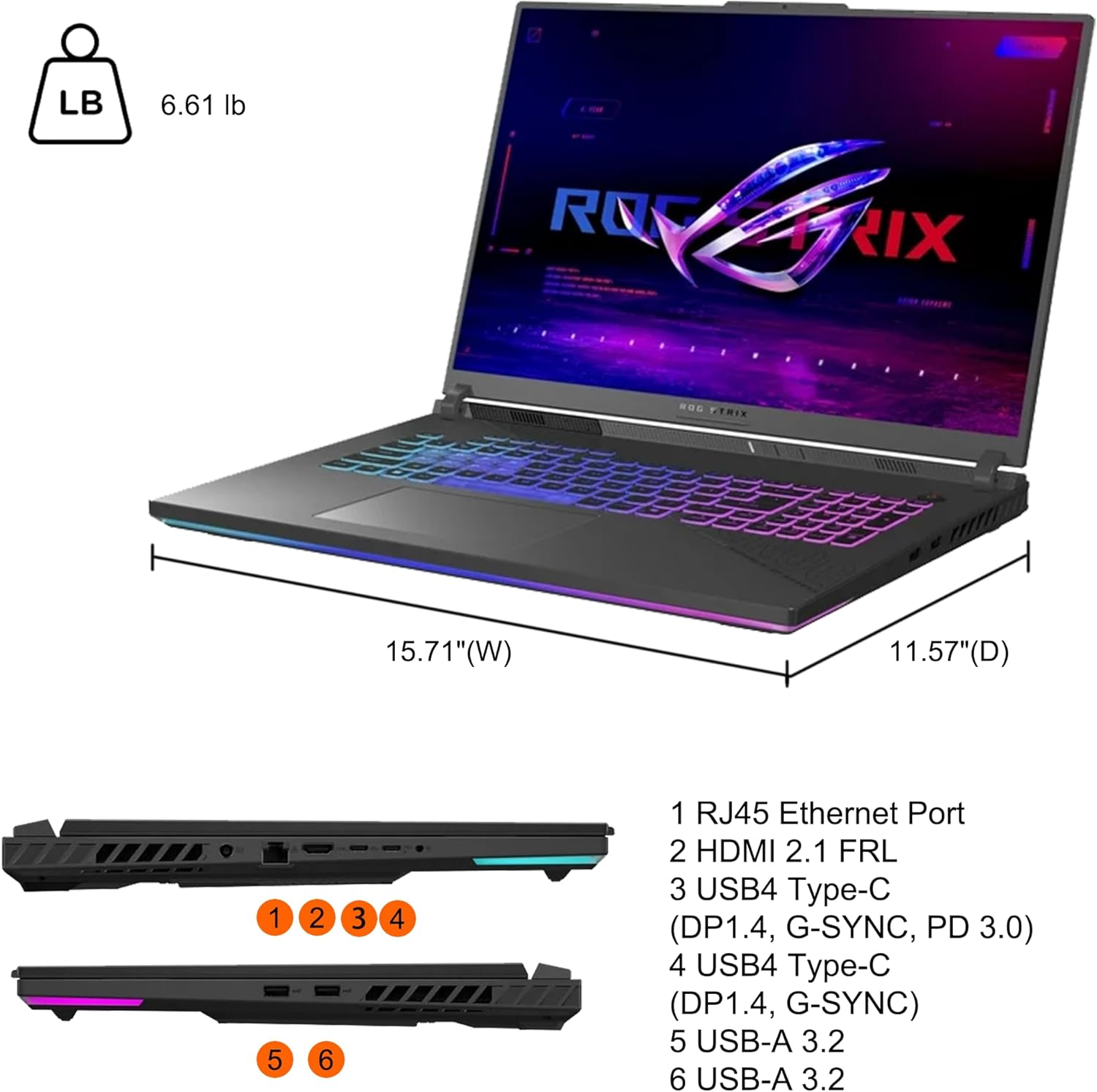
Figure 6.3: Laptop Ports and Physical Dimensions
7. Warranty Information
Your ASUS ROG Strix G18 G814 Gaming Laptop is covered by a limited warranty. The specific terms and conditions of the warranty, including duration and coverage, are provided in the warranty card included with your product or can be found on the official ASUS support website. Please retain your proof of purchase for warranty claims.
8. Support
For technical assistance, driver downloads, FAQs, and further support resources, please visit the official ASUS support website:
You may also contact ASUS customer service directly through the contact information provided on their website for your region.