
1. Product Overview
The ARPHA H-AL501 is a versatile 5-in-1 WiFi Smart Door Lock designed to enhance home security and convenience. It integrates multiple access methods with advanced monitoring features, including a 2K HD camera and two-way audio communication.

Image 1.1: ARPHA H-AL501 Smart Door Lock and its accessories.
Key Features:
- 5-in-1 Access: Fingerprint, Keypad Code, ARPHA App, Physical Key, and Two-Way Audio.
- Integrated 2K HD Camera: Provides clear video monitoring with a 170° wide-angle lens and enhanced night vision up to 33 feet.
- Two-Way Audio: Communicate with visitors directly through the lock via the ARPHA App.
- PIR Motion Detection: Detects human and animal movement in the front door area, sending real-time notifications.
- Built-in WiFi: Connects directly to 2.4GHz WiFi networks (5GHz not supported), no additional bridge required.
- Long Battery Life: Equipped with a 10,000 mAh battery pack, offering up to 270 days of use on a single charge (based on 10 openings/day).
- Local Storage: Supports up to 32GB local storage for video recordings.
- IP65 Waterproof Rating: Designed for outdoor use, resistant to dust and water splashes.
- Auto-Lock Function: Automatically locks the door after a set period (10-30 minutes).
2. Installation Guide
This section provides instructions for installing your ARPHA H-AL501 Smart Door Lock. Ensure you have a Phillips head screwdriver and refer to the included installation template for precise measurements.
2.1 Door Compatibility
The ARPHA H-AL501 is designed for universal fit, compatible with both left and right-handed doors. It fits door thicknesses from 1-3/8" to 2-1/8" (35mm - 55mm) and supports backsets of 2-3/8" (60mm) and 2-1/8" (70mm).

Image 2.1: Door compatibility and measurement guide.
2.2 Installation Steps
- Prepare the Door: Ensure your door meets the compatibility requirements. If necessary, use the provided template to drill new holes or adjust existing ones.
- Install the Latch: Insert the latch into the door edge and secure it with screws. Ensure the latch bolt is facing the correct direction for your door swing.
- Install the Exterior Assembly: Route the cable through the door and align the exterior assembly with the latch. Secure it in place.
- Install the Interior Assembly: Connect the cable from the exterior assembly to the interior assembly. Align the interior assembly and secure it with the provided screws.
- Install the Battery: Insert the 10,000 mAh battery pack into the interior assembly.
- Test the Lock: Manually test the lock and unlock mechanism to ensure smooth operation.

Image 2.2: Installation of the smart door lock.
2.3 Doorbell Module Setup
To activate the doorbell function, plug the separate doorbell chime unit into a USB power port. Then, press and hold the doorbell icon button on the chime unit for 10 seconds until you hear a sound. This pairs the chime with the smart lock.

Image 2.3: Doorbell chime connection process.
3. Operating Instructions
The ARPHA H-AL501 offers multiple ways to lock and unlock your door, along with integrated monitoring features.
3.1 Unlocking Methods
- Fingerprint: Place your registered fingerprint on the sensor for quick access. The lock features AI self-learning for improved accuracy and a 0.3-second identification time.
- Keypad Code: Enter your programmed access code on the touchscreen keypad. The lock supports anti-peeping password entry.
- ARPHA App: Use the ARPHA Plus App on your smartphone to remotely unlock the door. The app also allows you to generate and share one-time codes for visitors.
- Physical Key: In case of power failure or emergency, use the provided physical keys for manual unlocking.
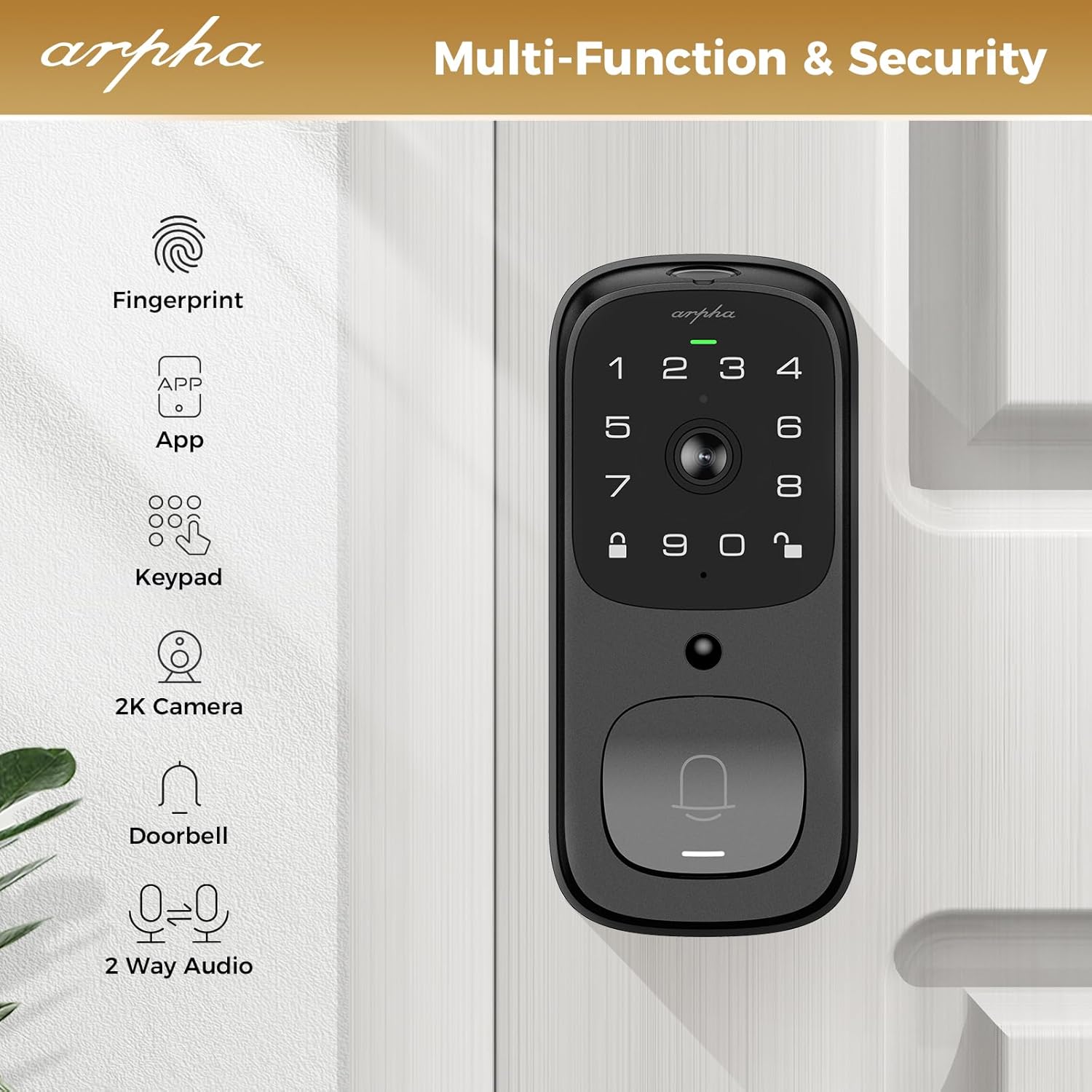
Image 3.1: Fingerprint unlock in action.
3.2 ARPHA App Control
The ARPHA Plus App provides comprehensive control over your smart lock. Download the app from your device's app store and follow the in-app instructions to pair your lock.
- Remote Unlocking: Unlock your door from anywhere with an internet connection.
- Visitor Management: Create and manage temporary access codes for guests or service providers.
- Activity Log: Monitor who enters and exits your home with a detailed activity log.
- Live View & Two-Way Audio: Access the 2K HD camera feed and communicate with visitors in real-time.
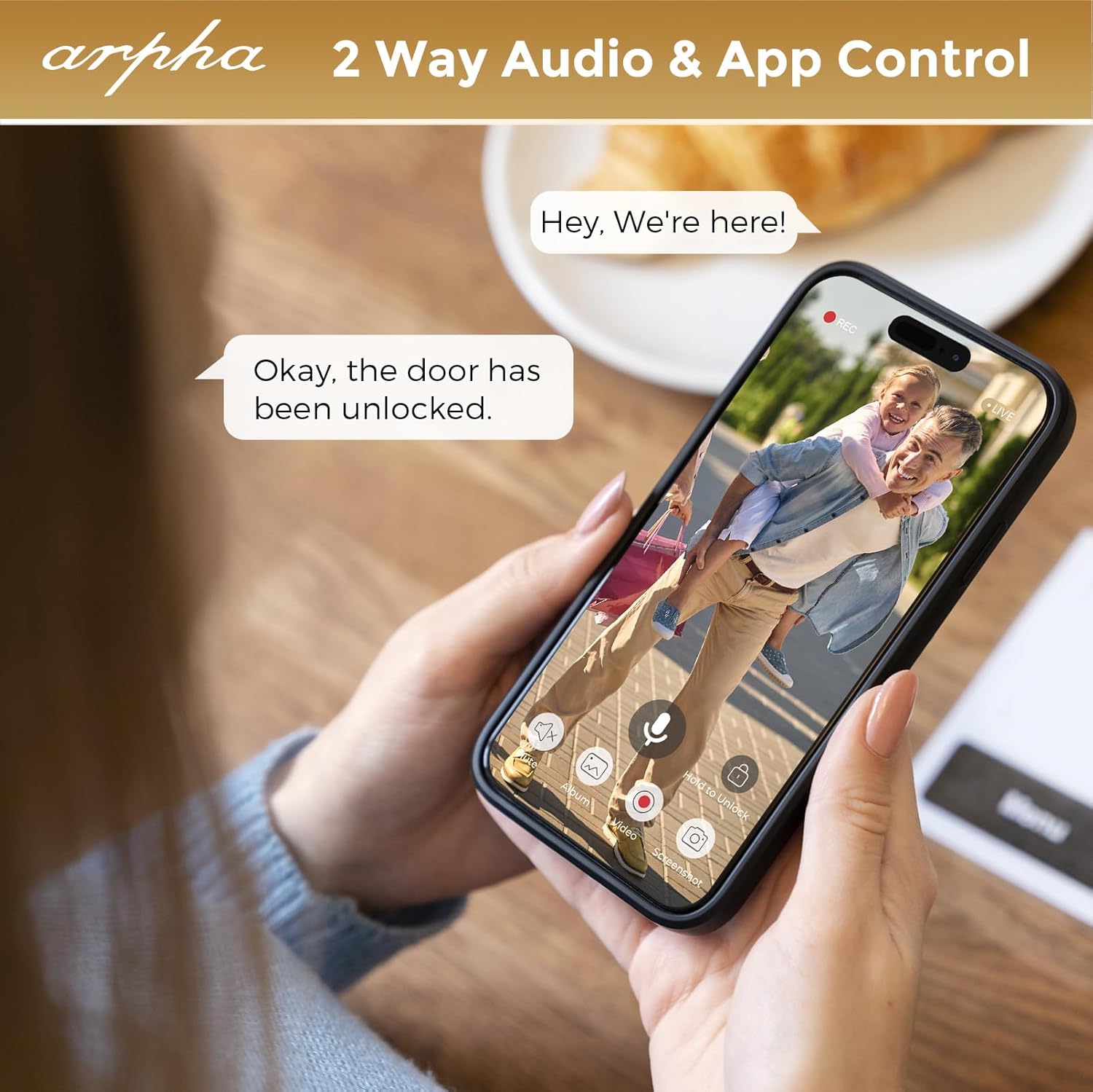
Image 3.2: Two-way audio and app control via the ARPHA app.
3.3 Motion Detection and Notifications
The integrated PIR motion sensors detect movement in the designated area outside your door. When motion is detected, the lock sends real-time notifications to your ARPHA App.

Image 3.3: PIR motion detection in action.
3.4 Auto-Lock Function
The ARPHA H-AL501 can be configured to automatically lock after a specified duration (10 to 30 seconds) once the door is closed. This feature provides added security and peace of mind.

Image 3.4: Automatic locking feature.
4. Maintenance
Proper maintenance ensures the longevity and optimal performance of your ARPHA H-AL501 Smart Door Lock.
4.1 Battery Management
The lock is powered by a 10,000 mAh rechargeable battery. When the battery level is low, you will receive notifications via the ARPHA App. Use the included charge cable to recharge the battery.

Image 4.1: Battery life and charging.
4.2 Local Storage
The lock supports up to 32GB of local storage for video recordings. Regularly check the storage status via the ARPHA App and manage recordings as needed.

Image 4.2: 32GB local storage capacity.
4.3 Cleaning and Environmental Considerations
Clean the exterior of the lock with a soft, damp cloth. Avoid abrasive cleaners or solvents. The lock has an IP65 waterproof rating, making it resistant to dust and water splashes, and operates within a temperature range of -4°F to 140°F.

Image 4.3: IP65 waterproof and temperature resistance.
5. Troubleshooting
This section addresses common issues you might encounter with your ARPHA H-AL501 Smart Door Lock.
5.1 Doorbell Chime Not Connecting
- Ensure the doorbell chime unit is plugged into a powered USB port.
- Press and hold the doorbell icon button on the chime unit for 10 seconds until you hear an audible tone. This re-initiates the pairing process.
5.2 WiFi Connectivity Issues
- Verify that your home WiFi network is 2.4GHz. The ARPHA H-AL501 does not support 5GHz WiFi networks.
- Ensure the lock is within range of your WiFi router (typically within 33 feet for optimal performance).
- Restart your WiFi router and the smart lock.
- Check the ARPHA App for any network status indicators or troubleshooting guides.
Image 5.1: WiFi connectivity requirements (2.4GHz only).
5.3 Fingerprint Sensor Not Responding
- Ensure your finger is clean and dry.
- Try re-registering your fingerprint in the ARPHA App.
- Clean the fingerprint sensor surface with a soft, dry cloth.
5.4 Lock Not Responding
- Check the battery level in the ARPHA App. If the battery is depleted, use the physical key to open the door and recharge the battery.
- Perform a hard reset if the lock is completely unresponsive (refer to the full product manual for specific reset instructions).
6. Specifications
| Feature | Detail |
|---|---|
| Model Name | H-AL501 |
| Brand | ARPHA |
| Lock Type | Biometric |
| Material | Zinc |
| Dimensions (L x W x H) | 8.66 x 7.87 x 3.66 inches |
| Item Weight | 2.75 pounds |
| Connectivity Protocol | Wi-Fi (2.4GHz only) |
| Special Features | APP-control, Anti-Peeping Password, Auto-Lock, 2-Way Audio Doorbell, PIR Motion Detection |
| Camera Resolution | 2K HD |
| Camera Angle | 170° Wide-Angle |
| Night Vision | Up to 33 feet |
| Power Source | 10,000 mAh rechargeable battery (1 x 12V battery included) |
| Local Storage | Up to 32GB |
| Waterproof Rating | IP65 |
| Operating Temperature | -4°F to 140°F |
| Door Thickness Compatibility | 1-3/8" to 2-1/8" (35mm - 55mm) |
| Backset Compatibility | 2-3/8" (60mm) and 2-1/8" (70mm) |
| Included Components | Exterior Assembly, Interior Assembly, Chime, Battery, Latch, Strike Box, Strike, Screws, Screws Cover, Keys (x2), Charge Cable for Battery, Spacer |
7. Warranty and Support
7.1 Limited Warranty
ARPHA products are covered by a limited warranty. Please refer to the warranty card included with your product or visit the official ARPHA website for detailed warranty terms and conditions.
7.2 Customer Support
For technical assistance, troubleshooting, or any questions regarding your ARPHA H-AL501 Smart Door Lock, please contact ARPHA customer support. Contact information can typically be found on the product packaging, the official ARPHA website, or within the ARPHA Plus App.
Online Resources: For additional support and FAQs, visit the ARPHA Store on Amazon.