
CrysGuard V519
CrysGuard V519 Professional OBD2 Scanner User Manual
Model: V519
Introduction
The CrysGuard V519 is a 2025 upgraded OBD2 + CAN diagnostic scanner designed to provide professional-grade vehicle diagnostics. It offers real-time, precision data and full OBD2 + CAN protocol support, making it suitable for both home users and professional mechanics. This manual provides detailed instructions for the setup, operation, maintenance, and troubleshooting of your V519 scanner.
Package Contents
- OBD2 Scanner (V519 Unit)
- User Manual
- USB Type-C Cable (for updates and printing)
Product Overview
The V519 scanner features a bright 2.8-inch full-color screen and intuitive button controls for easy navigation. It is a standalone handheld unit that connects directly to your vehicle's OBDII port.

Figure 1: V519 Enhanced OBDII Scanner with key components labeled, including the 2.8-inch full-color display, 16-pin interface, and Type-C port for updates and printing.
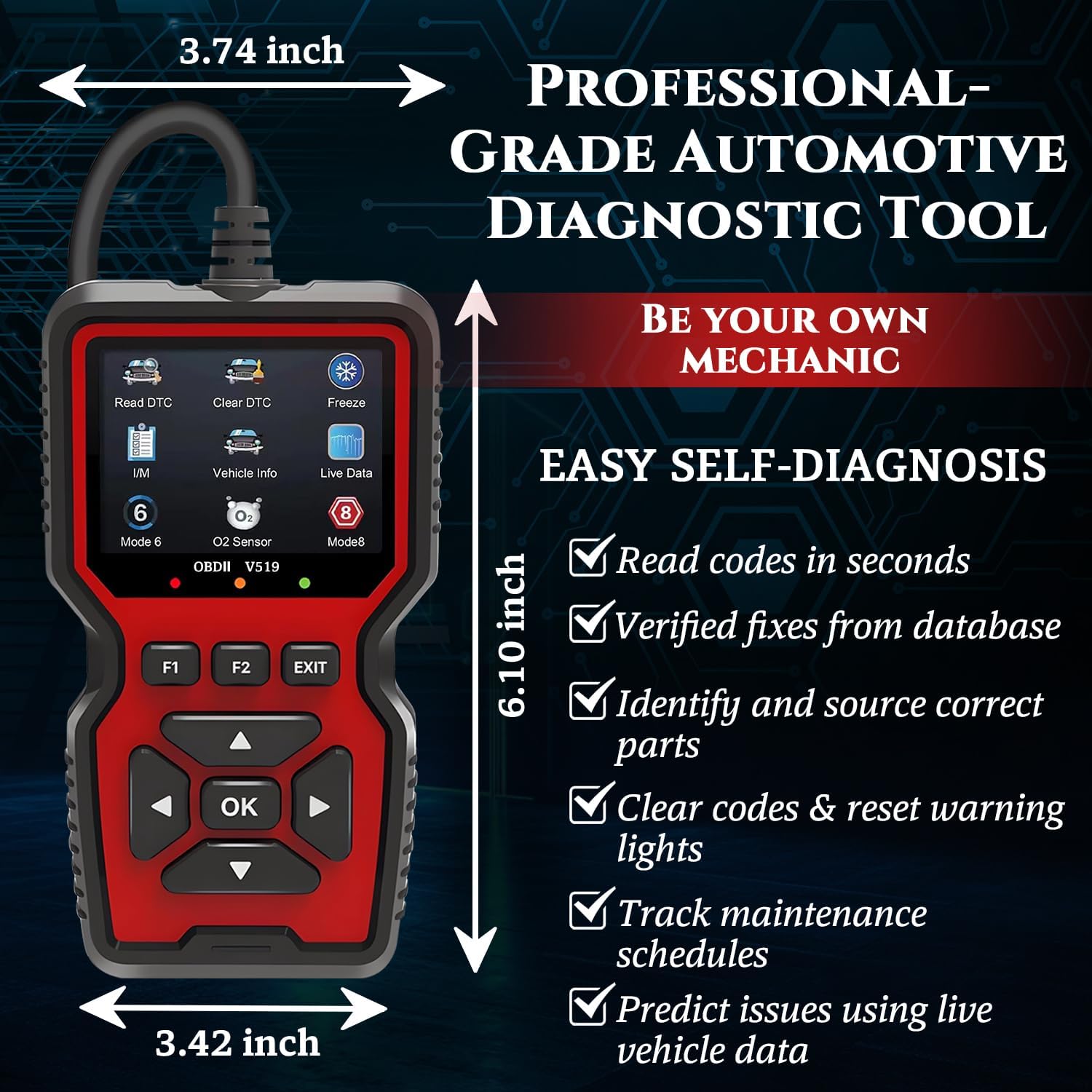
Figure 2: Dimensions of the V519 OBDII Scanner, measuring approximately 3.74 inches in length, 3.42 inches in width, and 6.10 inches in height.
Setup and First Use
The V519 scanner is designed for plug-and-play operation, requiring no batteries or external power source as it draws power directly from the vehicle's OBDII port.
- Ensure the vehicle's ignition is in the OFF position.
- Locate the vehicle's 16-pin Data Link Connector (DLC). This is typically located under the dashboard on the driver's side.
- Firmly plug the V519 scanner's OBDII connector into the vehicle's DLC.
- Turn the vehicle's ignition to the ON position (engine can be off or running, depending on the test).
- The scanner will automatically power on and initiate communication with the vehicle.

Figure 3: Visual guide for the 3-step quick installation and diagnosis process: plug into vehicle's OBD-II port, confirm successful connection, and begin scanning vehicle systems.
Operating Instructions
The V519 scanner provides access to all 10 OBDII modes for comprehensive diagnostics. Use the navigation buttons (Up, Down, Left, Right, OK) to select functions from the main menu.
Key Functions:
- Read Codes (DTCs): Displays Diagnostic Trouble Codes (DTCs) and their definitions. The built-in library contains over 40,000 codes.
- Clear Codes: Erases DTCs from the vehicle's computer and turns off the Check Engine Light (MIL). Note: Ensure the underlying issue is resolved before clearing codes.
- Live Data Stream: Displays real-time data parameters from the vehicle's sensors in text or graph format. Useful for monitoring engine performance and diagnosing intermittent issues.
- Freeze Frame Data: Captures a snapshot of vehicle operating conditions at the moment a fault code is set.
- I/M Readiness: Checks the readiness of the emission-related monitors. Essential for smog testing and ensuring compliance.
- O2 Sensor Test: Retrieves O2 sensor monitoring test results.
- On-Board Monitor Test (Mode 6): Retrieves test results for emission-related powertrain components and systems that are not continuously monitored.
- Component Test (Mode 8): Allows initiation of a leak test for the EVAP system.
- Vehicle Information: Displays the Vehicle Identification Number (VIN), Calibration ID (CALID), and Calibration Verification Number (CVN).
- Battery Voltage Test: Monitors the vehicle's battery voltage to assess its health and the charging system's performance.

Figure 4: Comprehensive overview of the V519 scanner's professional OBDII functions and capabilities.
Battery Voltage Monitoring:
The V519 includes a dedicated battery voltage monitoring function to assess the health of your vehicle's battery and charging system. Refer to the table below for interpretation of voltage readings.
| Condition | Voltage Range | Description |
|---|---|---|
| Before Engine Starting | <10.8V | Insufficient charge |
| Before Engine Starting | 10.8V-12.0V | Partially discharged |
| Before Engine Starting | 12.0V-12.6V | Fully charged |
| After Engine Starting | >14.8V | Overcharging risk |
| After Engine Starting | 12.6V-13.2V | Insufficient charging |
| After Engine Starting | 13.2V-14.8V | Proper charging |

Figure 5: Screen display of battery voltage on the V519 scanner, accompanied by a guide for interpreting voltage levels.
Maintenance and Updates
The V519 scanner requires minimal maintenance. Keep the device clean and store it in a dry environment when not in use.
Software Updates:
The V519 scanner supports lifetime free software updates via a USB Type-C connection to a PC. This ensures compatibility with newer vehicles and access to the latest diagnostic features.
- Download the update tool from the official CrysGuard website or the provided software disc.
- Connect the V519 scanner to your PC using the provided USB Type-C cable.
- Follow the on-screen instructions of the update tool to install the latest software.
Exporting and Printing Reports:
Diagnostic reports can be exported directly to your PC and printed for record-keeping or sharing with a mechanic.

Figure 6: The V519 scanner connected to a laptop, illustrating the process for lifetime free software updates and printing diagnostic reports.
Troubleshooting
- Scanner does not power on:
- Ensure the OBDII connector is firmly plugged into the vehicle's DLC.
- Verify the vehicle's ignition is in the ON position.
- Check the vehicle's fuse for the OBDII port (consult your vehicle's manual).
- "Link Error" or "Communication Error":
- Confirm the vehicle supports OBDII protocols (all vehicles after 1996 in the USA are generally compliant).
- Check for loose connections at the DLC.
- Turn off the ignition, wait 10 seconds, and turn it back on before reconnecting the scanner.
- Try the scanner on another OBDII-compliant vehicle to rule out scanner malfunction.
- Codes clear but Check Engine Light returns:
- This indicates the underlying issue causing the code has not been resolved. Diagnose and repair the fault before clearing codes again.
Specifications
| Feature | Detail |
|---|---|
| Model | V519 |
| Display | 2.8-inch Full-Color Display (320x240 resolution) |
| Connectivity | 16-pin OBDII Port, USB Type-C |
| Supported Protocols | OBD2, CAN |
| Operating System (for PC updates) | Windows |
| Product Dimensions | 3.74"L x 3.42"W x 6.1"H |
| Item Weight | 8.2 ounces |
| DTC Library | 40,000+ codes with definitions |
| Supported Languages | 10 languages |
| Automotive Fit Type | Universal Fit (for 1996 and newer vehicles) |
Warranty and Support
For warranty information and technical support, please contact CrysGuard customer service. Refer to the contact information provided on the product packaging or the official CrysGuard website.
The product includes lifetime free software updates to ensure continued compatibility and functionality.
Ask a question about this manual
Ask about setup, troubleshooting, compatibility, parts, safety, or missing instructions. Manuals+ will review the question and use this page’s manual context to help answer it.