
1. Introduction
Thank you for choosing the 4DRC 4DF8 GPS Drone. This manual provides essential information for the safe operation, setup, and maintenance of your drone. Please read it thoroughly before your first flight to ensure optimal performance and to prevent damage or injury. The 4DF8 is equipped with a 4K HD camera, 5GHz FPV transmission, and intelligent flight features designed for both beginners and experienced pilots.

Image: The 4DRC 4DF8 GPS Drone in flight, with the remote controller visible. This image illustrates the drone's design and its operational context.
2. What's in the Box
Verify that all components are present in your package:
- 4DRC 4DF8 GPS Drone
- Remote Control with 4.5" LCD Screen
- Flight Batteries (Quantity: 2)
- Spare Propellers (Quantity: 4)
- USB Charging Cable
- Screwdriver (Quantity: 2)
- 32GB Memory Card
- Card Reader
- Carrying Bag
- User Manual

Image: A complete overview of the 4DRC 4DF8 GPS Drone package contents, neatly arranged. It shows the drone, remote controller, two batteries, four spare propellers, a USB cable, two screwdrivers, a memory card, a card reader, and a carrying bag.
3. Setup
3.1 Battery Charging and Installation
Before first use, fully charge the drone's flight batteries and the remote controller's internal battery. Use the provided USB charging cable.
- Connect the USB charging cable to the drone battery/controller and a suitable USB power adapter (not included).
- Charging indicators will show the charging status. Once fully charged, disconnect the cable.
- Insert the charged flight battery into the drone until it clicks securely into place.
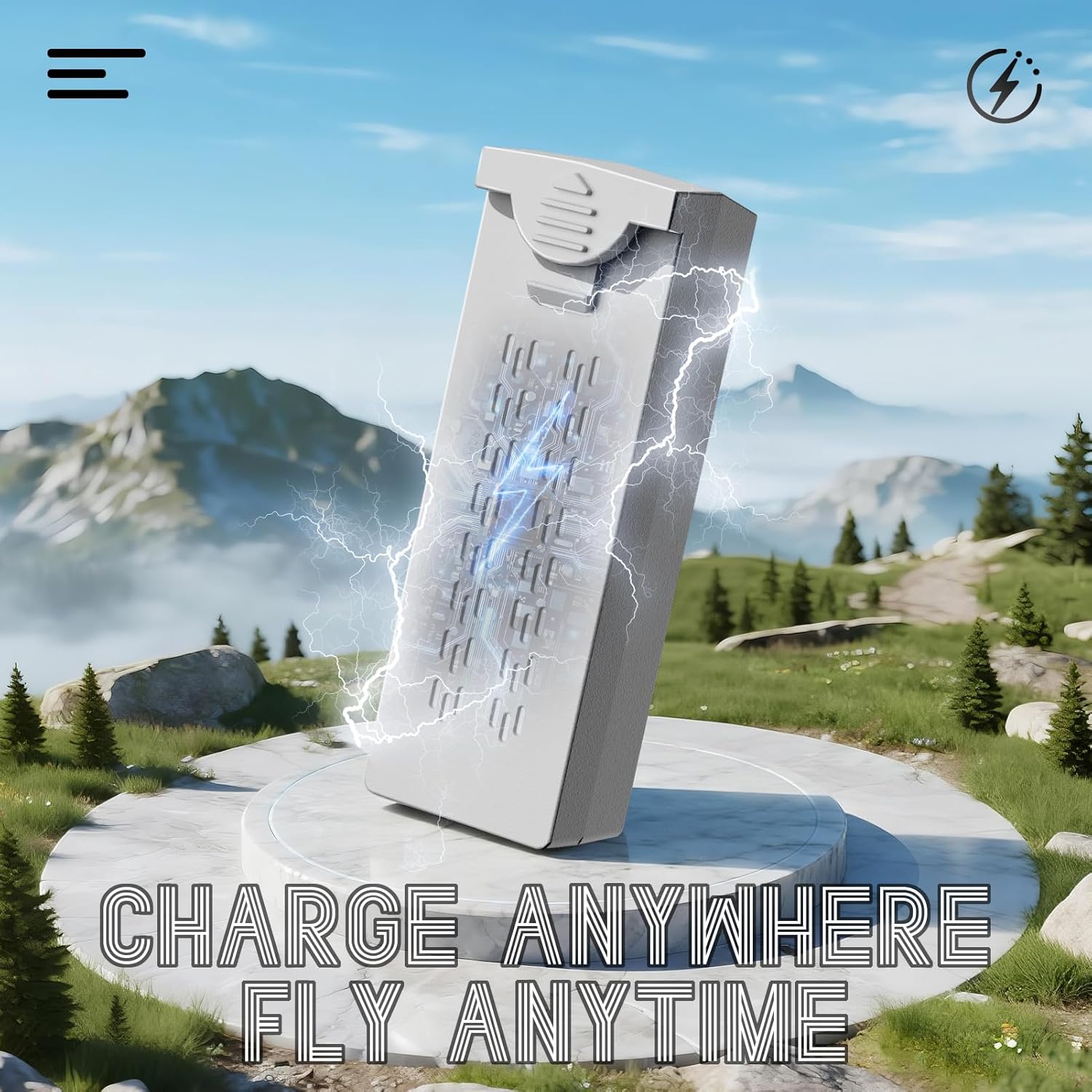
Image: A visual representation of the drone battery being charged, emphasizing the 'Charge Anywhere, Fly Anytime' concept. This highlights the convenience of charging the drone's power source.
3.2 Propeller Installation
Ensure propellers are correctly installed before each flight. Match the propeller type (A or B) to the corresponding motor arm.
- Identify propellers marked 'A' and 'B'.
- Attach 'A' propellers to motor shafts marked 'A', and 'B' propellers to motor shafts marked 'B'.
- Secure each propeller with the provided screws using the screwdriver. Do not overtighten.
3.3 Remote Controller Preparation
Ensure the remote controller is fully charged. Power on the controller by pressing and holding the power button.
3.4 Pre-Flight Checklist
- Ensure drone and controller batteries are fully charged.
- Check that propellers are securely attached and undamaged.
- Verify the flight environment is clear of obstacles and suitable for drone operation.
- Ensure GPS signal is strong before takeoff for optimal performance of intelligent flight modes.
4. Operating Instructions
4.1 Powering On/Off
- Power On: Press the power button on the drone and then on the remote controller. Wait for the drone to connect to the controller and acquire GPS signal.
- Power Off: Press and hold the power button on the drone, then on the remote controller.
4.2 Takeoff and Landing
- One-Key Takeoff: After GPS lock, press the one-key takeoff button on the controller. The drone will automatically ascend to a safe altitude.
- Manual Takeoff: Push both joysticks down and outwards to start the motors. Slowly push the left joystick up to ascend.
- One-Key Landing: Press the one-key landing button. The drone will descend and land automatically.
- Manual Landing: Slowly pull the left joystick down to descend. Once landed, push both joysticks down and inwards to stop the motors.

Image: An illustration highlighting the AI Takeoff/Landing and Safer Flight features, including strong motors, one-key takeoff/landing, headless mode, and 3-speed modes, ensuring effortless and precise control.
4.3 Flight Controls
The remote controller uses a standard mode 2 configuration:
- Left Joystick: Controls altitude (up/down) and yaw (rotate left/right).
- Right Joystick: Controls forward/backward movement and left/right strafing.
- Refer to the controller's LCD screen for real-time flight data and status.
4.4 Intelligent Flight Modes
The 4DF8 drone features advanced GPS-enabled flight modes:
- GPS Positioning: Provides stable hovering and precise flight control. Ensure a strong GPS signal before activating.
- Return to Home (RTH): Automatically brings the drone back to its takeoff point. Activated manually or automatically upon low battery/signal loss.
- Follow Me Mode: The drone will follow the remote controller, maintaining a set distance and altitude.
- Waypoint Flight: Set a custom flight path in the app for precise, repeatable aerial routes.
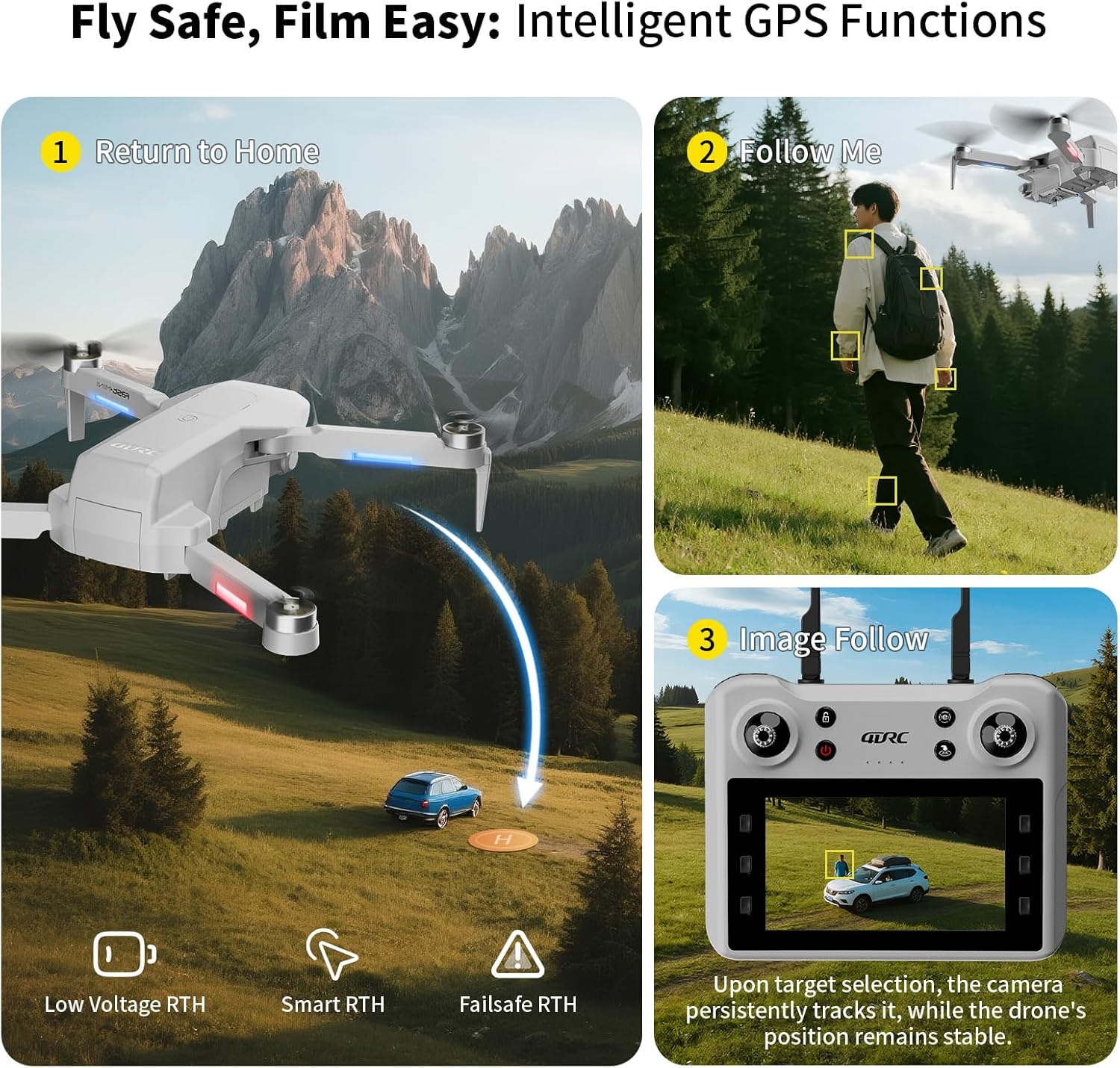
Image: A graphic illustrating the intelligent GPS functions of the drone, including Return to Home (Low Voltage RTH, Smart RTH, Failsafe RTH), Follow Me mode, and Image Follow, where the camera tracks a selected target.

Image: A visual depicting the Waypoint Flight feature, where the drone follows a custom-set path on a map, enabling precise and repeatable aerial routes.
4.5 Camera Operation
The 4DF8 drone is equipped with a 4K HD camera.
- Photo/Video: Use the dedicated buttons on the remote controller to capture photos or start/stop video recording.
- Adjustable Angle: The camera angle can be adjusted remotely via the controller.
- FPV Transmission: View live footage from the drone's camera on the controller's 4.5-inch LCD screen.
- Captured media is saved to the inserted 32GB memory card.

Image: A close-up view of the 4K HD camera on the 4DRC 4DF8 drone, demonstrating its capability with a visual comparison between 4K and 1080P image quality.
5. Maintenance
5.1 Cleaning
Regularly clean your drone to ensure optimal performance.
- Use a soft, dry cloth to wipe the drone's body and camera lens.
- Remove any dust or debris from motors and propellers.
- Do not use liquid cleaners or solvents.
5.2 Propeller Replacement
Inspect propellers for cracks or damage before each flight. Replace damaged propellers immediately using the spare parts and screwdriver provided.
5.3 Battery Care and Storage
- Do not overcharge or over-discharge batteries.
- Store batteries in a cool, dry place away from direct sunlight and heat.
- For long-term storage, charge batteries to approximately 50-60% capacity.
6. Troubleshooting
| Problem | Possible Cause | Solution |
|---|---|---|
| Drone does not power on | Low battery; Battery not installed correctly | Charge battery; Reinstall battery securely |
| Drone cannot connect to controller | Controller not powered on; Pairing failed; Interference | Ensure controller is on; Re-pair drone and controller; Move to an area with less interference |
| Unstable flight/Drifting | No GPS signal; Calibration needed; Damaged propellers | Fly in open area with strong GPS; Perform gyroscope calibration; Replace damaged propellers |
| Camera not recording/taking photos | Memory card full/missing; Memory card error | Insert/replace memory card; Format memory card (backup data first) |
| Short flight time | Battery not fully charged; Old battery; Aggressive flying | Fully charge battery; Consider replacing old batteries; Fly more conservatively |
7. Specifications
- Model Name: F8
- Brand: 4DRC
- Color: Grey
- Material: Plastic
- Item Weight: 1 Pound
- Item Dimensions (L x W x H): 8.7"L x 3.15"W x 13.8"H
- Video Capture Resolution: 4K
- Video Capture Format: MP4
- Connectivity Technology: Wi-Fi, RF (5GHz FPV Transmission)
- Control Type: Remote Control
- Battery Cell Composition: Lithium Ion
- Flight Time: Up to 50 minutes (with included batteries)
- Special Features: Auto Follow, Brushless Motor, First Person View (FPV), Gesture Control, Integrated GPS, Low Battery Return, Signal Loss Return
- Skill Level: Beginner
8. Warranty and Support
For warranty information and customer support, please refer to the documentation included with your purchase or contact the retailer. Keep your proof of purchase for warranty claims.
If you encounter any issues not covered in this manual, please reach out to 4DRC customer service through their official channels or the platform where the product was purchased.


