
1. Introduction
Thank you for choosing the adorcam Indoor Camera Q1. This manual provides essential information for setting up, operating, and maintaining your security camera. The adorcam Q1 offers advanced surveillance with 2K resolution, 360° pan/tilt functionality, dual-band WiFi (2.4G & 5G), two-way audio, and enhanced night vision for comprehensive home monitoring.
2. What's in the Box
- adorcam Indoor Camera Q1
- Power Adapter
- Mounting Material (screws, wall plugs)
- User Manual (this document)
3. Product Overview
The adorcam Q1 is designed for indoor security, offering a wide range of features to keep your home safe and connected.
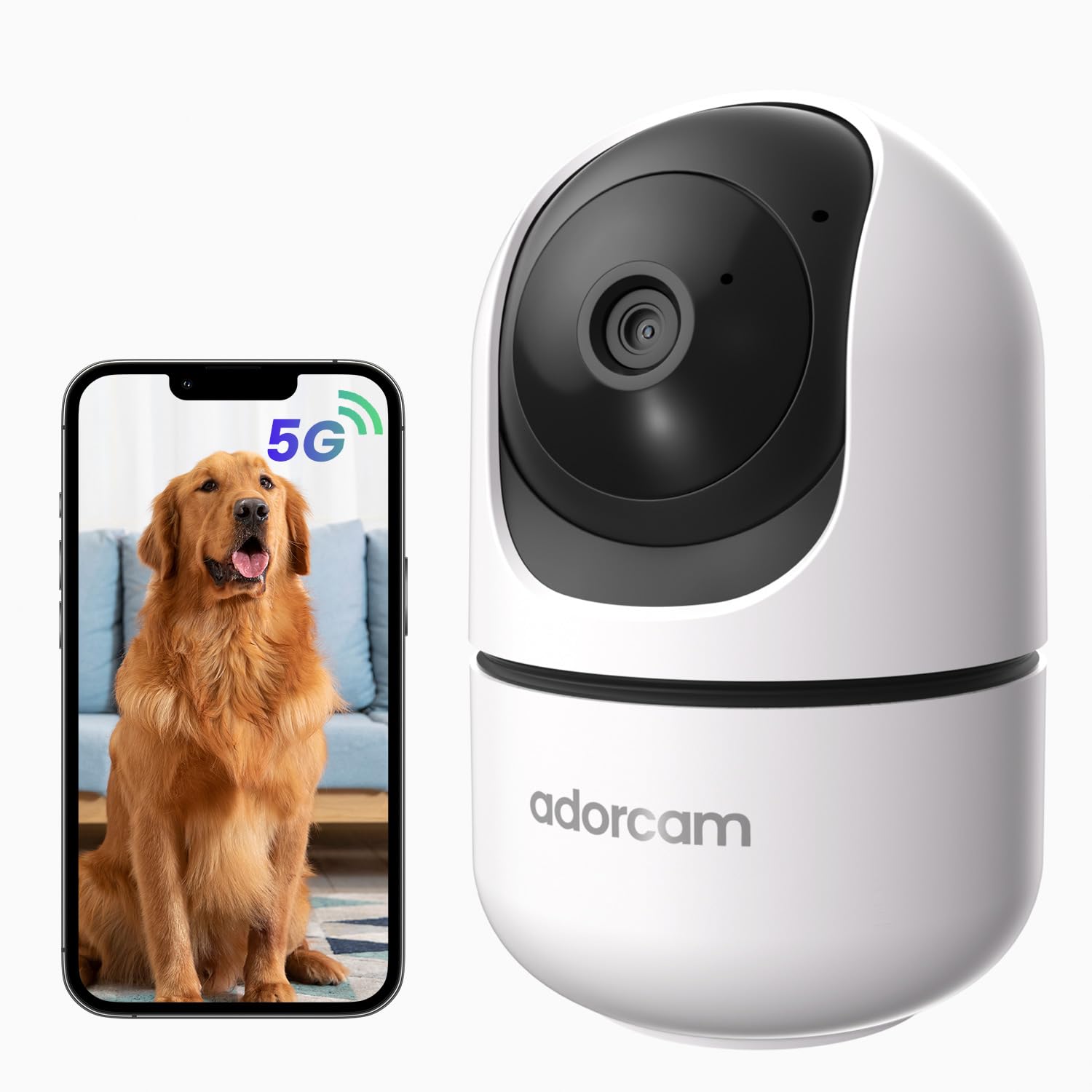
Image: The adorcam Indoor Camera Q1, a compact white dome-shaped camera.
Key Features:
- 2K HD Video: Captures clear, high-quality images with 2304 x 1296 resolution.
- 360° Pan & 100° Tilt: Provides comprehensive coverage of your space.
- Dual-Band WiFi: Supports both 2.4GHz and 5GHz networks for stable connectivity.
- Two-Way Audio: Communicate remotely with family or pets.
- Infrared Night Vision: Clear visibility up to 10 meters (33 feet) in low light.
- Motion Detection: Sends instant alerts to your phone upon detecting movement.
- Local & Cloud Storage: Supports microSD card up to 256GB (not included) and cloud storage options.
- Multi-User Sharing: Allows multiple family members to view the camera feed simultaneously.
4. Setup Guide
4.1 Powering On the Camera
- Connect the provided power adapter to the camera's power input port.
- Plug the power adapter into a standard electrical outlet.
- The camera will power on and initiate its startup sequence. Wait for the indicator light to flash, indicating it's ready for setup.
4.2 App Download and Account Creation
- Download the official adorcam app from your smartphone's app store (iOS App Store or Android Google Play Store).
- Open the app and follow the on-screen instructions to create a new account or log in if you already have one.
4.3 Connecting to Wi-Fi
The adorcam Q1 supports both 2.4GHz and 5GHz Wi-Fi networks for enhanced stability.

Image: Diagram illustrating the camera's support for both 2.4GHz and 5GHz Wi-Fi bands for a more stable signal.
- In the adorcam app, tap the "Add Device" or "+" icon.
- Select your camera model (adorcam Q1) and follow the in-app instructions.
- Ensure your smartphone is connected to the same Wi-Fi network (2.4GHz or 5GHz) you intend to connect the camera to.
- The app will guide you through scanning a QR code with the camera or using sound pairing to establish the connection.
- Once connected, the camera's indicator light will turn solid, and you will see the camera feed in the app.
4.4 Installing a MicroSD Card (Optional)
For local video storage, install a microSD card (up to 256GB, not included).
- Locate the microSD card slot on the camera (refer to the camera's physical design for exact placement, often near the lens or base).
- Gently insert the microSD card into the slot with the gold contacts facing down until it clicks into place.
- In the app, navigate to the camera settings to format the microSD card for optimal performance.
4.5 Mounting the Camera
The adorcam Q1 supports ceiling and wall mounting.
- Choose a suitable location for mounting, ensuring a clear view and access to a power outlet.
- Use the provided mounting material to secure the camera bracket to the desired surface.
- Attach the camera to the mounted bracket, ensuring it is securely fastened.
5. Operating Instructions
5.1 Live View
Access the live video feed from your camera through the adorcam app.

Image: Comparison showing the clarity of a 2K HD image versus a 1080p image from an indoor camera.
- Open the adorcam app and select your camera from the device list.
- The live video stream will appear on your screen.
5.2 Pan and Tilt Control
Control the camera's viewing angle remotely.

Image: A visual representation of the camera's 360° horizontal and 100° vertical movement, controlled via a smartphone app.
- On the live view screen, use the directional controls (often a joystick or arrows) to pan the camera horizontally (360°) and tilt it vertically (100°).
- The camera also features 4X digital zoom, accessible through pinch-to-zoom gestures on the live view.
5.3 Two-Way Audio
Communicate through the camera's built-in microphone and speaker.

Image: A person talking into a phone and a child with a dog, illustrating the two-way audio communication feature.
- Tap the microphone icon on the live view screen to speak through the camera.
- Tap the speaker icon to hear audio from the camera's environment.
5.4 Night Vision
The camera automatically switches to infrared night vision in low-light conditions.

Image: A child sleeping in a dimly lit room, viewed through the camera's infrared night vision mode on a smartphone.
- No manual action is required; the camera adjusts automatically.
- Night vision provides clear black and white images up to 10 meters.
5.5 Motion Detection and Alerts
Receive notifications when motion is detected.

Image: A dog playing in a living room, with a smartphone displaying a 'Motion Detected' notification from the camera.
- Enable motion detection and push notifications in the app's settings.
- Adjust sensitivity levels to minimize false alerts.
5.6 Video Recording and Storage
- MicroSD Card: If a card is installed and formatted, the camera will record based on your settings (continuous, event-triggered).
- Cloud Storage: Subscribe to cloud storage services through the app for secure, off-site video backup. A free 7-day trial may be available.
5.7 Sharing with Multiple Users
Grant access to your camera feed to family members.

Image: Multiple people using smartphones to view the camera feed, indicating the multi-user sharing feature.
- In the app, navigate to the camera settings and find the "Share Device" option.
- Invite other users by entering their account information.
6. Maintenance
6.1 Cleaning the Camera
- Ensure the camera is powered off before cleaning.
- Use a soft, dry cloth to wipe the camera body.
- For the lens, use a lens cleaning cloth to gently remove dust or smudges. Avoid abrasive cleaners.
6.2 Software Updates
- Regularly check the adorcam app for firmware updates.
- Install updates to ensure optimal performance, security, and access to new features.
6.3 Storage Management
- MicroSD Card: Periodically review recorded footage and delete unnecessary files to free up space. Format the card in-app if issues arise.
- Cloud Storage: Manage your cloud subscription and stored videos through the adorcam app.
7. Troubleshooting
7.1 Camera Not Connecting to Wi-Fi
- Ensure your Wi-Fi network is 2.4GHz or 5GHz and stable.
- Check that the Wi-Fi password is entered correctly.
- Move the camera closer to the Wi-Fi router.
- Restart the camera and your router.
- If using a dual-band router, try connecting to the other band.
7.2 Poor Video Quality
- Check your internet connection speed. A stable, high-speed connection is required for 2K streaming.
- Ensure the camera lens is clean and free from obstructions.
- Adjust video quality settings in the app if your network bandwidth is limited.
7.3 Motion Detection Not Working or Too Sensitive
- Verify that motion detection is enabled in the app settings.
- Adjust the motion detection sensitivity level.
- Ensure notification permissions are granted for the adorcam app on your smartphone.
7.4 Two-Way Audio Issues
- Check the volume settings on your smartphone and in the app.
- Ensure there are no obstructions blocking the camera's microphone or speaker.
- Verify your internet connection is stable.
7.5 Camera Offline
- Check if the camera is powered on and the power adapter is securely connected.
- Verify your Wi-Fi router is working correctly.
- Restart the camera by unplugging and re-plugging it.
8. Specifications
| Feature | Specification |
|---|---|
| Model Name | Adorcam Indoor Camera Q1 |
| Video Capture Resolution | 2K (2304 x 1296) |
| Effective Still Resolution | 3 MP |
| Pan/Tilt Range | 360° Horizontal, 100° Vertical |
| Connectivity Technology | Wi-Fi (2.4GHz & 5GHz) |
| Night Vision Range | Up to 10 meters (33 feet) |
| Storage Options | MicroSD Card (up to 256GB), Cloud Storage |
| Two-Way Audio | Yes |
| Motion Detection | Yes, with alerts |
| Power Source | Corded Electric (DC 5V) |
| Installation Type | Indoor (Ceiling Mount & Wall Mount) |
| Dimensions (LxWxH) | 8.6 x 8.6 x 12.4 Centimeters |
| Item Weight | 222 g (0.49 Pounds) |
| Material | Plastic |
| Operating Voltage | 5 Volts |
| Wattage | 5 Watts |
9. Warranty and Support
9.1 Warranty Information
Please refer to the warranty card included with your product or visit the official adorcam website for detailed warranty terms and conditions. Typically, products come with a limited manufacturer's warranty covering defects in materials and workmanship.
9.2 Customer Support
For technical assistance, troubleshooting, or any product-related inquiries, please contact adorcam customer support through the following channels:
- In-App Support: Many issues can be resolved through the help section within the adorcam app.
- Manufacturer Website: Visit the official adorcam website for FAQs, support resources, and contact information.