
1. Introduction
This manual provides essential information for the proper setup, operation, and maintenance of your SANSUI ES-22X3AH 22-inch FHD 120Hz Monitor. This monitor is designed to deliver clear visuals for professional work, home use, and entertainment, featuring a 1920x1080 resolution, 120Hz refresh rate, and Adaptive Sync technology.
Key features include:
- Full HD Clarity: 1920x1080 resolution with 100% sRGB color accuracy and HDR mode for detailed visuals.
- Smooth Visual Performance: 120Hz refresh rate and Adaptive Sync technology for reduced motion blur.
- Eye Comfort: Anti-flicker technology, low blue light emission, and anti-glare coating to minimize eye strain.
- Flexible Connectivity: Dual HDMI 1.4 ports and VESA mount compatibility.
2. Package Contents
Please verify that all items are present in the package:
- SANSUI ES-22X3AH 22-inch Monitor
- Monitor Stand (Base and Neck)
- Power Adapter
- Power Cord
- HDMI Cable
- User Manual (this document)
Note: Contents may vary slightly depending on region or retailer.
3. Setup Instructions
3.1 Assembling the Stand
- Carefully remove the monitor and stand components from the packaging.
- Attach the stand neck to the monitor panel. Ensure it clicks securely into place or is fastened with screws if provided.
- Connect the stand base to the stand neck, securing it with the thumb screw or other fasteners.
- Place the assembled monitor on a stable, flat surface.
Image: Monitor with Stand Assembly

The SANSUI ES-22X3AH monitor fully assembled with its stand, ready for use.
3.2 VESA Mount Installation (Optional)
The monitor supports a 75x75 mm VESA mount for wall or arm installation. To use a VESA mount:
- Remove the pre-assembled stand from the monitor.
- Attach your VESA-compatible mount to the four screw holes on the back of the monitor.
- Ensure the mount is securely fastened according to the mount manufacturer's instructions.
Image: Monitor Rear with VESA Mount Points and Dimensions

Detailed view of the monitor's rear panel, highlighting the VESA mounting pattern and tilt capabilities.
3.3 Connecting to a Device
The monitor features dual HDMI 1.4 ports and a DC power input.
- Connect the power adapter to the DC input port on the monitor, then plug the power cord into an electrical outlet.
- Connect one end of the included HDMI cable to an HDMI port on your computer or other video source.
- Connect the other end of the HDMI cable to one of the HDMI input ports on the monitor.
- Power on your computer and the monitor. The monitor should automatically detect the input signal.
Image: Monitor Connectivity Ports
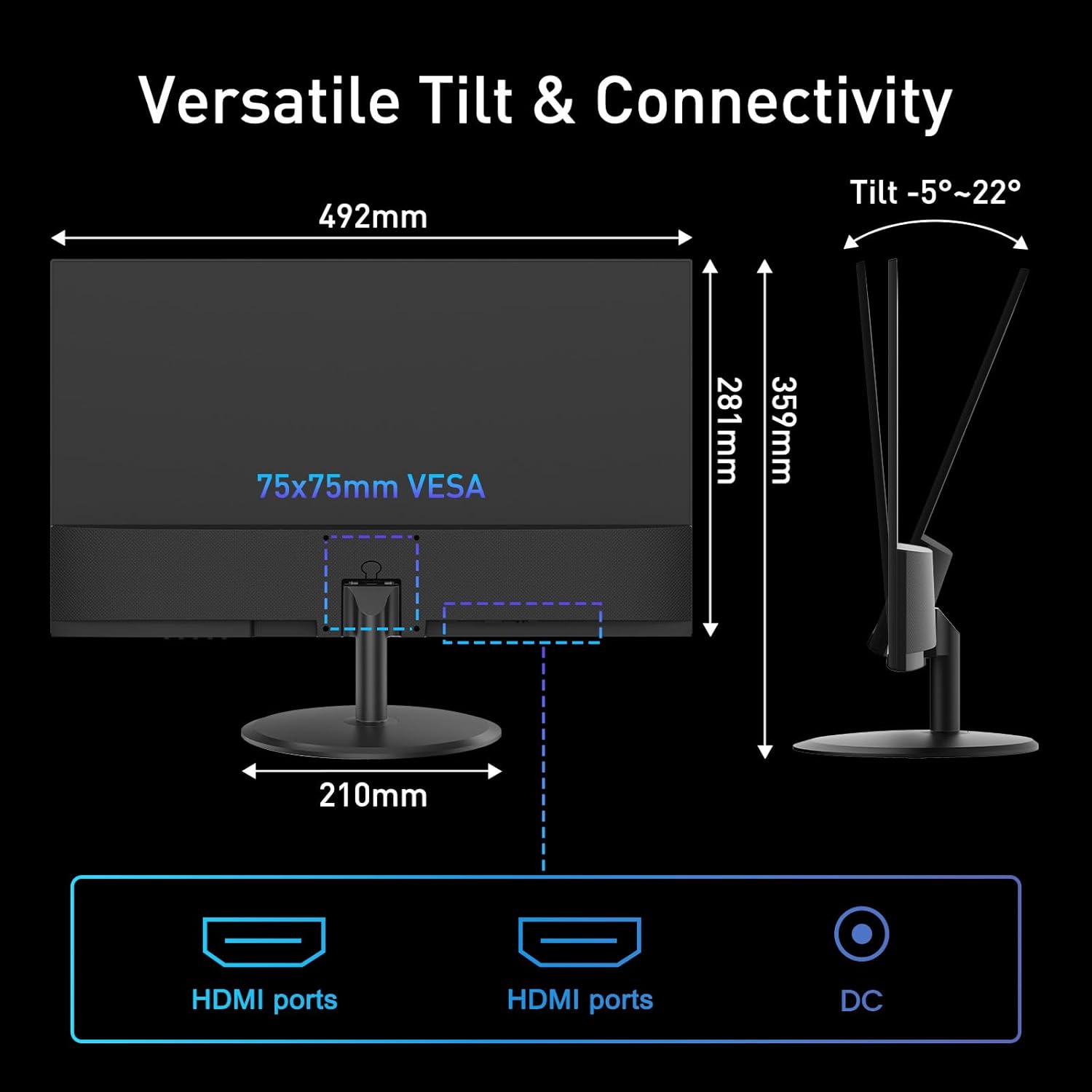
Illustration of the monitor's connectivity options, including HDMI and DC power ports.
4. Operating Instructions
4.1 Power On/Off
Press the power button, usually located on the bottom right or rear of the monitor, to turn the monitor on or off. The power indicator light will illuminate when the monitor is on.
4.2 On-Screen Display (OSD) Menu
The OSD menu allows you to adjust various monitor settings. Use the control buttons (joystick or individual buttons) typically found on the back or bottom of the monitor to navigate the menu.
- Brightness/Contrast: Adjust image luminance and distinction.
- Color Settings: Modify color temperature, hue, and saturation.
- Input Select: Manually switch between HDMI inputs.
- Picture Mode: Select preset display modes (e.g., Standard, Game, Movie).
- Adaptive Sync: Enable or disable Adaptive Sync for smoother visuals.
- HDR Mode: Activate High Dynamic Range for enhanced contrast and color.
4.3 Key Features
4.3.1 120Hz Refresh Rate
The 120Hz refresh rate provides smoother motion and reduced input lag, beneficial for fast-paced content and general desktop use. Ensure your connected device is configured to output at 120Hz for optimal performance.
Image: High Refresh Rate Visual

Visual representation of the monitor's 120Hz refresh rate, ensuring ultra-fluid visuals.
4.3.2 Adaptive Sync
Adaptive Sync technology synchronizes the monitor's refresh rate with your graphics card's frame rate, eliminating screen tearing and stuttering for a more fluid visual experience. This feature is automatically enabled when supported by your graphics card and enabled in the OSD.
Image: Adaptive Sync vs. Conventional Display

Demonstration of Adaptive Sync technology providing tear-free and smooth visuals compared to a conventional display.
4.3.3 HDR (High Dynamic Range)
HDR mode enhances the contrast and color accuracy of compatible content, providing deeper blacks, brighter whites, and a wider range of colors. Enable HDR through the OSD menu or your operating system settings for supported media.
Image: HDR Clarity Comparison
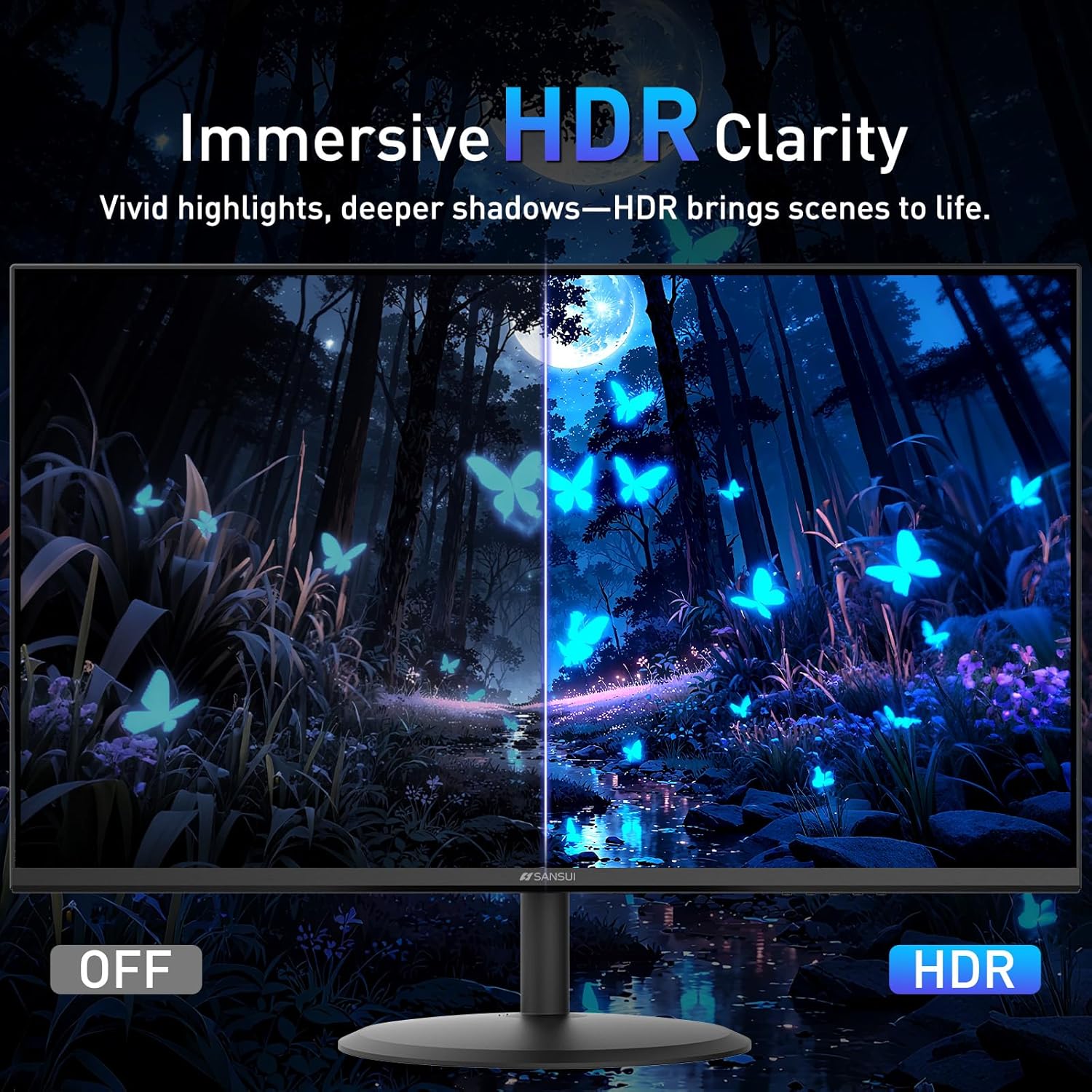
Visual comparison demonstrating the enhanced clarity and color depth provided by HDR mode.
4.3.4 Eye Care Features
The monitor incorporates several features to reduce eye strain during prolonged use:
- Anti-Flicker: Reduces screen flickering that can cause eye fatigue.
- Low Blue Light: Filters harmful blue light emissions.
- Anti-Glare Coating: Minimizes reflections on the screen surface.
Image: Eye Care & Comfort Viewing
Depiction of the monitor's eye care features contributing to comfortable viewing during extended use.
5. Maintenance
5.1 Cleaning the Monitor
To ensure the longevity and optimal performance of your monitor, follow these cleaning guidelines:
- Always power off the monitor and unplug it from the power outlet before cleaning.
- Use a soft, lint-free cloth slightly dampened with water or a specialized screen cleaning solution.
- Gently wipe the screen surface and the monitor casing. Avoid applying excessive pressure.
- Do not use abrasive cleaners, alcohol, ammonia, or petroleum-based solvents, as these can damage the screen or casing.
- Never spray cleaning solution directly onto the screen.
5.2 Storage
If storing the monitor for an extended period, ensure it is powered off, unplugged, and stored in a cool, dry place away from direct sunlight and extreme temperatures. Use the original packaging if available for best protection.
6. Troubleshooting
If you encounter issues with your SANSUI ES-22X3AH monitor, refer to the following common problems and solutions:
| Problem | Possible Cause | Solution |
|---|---|---|
| No image on screen | Monitor not powered on; Incorrect input selected; Loose video cable. | Ensure power cable is connected and monitor is on. Select correct input source via OSD. Check HDMI cable connection. |
| Image is blurry or distorted | Incorrect resolution; Graphics driver issues. | Set display resolution to 1920x1080. Update graphics drivers on your computer. |
| Screen flickering | Refresh rate mismatch; Faulty cable. | Ensure refresh rate is set to 120Hz in your computer's display settings. Try a different HDMI cable. |
| No sound (if external speakers are connected) | Monitor does not have built-in speakers; Audio output not configured. | This monitor does not have built-in speakers. Ensure your external speakers are properly connected and selected as the audio output device on your computer. |
| Adaptive Sync not working | Feature not enabled; Incompatible graphics card. | Enable Adaptive Sync in the monitor's OSD menu and your graphics card control panel. Ensure your graphics card supports Adaptive Sync. |
If the problem persists after trying these solutions, please contact SANSUI customer support.
7. Specifications
Below are the technical specifications for the SANSUI ES-22X3AH monitor:
- Model Number: ES-22X3AH
- Screen Size: 22 Inches
- Panel Type: Not specified (typically VA or IPS for 4000:1 contrast)
- Resolution: 1920 x 1080 (FHD 1080p)
- Aspect Ratio: 16:9
- Refresh Rate: 120Hz
- Contrast Ratio: 4000:1
- Image Brightness: 250 Candela per Square Meter (nits)
- Color Gamut: 100% sRGB
- Connectivity: 2 x HDMI 1.4 ports (up to 120Hz), DC Power Input
- VESA Mount: 75 x 75 mm
- Tilt Adjustment: -5° to 22°
- Product Dimensions: 8.27 x 19.37 x 14.13 inches
- Item Weight: 6.64 pounds
- Eye Care Features: Anti-flicker, Low Blue Light, Anti-glare coating
- Adaptive Sync: Supported
- HDR: Supported
- Manufacturer: EXPRESS LUCK INDUSTRIAL(ZHONGSHAN)LIMITED
8. Warranty and Support
8.1 Warranty Information
SANSUI provides a money-back and free replacement warranty for your monitor within 30 days from the order date. Please retain your proof of purchase for warranty claims.
8.2 Technical Support
Lifetime technical support is available for your SANSUI monitor. For assistance with setup, troubleshooting, or any other inquiries, please contact SANSUI customer service. You can typically find contact information on the SANSUI official website or through your retailer.
Image: Lifetime Technical Support

Overview of SANSUI's commitment to customer satisfaction, including warranty and support services.


