1. Introduction
This manual provides essential information for the safe and efficient use of your new Lenovo Idea Tab ZAFR tablet. Please read this guide thoroughly before operating the device to ensure optimal performance and longevity. Keep this manual for future reference.
2. Product Overview
The Lenovo Idea Tab ZAFR (Model: ZAFR0405SE) is an 11-inch Android 15 tablet designed for versatile use. It features a high-resolution display, powerful processor, and multiple connectivity options.
2.1 Device Components
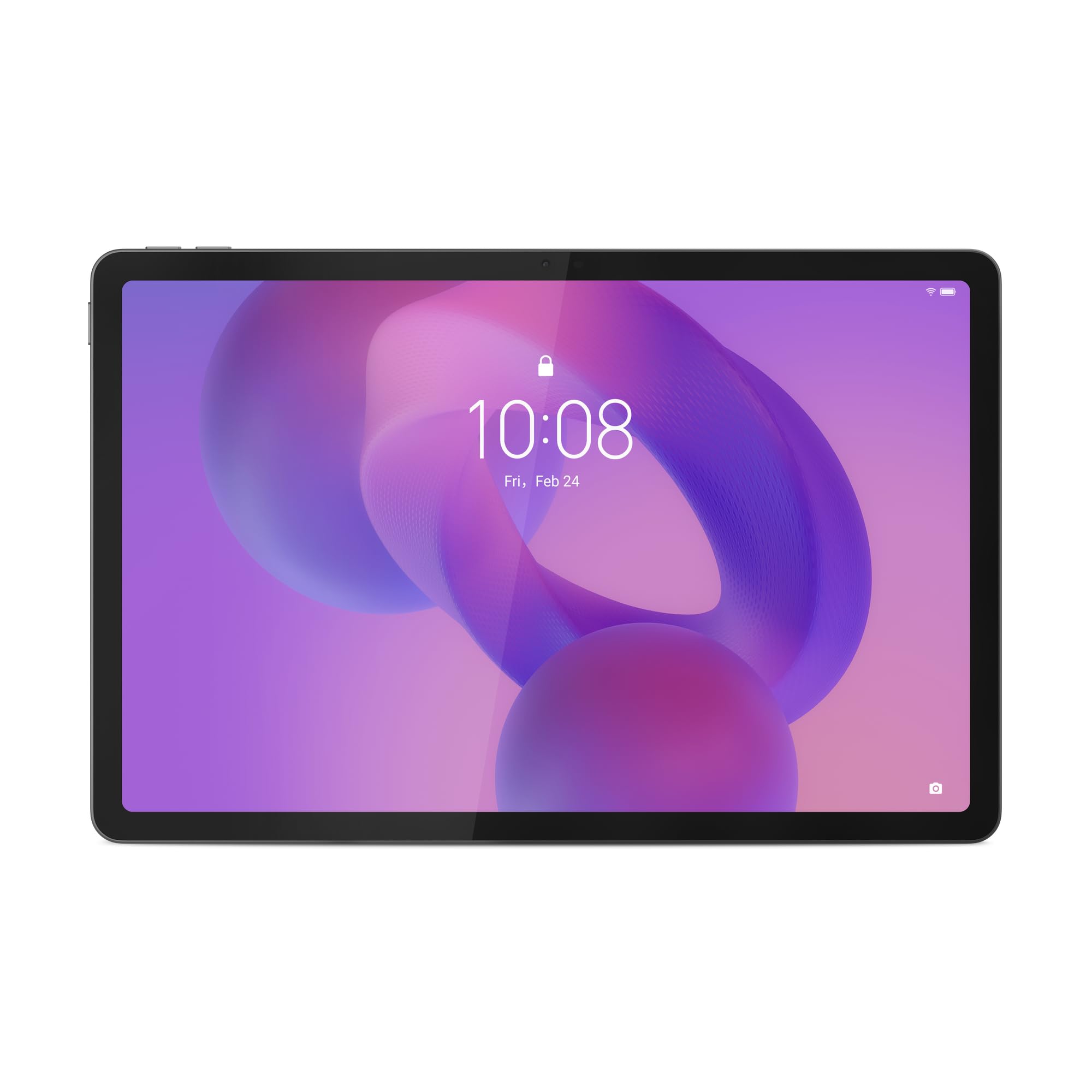
Figure 1: Front view of the Lenovo Idea Tab ZAFR tablet. This image shows the device's sleek design and the large 11-inch display, ideal for media consumption and productivity.
- Display: 11-inch WQXGA (2560 x 1600 pixels) IPS LED screen with a 90 Hz refresh rate and 500 cd/m² brightness.
- Front Camera: 5 MP resolution, located on the bezel for video calls and selfies.
- Rear Camera: 8 MP resolution, positioned on the back for capturing photos and videos.
- USB Type-C Port: One USB 2.0 Type-C port for charging, data transfer, and connecting accessories.
- Speakers: Four built-in speakers for enhanced audio experience.
- MicroSD Card Slot: Supports MicroSD (TransFlash) memory cards for expandable storage.
- Sensors: Includes accelerometer, ambient light sensor, GPS, and Hall sensor for various functionalities.
3. Setup
3.1 Charging the Tablet
- Connect the USB Type-C cable to the tablet's USB-C port.
- Connect the other end of the cable to a compatible USB power adapter (not included) and plug it into a power outlet.
- The battery indicator on the screen will show the charging status. Allow the tablet to fully charge before first use.
Note: The tablet does not include an AC power adapter. Use a certified USB Type-C charger for optimal charging performance.
3.2 Powering On/Off
- To Power On: Press and hold the Power button until the Lenovo logo appears on the screen.
- To Power Off: Press and hold the Power button until the power options menu appears, then select "Power off".
- To Restart: Press and hold the Power button until the power options menu appears, then select "Restart".
3.3 Initial Setup (Android 15)
Upon first power-on, the tablet will guide you through the initial setup process for Android 15. This includes:
- Selecting your language and region.
- Connecting to a Wi-Fi network (Wi-Fi 5 (802.11ac) supported).
- Signing in with your Google account or creating a new one.
- Setting up screen lock (PIN, pattern, or password).
- Reviewing and accepting terms and conditions.
4. Operating Instructions
4.1 Basic Navigation
The Lenovo Idea Tab ZAFR uses a touch-sensitive screen for navigation. Common gestures include:
- Tap: To select an item or open an app.
- Swipe: To scroll through pages or lists.
- Pinch-to-Zoom: To zoom in or out on images and web pages.
- Long Press: To access contextual menus or move icons.
4.2 Connecting to Wi-Fi
- Go to Settings > Network & internet > Wi-Fi.
- Toggle Wi-Fi On.
- Select your desired network from the list.
- Enter the password if prompted, then tap Connect.
4.3 Bluetooth Pairing
The tablet supports Bluetooth 5.2 for connecting wireless accessories.
- Go to Settings > Connected devices > Bluetooth.
- Toggle Bluetooth On.
- Ensure your Bluetooth device is in pairing mode.
- Select your device from the list of available devices and follow any on-screen prompts.
4.4 Managing Storage
The tablet comes with 128 GB of internal UFS storage. You can expand this using a MicroSD card.
- Inserting a MicroSD Card: Locate the card slot on the side of the tablet. Gently insert the MicroSD card with the gold contacts facing down until it clicks into place.
- Removing a MicroSD Card: Push the card gently until it pops out, then pull it out completely.
5. Maintenance
5.1 Cleaning the Tablet
- Use a soft, lint-free cloth to clean the screen and body of the tablet.
- For stubborn smudges, slightly dampen the cloth with water or a screen cleaner specifically designed for electronics.
- Avoid using harsh chemicals, abrasive cleaners, or aerosol sprays directly on the tablet.
5.2 Software Updates
Regular software updates provide security enhancements, new features, and performance improvements. Ensure your tablet is connected to Wi-Fi and has sufficient battery charge before performing an update.
- Go to Settings > System > System update.
- Tap Check for update and follow the on-screen instructions.
6. Troubleshooting
This section addresses common issues you might encounter with your Lenovo Idea Tab ZAFR tablet.
6.1 Tablet Does Not Power On
- Ensure the battery is charged. Connect the tablet to a power source and allow it to charge for at least 30 minutes before attempting to power it on again.
- Try performing a force restart by holding the Power button for approximately 10-15 seconds.
6.2 Wi-Fi Connection Issues
- Verify that Wi-Fi is enabled in Settings.
- Restart your Wi-Fi router and the tablet.
- Forget the network in tablet settings and reconnect.
- Ensure you are within range of the Wi-Fi signal.
6.3 Apps Crashing or Freezing
- Close and reopen the app.
- Clear the app's cache and data in Settings > Apps > [App Name] > Storage & cache.
- Ensure the app is updated to its latest version from the Google Play Store.
- Restart the tablet.
7. Specifications
Below are the detailed technical specifications for the Lenovo Idea Tab ZAFR (Model: ZAFR0405SE).
| Feature | Detail |
|---|---|
| Model Name | ZAFR0405SE |
| Operating System | Android 15 |
| Display Size | 11 Inches (27.9 cm) |
| Display Resolution | 2560 x 1600 pixels (WQXGA) |
| Panel Type | IPS |
| Max Refresh Rate | 90 Hz |
| Brightness | 500 cd/m² |
| Processor | MediaTek Dimensity 6300 (8 cores) |
| Graphics Card | ARM Mali-G57 MC2 |
| Internal Memory | 8 GB LPDDR4x-SDRAM |
| Storage Capacity | 128 GB UFS (expandable via MicroSD) |
| Rear Camera | 8 MP |
| Front Camera | 5 MP |
| Wireless Connectivity | Wi-Fi 5 (802.11ac), Bluetooth 5.2 |
| Ports | 1x USB 2.0 Type-C, Combined headphone/microphone connector |
| Battery Capacity | 7040 mAh Lithium-Ion |
| Dimensions (WxDxH) | 254.6 mm x 166.2 mm x 6.99 mm (10.02 x 6.54 x 0.28 inches) |
| Weight | 480 g (1.06 lbs) |
| Color | Luna Grey |
| Sensors | Accelerometer, Ambient Light Sensor, GPS, Hall Sensor |
8. Warranty and Support
Your Lenovo Idea Tab ZAFR tablet comes with a 2-year limited warranty from the date of purchase. This warranty covers manufacturing defects and workmanship under normal use.
For detailed warranty terms, technical support, or service inquiries, please visit the official Lenovo support website or contact their customer service. Keep your proof of purchase for warranty claims.
Note: Warranty terms may vary by region. Please refer to the warranty card included with your product or the Lenovo website for specific details applicable to your location.


