
1. Introduction
Thank you for purchasing the WSTER WS-1934 Retro Classic Car Bluetooth Speaker. This device combines vintage aesthetics with modern audio technology, offering wireless connectivity, FM radio, and hands-free calling. Please read this manual carefully to ensure proper use and to maximize your enjoyment of the product.

Figure 1: WSTER WS-1934 Retro Classic Car Bluetooth Speaker (Blue variant).
2. Package Contents
Please check the package for the following items:
- WSTER WS-1934 Retro Classic Car Bluetooth Speaker
- Power Cable (USB to Type-C)
- Quick Start Guide

Figure 2: The speaker, its charging cable, and the quick start guide as included in the package.
3. Setup
3.1 Charging the Speaker
Before first use, fully charge the speaker. Connect the provided Type-C cable to the charging port on the rear of the speaker and the USB end to a compatible power adapter (not included) or computer USB port.
3.2 Power On/Off
To power on the speaker, press and hold the power button located on the rear panel. You will hear an engine starting sound and the LED headlights will illuminate. To power off, press and hold the power button again. You will hear an engine shutting down sound.
Video 1: Demonstration of the WSTER WS-1934 speaker's power on/off sequence, including the engine sound effect and LED headlight activation.
3.3 Bluetooth Pairing
- Ensure the speaker is powered on and in Bluetooth mode. The LED headlights will flash, indicating it is ready for pairing.
- On your mobile device, enable Bluetooth and search for available devices.
- Select "WS-1934" from the list of devices.
- Once connected, the speaker will confirm with an audio prompt, and the LED headlights will stop flashing.
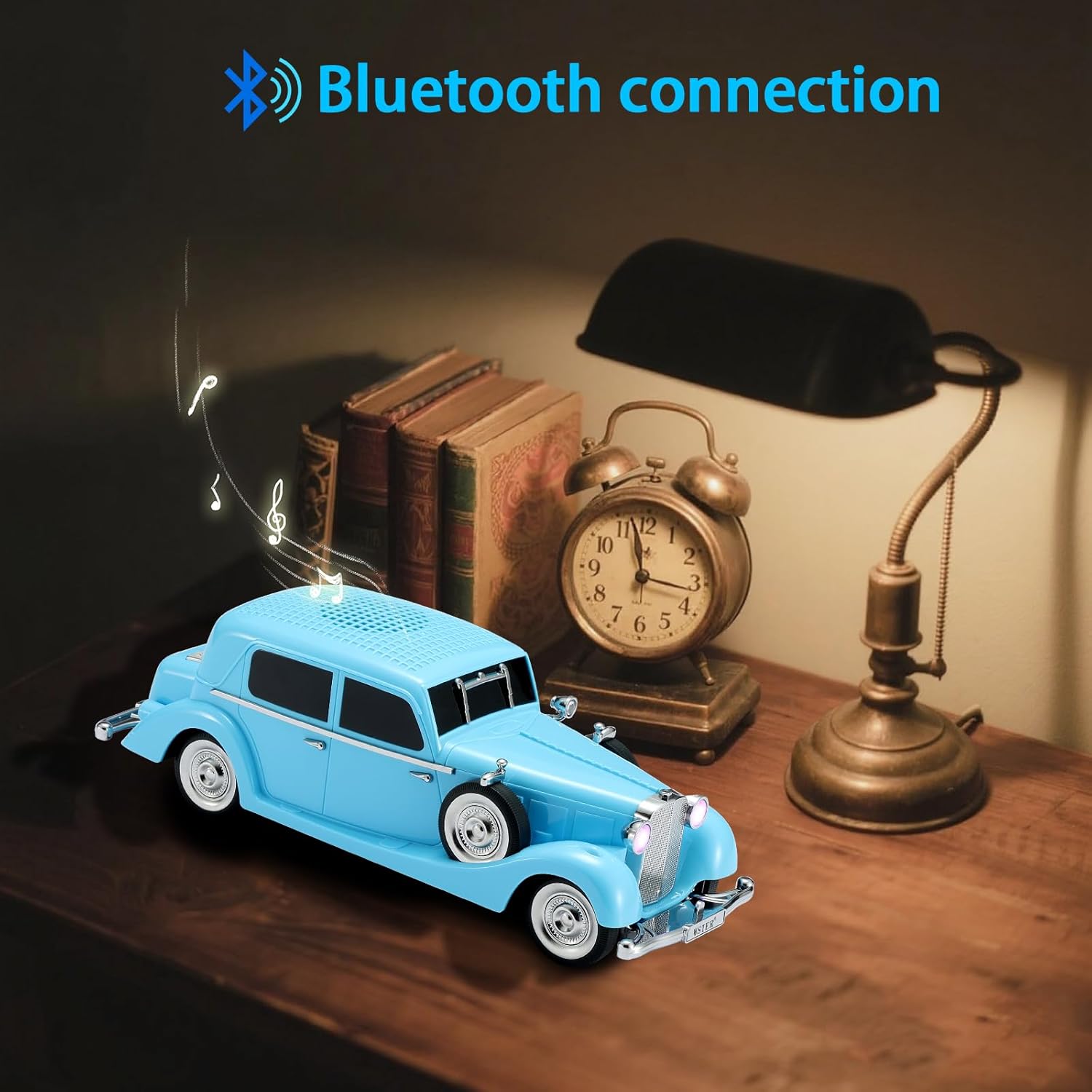
Figure 3: The speaker displaying its Bluetooth connection status with illuminated LED headlights.
3.4 TWS (True Wireless Stereo) Pairing
To achieve a stereo sound experience, you can pair two WS-1934 speakers together:
- Ensure both speakers are powered on and in Bluetooth mode, but not yet connected to any device.
- On one speaker (this will be the primary speaker), double-press the Play/Pause button. You will hear a confirmation tone.
- The two speakers will automatically connect to each other. Once paired, the primary speaker's LED will flash, and the secondary speaker's LED will be solid.
- Now, connect your mobile device to the primary speaker via Bluetooth as described in section 3.3. Audio will play through both speakers in stereo.

Figure 4: Two WS-1934 speakers demonstrating TWS pairing for an enhanced audio experience.
4. Operating Instructions
4.1 Control Panel Overview

Figure 5: Detailed view of the speaker's rear control panel, showing buttons for mode, play/pause, track control, and ports for DC5V (charging), USB, TF card, and AUX.
4.2 Mode Switching
Press the 'M' (Mode) button on the rear panel to cycle through available modes: Bluetooth, FM Radio, USB, TF Card, and AUX.
4.3 Music Playback (Bluetooth/USB/TF Card)
- Play/Pause: Briefly press the Play/Pause button.
- Next Track: Briefly press the 'Next' button (>>|).
- Previous Track: Briefly press the 'Previous' button (|<<).
- Volume Up: Press and hold the 'Next' button (>>|).
- Volume Down: Press and hold the 'Previous' button (|<<).
4.4 FM Radio Operation
- Switch to FM Radio mode using the 'M' button.
- To auto-scan and save available stations, press and hold the Play/Pause button. The speaker will scan frequencies and store stations.
- To switch between saved stations, briefly press the 'Next' (>>|) or 'Previous' (|<<) buttons.
4.5 Hands-Free Calling
When connected to a mobile phone via Bluetooth:
- Answer Call: Briefly press the Play/Pause button when an incoming call is received.
- End Call: Briefly press the Play/Pause button during a call.
- Reject Call: Press and hold the Play/Pause button when an incoming call is received.
- Switch Audio Source: During a call, briefly press the Play/Pause button to switch the audio between the speaker and your mobile phone.
4.6 LED Party Lights
The speaker features dynamic LED headlights that sync with the music. There is no direct control to turn these lights off or change their pattern independently.
Video 2: A short demonstration of the WSTER WS-1934 speaker's LED headlights changing colors, highlighting its dynamic lighting feature.
5. Maintenance
- Keep the speaker away from water, moisture, and extreme temperatures.
- Clean the speaker with a soft, dry cloth. Do not use abrasive cleaners or solvents.
- Avoid dropping the speaker or subjecting it to strong impacts.
- Store the speaker in a cool, dry place when not in use for extended periods.
6. Troubleshooting
- No Power: Ensure the speaker is fully charged. Connect it to a power source using the provided cable.
- Cannot Pair Bluetooth: Make sure the speaker is in Bluetooth pairing mode (LEDs flashing). Ensure your device's Bluetooth is enabled and within range. Try restarting both the speaker and your device.
- No Sound: Check the volume levels on both the speaker and your connected device. Ensure the correct input mode is selected.
- Poor FM Reception: Extend the antenna (if applicable, though not explicitly mentioned for this model, it's a common radio troubleshooting step). Try moving the speaker to a different location to improve signal.
- TWS Pairing Issues: Ensure both speakers are not connected to any other Bluetooth device before attempting TWS pairing. Follow the TWS pairing steps carefully.
7. Specifications
| Feature | Specification |
|---|---|
| Model Name | WS-1934 |
| Brand | WSTER |
| Mounting Type | Tabletop Mount |
| Material | Acrylonitrile Butadiene Styrene (ABS) |
| Speaker Type | Portable Speaker |
| Special Features | Bluetooth Connection, Built-in Microphone, FM Radio, LED Light, TWS |
| Color | Blue |
| Product Dimensions | 11.54"D x 4.06"W x 3.9"H |
| Item Weight | 650 Grams (1.43 pounds) |
| Number of Items | 1 |
| Wireless Communication Technology | Bluetooth |
| Number of Batteries | 2 Nonstandard Battery batteries required. (included) |
| UPC | 768274328403 |
| Style | Retro |
| Bluetooth Version | 5.4 |
| Speaker Maximum Output Power | 10 Watts |
| Frequency Response | 18 KHz |
| Connectivity Technology | Bluetooth, USB |
| Audio Output Mode | Stereo |
8. Warranty and Support
For warranty information and customer support, please refer to the contact details provided with your purchase or visit the official WSTER website. Keep your purchase receipt for any warranty claims.