1. Introduction
This manual provides essential information for setting up, operating, maintaining, and troubleshooting your HP 17-cp2025dx 17 Inch Laptop. Please read this guide thoroughly to ensure optimal performance and longevity of your device.
2. Initial Setup
2.1 Unboxing and Connecting Power
- Carefully remove the laptop and all accessories from the packaging.
- Connect the AC adapter to the laptop's power port and then to a power outlet.
- Allow the laptop to charge for at least 30 minutes before initial use.

Image: The HP 17-cp2025dx laptop displayed with its accompanying accessories, including a USB hub, USB flash drive, cleaning kit, and mouse.
2.2 Included Accessories
Your HP laptop comes with a set of accessories designed to enhance your experience:
- 7-in-1 Cleaning Kit: For maintaining the cleanliness of your laptop.
- 7-in-1 USB HUB: Expands your connectivity options.
- 128 GB UFD (USB Flash Drive): For portable storage.
- Patented Mouse: For precise navigation.

Image: A visual representation of the accessories package, detailing the 7-in-1 cleaning kit, 7-in-1 USB hub, 128 GB USB flash drive, and patented mouse.
2.3 Initial Boot and Windows 11 Pro Setup
- Press the power button located on the keyboard to turn on the laptop.
- Follow the on-screen instructions to complete the Windows 11 Pro setup. This includes selecting your region, language, connecting to a Wi-Fi network, and creating a user account.
- Ensure you have an active internet connection for Windows updates and driver installations during the setup process.
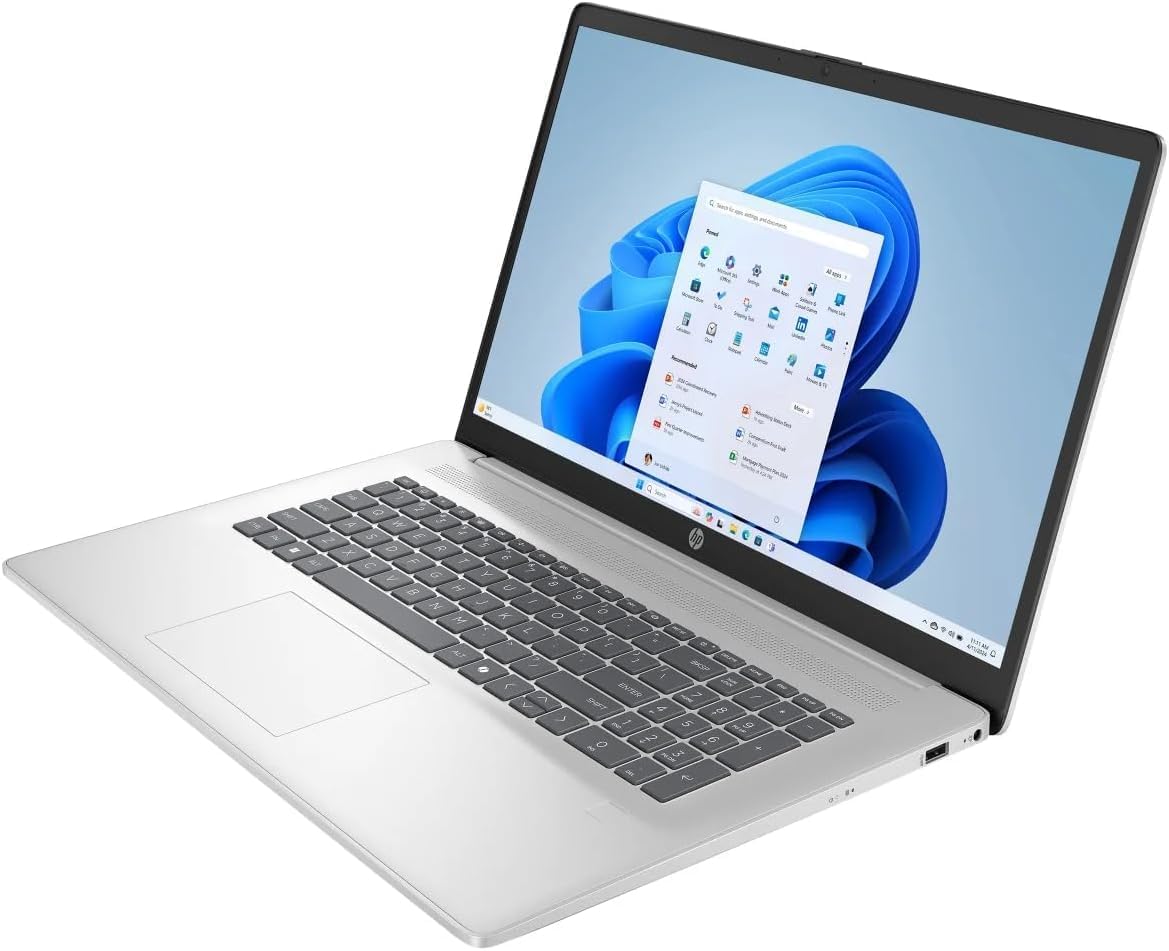
Image: An angled view of the HP 17-cp2025dx laptop, showcasing the Windows 11 Pro desktop interface.
3. Operating Your Laptop
3.1 Power On/Off and Sleep Mode
- Power On: Press the power button.
- Shut Down: Click the Start button, then Power > Shut down.
- Sleep Mode: Close the lid or click the Start button, then Power > Sleep.
3.2 Keyboard and Touchpad
The laptop features a full-size keyboard and an enlarged click pad for comfortable input. The keyboard is designed with a lift-hinge mechanism that elevates it for improved ergonomics and airflow.

Image: A side view of the HP 17-cp2025dx laptop, illustrating the lift-hinge design that elevates the keyboard for enhanced comfort and cooling.

Image: The HP 17-cp2025dx laptop on a desk, highlighting the enlarged click pad for ease of use and mentioning HP Fast Charge capabilities.
3.3 Key Features
- Copilot Key: Access Microsoft Copilot for AI assistance directly from your keyboard.
- Wi-Fi 6: Experience faster and more reliable wireless connectivity.
- AMD Ryzen 5 7520U Processor: Provides efficient performance for multitasking.
- AMD Radeon Graphics: Delivers clear visuals for everyday tasks and entertainment.
- 17.3" Full HD IPS Anti-Glare Display: Enjoy vibrant images with reduced reflections.

Image: The HP 17-cp2025dx laptop displaying the Microsoft Copilot interface, with a close-up inset showing the dedicated Copilot key on the keyboard.

Image: A user engaged with the HP 17-cp2025dx laptop, illustrating its capability for multitasking and reliable performance with AMD components and Wi-Fi 6.
3.4 Ports and Connectivity
The laptop is equipped with various ports for connecting external devices:
- 2 x USB-A 3.0 ports
- 1 x USB-C 3.0 port
- 1 x HDMI 1.4 port
- 1 x Headphone/Microphone Combo Jack
- AC Smart Pin for power adapter
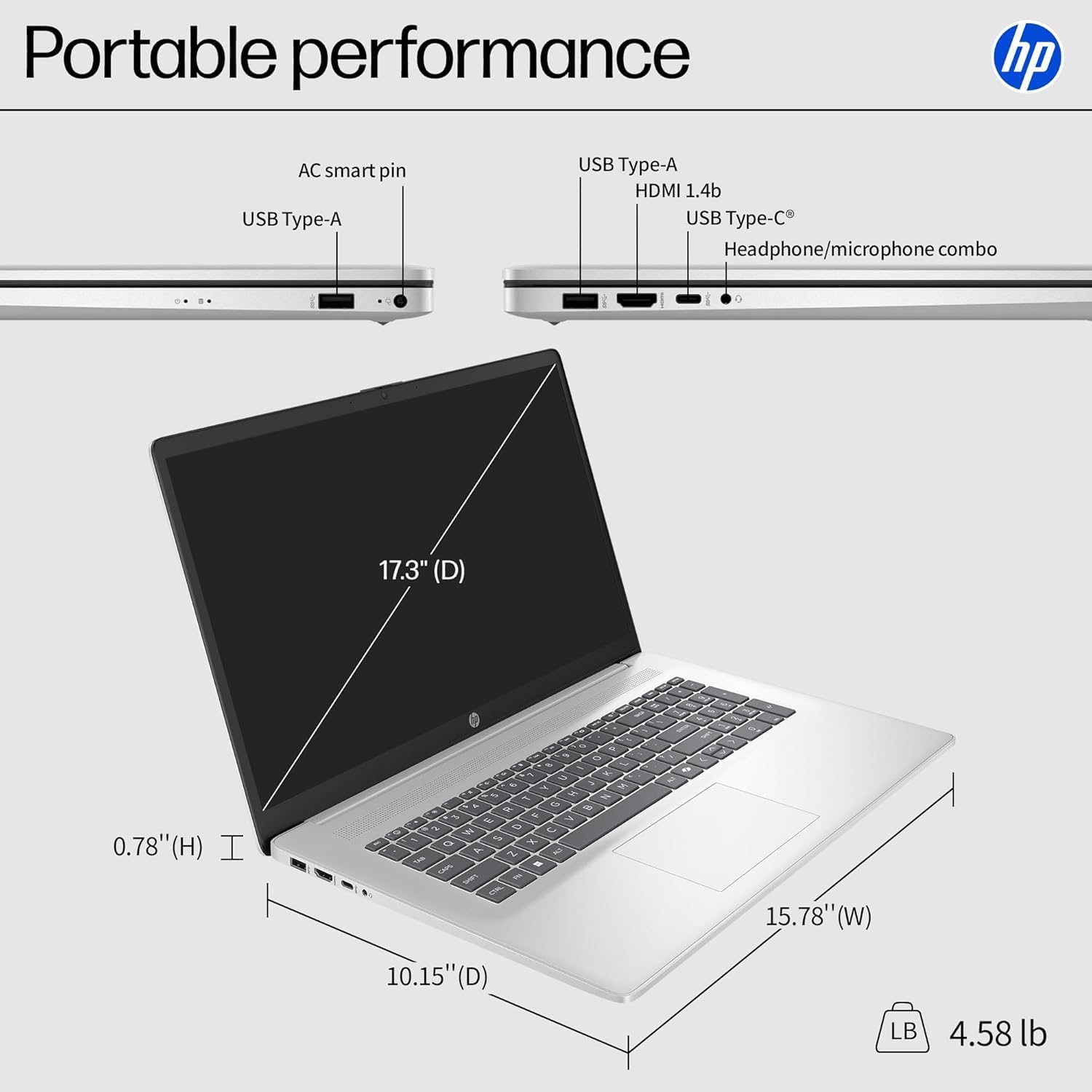
Image: A diagram illustrating the various ports on the sides of the HP 17-cp2025dx laptop, including USB Type-A, HDMI 1.4b, USB Type-C, headphone/microphone combo, and AC smart pin, along with its physical dimensions.
4. Maintenance
4.1 Cleaning Your Laptop
- Screen: Use a soft, lint-free cloth slightly dampened with water or a screen cleaner. Avoid harsh chemicals.
- Keyboard and Chassis: Use a soft cloth. For dust in crevices, use compressed air or the included cleaning kit.
- Always power off and unplug the laptop before cleaning.
4.2 Battery Care
- To prolong battery life, avoid extreme temperatures.
- The laptop supports HP Fast Charge, allowing you to go from 0 to 50% charge in approximately 45 minutes.
- It is recommended to occasionally discharge the battery below 20% and then fully recharge it.
4.3 Software Updates
Regularly check for and install operating system and driver updates to ensure optimal performance and security. Windows 11 Pro will typically notify you of available updates.
5. Troubleshooting
This section addresses common issues you might encounter with your HP laptop.
5.1 Power Issues
- Laptop not turning on: Ensure the AC adapter is securely connected and the power outlet is functional. Try a different outlet.
- Battery not charging: Verify the AC adapter connection. Check for any visible damage to the adapter or charging port.
5.2 Display Problems
- No display: Connect an external monitor to the HDMI port to check if the issue is with the laptop's internal display.
- Flickering screen: Update your graphics drivers. Adjust display refresh rate in Windows settings.
5.3 Connectivity Issues
- Wi-Fi not connecting: Ensure Wi-Fi is enabled in Windows settings. Restart your router and the laptop. Update Wi-Fi drivers.
- Bluetooth device not pairing: Ensure Bluetooth is enabled on both devices. Check that the device is in pairing mode.
5.4 General Performance Issues
- Slow performance: Close unnecessary applications. Check for malware. Ensure sufficient free storage space on the SSD.
- Overheating: Ensure ventilation vents are clear. Use the laptop on a hard, flat surface.
6. Specifications
| Feature | Detail |
|---|---|
| Model | HP 17-cp2025dx |
| Operating System | Windows 11 Pro |
| Processor | AMD Ryzen 5 7520U (up to 4.3 GHz) |
| Graphics | AMD Radeon Graphics (Integrated) |
| Display | 17.3-inch Full HD (1920 x 1080) IPS Anti-Glare, 300 nits |
| System Memory (RAM) | 8 GB LPDDR5 (5500 MHz) |
| Storage | 1 TB SSD |
| Ports | 2x USB-A 3.0, 1x USB-C 3.0, 1x HDMI 1.4, 1x Headphone/Microphone Combo Jack |
| Wireless Connectivity | Wi-Fi 6 (802.11ax), Bluetooth 5.3 |
| Battery Life | Up to 9.75 hours |
| Camera | 720p Front-Facing Camera (with Privacy Camera feature) |
| Audio | Stereo Speakers, Built-In Microphone |
| Dimensions (L x W x H) | 15.78" x 10.15" x 0.78" |
| Weight | 4.58 lbs |
| Special Features | Copilot Key, HP Fast Charge |
7. Warranty Information
Your HP 17-cp2025dx Laptop is covered by a 1-Year Manufacturer Warranty. Please retain your proof of purchase for warranty claims. For detailed terms and conditions, refer to the warranty documentation included with your product or visit the official HP support website.
8. Customer Support
For further assistance, technical support, or to download the latest drivers and software, please visit the official HP support website: