
Ezonetronics RM-AD3502Q
Ezonetronics Wireless CarPlay and Android Auto Retrofit Kit User Manual
Model: RM-AD3502Q | Brand: Ezonetronics
Compatible with Audi A1/Q3 (2012-2018) MMI 3G Systems
1. Introduction
This manual provides detailed instructions for the installation, operation, and maintenance of your Ezonetronics Wireless CarPlay and Android Auto Retrofit Kit. This kit is designed to integrate wireless CarPlay and Android Auto functionalities into your Audi's existing MMI 3G system, enhancing your driving experience with modern connectivity features.
Please read this manual thoroughly before installation and use to ensure proper functionality and to avoid any damage to your vehicle or the product.
2. Compatible Car Models
This CarPlay decoder is compatible with the following Audi models:
- Audi A1: 2012 - 2018 models with MMI 3G system and 6.5" / 7" OEM screen.
- Audi Q3: 2012 - 2018 models with MMI 3G system and 6.5" / 7" OEM screen.
To confirm compatibility, especially if you are unsure about your car's system version, please refer to the system information on your car's display. You may need to send a photo of your system version number and central control unit to customer support for verification.

Image: Screenshots demonstrating how to check the MMI 3G system version (MMI 3G Low/Basic, MMI 3G+, MMI 3G High) on an Audi display to ensure compatibility with the retrofit kit.
3. Product Features
- Wireless CarPlay & Android Auto: Supports both wireless CarPlay and Android Auto for seamless smartphone integration.
- Dual System Switch: Allows switching between the original car system and the CarPlay/Android Auto system with a single key.
- Voice Control: Compatible with Siri and Google Assistant for hands-free operation of navigation, music, calls, and more.
- Original Car Control Retention: Maintains functionality of original car buttons, steering wheel controls, and phone button.
- Navigation Support: Integrates with popular navigation apps like Google Maps, Waze, Apple Maps, NAVER Maps, and T Maps.
- Multimedia Playback: Enjoy music playback from your smartphone or USB devices with Hi-Fi sound quality.
- Screen Mirroring: Supports MirrorLink for displaying your smartphone screen on the car's display.
- Camera Compatibility: Supports original factory reverse camera and parking radar. Also compatible with aftermarket rear view cameras, 360-degree cameras, and front DVRs (PAL/NTSC/CVBS input).
- Connectivity: Features Wi-Fi 2.4G & 5.8G for optimal connection and Bluetooth 5.0.
4. Setup and Installation
The installation process is designed to be straightforward, utilizing original car cables for a plug-and-play experience. No cutting or breaking of original wires is required, and there is no need to disassemble the factory screen.
4.1. Pre-Installation Checklist
- Ensure your vehicle is turned off and the battery is disconnected before starting the installation.
- Verify all components listed in the "What's in the Box" section are present.
- Familiarize yourself with your car's dashboard and the location of the MMI unit.
4.2. Wiring Diagram
Follow the wiring diagram carefully to connect the retrofit kit to your car's existing system. The kit uses original car connectors to ensure a secure and compatible fit.

Image: Technical wiring diagram illustrating the connections for the Audi CarPlay unit, power harness, RCA/USB cable, and LVDS input/output to the original car system and display.
Key connections include:
- LVDS Cable: Connects the retrofit unit to the original display cable.
- Power Harness: Connects to the original power cable.
- RCA/USB Cable: For auxiliary input, USB devices, and camera connections.
- Microphone Input: For voice control functionality.
- Antenna: For wireless connectivity.
After making all connections, it is recommended to test all functions before fully reassembling the dashboard components. Most issues arise from incorrect cable connections or configurations.
5. Operating Instructions
5.1. Switching Between Systems
The retrofit kit allows seamless switching between your car's original MMI system and the CarPlay/Android Auto interface. To switch, press and hold the "BACK" button or the "MENU" button on your car's central control panel. The exact button may vary slightly by model; consult your vehicle's manual or customer support if unsure.

Image: Illustration of the dual system switch, showing the original car interface and the CarPlay/Android Auto interfaces, with an arrow indicating the ability to switch between them.
5.2. Wireless CarPlay and Android Auto Connection
The kit supports wireless connection for both Apple CarPlay and Android Auto. Ensure your phone's Wi-Fi and Bluetooth are enabled.
- On your phone, search for the kit's Bluetooth name (usually "CarPlay" or "AndroidAuto_XXXX").
- Pair your phone with the kit via Bluetooth.
- Once paired, your phone will automatically connect to the kit's Wi-Fi for wireless CarPlay/Android Auto functionality.

Image: The CarPlay interface displayed on the car's screen, showing icons for Phone, Maps, Messages, and Music, with a smartphone displaying Apple CarPlay on the side.

Image: The Android Auto interface displayed on the car's screen, showing icons for Google Maps, YouTube Music, Spotify, and Phone, with a smartphone displaying Android Auto on the side.
5.3. Voice Control
Activate voice control (Siri for CarPlay, Google Assistant for Android Auto) by pressing the voice command button on your steering wheel or the designated button on the MMI control panel. You can then use voice commands for various functions:
- Make calls: "Call [Contact Name]"
- Navigation: "Navigate to [Address]" or "Find [Place of Interest]"
- Music: "Play [Song/Artist]" or "Open Spotify"
- Information: "What's the weather like?" or "Read my messages"

Image: The Smart Voice Assistant interface on the car's screen, showing "What can I help you with?" and examples of voice commands like "Check today's weather," "Open YouTube video," "Call Alice," and "Open Calendar."
5.4. Original Car Controls
The kit is designed to retain the functionality of your original car controls. This includes:
- Steering Wheel Controls: Use your steering wheel buttons for volume, track skipping, and voice assistant activation.
- MMI Control Knob: Navigate through the CarPlay/Android Auto interface using the original MMI control knob.
- Original Phone Button: Retains its function for calls.

Image: Demonstrates how original car controls, such as the voice key for Siri, volume up/down, and holding the "BACK" button, are used to interact with the CarPlay system.
5.5. Screen Mirroring (MirrorLink)
The MirrorLink feature allows you to display your smartphone's screen directly onto your car's display. This is useful for apps not natively supported by CarPlay or Android Auto.
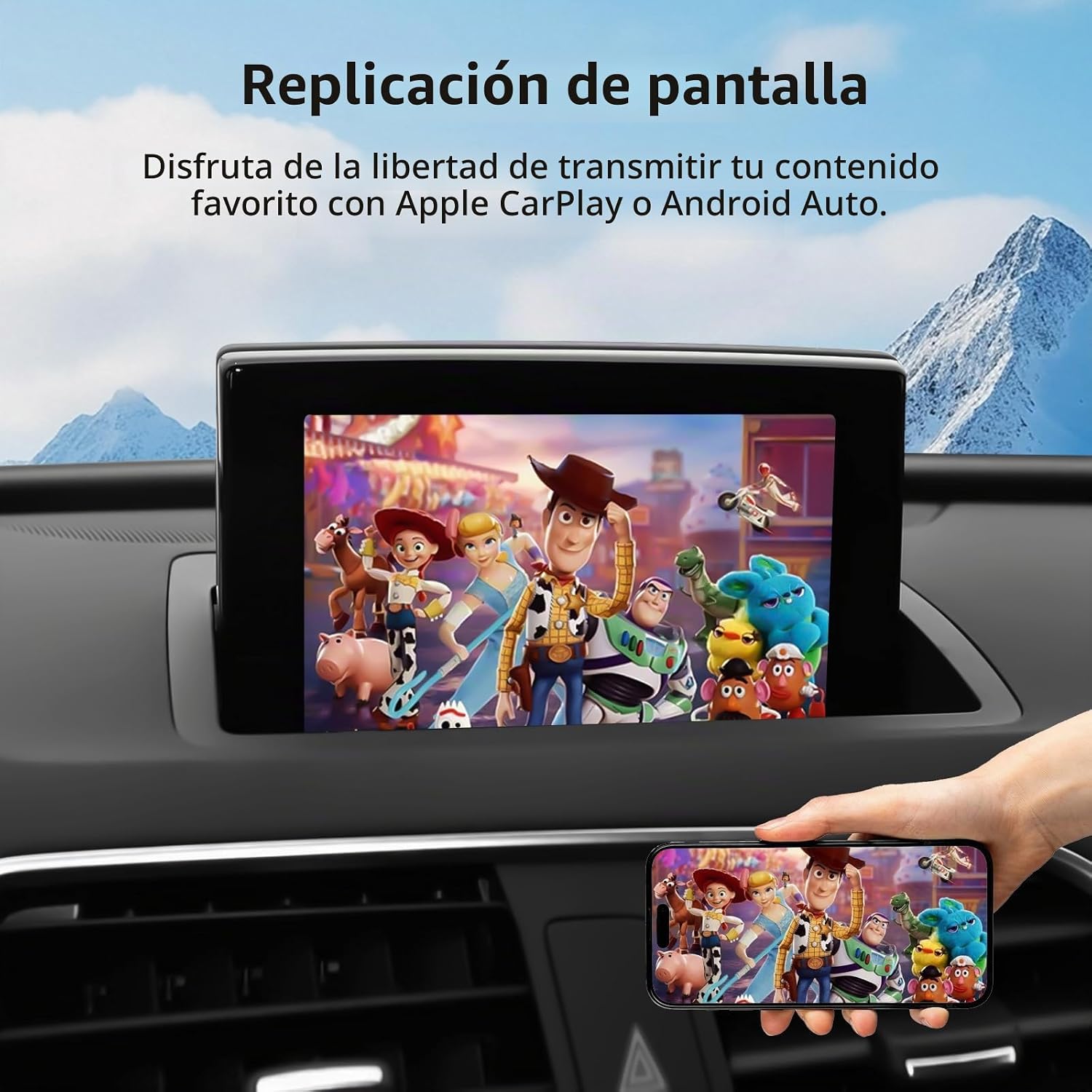
Image: A car's display showing a mirrored smartphone screen, playing a video, demonstrating the screen mirroring functionality.
5.6. Navigation
Access your preferred navigation applications directly through CarPlay or Android Auto. The system supports real-time traffic updates and various map options.
- Supported apps include Waze, Google Maps, Apple Maps, NAVER Maps, and T Maps.
- Use voice commands or the MMI controller to input destinations and manage routes.

Image: The online navigation interface displayed on the car's screen, showing a map with route information and icons for various navigation apps like Waze, Google Maps, and Apple Maps.
5.7. Music Playback
Enjoy your favorite music through integrated streaming services or local files.
- Stream music from apps like Spotify, Apple Music, iTunes, and others.
- Play music from a USB drive connected to the kit's USB port.
- The system provides Hi-Fi sound quality for an enhanced audio experience.

Image: The music playback interface on the car's screen, showing a song playing with album art and controls, along with icons for USB Play Music and App Plays Music.
5.8. Camera Integration
The kit supports both factory and aftermarket camera systems.
- Original Rear Camera: The original factory reverse camera and parking radar functions are retained.
- Aftermarket Cameras: Compatible with aftermarket rear view cameras, 360-degree cameras, and front DVRs (PAL/NTSC/CVBS input).
- The camera view will automatically display when reversing.

Image: The HD Rear Camera view displayed on the car's screen, showing parking guidelines and a vehicle in the rearview, illustrating compatibility with both original and aftermarket cameras.
6. Maintenance
The Ezonetronics Retrofit Kit is designed for minimal maintenance. Follow these general guidelines:
- Keep the unit and connections free from dust and moisture.
- Avoid exposing the unit to extreme temperatures.
- Ensure all cables remain securely connected.
- Periodically check for software updates from the manufacturer, if available, to ensure optimal performance and compatibility.
7. Troubleshooting
If you encounter issues with your retrofit kit, please refer to the following common problems and solutions:
7.1. No Display / Black Screen
- Check Power Connection: Ensure the power harness is securely connected to both the kit and the car's power source.
- Check LVDS Cable: Verify that the LVDS input and output cables are correctly and firmly connected between the kit, the original display, and the car's head unit.
- System Switch: Confirm you have switched to the CarPlay/Android Auto system using the designated button (e.g., "BACK" or "MENU").
7.2. No Sound / Poor Audio Quality
- AUX Input: Ensure your car's MMI system is set to the correct AUX input source. The kit typically routes audio through the AUX input.
- Volume Levels: Check both the car's volume and the phone's volume.
- Cable Connections: Verify all audio-related cables (e.g., RCA) are properly connected.
- Noise: If experiencing noise, check the wiring diagram for specific instructions on disconnecting certain cables if noise occurs.
7.3. Wireless Connection Issues (CarPlay/Android Auto)
- Bluetooth Pairing: Ensure your phone is correctly paired with the kit via Bluetooth.
- Wi-Fi Enabled: Confirm Wi-Fi is enabled on your phone, as wireless CarPlay/Android Auto uses Wi-Fi for data transfer after initial Bluetooth pairing.
- Forget Device: Try forgetting the Bluetooth connection on your phone and the kit, then re-pair.
- Interference: Minimize other Wi-Fi or Bluetooth devices nearby that might cause interference.
7.4. Controls Not Responding
- Cable Connections: Recheck all cable connections, especially those related to the MMI control unit and steering wheel.
- System Mode: Ensure you are in the correct system mode (CarPlay/Android Auto) for the controls to function as expected.
If these steps do not resolve the issue, please contact Ezonetronics customer support for further assistance. Provide details of your car model, year, MMI system version, and a description of the problem.
8. Specifications
| Feature | Detail |
|---|---|
| Model Number | RM-AD3502Q |
| Compatible Car Models | Audi A1/Q3 (2012-2018) with MMI 3G system (6.5"/7" OEM screen) |
| Connectivity Technology | Wi-Fi (2.4G, 5.8G), Bluetooth 5.0, RCA, Power, USB Type A |
| Controller Type | Steering Wheel Control, Touch Control (if OEM screen supports), Voice Control |
| Special Features | Apple CarPlay, Android Auto, Mirror Link, GPS Navigation, Integrated Bluetooth, Rear Camera Input, Front DVR Support |
| Compatible Devices | Smartphone |
| Video Encoding | H.264, H.265/HEVC |
| Audio Channels | 5.1 Surround Sound Configuration, 2 Channels |
| Audio Output Type | Bluetooth, RCA |
| Video Format | AC-3 |
| Package Dimensions | 25.1 x 16 x 9.6 cm |
| Weight | 1 kg |
| Country of Origin | China |

Image: Diagram showing the dimensions of the Audi CarPlay unit and images of the included accessories: power cable, transfer cables, RCA/USB cable, LVDS input/output, and WiFi antenna.
9. What's in the Box
Upon opening the package, you should find the following items:
- 1 x Audi CarPlay Unit
- 1 x Power Harness
- 1 x RCA/USB Cable
- 1 x LVDS Input Cable
- 1 x WiFi Antenna (implied from image)
- Transfer Cables (implied from image)
10. Warranty and Support
For warranty information, please refer to the documentation provided with your purchase or contact the retailer. Ezonetronics provides customer support for technical assistance and troubleshooting.
If you require support, please have your product model number (RM-AD3502Q) and purchase details ready. You can typically find support contact information on the Ezonetronics official website or through your point of purchase.
Related documentsRM-AD3502Q


Ask a question about this manual
Ask about setup, troubleshooting, compatibility, parts, safety, or missing instructions. Manuals+ will review the question and use this page’s manual context to help answer it.