
Introduction
This manual provides comprehensive instructions for setting up, operating, maintaining, and troubleshooting your 8Bitdo Ultimate 2C Bluetooth Controller. Designed for versatility, this controller offers a premium gaming experience across multiple platforms, including Nintendo Switch, Switch 2, PC, and Android devices.
Please read this manual carefully before using the product to ensure optimal performance and longevity.
1. Setup and Connectivity
1.1 Charging the Controller
The controller is powered by a 480mAh rechargeable Li-ion battery. Before first use, or if the battery is low, connect the controller to a power source using the provided USB-C cable. A full charge typically takes 1-2 hours and provides up to 15 hours of continuous gameplay.

Image 1 Description: This image displays the 8Bitdo Ultimate 2C controller from the rear, with a visual representation of battery power and charging. The text on the image indicates "36 Hours of Play. 4 Hours to Charge. 1000mAh." However, the product specifications state a 480mAh battery providing up to 15 hours of gameplay with 1-2 hours charging time. Please refer to the product specifications for the most accurate battery information.
1.2 Connecting to Devices
The 8Bitdo Ultimate 2C controller supports Bluetooth wireless technology for seamless connection to compatible devices.

Image 2 Description: This image shows the back of the 8Bitdo Ultimate 2C controller, detailing its compatibility with Analogue 3D, Nintendo Switch (3.0.0 or above), Switch 2 (20.1.1 or above), Windows 10 (1903) or above, and Android 9.0 or above. It also indicates the presence of S-input Modes (for modern Nintendo/Steam environments) and D-input Modes (for older, broader legacy support), selectable via a switch on the controller's back.
1.2.1 Nintendo Switch / Switch 2
- Ensure your Nintendo Switch/Switch 2 console is updated to the latest system software.
- On the Switch, go to System Settings > Controllers and Sensors > Disconnect Controllers to clear previous connections.
- On the controller, set the mode switch on the back to 'S' (Switch mode).
- Press and hold the Pair button on the top of the controller until the indicator lights begin to flash rapidly.
- On the Switch, go to Controllers > Change Grip/Order.
- The controller will connect automatically. The player indicator lights will become solid.
- For Switch 2 compatibility, ensure the controller firmware is updated to the latest version via the 8Bitdo Ultimate Software.
1.2.2 PC (Windows)
- On the controller, set the mode switch on the back to 'D' (D-input mode) for broader legacy support or 'S' (S-input mode) for modern Steam environments.
- Press and hold the Pair button on the top of the controller until the indicator lights begin to flash rapidly.
- On your PC, go to Bluetooth & other devices settings.
- Select Add Bluetooth or other device > Bluetooth.
- Select "8Bitdo Ultimate 2C" from the list of available devices.
- The controller will connect automatically. The player indicator lights will become solid.
1.2.3 Android
- On the controller, set the mode switch on the back to 'D' (D-input mode).
- Press and hold the Pair button on the top of the controller until the indicator lights begin to flash rapidly.
- On your Android device, go to Bluetooth settings.
- Scan for new devices and select "8Bitdo Ultimate 2C" from the list.
- The controller will connect automatically. The player indicator lights will become solid.
2. Operating the Controller
2.1 Key Features and Controls
The 8Bitdo Ultimate 2C controller is equipped with advanced features for an immersive gaming experience.
2.1.1 Hall Effect Joysticks and Triggers
The controller features premium Hall Effect joysticks with durable metal rings, designed to eliminate drift and ensure long-lasting precision. The non-linear digital triggers provide exceptional sensitivity and responsiveness for enhanced control.

Image 3 Description: This close-up image focuses on the Hall Effect joysticks and triggers of the 8Bitdo Ultimate 2C controller. Blue light effects emanate from the joystick and trigger mechanisms, visually representing their advanced technology. The text on the image states "Hall Effect Joysticks and Triggers. Upgraded. Robust and long-lasting. Featuring the original gate and signature concave rubber joystick cap."
2.1.2 Classic Button Layout
The controller retains a classic button layout with redesigned shoulder buttons and D-pad for a lightweight yet tactile feel and recalibrated responsiveness.

Image 4 Description: This composite image presents several detailed views of the 8Bitdo Ultimate 2C controller's buttons. It highlights the "Classic D-pad," "The Original L, R, Z buttons" (shoulder buttons), "The Signature Start" button, "The Signature C-buttons" (four circular buttons on the right joystick side), and "The Signature A/B" buttons (two circular buttons on the right face). The overall theme emphasizes "Retaining the Classic Feel and Buttons."
2.1.3 Customizable R4/L4 Bumpers
Extra R4/L4 bumpers are included, allowing for instant remapping of one or multiple buttons without requiring any software. This feature is ideal for competitive gaming where quick adjustments are crucial.
2.1.4 Motion Control, Rumble, and Turbo
- 6-axis motion control: Provides precise movement tracking for compatible games.
- Rumble vibration: Offers tactile feedback for an immersive gaming experience.
- Turbo function: Enables rapid-fire action for specific buttons.
- Wake-on-shake: Instantly activates the controller (Switch only) by shaking it.
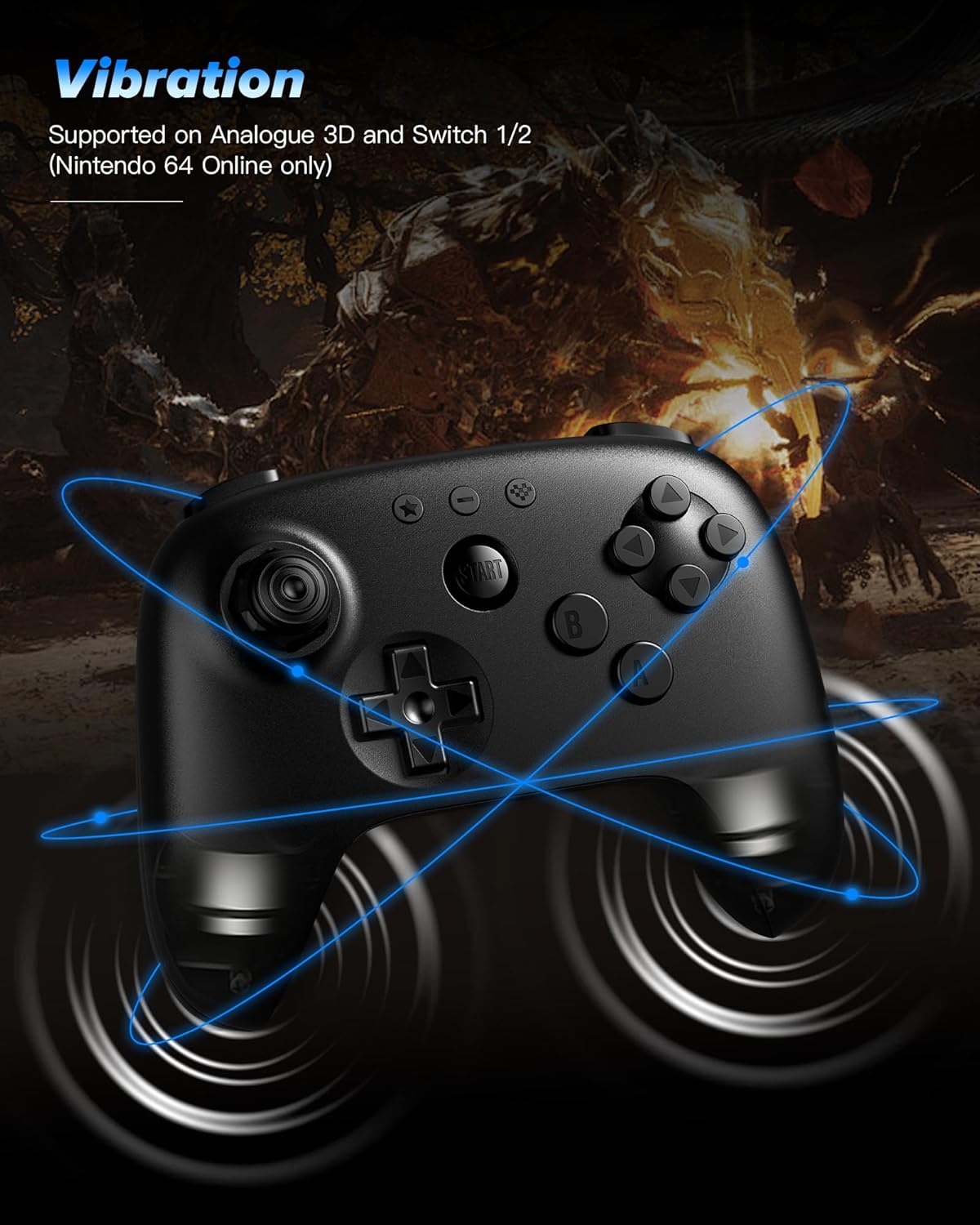
Image 5 Description: This image shows the 8Bitdo Ultimate 2C controller from a top-down perspective, with blue concentric circles emanating from its body, symbolizing vibration. The background features a blurred image of a game scene. Text on the image states "Vibration. Supported on Analogue 3D and Switch 1/2 (Nintendo 64 Online only)."
3. Maintenance
3.1 Battery Care
- To prolong battery life, avoid fully discharging the controller frequently.
- Store the controller in a cool, dry place when not in use for extended periods.
- If the controller will not be used for a long time, charge it at least once every three months.
3.2 Cleaning
- Wipe the controller with a soft, dry cloth.
- Do not use harsh chemicals or abrasive cleaners.
- Avoid getting moisture into any openings.
4. Troubleshooting
4.1 Controller Not Connecting
- Ensure the controller is charged.
- Verify the mode switch on the back of the controller is set to the correct platform (S for Switch, D for PC/Android).
- Try re-pairing the controller by holding the Pair button until lights flash rapidly, then re-initiating the pairing process on your device.
- Clear previous Bluetooth connections on your device and try again.
- Restart your console/PC/Android device.
4.2 Input Lag or Disconnections
- Ensure you are within the 30-foot wireless range of your device.
- Minimize interference from other wireless devices (e.g., Wi-Fi routers, other Bluetooth devices).
- Update the controller firmware to the latest version using the 8Bitdo Ultimate Software.
4.3 Joystick Drift
The 8Bitdo Ultimate 2C features Hall Effect joysticks designed to prevent drift. If you experience any unintended input:
- Ensure the controller firmware is up to date.
- Calibrate the joysticks using the 8Bitdo Ultimate Software if available for your platform.
- If the issue persists, contact 8Bitdo customer support.
5. Specifications
| Brand | 8Bitdo |
| Model | Ultimate 2C |
| Compatible Devices | Android, Nintendo Switch, Nintendo Switch 2, PC, Windows |
| Controller Type | Joystick |
| Connectivity | Bluetooth Wireless Technology |
| Battery | 480mAh Li-ion (up to 15 hours gameplay, 1-2 hours charge) |
| Special Features | Hall Effect Joysticks, Non-linear Digital Triggers, Customizable R4/L4 Bumpers, 6-axis Motion Control, Rumble Vibration, Turbo Function, Wake-on-shake (Switch only), Ergonomic Design |
| ASIN | B0FH9JHPXD |
6. Warranty and Support
The 8Bitdo Ultimate 2C controller is backed by 8Bitdo's dedicated customer support team. For warranty information, technical assistance, or any product-related inquiries, please visit the official 8Bitdo website or contact their customer service directly.
For the latest firmware updates and additional software tools (like 8Bitdo Ultimate Software for customization), please visit support.8bitdo.com.