
1. Introduction and Overview
The artfone G6 Pro is a 4G LTE flip phone designed for ease of use, particularly for seniors. It features a durable flip design, dual LCD screens, large physical buttons, and essential functions like an SOS emergency button, speed dial, and a talking clock. This manual provides detailed instructions for setting up, operating, and maintaining your device.

Image: The artfone G6 Pro flip phone shown both open and closed, with the phone in its charging dock.
2. What's in the Box
Carefully unpack your artfone G6 Pro and ensure all components are present:
- 1x Mobile Phone (Battery not installed)
- 1x 1300mAh Battery
- 1x USB Charger Cable
- 1x User Manual
- 1x Charging Base/Stand

Image: All items included in the product package, including the phone, battery, charger, USB cable, charging dock, and user manual.
3. Setup
3.1 Installing SIM Card and Battery
Before first use, you need to install the SIM card and battery.
- Remove the back cover of the phone by gently prying it open from the notch.
- Insert your Nano SIM card into the designated SIM slot. Ensure the gold contacts face downwards.
- If desired, insert a Micro SD card (up to 64GB) into the Micro SD slot for expanded storage.
- Align the 1300mAh battery with the contacts inside the battery compartment and press it down gently until it clicks into place.
- Replace the back cover, ensuring it snaps securely into position.

Image: An exploded view of the phone's interior, highlighting the slots for the Nano SIM card, Micro SD card, and the battery compartment.
3.2 Charging the Phone
Charge the phone fully before first use. You have two charging options:
- Using the Charging Dock: Place the phone into the charging base/stand. Ensure the charging contacts on the phone align with those on the dock. The charging indicator on the phone will illuminate.
- Using the USB-C Cable: Connect the USB-C cable to the phone's charging port and the other end to the provided charger or a compatible USB power source.
A full charge typically takes several hours. The battery icon on the screen will indicate charging status.

Image: The phone being charged directly via a USB-C cable and also placed in its charging dock, both connected to a power outlet.
4. Operating Instructions
4.1 Power On/Off
- To Power On: Press and hold the red 'End Call' button until the screen lights up.
- To Power Off: Press and hold the red 'End Call' button until the power off options appear, then select 'Power Off'.
4.2 Dual LCD Screens
The G6 Pro features a 2.4-inch inner screen and a 1.8-inch outer display. The outer display shows essential information such as time, date, battery status, and caller ID without needing to open the phone.

Image: The artfone G6 Pro displayed with its inner screen showing a menu and its outer screen displaying the time and date.
4.3 Making and Receiving Calls
- To Make a Call: Open the phone, dial the number using the large keypad, and press the green 'Call' button.
- To Receive a Call: When the phone rings, open the flip to answer, or press the green 'Call' button. You can also answer or end calls using the red and green buttons below the secondary screen.
- Adjusting Volume: Use the volume buttons on the side of the phone during a call.
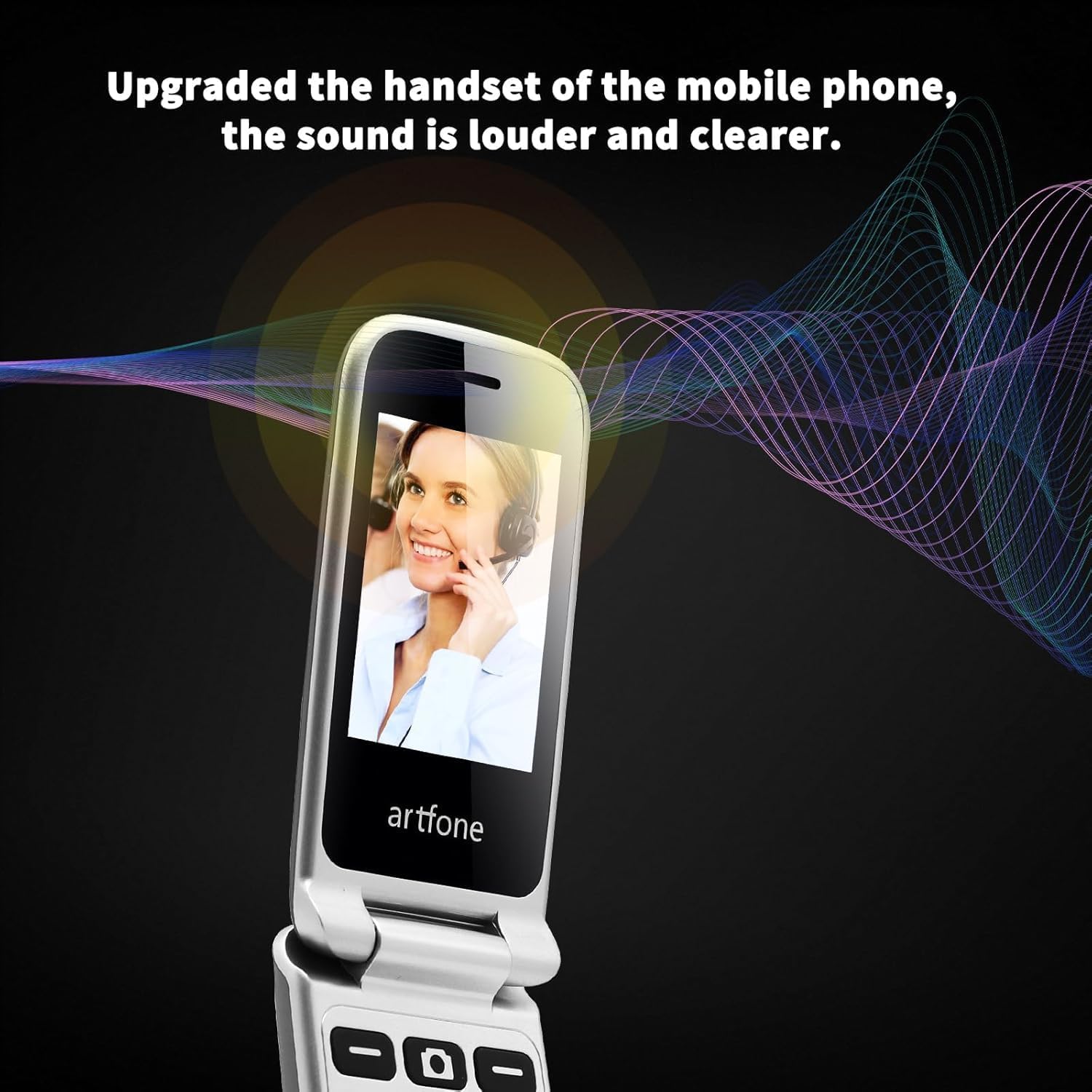
Image: The artfone G6 Pro displaying a call screen with a person's face, accompanied by visual sound waves to emphasize clear audio quality.
4.4 SOS Emergency Function
The G6 Pro features a dedicated SOS button on the back for emergencies.
- Setting SOS Contacts: Navigate to the SOS settings in the phone's menu to pre-set up to five emergency contacts.
- Activating SOS: In an emergency, press and hold the SOS button on the back of the phone for 3 seconds.
- The phone will automatically dial the pre-set emergency contacts one by one and send distress messages until one contact answers.

Image: The rear view of the artfone G6 Pro, emphasizing the SOS emergency button and the three side buttons for tailored design for seniors.

Image: A visual representation of the SOS Emergency Help feature, illustrating how the phone can quickly dial up to five pre-selected emergency contacts with a single click.
4.5 Speed Dial
Assign frequently called numbers to dedicated speed dial keys (A, B, and numbers 2-9) for quick access.
- Setting Speed Dial: Go to 'Contacts' or 'Settings' and find the 'Speed Dial' option. Assign a contact to a specific number key.
- Using Speed Dial: Press and hold the assigned number key (e.g., 'A', 'B', '2') to dial the contact directly.
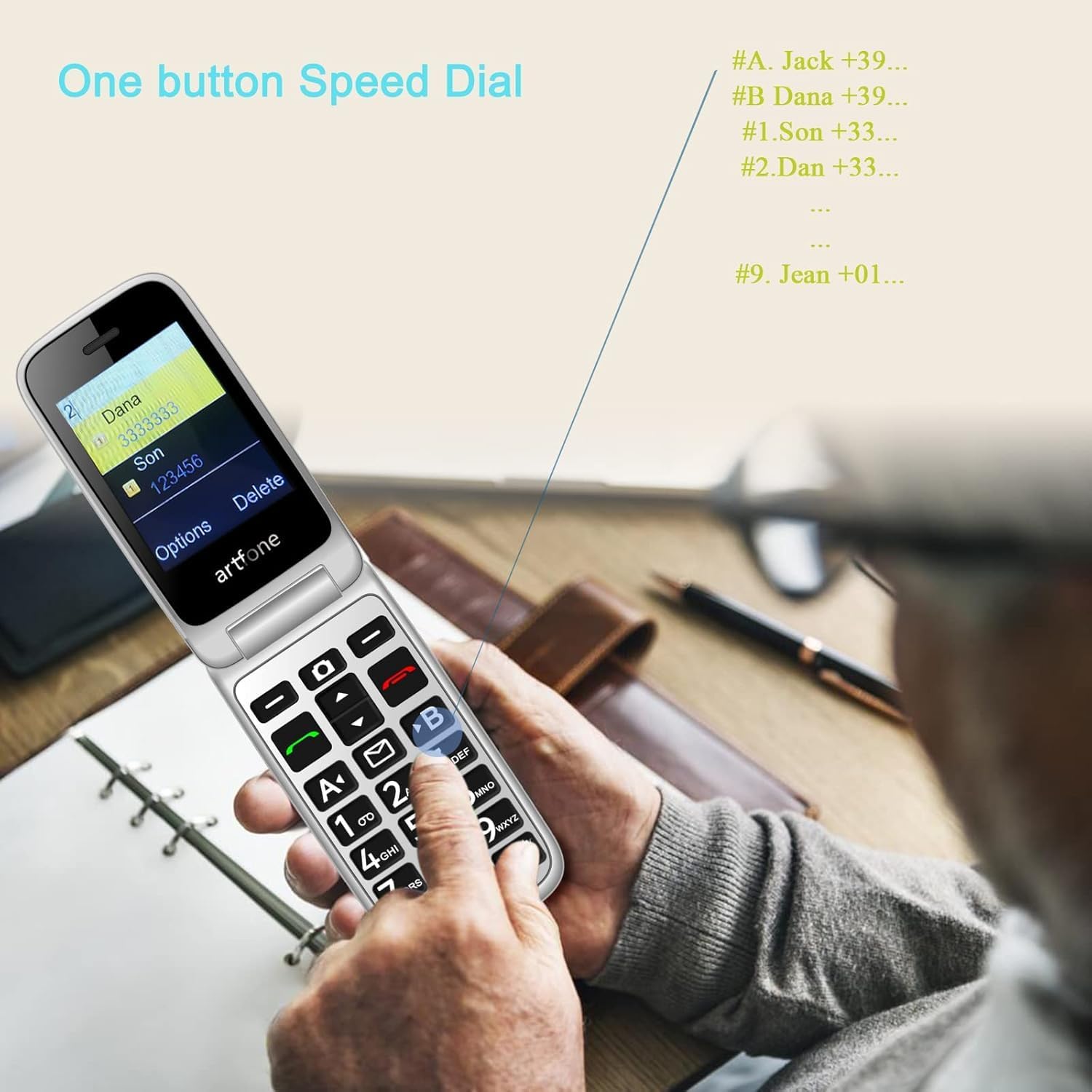
Image: A person's hand pressing a button on the artfone G6 Pro, demonstrating the one-button speed dial feature, with a list of example speed dial contacts shown.
4.6 Voice Time Announcement
The phone can audibly announce the current time.
- To Hear the Time: Press and hold the 'Volume +' key for 3 seconds. The phone will announce the current time.

Image: A finger pressing the dedicated time reporting button on the artfone G6 Pro, with visual cues indicating the phone announcing the time.

Image: The Time Announcement feature in action, showing a person holding the phone to their ear and listening to the time being audibly reported.
4.7 Personalized Contacts
Assign photos to your contacts for easier identification of callers.
- Adding Contact Photos: In the 'Contacts' menu, select a contact and choose the option to add a picture. You can use the phone's camera to take a new photo or select one from the gallery.
- When a call comes in from a contact with an assigned photo, their picture will be displayed on the screen.

Image: The phone displaying contact images on its screen, demonstrating the personalized contacts feature where users can assign photos to their contacts.
4.8 Other Features
- Flashlight: A dedicated flashlight button on the side (slide up/down to toggle) provides convenient illumination.
- FM Radio: Access the FM radio feature through the main menu to listen to local radio stations.
- Headphone Jack: The phone includes a 3.5mm headphone jack for private listening.
- Camera: A basic 0.3MP camera allows for simple photo capture. Access it via the menu or a dedicated button.
- Bluetooth: Connect to Bluetooth headsets or other devices via the Bluetooth settings in the menu.

Image: A composite image illustrating the phone's flashlight function, a person listening to the FM radio, and the 3.5mm headphone jack.
5. Maintenance
To ensure the longevity and optimal performance of your artfone G6 Pro, follow these maintenance guidelines:
- Cleaning: Use a soft, dry cloth to clean the phone's exterior. Avoid using liquid cleaners or abrasive materials.
- Battery Care: Avoid extreme temperatures. Do not expose the battery to direct sunlight or very cold conditions. Charge the battery regularly, but avoid overcharging or letting it completely drain for extended periods.
- Storage: If storing the phone for an extended period, ensure it is partially charged (around 50%) and stored in a cool, dry place.
- Protection: While durable, avoid dropping the phone or exposing it to excessive moisture.
6. Troubleshooting
If you encounter issues with your artfone G6 Pro, refer to the following common solutions:
| Problem | Possible Cause | Solution |
|---|---|---|
| Phone does not power on | Low battery; Battery not installed correctly | Charge the phone; Reinstall the battery securely. |
| Cannot make/receive calls | No SIM card; SIM card not activated; Out of network coverage | Ensure SIM is inserted and active; Move to an area with network signal. |
| No sound during calls | Volume too low; Speaker/receiver issue | Increase call volume; Restart phone. |
| Battery drains quickly | Frequent use; Old battery; Background processes | Reduce usage; Consider replacing battery if old; Close unused applications. |
| SOS function not working | No SOS contacts set; Phone out of network | Set up SOS contacts in settings; Ensure network coverage. |
If the problem persists after trying these solutions, please contact artfone customer support.
7. Specifications
Key technical specifications for the artfone G6 Pro:
- Model Name: G6 Pro
- Color: Grey
- Form Factor: Flip Phone
- Operating System: artfone Mocor RTOS
- Cellular Technology: 4G (Compatible with T-Mobile and its virtual operators ONLY)
- Wireless Carrier: Unlocked
- Screen Size: 2.4 Inches (Inner), 1.8 Inches (Outer)
- Battery Capacity: 1300mAh (included)
- RAM Memory Installed Size: 48 MB
- Memory Storage Capacity: 0.3 GB (Expandable via Micro SD up to 64GB)
- Connectivity Technologies: Bluetooth, USB
- Human Interface Input: Buttons, Keyboard
- Other Camera Features: Rear (0.3MP)
- Special Features: Basic Phone, Expandable Memory, Time Reporting, SOS Button, Charging Dock
- Item Weight: 10.6 ounces
- Manufacturer: artfone
8. Warranty and Support
For warranty information, technical support, or service inquiries regarding your artfone G6 Pro, please refer to the warranty card included in your product packaging or visit the official artfone website. You may also contact artfone customer service directly for assistance with product issues or questions.
Note: This phone is unlocked but may not be compatible with locked SIM cards, such as government-subsidized cards with free monthly plans. Please verify carrier compatibility before purchase if unsure.