
Logitech K980
Logitech Signature Slim Solar+ Wireless Bluetooth Keyboard K980 User Manual
Model: K980 (920-013755)
Introduction
This manual provides comprehensive instructions for setting up, operating, maintaining, and troubleshooting your Logitech Signature Slim Solar+ Wireless Bluetooth Keyboard K980. This keyboard is designed for efficient, cable-free typing, powered by solar and artificial light.
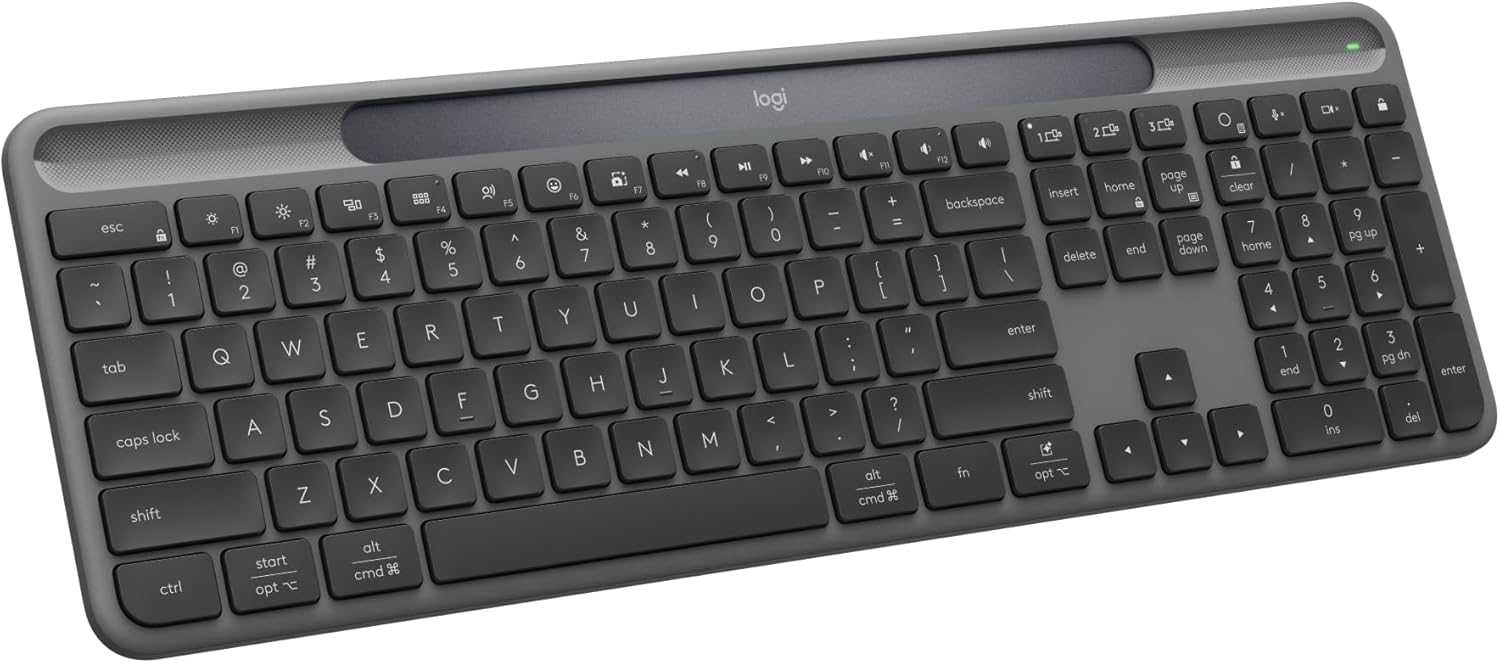
Image: The Logitech Signature Slim Solar+ Wireless Bluetooth Keyboard K980, a full-size keyboard with a dark gray finish and a solar charging strip above the function keys.
1. Setup
1.1. Package Contents
Verify that your package contains the following items:
- Logitech Signature Slim Solar+ Wireless Bluetooth Keyboard K980
- Logi Bolt USB-C Receiver
- User documentation (this manual)

Image: A top-down view of the Logitech K980 keyboard with its dimensions and the Logi Bolt USB-C Receiver and user documentation listed as included components.
1.2. Powering On and Initial Charge
The K980 keyboard is powered by solar and artificial light. It features a light-absorbing strip designed to continuously charge the internal battery. For optimal performance, ensure the keyboard is exposed to sufficient light (at least 200 lux illuminance) during use.

Image: A close-up of the Logitech K980 keyboard with text "Always powered" and "Solar or artificial light", highlighting the solar strip.

Image: The Logitech K980 keyboard with glowing light effects over the solar strip, illustrating the "Logi LightCharge" efficient light-power management.
The keyboard is designed to operate for up to four months in total darkness after a full charge, with a battery lifespan of up to 10 years.
1.3. Connecting to Devices
The K980 keyboard supports connection via Bluetooth or the included Logi Bolt USB-C Receiver. It can connect to up to three devices simultaneously.

Image: A detailed diagram of the Logitech K980 keyboard, labeling key features such as the slim profile, light-absorbing strip, multi-device connection buttons (1, 2, 3), Action key, customizable keys, AI launch key, and multi-OS compatibility.
1.3.1. Bluetooth Connection
- Turn on the keyboard.
- Press and hold one of the Easy-Switch keys (1, 2, or 3) until the LED indicator above the key starts blinking rapidly. This indicates the keyboard is in pairing mode.
- On your device (computer, tablet, or smartphone), navigate to Bluetooth settings.
- Select "Logitech K980" from the list of available devices.
- Follow any on-screen prompts to complete the pairing process. The LED will turn solid for 5 seconds and then turn off once connected.
1.3.2. Logi Bolt USB-C Receiver Connection
- Insert the Logi Bolt USB-C Receiver into an available USB-C port on your computer.
- Turn on the keyboard.
- The keyboard should automatically connect to the receiver. If not, use the Logi Options+ App to pair the keyboard with the receiver.
For advanced customization and pairing management, download the Logi Options+ App from logi.com/optionsplus.
2. Operating the Keyboard
2.1. Basic Typing and Layout
The K980 features a familiar full-size, laptop-style layout for comfortable and efficient typing.
2.2. Multi-Device Switching
Easily switch between up to three connected devices using the dedicated Easy-Switch keys (1, 2, 3) located above the function keys. Simply press the desired key to switch the keyboard's connection to that device.

Image: A user pressing an Easy-Switch key on the Logitech K980 keyboard, with glowing lines illustrating the connection switching between a desktop monitor and a laptop.
2.3. Customizable Keys and Smart Actions
The K980 includes an Action Key and an AI Launch Key, along with other customizable keys, which can be configured using the Logi Options+ App.

Image: A hand pressing a customizable key on the Logitech K980 keyboard, with glowing icons representing various smart actions like chat, music, and email.
2.3.1. Action Key
The Action Key allows you to automate repetitive tasks with a single keystroke. Customize its function via the Logi Options+ App.
2.3.2. AI Launch Key
The AI Launch Key provides quick access to AI applications. Out of the box, it opens Microsoft Copilot in Windows or Gemini for ChromeOS, if available on your device. Its function can also be customized through the Logi Options+ App.

Image: A close-up of the AI Launch Key on the Logitech K980 keyboard, labeled "opt" and featuring a star icon.
2.4. Logi Options+ App
The Logi Options+ App (available for recent versions of Windows and macOS) is essential for unlocking the full potential of your K980 keyboard. It allows you to:
- Customize key functions and create Smart Actions.
- Manage device pairings.
- Monitor battery status.
Download the app from logi.com/optionsplus. Note that the app is not currently supported for ChromeOS, Linux, iPadOS, iOS, and Android OS, though basic keyboard functions will work without it.
3. Maintenance
3.1. Cleaning
To clean your keyboard, use a soft, lint-free cloth slightly dampened with water or a mild cleaning solution. Avoid harsh chemicals, abrasive materials, or excessive moisture. Do not submerge the keyboard in any liquid.
3.2. Battery and Solar Charging
The K980's integrated battery is designed for long-term use, with a projected lifespan of up to 10 years. To ensure continuous power, regularly expose the keyboard's solar strip to light. Even artificial indoor lighting is sufficient. The keyboard can store enough charge to operate for up to four months in complete darkness.
No external charging cables are required for this keyboard.
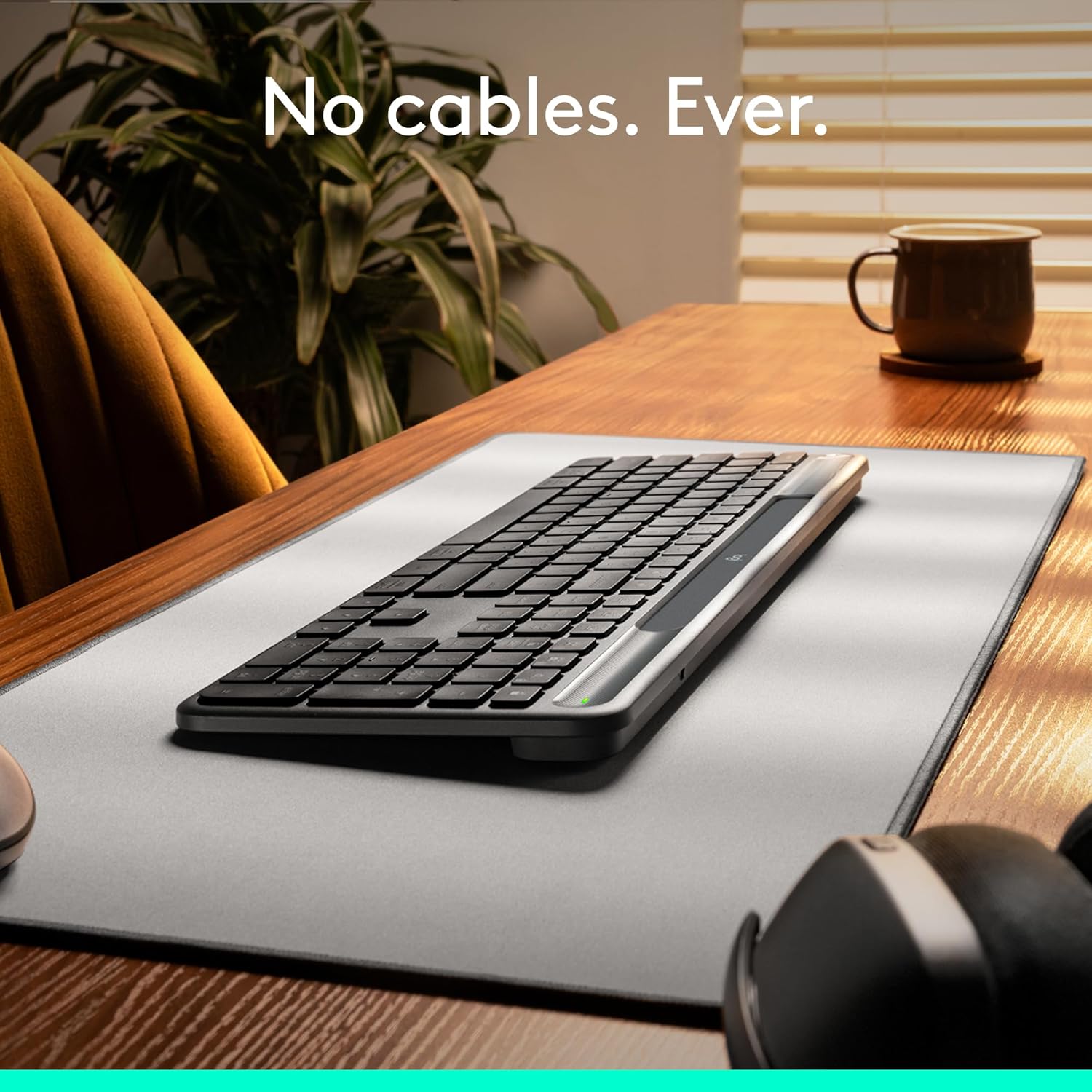
Image: The Logitech K980 keyboard resting on a desk mat, with the text "No cables. Ever." emphasizing its cable-free operation.
4. Troubleshooting
4.1. Keyboard Not Responding
- Check Power: Ensure the keyboard is exposed to sufficient light. The battery indicator LED should be green if sufficiently charged.
- Re-establish Connection:
- Bluetooth: On your device, remove the keyboard from the Bluetooth device list and re-pair it.
- Logi Bolt: Ensure the Logi Bolt receiver is securely plugged into a USB-C port. Try a different port. If issues persist, use the Logi Options+ App to re-pair the keyboard with the receiver.
- Switch Devices: If you are using multiple devices, ensure you have selected the correct Easy-Switch channel (1, 2, or 3) for the device you are trying to use.
- Restart Device: Sometimes, restarting your computer or device can resolve connectivity issues.
4.2. Keys Not Functioning Correctly
- Clean Keys: Ensure no debris is lodged under the keys. Refer to the cleaning instructions in Section 3.1.
- Software Interference: If specific keys are not working, check for any conflicting software or custom key assignments in the Logi Options+ App.
- Operating System: Ensure your operating system is up to date.
4.3. Battery Not Charging
- Light Exposure: Place the keyboard in a well-lit area. The solar strip requires light to charge the internal battery.
- Light Intensity: Ensure the light source is strong enough (at least 200 lux).
- Battery Lifespan: While designed for a long lifespan, all batteries have a finite life. If the keyboard is very old and consistently fails to hold a charge despite adequate light exposure, the battery may be at the end of its operational life.
5. Specifications
| Brand | Logitech |
| Model Name | K980 |
| Item Model Number | 920-013755 |
| Connectivity Technology | Bluetooth, RF (via Logi Bolt USB-C Receiver) |
| Power Source | Solar Powered (internal rechargeable battery) |
| Battery Life | Up to 10 years lifespan; up to 4 months in total darkness on a full charge |
| Compatible Devices | Laptop, PC, Smartphone, Tablet (Windows, macOS, Chrome OS, Linux, iPadOS, iOS, Android OS) |
| Keyboard Description | Membrane, Full-size |
| Special Features | Hotkeys and Media Keys, Lightweight, Portable, Rechargeable, Quiet, Customizable Keys, AI Launch Key, Multi-device connectivity |
| Material | Plastic (minimum 70% recycled plastic for Graphite model) |
| Product Dimensions (LxWxH) | 16.96 x 0.8 x 5.63 inches (430.8 x 20.2 x 142.9 mm) |
| Item Weight | 1.54 pounds (700g) |
6. Warranty and Support
For warranty information, spare parts, and detailed support, please visit the official Logitech support website:
www.logitech.com/support/slimsolarplus
You can also find additional resources and frequently asked questions on the Logitech website.
Related documentsK980


Ask a question about this manual
Ask about setup, troubleshooting, compatibility, parts, safety, or missing instructions. Manuals+ will review the question and use this page’s manual context to help answer it.