1. Introduction
This manual provides comprehensive instructions for the safe and effective use of your HAYLOU S40 Noise Cancelling Headphones. Please read this manual thoroughly before using the product and retain it for future reference.
2. Safety Information
- Do not expose the headphones to extreme temperatures, humidity, or corrosive environments.
- Avoid dropping or subjecting the headphones to strong impacts.
- Do not disassemble or modify the headphones. This may void the warranty and cause damage.
- Keep the headphones away from children and pets.
- Use only the provided charging cable. Do not use the headphones while charging.
- Prolonged listening at high volume levels may cause hearing damage. Adjust volume to a safe level.
3. Package Contents
Verify that all items are present in your package:
- HAYLOU S40 Noise Cancelling Bluetooth Headphones
- Type-C 2-in-1 Cable (Charging & Audio)
- Detachable Microphone
- User Manual (this document)
4. Product Overview
Familiarize yourself with the components of your HAYLOU S40 headphones.
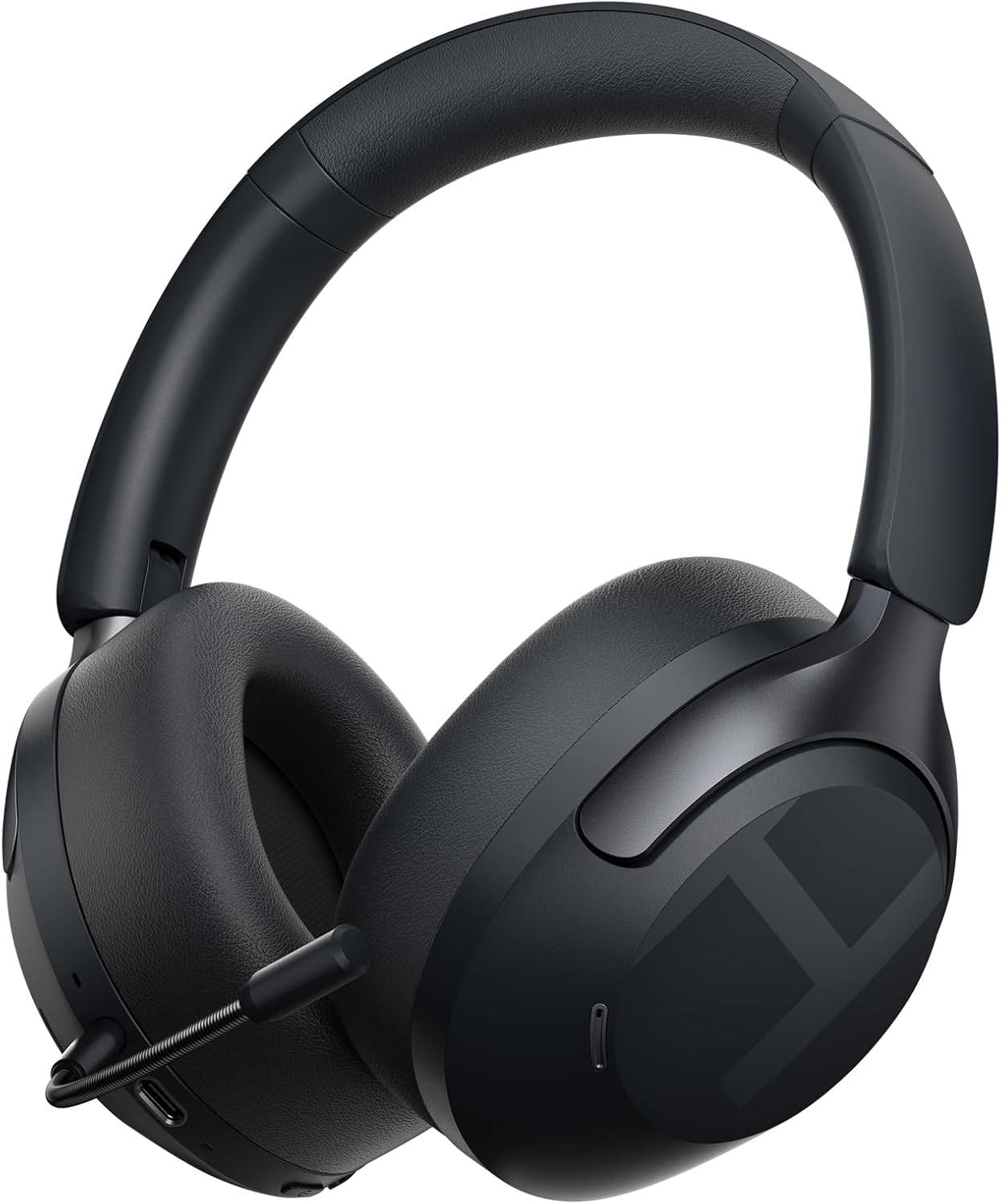
Image 4.1: HAYLOU S40 Noise Cancelling Headphones with the detachable microphone attached.
The headphones feature soft protein leather earcups for comfort, an adjustable headband, and foldable design for portability.
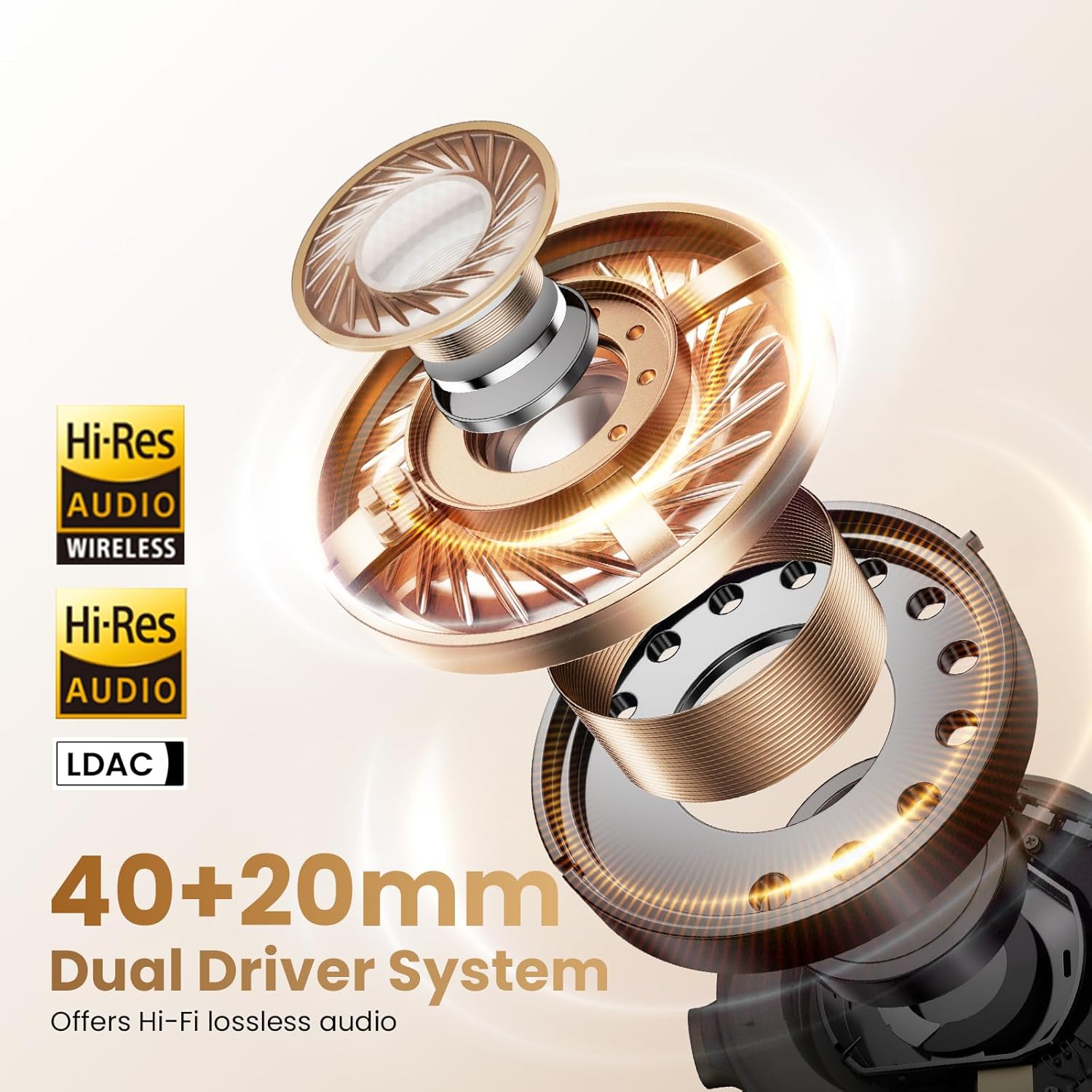
Image 4.2: The HAYLOU S40 headphones demonstrating their foldable design, soft earcups, and adjustable headband for comfortable wear and easy storage.
Controls and Ports:

Image 4.3: Detailed diagram illustrating the location and function of buttons and touch controls on the HAYLOU S40 headphones.
- Power Button: For power on/off and pairing mode.
- Volume Buttons (+/-): Adjust volume, next/previous track.
- ANC Button: Cycle through Active Noise Cancellation modes.
- Touch Control Area: For quick conversation mode, answer/reject calls, play/pause music.
- USB-C Port: For charging and wired audio connection.
- Microphone Port: For attaching the detachable microphone.
5. Setup
5.1 Charging the Headphones
Before first use, fully charge the headphones. Connect the provided Type-C cable to the headphone's USB-C port and a power source (e.g., computer USB port or wall adapter).
- Charging Time: Approximately 2.5 hours for a full charge.
- Quick Charge: 10 minutes of charging provides approximately 5 hours of playback.
- Indicator: The LED indicator will show charging status. Refer to the LED indicator section for details.
Note: Do not use the headphones while charging.

Image 5.1: Visual representation of the HAYLOU S40's battery life, indicating 90 hours with ANC off, 60 hours with ANC on, and 10 minutes of quick charging for 5 hours of playback.
5.2 Power On/Off
- Power On: Long press the Power button for 2 seconds.
- Power Off: Long press the Power button for 2 seconds.
5.3 Bluetooth Pairing
- Ensure the headphones are powered off.
- Hold down the Power button for 5 seconds until the LED indicator flashes blue and red, indicating pairing mode.
- On your device (smartphone, tablet, computer), enable Bluetooth and search for available devices.
- Select "HAYLOU S40" from the list of devices.
- Once connected, the LED indicator will turn solid blue.
5.4 Connecting to the Haylou Sound App
For advanced features and customization, download the "Haylou Sound" app from your device's app store.
- Download and install the "Haylou Sound" app.
- Ensure your HAYLOU S40 headphones are powered on and connected via Bluetooth to your device.
- Open the Haylou Sound app. The app should automatically detect and prompt you to connect to your S40 headphones.
- Follow the on-screen instructions to complete the connection.

Image 5.2: A smartphone screen displaying the Haylou Sound app interface, showing a prompt to connect to the Haylou S40 headphones.
The app allows for noise canceling depth controls, preset sound profiles, device renaming, and game mode activation.
5.5 Multipoint Connection
The HAYLOU S40 supports connecting to two devices simultaneously, allowing seamless switching between them.
- Connect the headphones to the first device via Bluetooth as described in section 5.3.
- Disconnect the headphones from the first device (do not unpair).
- Put the headphones back into pairing mode and connect to the second device.
- Reconnect the headphones to the first device from its Bluetooth settings. The headphones should now be connected to both devices.

Image 5.3: The HAYLOU S40 headphones demonstrating multipoint connection, simultaneously linked to a smartphone and a tablet, enabling seamless audio switching.
6. Operating Instructions
6.1 Basic Controls
| Function | Action |
|---|---|
| Power On/Off | Long press Power button for 2s |
| Pairing Mode | Hold Power button for 5s (when device is off) |
| Volume Up | Click "+" button |
| Volume Down | Click "-" button |
| Next Track | Press and hold "+" button |
| Previous Track | Press and hold "-" button |
| ANC On/Off/Mode Cycle | Click ANC button |
| Quick Conversation Mode | Press and hold touch control area (release to turn off) |
| Answer/Hang up Call | Double click touch control area |
| Reject Call | Press and hold touch control area for 1s |
| Play/Pause Music | Double click touch control area |
6.2 Active Noise Cancellation (ANC) Modes
The HAYLOU S40 features 50dB Hybrid ANC with multiple modes. Press the ANC button to cycle through the available modes:
- Deep ANC: Effectively blocks over 95% of noise, ideal for very noisy environments like airplanes or subways.
- Moderate ANC: Preserves some ambient sounds while reducing noise, suitable for offices or cafes.
- Adaptive ANC: Intelligently adjusts noise reduction based on your surroundings.
- Transparency Mode: Allows you to hear your surroundings clearly without removing the headphones, useful for conversations or announcements.
- ANC Off: Disables active noise cancellation.
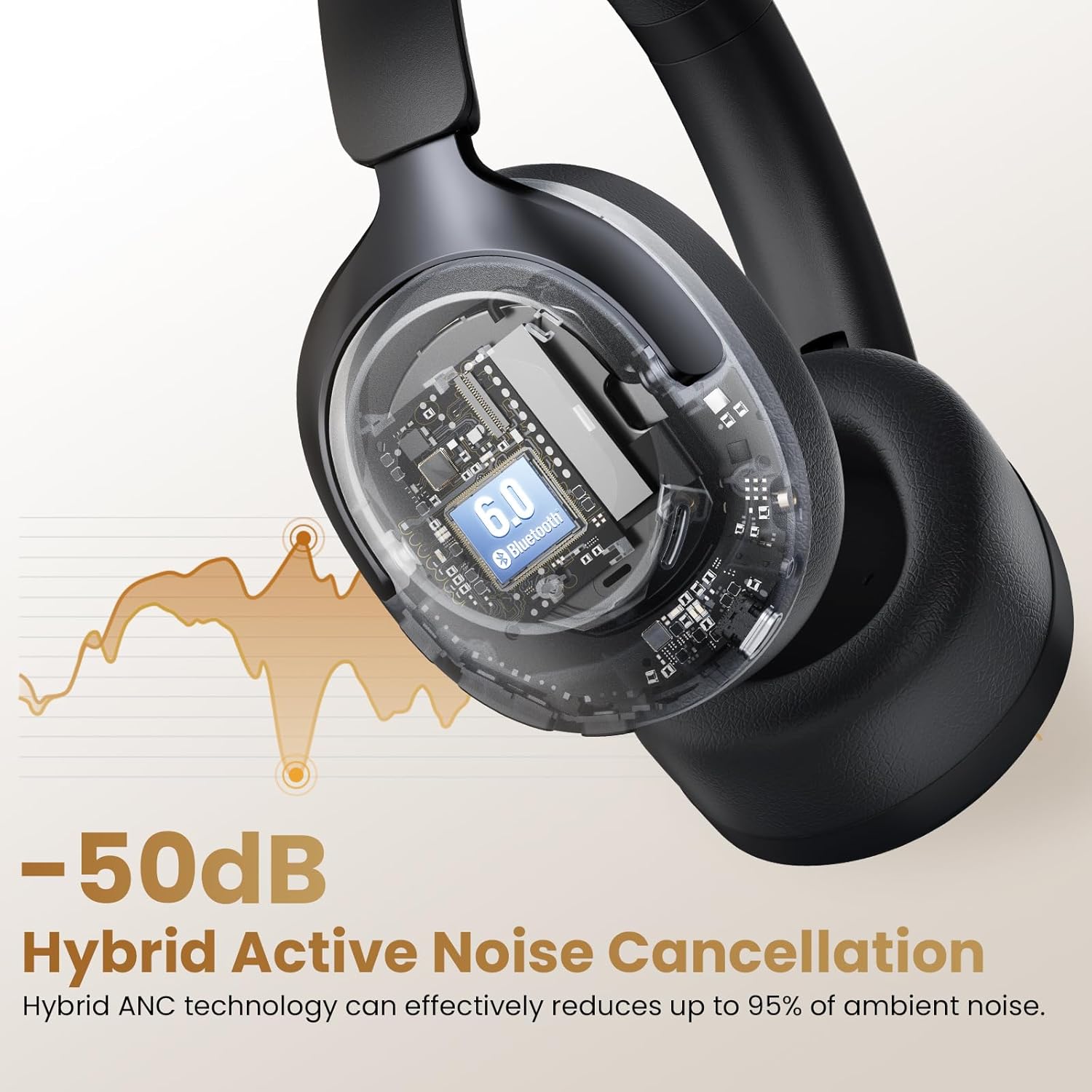
Image 6.1: An illustration depicting the 50dB Hybrid Active Noise Cancellation feature of the HAYLOU S40 headphones, showing how it reduces up to 95% of ambient noise.

Image 6.2: A collage illustrating the four distinct Active Noise Cancellation modes: Deep ANC for maximum noise blocking, Moderate ANC for balanced noise reduction, Adaptive ANC for intelligent adjustment, and Transparency Mode for hearing surroundings.
6.3 LDAC Hi-Res Audio Activation
The HAYLOU S40 supports LDAC for Hi-Res Wireless Audio. To enable LDAC, you must activate it within the Haylou Sound App.
- Ensure your headphones are connected to the Haylou Sound App (refer to section 5.4).
- Navigate to the audio settings within the app.
- Locate and enable the LDAC option.
Note: Disabling LDAC is recommended during Game Mode to avoid latency issues.
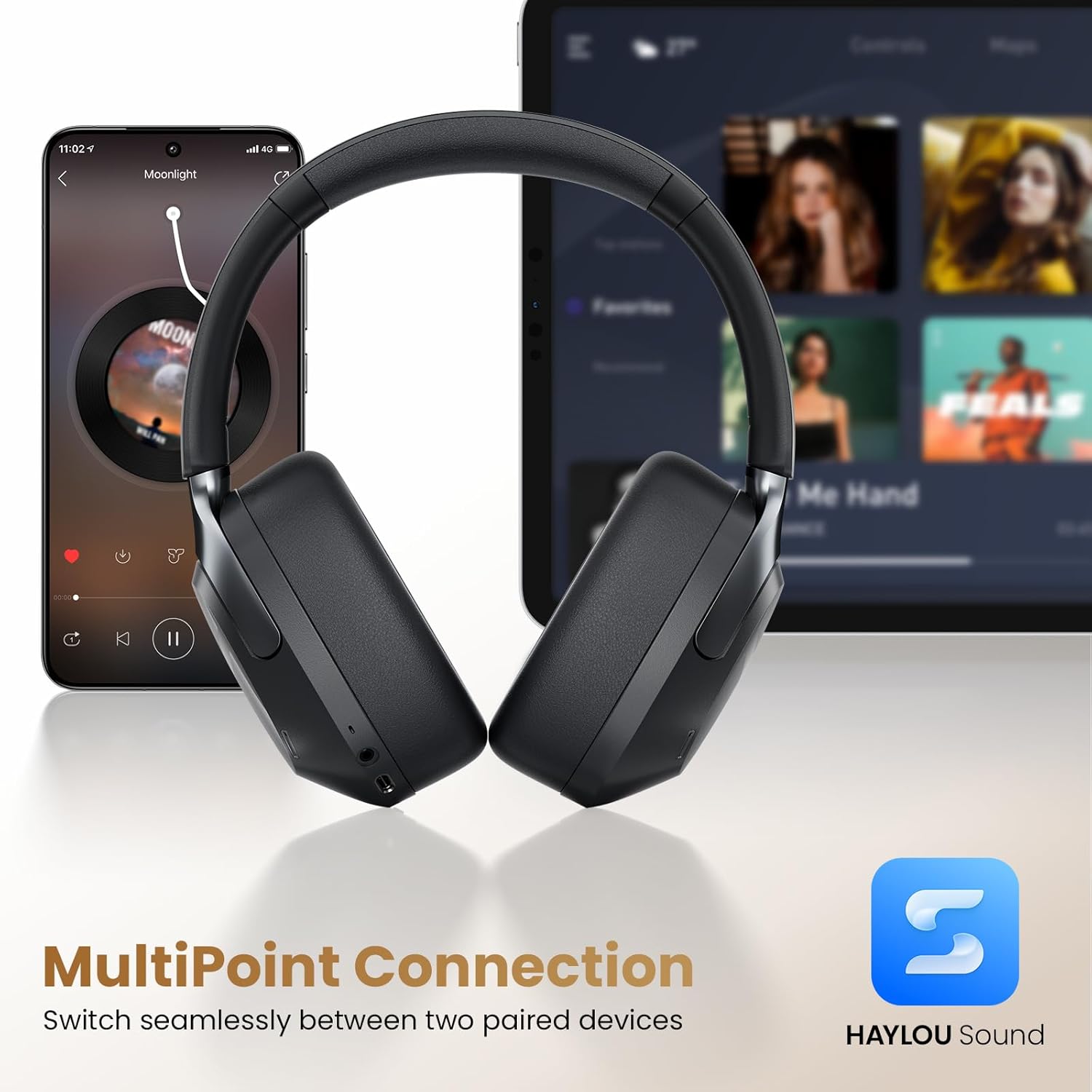
Image 6.3: An exploded view of the HAYLOU S40's 40mm+20mm dual driver system, highlighting its Hi-Res Audio and LDAC compatibility for lossless sound reproduction.
6.4 Detachable Microphone Usage
The HAYLOU S40 includes a detachable microphone for enhanced call clarity. Simply plug the microphone into the designated port on the headphones.
The headphones utilize five built-in microphones and the detachable microphone, combined with AI algorithms, to isolate your voice and suppress background noise during calls.

Image 6.4: The HAYLOU S40 headphones with the detachable microphone attached, illustrating its use for clear communication, particularly during gaming or calls.
6.5 Spatial Audio
Experience immersive audio with 360° Surround Spatial Audio and Head Tracking. This feature can be configured via the Haylou Sound App.
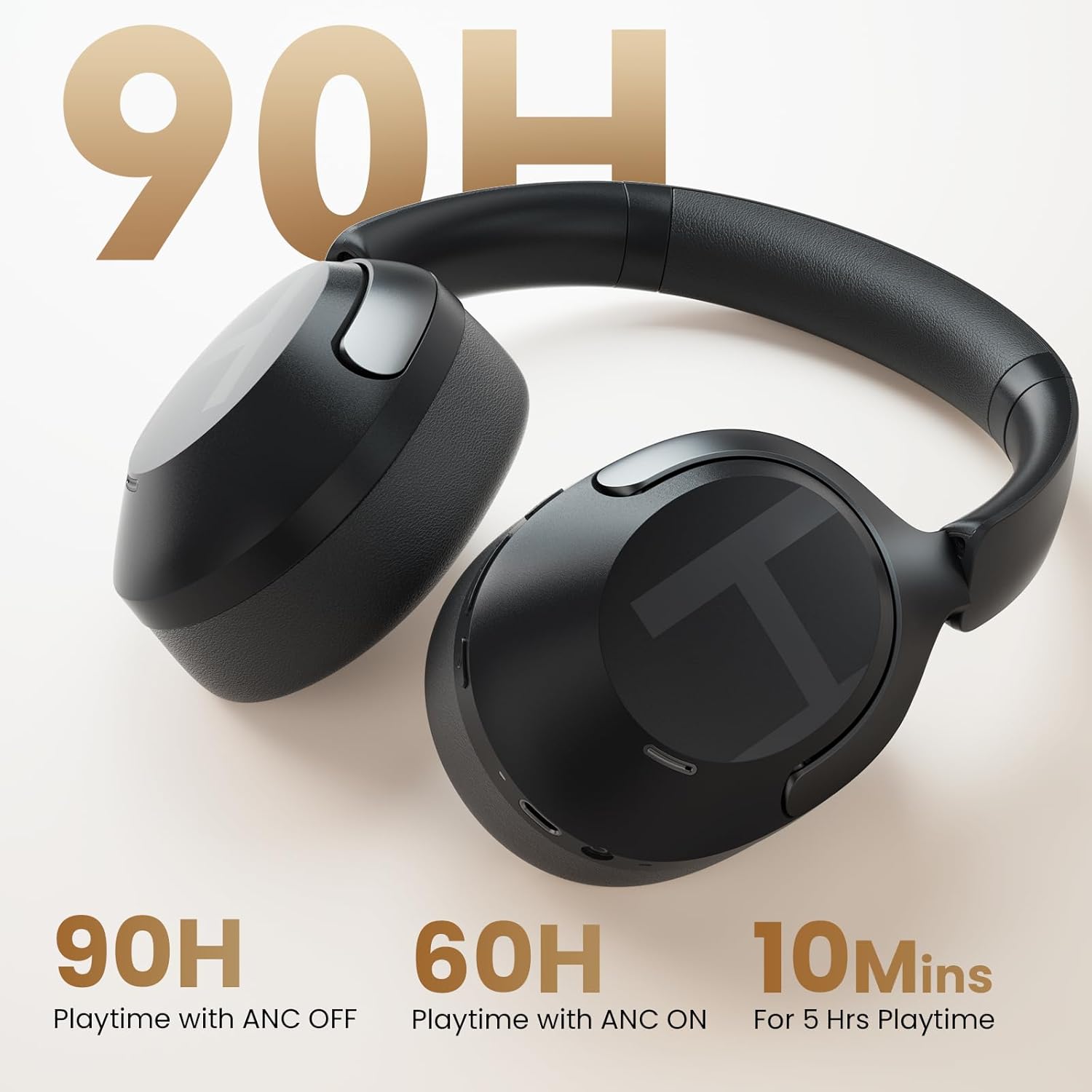
Image 6.5: A woman wearing the HAYLOU S40 headphones, depicted experiencing 360° surround spatial audio with head tracking for an immersive listening experience.
7. Maintenance
- Cleaning: Use a soft, dry cloth to clean the headphones. Do not use harsh chemicals or abrasive materials.
- Storage: When not in use, store the headphones in a cool, dry place, away from direct sunlight and extreme temperatures. The foldable design allows for compact storage.
- Battery Care: To prolong battery life, avoid fully discharging the headphones frequently. Charge them regularly, even if not in constant use.
8. Troubleshooting
| Problem | Possible Cause | Solution |
|---|---|---|
| Headphones do not power on. | Low battery. | Charge the headphones fully. |
| Cannot pair via Bluetooth. | Headphones not in pairing mode; Bluetooth off on device; interference. | Ensure headphones are in pairing mode (flashing blue/red LED). Turn Bluetooth on your device. Move closer to the device. Restart both devices. |
| No sound or low volume. | Volume too low; headphones not connected; incorrect audio output. | Adjust volume on headphones and device. Reconnect Bluetooth. Check device's audio output settings. |
| ANC not working effectively. | Incorrect ANC mode; poor seal. | Cycle through ANC modes. Ensure earcups form a good seal around your ears. |
| Microphone not working. | Detachable microphone not properly connected; device microphone settings. | Ensure the detachable microphone is securely plugged in. Check your device's microphone input settings. |
| LDAC audio quality issues or latency. | LDAC enabled during Game Mode; environmental interference. | Disable LDAC in the Haylou Sound App if using Game Mode. Reduce distance to device or move away from interference sources. |
9. Specifications
| Feature | Detail |
|---|---|
| Model Name | HAYLOU S40 |
| Noise Control | Adaptive Noise Cancellation (50dB Hybrid ANC) |
| Audio Driver Type | Dynamic Driver (40mm + 20mm) |
| Hi-Res Audio Support | Yes (LDAC compatible) |
| Bluetooth Version | 6.0 |
| Connectivity Technology | Wired (USB-C), Wireless (Bluetooth) |
| Battery Life (ANC Off) | Up to 90 hours |
| Battery Life (ANC On) | Up to 60 hours |
| Charging Time | Approx. 2.5 hours |
| Microphones | 5 built-in + 1 detachable (AI algorithms for calls) |
| Multipoint Connection | Yes (connects to two devices simultaneously) |
| Material | ABS, Faux Leather, PC |
| Weight | 0.35 Kilograms (12.3 ounces) |
| Dimensions | 6.81 x 3.26 x 7.68 inches |
10. Warranty and Support
HAYLOU products are covered by a limited warranty. For detailed warranty information, please refer to the warranty card included in your package or visit the official HAYLOU website.
For technical support, troubleshooting assistance, or to inquire about replacement parts, please contact HAYLOU customer service through their official channels. You can often find support contact information on the HAYLOU website or within the Haylou Sound App.
Online Resources:
- Official HAYLOU Website: www.haylou.com
- Haylou Sound App: Available on iOS App Store and Google Play Store.


