
1. Introduction
Welcome to the MONSGEEK M1 V5 Aluminum Mechanical Keyboard user manual. This guide provides comprehensive instructions for setting up, operating, maintaining, and troubleshooting your new 75% layout mechanical keyboard. The M1 V5 features a durable aluminum case, an upgraded encoder knob, 8000 mAh battery, RGB backlighting, and hot-swappable switches for a customizable and enhanced typing experience.

Image 1.1: Overview of the MONSGEEK M1 V5 keyboard highlighting its key features such as quick release, hotswap sockets, aluminum case, multi-mode connectivity, RGB, and 8000mAh battery.
2. Setup
2.1 Connectivity Options
The MONSGEEK M1 V5 supports three connectivity modes: wired (USB Type-C), Bluetooth, and 2.4GHz wireless. To switch between modes, locate the physical switch positioned underneath the Caps Lock key. Gently remove the Caps Lock keycap to access and adjust the switch.

Image 2.1: The keyboard supports multi-device connectivity via Bluetooth, 2.4GHz wireless (with receiver), and wired USB Type-C, compatible with PCs, tablets, and smartphones.
2.1.1 Wired Connection
- Connect the provided USB Type-C cable to the keyboard and your computer.
- Ensure the mode switch under the Caps Lock key is set to the wired position.
- The keyboard will be recognized automatically by your operating system.
2.1.2 2.4GHz Wireless Connection
- Insert the 2.4GHz USB receiver into an available USB port on your computer.
- Set the mode switch under the Caps Lock key to the 2.4GHz wireless position.
- The keyboard should connect automatically.
2.1.3 Bluetooth Connection
- Set the mode switch under the Caps Lock key to the Bluetooth position.
- On your device (PC, tablet, smartphone), enable Bluetooth and search for new devices.
- Select "MONSGEEK M1 V5" from the list of available devices to pair.
- The keyboard can store multiple Bluetooth profiles for quick switching between devices.
2.2 Initial Charging
The M1 V5 is equipped with an 8000 mAh battery. For optimal performance, fully charge the keyboard before its first use. Connect the keyboard via the USB Type-C cable to a power source.
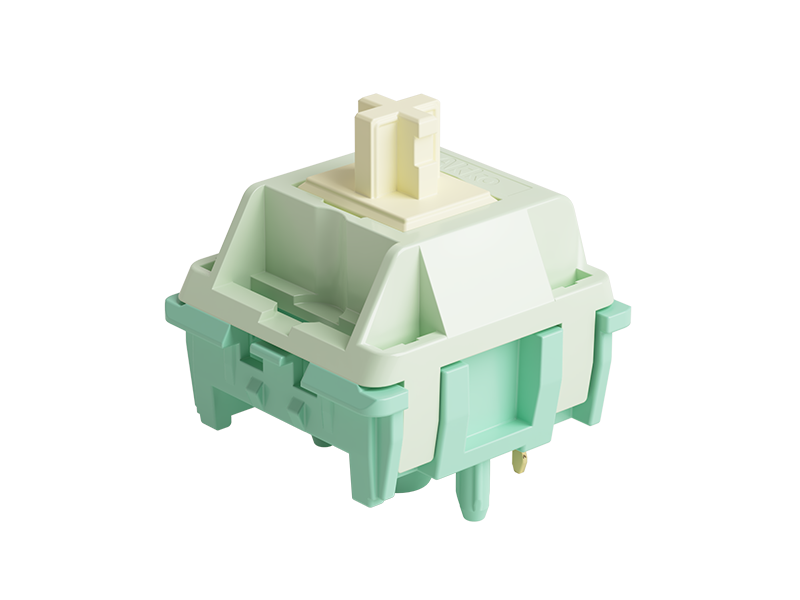
Image 2.2: The keyboard features an 8000 mAh battery, providing approximately 86 hours of use with RGB on and 500 hours with RGB off. Data is for reference only.
2.3 Driver Software Installation
To unlock full customization options, including key remapping, macro creation, and advanced RGB lighting effects, download and install the official MonsGeek Driver software from the MONSGEEK website. The driver is compatible with both Windows and macOS.
3. Operating Instructions
3.1 Knob Functionality
The upgraded encoder knob on the M1 V5 allows for quick adjustments. By default, it controls brightness and volume. The knob can also be programmed using the MonsGeek Driver software to perform other functions.
3.2 RGB Backlighting
The M1 V5 features vibrant RGB backlighting with over 16 preset modes. You can cycle through these modes using keyboard shortcuts (refer to the quick guide or driver software for specific key combinations). For advanced customization, including per-key lighting and custom effects, use the MonsGeek Driver.

Image 3.1: The keyboard features customizable RGB backlighting with various effects.
3.3 Hot-swappable Switches
The M1 V5 is designed with hot-swappable sockets, allowing you to easily change mechanical switches without soldering. It supports both 3-pin and 5-pin switches, offering flexibility for switch customization.

Image 3.2: The keyboard features hot-swappable sockets, enabling users to easily change mechanical switches.

Image 3.3: The keyboard comes pre-lubed with Cilantro switches, known for their tactile feel.
3.4 Key Remapping and Macros
Utilize the MonsGeek Driver software to remap individual keys, create custom macros, and personalize your typing and gaming experience. This allows for advanced control over keyboard functions.
3.5 Mac Compatibility
The keyboard can be configured for macOS. While the physical keycaps may not indicate it, the Ctrl key can be remapped to function as the Command (CMD) key through the MonsGeek Driver software, providing full compatibility with Mac layouts.
4. Maintenance
4.1 Cleaning the Keyboard
- Disconnect the keyboard from all power sources before cleaning.
- Use a soft, lint-free cloth slightly dampened with water or a mild cleaning solution to wipe the keycaps and case.
- For debris between keycaps, use compressed air or a small brush.
- Avoid spraying liquids directly onto the keyboard.
4.2 Switch Replacement
To replace a switch:
- Gently remove the keycap using a keycap puller.
- Use a switch puller to carefully extract the switch from its socket.
- Align the pins of the new switch with the holes in the PCB and press firmly until it clicks into place. Ensure pins are not bent.
- Replace the keycap.
4.3 Keycap Replacement (Cherry Profile)
The M1 V5 uses Cherry Profile keycaps. When replacing keycaps, ensure compatibility with this profile for consistent typing feel and aesthetics.

Image 4.1: Illustration of Cherry Profile keycap heights, indicating the ergonomic design of the keycaps.
4.4 Quick Release Disassembly for Customization
The M1 V5 features a tool-free rapid assembly and disassembly design for its aluminum top and bottom case. This allows for effortless customization and modification of internal components.
- Gently pull the knob upwards to remove it.
- Lift the top case slightly, then press to release the clips.
- The keyboard can now be disassembled for modifications.

Image 4.2: Step-by-step guide for quick release disassembly, showing how to remove the knob, lift and press the case, and access internal components for modification.

Image 4.3: An internal view of the keyboard's quick-release mechanism, demonstrating the ease of access for customization.
5. Troubleshooting
If you encounter issues with your MONSGEEK M1 V5 keyboard, please refer to the following common solutions:
- Keyboard Not Responding: Ensure the keyboard is properly connected via USB, or that the 2.4GHz receiver is plugged in and the mode switch is correct. For Bluetooth, ensure it's paired and the battery is charged.
- RGB Lights Not Working: Check if RGB is enabled via keyboard shortcuts or the MonsGeek Driver. Ensure the battery has sufficient charge.
- Connectivity Issues: Try re-pairing Bluetooth devices or re-inserting the 2.4GHz receiver. Ensure the mode switch is set correctly. For wired connections, try a different USB port or cable.
- Keys Not Registering: If a specific key is not working, it might be a faulty switch. Since the keyboard is hot-swappable, try replacing the switch with a known working one.
- Driver Software Issues: Ensure you have the latest version of the MonsGeek Driver. Try reinstalling the software or restarting your computer.
For further assistance, please visit the official MONSGEEK support website.
6. Specifications
| Brand | MONSGEEK |
| Model | M1 V5 |
| Compatible Devices | PC, Tablet, Smartphone |
| Connectivity Technology | Bluetooth, USB-C, 2.4GHz Wireless |
| Keyboard Description | Compact, Mechanical, Ergonomic, Gaming |
| Recommended Uses | Gaming |
| Special Features | Quick Release, Hot-swappable, Multi-device, Noise Reduction System, Knob |
| Material | Aluminum |
| Included Components | USB Cable |
| Power Source | Battery Powered, USB Powered |
| Battery Capacity | 8000 mAh |
| Number of Keys | 75% Layout (approx. 82 keys) |
| Switch Type | Mechanical |
| Mechanical Keyboard Switch Model | Cilantro switch |
| Keyboard Layout | QWERTY |
7. Warranty and Support
MONSGEEK products come with a standard manufacturer's warranty. For detailed warranty information, product support, or to contact customer service, please visit the official MONSGEEK website. Keep your purchase receipt as proof of purchase for warranty claims.
Official Website: www.monsgeek.com


